
မမှန်ကန်သော လက်ခံသူလိပ်စာများထံ အီးမေးလ်များပေးပို့သည့်အခါ ပို့ဆောင်၍မရသော အီးမေးလ်အကြောင်းကြားချက်များကို သင်လက်ခံရရှိမည်ဖြစ်သည်။ ထိုအချိန်တွင် ဤအီးမေးလ်လိပ်စာများကို အဆက်အသွယ်များမှ ဖယ်ရှားလိုပါက ဤပို့စ်တွင် မျှဝေထားသော နည်းလမ်းကို အသုံးပြုနိုင်ပါသည်။
မမှန်ကန်သော အီးမေးလ်လိပ်စာများကို စာရင်းပြုစု၍ မပေးပို့နိုင်သော အီးမေးလ် အကြောင်းကြားချက်များကို သင် လက်ခံရရှိဖူးပါသလား။ ယေဘုယျအားဖြင့်၊ သင်သည် မမှန်ကန်သော လက်ခံသူလိပ်စာများသို့ အီးမေးလ်ပေးပို့ပြီးနောက် ထိုသို့သောအီးမေးလ်များကို ရရှိမည်ဖြစ်သည်။ ဤအခြေအနေတွင်၊ နောက်တစ်ကြိမ်တွင် ၎င်းတို့ထံ မတော်တဆ စာများပေးပို့ခြင်းမှ ကာကွယ်ရန် ဤအီးမေးလ်လိပ်စာများကို Outlook အဆက်အသွယ်များမှ ဖယ်ရှားရန် ယေဘုယျအားဖြင့် အကြံပြုထားသည်။ ယခုအောက်ပါတွင်၊ ၎င်းကိုရရန် လျင်မြန်သောဖြေရှင်းချက်တစ်ခုကို မျှဝေပါမည်။

မပေးပို့နိုင်သော အီးမေးလ်များ၏ မမှန်ကန်သော လက်ခံသူလိပ်စာများကို အဆက်အသွယ်များမှ ဖယ်ရှားပါ။
- အစပြုရန်အတွက် Outlook window တွင် VBA editor ကိုဝင်ရောက်ရန် “Alt + F11” ကိုနှိပ်ပါ။
- ထို့နောက်၊ သင်သည် အောက်ဖော်ပြပါ VBA ကုဒ်ကို အသုံးမပြုသော ပရောဂျက် သို့မဟုတ် မော်ဂျူးတွင် ထည့်သွင်းနိုင်သည်။
Sub RemoveUndeliverableEmailAddressesfromContacts()
    Dim objSelection As Outlook.Selection
    Dim objContacts As Outlook.Items
    Dim objMail As Outlook.MailItem
    Dim i, n As Long
    Dim objWordApp As Word.Application
    Dim objWordDocument As Word.Document
    Dim strEmailAddress As String
    Dim strFilter As String
    Dim objFoundContact As Outlook.ContactItem

    'Get selected emails
    Set objSelection = Application.ActiveExplorer.Selection
    'Get the contacts
    Set objContacts = Application.Session.GetDefaultFolder(olFolderContacts).Items

    On Error Resume Next
    For Each objMail In objSelection
        objMail.Display

        Set objWordDocument = objMail.GetInspector.WordEditor
        Set objWordApp = objWordDocument.Application
        Set objSearchRange = objWordDocument.Range

        'Extract email addresses via wildcards
        With objWordApp.Selection.Find
            .Text = "[A-z,0-9]{1,}\@[A-z,0-9,.]{1,}"
            .MatchWildcards = True
            .Execute
        End With

        While objWordApp.Selection.Find.Found
              strEmailAddress = objWordApp.Selection.Text

              'Remove the invalid email addresses from the associated contacts
              strFilter = "[Email1Address] = " & strEmailAddress
              Set objFoundContact = objContacts.Find(strFilter)
              If Not (objFoundContact Is Nothing) Then
                 With objFoundContact
                     .Email1Address = ""
                     .Email1DisplayName = ""
                     .Save
                 End With
                 strFilter = ""
                 Set objFoundContact = Nothing
              Else
                 strFilter = "[Email2Address] = " & strEmailAddress
                 Set objFoundContact = objContacts.Find(strFilter)
                 If Not (objFoundContact Is Nothing) Then
                    With objFoundContact
                        .Email2Address = ""
                        .Email2DisplayName = ""
                        .Save
                    End With
                    strFilter = ""
                    Set objFoundContact = Nothing
                 Else
                    strFilter = "[Email3Address] = " & strEmailAddress
                    Set objFoundContact = objContacts.Find(strFilter)
                    If Not (objFoundContact Is Nothing) Then
                       With objFoundContact
                           .Email3Address = ""
                           .Email3DisplayName = ""
                           .Save
                       End With
                       strFilter = ""
                       Set objFoundContact = Nothing
                    End If
                End If
             End If

             objWordApp.Selection.Find.Execute
        Wend

       objMail.Close olDiscard
    Next

    MsgBox "Completed!", vbInformation
End Sub
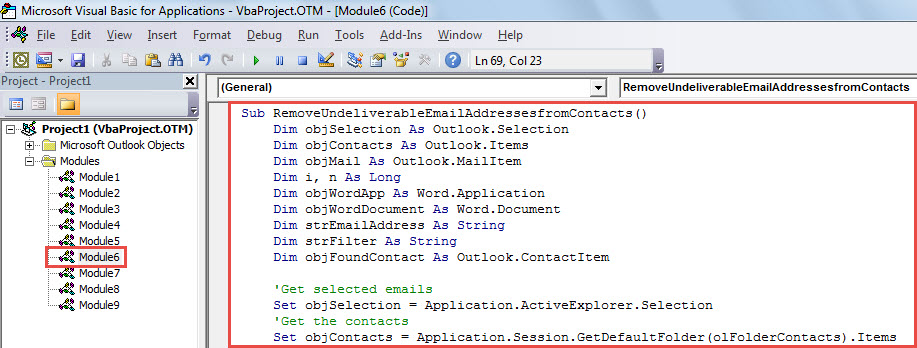
- ထို့နောက် လက်ရှိဝင်းဒိုးကို ပိတ်ပါ။
- နောက်ပိုင်းတွင်၊ Quick Access Toolbar သို့ မက်ခရိုအသစ်ကို ထည့်ပါ။ ဆောင်းပါးကို ကိုးကားနိုင်သည်-"သင်၏ Outlook တွင် VBA ကုဒ်ကိုမည်သို့ဖွင့်မည်နည်း။"။
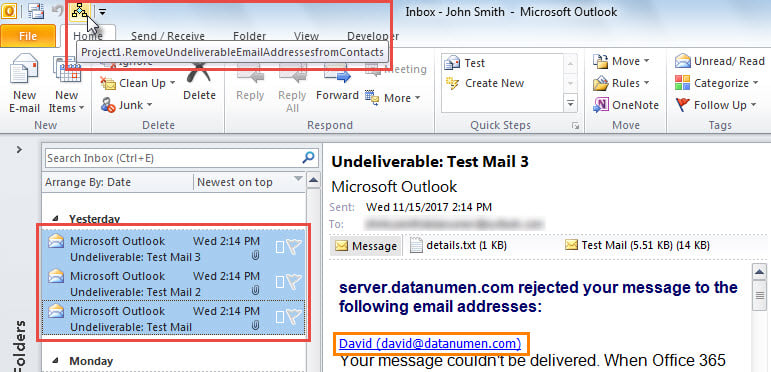
- နောက်ဆုံးတွင်၊ အောက်ပါအဆင့်များအတိုင်း လုပ်ဆောင်ခြင်းဖြင့် ဤ macro ကို သင်လုပ်ဆောင်နိုင်သည်-
- ပထမနေရာတွင်၊ “ပေးပို့၍မရသော” အီးမေးလ်စာများကို ရွေးချယ်ပါ။
- ထို့နောက် Quick Access Toolbar ရှိ မက်ခရိုကို နှိပ်ပါ။

- Macro ပြီးသောအခါ၊ "ပြီးပါပြီ" ဟူသော မက်ဆေ့ချ်ကို လက်ခံရရှိပါမည်။
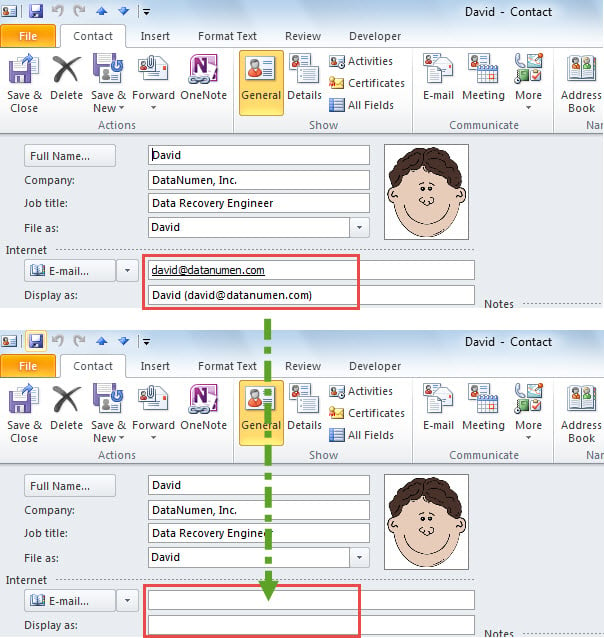
- ယခု၊ အောက်ဖော်ပြပါ ဖန်သားပြင်ဓာတ်ပုံကဲ့သို့ မမှန်ကန်သော အီးမေးလ်လိပ်စာများကို ဖယ်ရှားလိုက်သည့် ဆက်စပ်အဆက်အသွယ်များကို သင်စစ်ဆေးနိုင်သည်-

Outlook Errors နှင့် Corruption ကိုဖြေရှင်းပါ။
ကျွန်ုပ်တို့အားလုံးသိကြသည့်အတိုင်း Outlook သည် အကြောင်းအမျိုးမျိုးကြောင့် ပြဿနာများနှင့် အကျင့်ပျက်ခြစားမှုများကို ကြုံတွေ့ရနိုင်သည်။ ထို့ကြောင့်၊ သင်သည် Outlook တွင် အတွေ့အကြုံမရှိသေးသူဖြစ်ပါက၊ အချိန်အခါအလိုက် ဒေတာအရန်များပြုလုပ်ခြင်း၊ အားကောင်းပြီး ယုံကြည်စိတ်ချရသော အရာများကို အသုံးပြုခြင်းကဲ့သို့သော ထိရောက်သော ကြိုတင်ကာကွယ်မှုများ ပြုလုပ်သင့်ပါသည်။ Outlook ပြုပြင်ခြင်း utility ကို ကြိုက်တယ်။ DataNumen Outlook Repair, နောက် ... ပြီးတော့။
စာရေးသူနိဒါန်း:
Shirley Zhang သည် ဒေတာပြန်လည်ရယူရေးဆိုင်ရာ ကျွမ်းကျင်သူဖြစ်သည်။ DataNumen, Inc. အပါအဝင် ဒေတာပြန်လည်ရယူရေးနည်းပညာများတွင် ကမ္ဘာ့ခေါင်းဆောင်ဖြစ်သည်။ sql ပြန်လည်ရယူပါ။ နှင့် outlook ပြုပြင်ရေး software ထုတ်ကုန်များ။ ပိုမိုသိရှိလိုပါကသွားရောက်ကြည့်ရှု www ။datanumen.com