
မူရင်းအားဖြင့်၊ Outlook သည် အလံပြထားသည့်အရာများအားလုံးကို အလုပ်များဆိုင်ရာ ပုံသေသတိပေးချက်အချိန်ကို အလိုအလျောက်အသုံးပြုမည်ဖြစ်သည်။ သို့တိုင်၊ သင်သည် အကြောင်းအရာအမျိုးအစားအလိုက် အလံပြထားသည့်အရာများအတွက် မတူညီသောသတိပေးချက်အချိန်ကို အသုံးပြုလိုပါက၊ ဤဆောင်းပါးတွင် ဖော်ပြထားသည့်နည်းလမ်းကို ကိုးကားနိုင်ပါသည်။
Outlook သည် အကြောင်းအရာအမျိုးအစားမရွေးဘဲ အလံပြထားသည့်အရာအားလုံးအတွက် ပုံသေသတိပေးချက်အချိန်ကို သတ်မှတ်ခွင့်ပြုသည်။ သင်သည် "ဖိုင်" မီနူးသို့သွားပြီး "ရွေးချယ်မှုများ" ကိုနှိပ်နိုင်သည်။ ထို့နောက်၊ “Outlook Options” ဝင်းဒိုးတွင်၊ အောက်ဖော်ပြပါ ဖန်သားပြင်ဓာတ်ပုံတွင် ပြထားသည့်အတိုင်း “Tasks” တက်ဘ်ရှိ “ပုံမှန်သတိပေးချက်အချိန်” ရွေးချယ်မှုကို သင်တွေ့မြင်နိုင်ပါသည်။
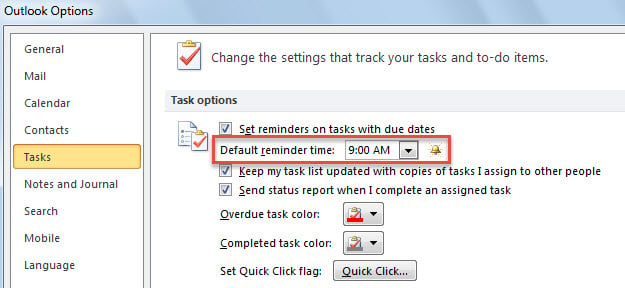
သို့သော်လည်း အသုံးပြုသူအများစုသည် အလံပြထားသော မေးလ်များအတွက် "၉:၀၀" နှင့် အလံပြထားသော ဆက်သွယ်ရန်များအတွက် "၁၇:၃၀" ကဲ့သို့သော အလံပြထားသော အရာအမျိုးအစား အမျိုးမျိုးအတွက် သတိပေးချက်အချိန် ကွဲပြားစွာ အသုံးပြုရန် မျှော်လင့်ကြသည်။ ယခု အောက်ပါတို့တွင် နည်းလမ်းတစ်ခုကို မိတ်ဆက်ပေးရန် ဤဥပမာကို အာရုံစိုက်ပါမည်။
အလံပြထားသော အရာအမျိုးမျိုးအတွက် မတူညီသော ပုံသေသတိပေးချက်အချိန်ကို သတ်မှတ်ပါ။
- အစပိုင်းမှာ Outlook application ကိုဖွင့်ပါ။
- ထို့နောက် "" ကိုရည်ညွှန်းပြီး Outlook VBA တည်းဖြတ်သူကိုဝင်ရောက်ပါ။သင်၏ Outlook တွင် VBA ကုဒ်ကိုမည်သို့ဖွင့်မည်နည်း။"။
- နောက်ဆက်တွဲ “Microsoft Visual Basic for Applications” ဝင်းဒိုးတွင်၊ အောက်ပါကုဒ်ကို “ThisOutlookSession” ပရောဂျက်သို့ ကူးယူပါ။
Public WithEvents objExplorer As Outlook.Explorer
Public WithEvents objInspectors As Outlook.Inspectors
Public WithEvents objMail As Outlook.MailItem
Public WithEvents objContact As Outlook.ContactItem

Private Sub Application_Startup()
    Set objExplorer = Outlook.Application.ActiveExplorer
    Set objInspectors = Outlook.Application.Inspectors
End Sub

Private Sub objExplorer_SelectionChange()
    On Error Resume Next
    If objExplorer.Selection.Item(1).Class = olMail Then
       Set objMail = objExplorer.Selection.Item(1)
    ElseIf TypeOf objExplorer.Selection.Item(1) Is ContactItem Then
       Set objContact = objExplorer.Selection.Item(1)
    End If
End Sub

Private Sub objInspectors_NewInspector(ByVal Inspector As Inspector)
    If Inspector.CurrentItem.Class = olMail Then
       Set objMail = Inspector.CurrentItem
    ElseIf Inspector.CurrentItem.Class = olContact Then
       Set objContact = Inspector.CurrentItem
    End If
End Sub

Private Sub objMail_PropertyChange(ByVal Name As String)
    If Name = "ToDoTaskOrdinal" Then
       If objMail.IsMarkedAsTask = True Then
          If objMail.TaskDueDate <> "1/1/4501" Then
             With objMail
                  .ReminderSet = True
                  'Change the reminder time for flagged emails
                  .ReminderTime = objMail.TaskDueDate & " 10:00"
                  .Save
             End With
          End If
       End If
    End If
End Sub

Private Sub objContact_PropertyChange(ByVal Name As String)
    If Name = "ToDoTaskOrdinal" Then
       If objContact.IsMarkedAsTask = True Then
          If objContact.TaskDueDate <> "1/1/4501" Then
             With objContact
                  .ReminderSet = True
                  'Change the reminder time for flagged contacts
                  .ReminderTime = objContact.TaskDueDate & " 17:30"
                  .Save
             End With
          End If
       End If
    End If
End Sub
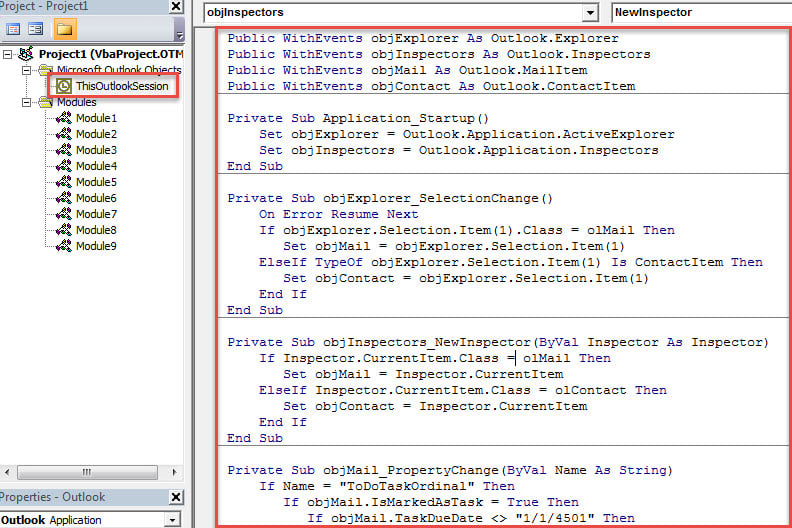
- ထို့နောက် ဤ macro ကို အသက်သွင်းရန် Outlook ကို restart လုပ်ပါ။
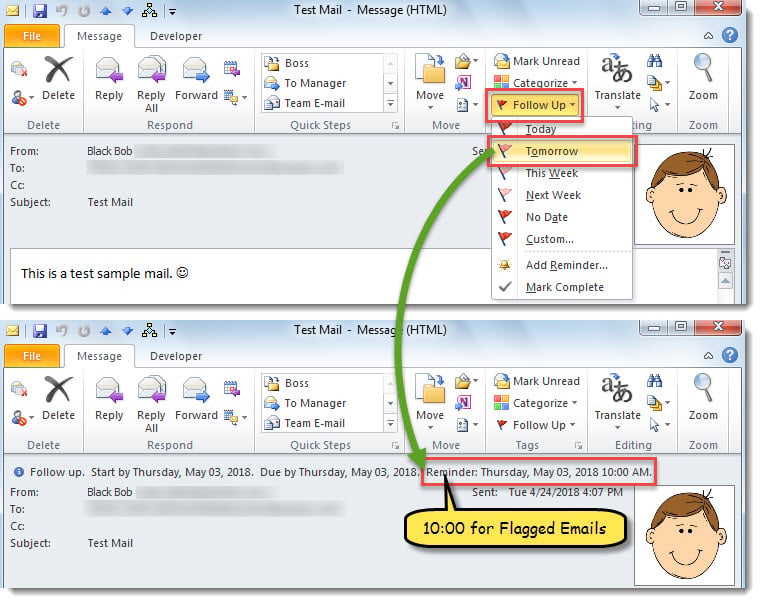
- ယခုအချိန်မှစ၍၊ အီးမေးလ်တစ်စောင်ကို သင်အလံပြသည့်အခါတိုင်း၊ သတိပေးချက်အချိန်ကို အလံသတ်မှတ်ရက်တွင် “10:00” ဟု သတ်မှတ်ပါမည်။

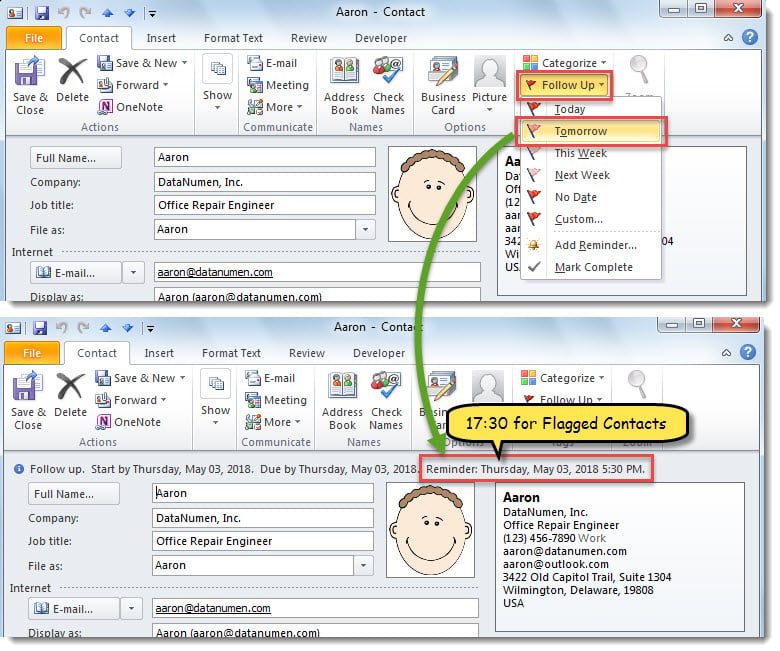
- အဆက်အသွယ်တစ်ခုကို သင်အလံပြသောအခါ၊ သတိပေးချက်အချိန်ကို အလံသတ်မှတ်ရက်တွင် “17:30” ဟု သတ်မှတ်ပါမည်။

Outlook ပြဿနာများကို ပျော့ပြောင်းစွာ ဖြေရှင်းပါ။
သင့်ရဲ့ Outlook မှာ ပြဿနာအမျိုးမျိုးနဲ့ ကြုံတွေ့ရနိုင်ပါတယ်။ ဒါကြောင့် ကြိုတင်ပြီး ကိုင်တွယ်ဖြေရှင်းနိုင်မယ့် နည်းလမ်းအချို့ကို လေ့လာထားရပါမယ်။ ဥပမာအားဖြင့် သင့်ရဲ့ Outlook ဟာ မကြာခဏ restart ဖြစ်ရင် Office ကို ပြုပြင်ဖို့ ဒါမှမဟုတ် third party add-in တွေကို disable လုပ်ဖို့လိုအပ်ပါတယ်။ ဒါမှမဟုတ် သင့်ရဲ့ Outlook PST ကို ခိုးယူခံရရင် အရင်ဆုံး အောက်ပါတို့ကို စမ်းကြည့်နိုင်ပါတယ်။ inbox ပြုပြင်ရေးကိရိယာ. အဆင်မပြေသောအခါ၊ ကဲ့သို့သော အစွမ်းထက်သော ပြင်ပကိရိယာကို ဆက်သုံးနိုင်သည်။ DataNumen Outlook Repair.
စာရေးသူနိဒါန်း:
Shirley Zhang သည် ဒေတာပြန်လည်ရယူရေးဆိုင်ရာ ကျွမ်းကျင်သူဖြစ်သည်။ DataNumen, Inc. အပါအဝင် ဒေတာပြန်လည်ရယူရေးနည်းပညာများတွင် ကမ္ဘာ့ခေါင်းဆောင်ဖြစ်သည်။ mdf ပြန်လည်ရယူခြင်း။ နှင့် outlook ပြုပြင်ရေး software ထုတ်ကုန်များ။ ပိုမိုသိရှိလိုပါကသွားရောက်ကြည့်ရှု www ။datanumen.com