
Uzziniet, kā atgūt izdzēstos Word dokumentus, izmantojot mūsu pilnīgo ceļvedi, kurā iekļauti bezmaksas padomi, uzlabotas metodes un profesionāli rīki.
1. Ievads
Nejauša Word dokumenta dzēšana ir viens no visbiežāk sastopamajiem datu zaudēšanas scenārijiem operētājsistēmās Windows un Mac. Neatkarīgi no tā, vai izmantojat taustiņu Delete vai iztukšojat atkritni, datu atgūšana bieži vien ir iespējama, ja rīkojaties ātri un pārtraucat jaunu datu ierakstīšanu skartajā diskā.
Šajā rokasgrāmatā ir aplūkoti šādi trīs scenāriji:
- Nejauša dzēšana — fails tika izdzēsts un, iespējams, joprojām atrodas atkritnē
- Neatgriezeniska dzēšana — atkritne ir iztukšota vai tika izmantota taustiņu kombinācija Shift+Delete
- Satura dzēšana — atvērtā dokumentā nejauši tika izdzēsts teksts, lapas, attēli vai sadaļas.
2. 1. metode: atsauciet dzēšanu, nospiežot taustiņu kombināciju Ctrl+Z
2.1 Atgūt izdzēstos Word dokumentus, izmantojot taustiņu kombināciju Ctrl+Z
Ja tikko izdzēsāt failu un neesat veicis nekādas citas darbības, ātrākā atkopšanas metode ir taustiņu kombinācija Ctrl+Z.
Saīsnes metode:
- Windows: Nospiediet Ctrl + Z (atkārtojiet, ja nepieciešams, lai atsauktu vairākas dzēšanas)
- Mac: Nospiediet Komanda + Z (atkārtojiet pēc nepieciešamības)
GUI metode:
- Failu pārlūkā atveriet mapi, kurā fails tika saglabāts pirms dzēšanas.
- Ar peles labo pogu noklikšķiniet uz jebkuras tukšas vietas mapē un atlasiet Atsaukt dzēšanu.
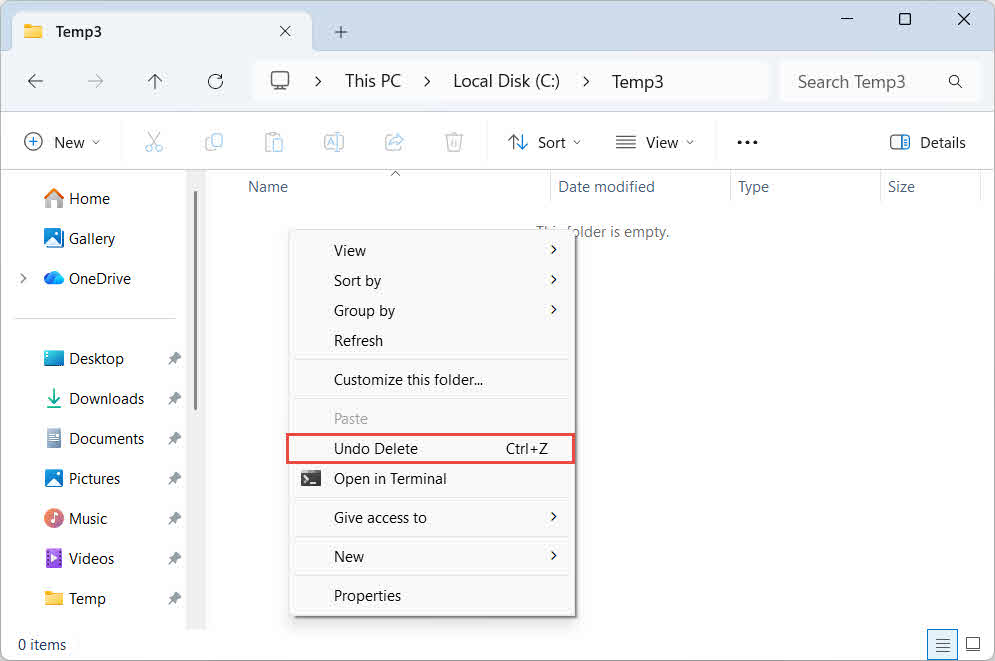
2.2 Atgūt izdzēsto saturu, izmantojot taustiņu kombināciju Ctrl+Z
Ja teksts, lapas, attēli vai sadaļas ir nejauši izdzēstas un dokuments joprojām ir atvērts, nospiediet Ctrl + Z nekavējoties, lai atsauktu dzēšanu.
Ierobežojumi:
- Pēc noklusējuma programma Word katrā sesijā saglabā līdz 100 atsaucamām darbībām. Ja pēc dzēšanas esat veicis daudz labojumu, iespējams, būs atkārtoti jānospiež taustiņu kombinācija Ctrl+Z, un dzēstais saturs, iespējams, jau pārsniedz atsaukšanas ierobežojumu.
- Aizverot dokumentu, tiek notīrīta atsaukšanas vēsture. Kad fails ir aizvērts un atkārtoti atvērts, taustiņu kombinācija Ctrl+Z vairs nevar atjaunot izdzēsto saturu. Tādā gadījumā atjaunot iepriekšējo versiju tā vietā (6.2. sadaļa).
3. 2. metode: atkopšana no atkritnes
3.1 2.1. metode: Windows atkritne
Kad fails tiek dzēsts normāli (neizmantojot taustiņu kombināciju Shift+Delete), Windows to pārvieto uz atkritni, nevis izdzēš neatgriezeniski. To var atgūt no atkritnes:
- Veiciet dubultklikšķi uz Recycle Bin ikonu uz darbvirsmas vai meklējiet to izvēlnē Sākt:

- Atrodiet savu Word dokumentu. Izmantojiet meklēšanas lodziņu vai kārtojiet pēc Vārds or Dzēšanas datums lai to ātrāk atrastu.
- Ar peles labo pogu noklikšķiniet uz faila un atlasiet AtjaunotFails atgriežas sākotnējā atrašanās vietā:



Piezīme: Tīkla koplietojama diska gadījumā jāpārbauda tā atkritne servera pusē, nevis lokālajā.
Apskatiet mūsu ceļvedi vietnē kā atgūt izdzēstos failus no atkritnes lai saņemtu sīkāku informāciju.
3.2 2.2. metode: Mac atkritne
Mac datorā izdzēstie faili tiek pārvietoti uz Trash pirms pastāvīgas noņemšanas.
- Noklikšķiniet Trash ikona dokā.
- Atrodiet savu Word dokumentu.
- Ar peles labo pogu noklikšķiniet uz faila un atlasiet Ielikt atpakaļ lai to atjaunotu sākotnējā atrašanās vietā.

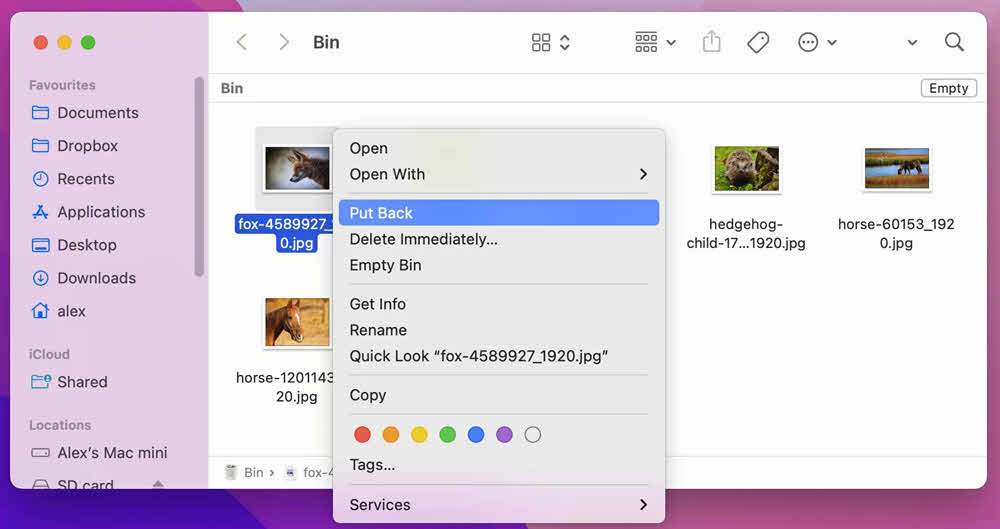
Pārbaudiet Šī rokasgrāmata Lai iegūtu sīkāku informāciju par failu atgūšanu no atkritnes operētājsistēmā Mac, skatiet sadaļu "Miskaste".
3.3 2.3. metode: Mākoņdiska atkritne
Ja fails tika saglabāts mākoņdiskā, pārbaudiet tā atsevišķo atkritni:
- OneDrive atkritne
- SharePoint atkritne
- Google diska atkritne
- Dropbox izdzēstie faili
- iCloud disks nesen izdzēsts
Piezīme: Ja dzēšat failu Word mobilajā lietotnē (trīs punktu izvēlne -> izdzēst), jūs faktiski dzēšat mākoņa failu pakalpojumā OneDrive, nevis lokālu failu, tāpēc tas neparādīsies viedtālruņa lokālajā atkritnē. Tā vietā pārbaudiet OneDrive atkritni.
Piezīme par SharePoint: Ja fails neatrodas lietotāja atkritnē, SharePoint administrators var pārbaudīt vietņu kolekcijas atkritni vai saglabāšanas aizturēšanas bibliotēku.
4. 3. metode: atkārtoti lejupielādējiet/nosūtīt failu
Ja dzēstais fails sākotnēji tika lejupielādēts no interneta vai saņemts kā e-pasta pielikums, tā atkārtota iegūšana var būt ātrāka nekā jebkura atkopšanas metode. Pārbaudiet sekojošo:
- E-pasta iesūtne un nosūtītie vienumi pielikumiem, kas satur failu
- Pārbaudīt Lejupielādes mapē, lai iegūtu lokālu kopiju, vai pārlūkojiet lejupielāžu vēsturi, lai atrastu tiešu atkārtotas lejupielādes saiti
- Lai pieprasītu jaunu kopiju, sazinieties ar sākotnējo sūtītāju vai vietni, kurā fails tika mitināts.
5. 4. metode: atjaunošana no dublējumkopijām vai kopijām
Pirms mēģināt atkopt disku līmenī, apsveriet visas atrašanās vietas, kur varētu būt faila dublējums vai kopija:
- Regulāras vai automātiskās dublējumkopijas: Ja izmantojat kādu dublēšanas programmatūru vai pakalpojumus, pārbaudiet dublējumkopijas.
- Mākoņdiski: OneDrive, Google Drive, Dropbox, iCloud Drive — daudzi faili tiek sinhronizēti automātiski.
- Citi mākoņpakalpojumi: Daudzi dokumenti normālas lietošanas laikā tiek automātiski saglabāti mākoņpakalpojumos, piemēram, Google dokumentos.
- Koplietotie tīkla diski: Fails, iespējams, ir saglabāts komandas vai nodaļas mapē.
- Ārējie diskdziņi: USB diski vai ārējie cietie diski, kuros, iespējams, esat saglabājis vai pārsūtījis kopiju.
- Citas ierīces: klēpjdators, mājas dators vai mobilā ierīce, kas, iespējams, ir sinhronizējusi failu
6. 5. metode: atkopšana, izmantojot failu vēsturi/laika mašīnu
6.1 Atgūt izdzēstos Word dokumentus
Ja pirms dzēšanas bija iespējota failu vēsture (Windows) vai Time Machine (Mac), mapi var atjaunot uz laika punktu pirms faila dzēšanas.
6.1.1 Windows failu vēsture
Piezīme: Pirms faila dzēšanas ir jāieslēdz faila vēsture. Dodieties uz kontroles panelis -> Failu Vēsture apstiprināt.
- Atveriet failu pārlūku un atrodiet mapi, kurā atradās izdzēstais fails.
- Ar peles labo pogu noklikšķiniet uz mapes un atlasiet īpašības.
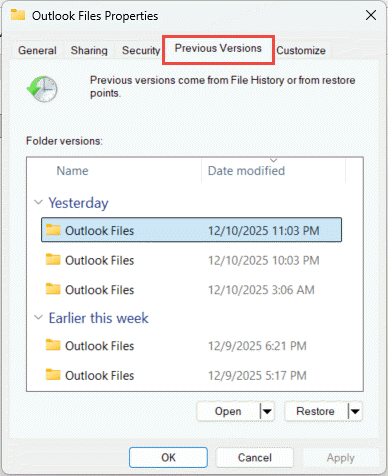
- Noklikšķiniet iepriekšējās versijas cilne. Tiek parādīts pieejamo rezerves momentuzņēmumu saraksts.

- Atlasiet versiju, kas datēta pirms faila dzēšanas.
- Lai priekšskatītu saturu, izvērsiet atvērts un izvēlieties Atvērt failu vēsturē.
- Noklikšķiniet Atjaunot lai atjaunotu visu mapi.
6.1.2 Mac laika mašīna
- Atveriet mapi, kurā tika saglabāts izdzēstais fails.
- atvērts Time Machine no izvēļņu joslas vai Aplikācijas.
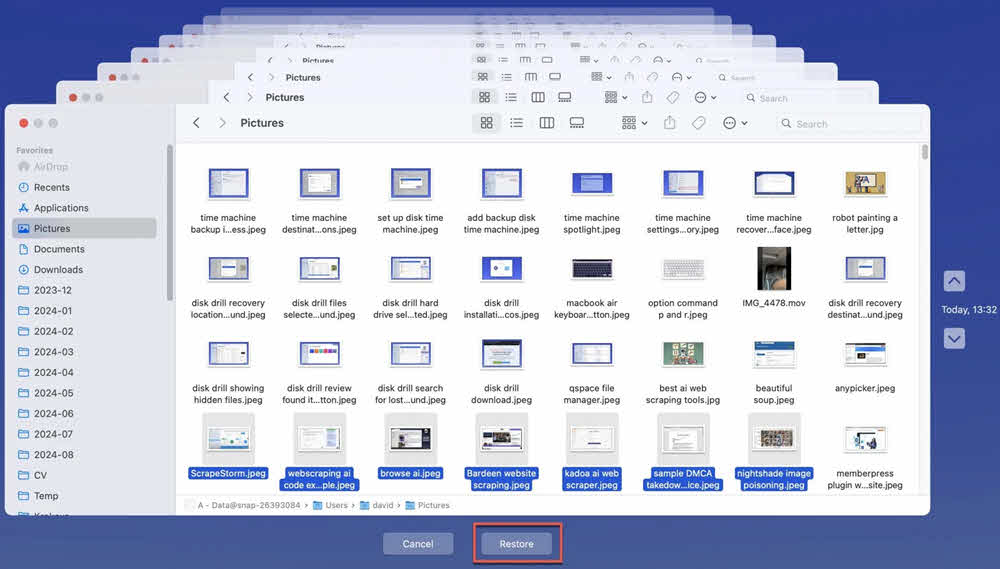
- Izmantojiet laika skalu labajā pusē vai bultiņas, lai atgrieztos punktā, kurā fails pastāvēja.
- Atlasiet failu un noklikšķiniet uz Atjaunot.
6.2 Dzēstā satura atgūšana, izmantojot failu vēsturi
Ja saturs tika izdzēsts no dokumenta un fails pēc tam tika saglabāts un aizvērts, to var atgūt, atjaunojot iepriekšējo dokumenta versiju, kurā joprojām ir izdzēstais saturs. Tas darbojas gan lokālajā diskā, gan mākoņdiskā esošajiem failiem:
- Windows failu vēsture: Izpildiet norādījumus 6.1.1 nodaļa, bet lietot tos pašam Word dokumentam, nevis tā vecākmapei. Atlasiet versiju, kas datēta pirms satura dzēšanas.
- Mac laika mašīna: Izpildiet norādījumus 6.1.2 nodaļa, bet lietot tos pašam Word dokumentam, nevis tā vecākmapei. Atlasiet versiju, kas datēta pirms satura dzēšanas.
- Google diska versiju vēsture
- OneDrive versiju vēsture
- SharePoint versiju vēsture
- Dropbox versiju vēsture
7. 6. metode: atkopšana, izmantojot automātisko atkopšanu
Ja pirms faila dzēšanas programmā Word bija tā automātiskās atkopšanas momentuzņēmums, izdzēstos Word dokumentus var atgūt no šī momentuzņēmuma.
7.1 Caur failu -> Atvērt
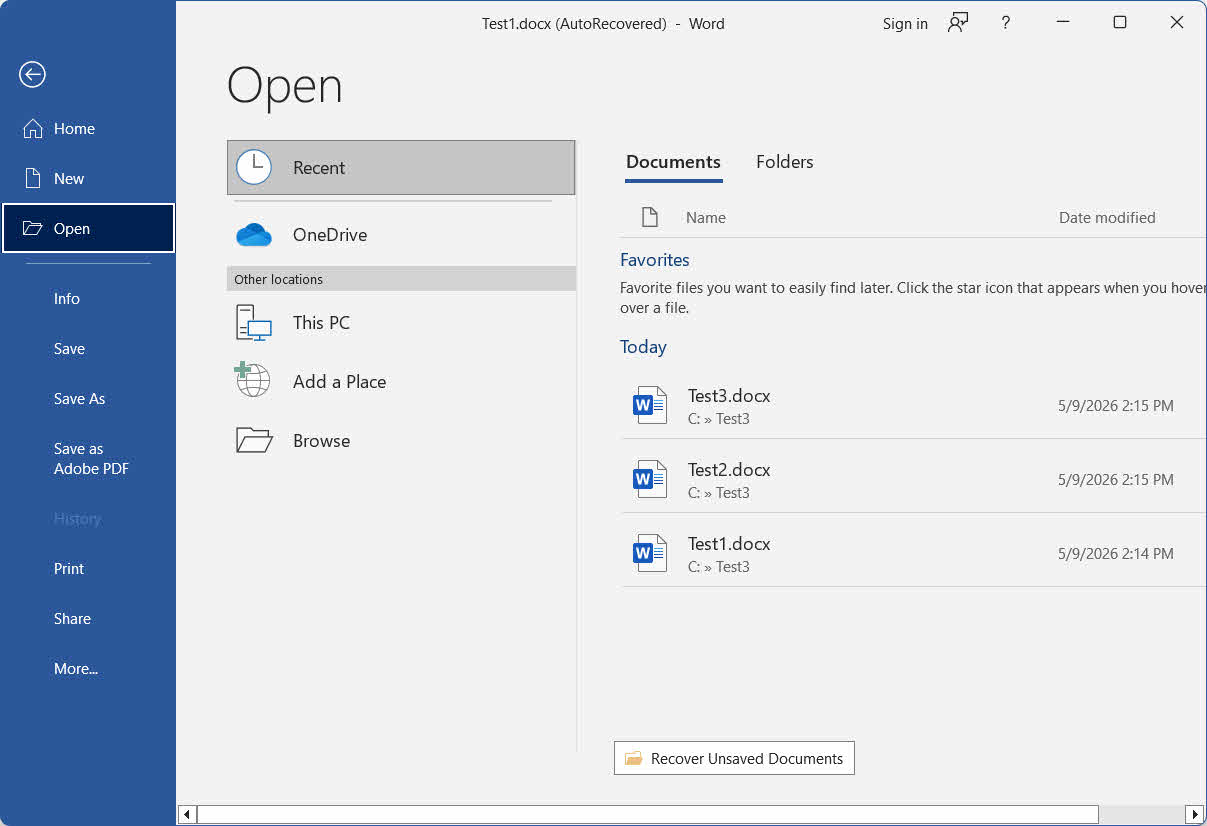
- Atveriet Word un noklikšķiniet uz fileja -> atvērts -> nesens.
- Ritiniet līdz saraksta apakšai un noklikšķiniet uz Atgūt nesaglabātos dokumentus.
- Iekš atvērts logā atlasiet failu un noklikšķiniet uz atvērts.
- Saglabājiet atgūto failu nekavējoties, izmantojot fileja -> Saglabāt kā.
7.2 Manuāli pārbaudiet automātiskās atkopšanas mapi
Ja iepriekš minētā darbība neatdod rezultātus, meklējiet tieši automātiskās atkopšanas mapē.
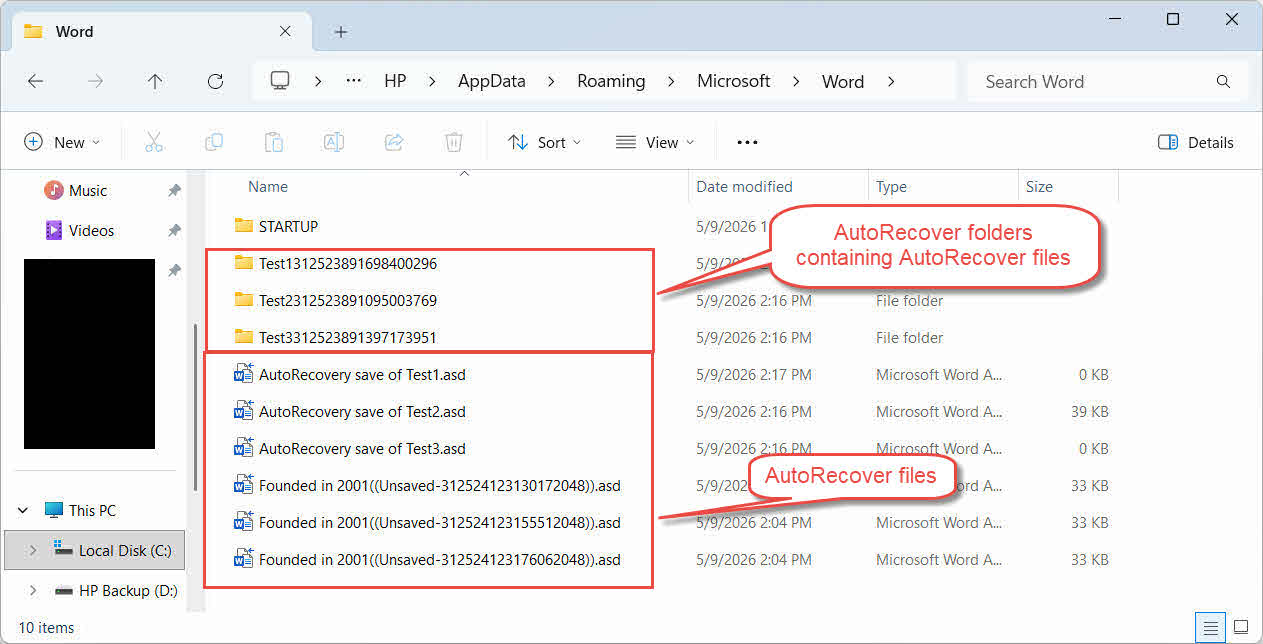
- prese Windows atslēga + R, ierakstiet %AppData%\Microsoft\Word\un nospiediet ienākt.
- Noklikšķiniet Modificēšanas datums kolonnas galvene, lai failus kārtotu pēc jaunākās.
- Pārbaudi visu .asd (Automātiskās atkopšanas) faili un visas apakšmapes, kurās tie varētu būt.
- Veiciet dubultklikšķi uz kandidāta faila vai atveriet to programmā Word, izmantojot fileja -> atvērts, lai identificētu savu pazaudēto dokumentu.
- Ja failu nevar atvērt, mainīt tā paplašinājumu uz .doc un mēģiniet vēlreiz.
Piezīme: Faktiskais .asd faila formāts ir .doc, tāpēc tā paplašinājums ir jāmaina uz .doc vietā . Docx. - Nekavējoties saglabājiet atgūto failu ar fileja -> Saglabāt kā.
8. 7. metode: atkopšana no automātiskās dublēšanas faila
ja Vienmēr izveidojiet rezerves kopiju opcija iepriekš bija iespējota programmā Word, a .wbk Dublējuma fails tiek izveidots tajā pašā mapē katru reizi, kad tiek saglabāta jauna faila versija. Tātad no dublējuma var atgūt izdzēstu Word dokumentu:
- Atveriet failu pārlūku un dodieties uz to pašu mapi, kurā atrodas sākotnējais Word dokuments.
- Meklējiet failu ar nosaukumu [Jūsu faila nosaukums].wbk dublējums.
- Veiciet dubultklikšķi, lai to atvērtu programmā Word.
- lietošana fileja -> Saglabāt kā lai saglabātu pastāvīgu kopiju drošā vietā.
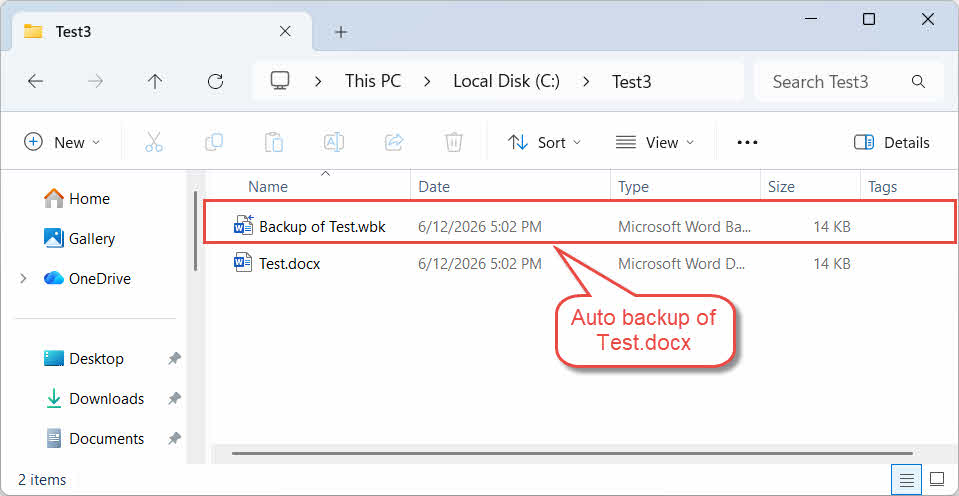
Piezīme: Automātiskā dublēšana ir jūsu saglabātā dokumenta iepriekšējā versija.
9. 8. metode: pārbaudiet mapi TemporaryBackupFile
Ja Word dokumentu sinhronizēšanai izmantojat OneDrive klientu, daži lietotāji ir veiksmīgi atguvuši zaudētos dokumentus no īpašas mapes TemporaryBackupFile:
- Atveriet failu pārlūku un dodieties uz:
C:\Users\<Username>\AppData\Local\Microsoft\Word\TemporaryBackupFile
- Meklējiet failus, kas atbilst jūsu sākotnējam faila nosaukumam, un atveriet tos, lai pārbaudītu saturu.
- Ja fails neatveras:
- .asd failam mainīt tā paplašinājumu uz .doc un mēģiniet vēlreiz. Piezīme: .asd patiesībā atrodas .doc formātā, NEMAINIET tā paplašinājumu uz . Docx.
- Citu failu gadījumā mainīt tā paplašinājumu uz .doc or . Docx un mēģiniet vēlreiz.
- lietošana fileja -> Saglabāt kā lai saglabātu pastāvīgu kopiju drošā vietā.
10. 9. metode: pārbaudiet kešatmiņas mapi UnsavedFiles
Office uztur īpašu kešatmiņas mapi UnsavedFiles, kurā var būt dzēsto Word dokumentu atgūstamas kopijas:
- Atveriet failu pārlūku un dodieties uz C:\Lietotāji\[Lietotājvārds]\AppData\Local\Microsoft\Office\Nesaglabātie faili.
- Noklikšķiniet Modificēšanas datums kolonnas galvene, lai failus kārtotu pēc jaunākās.
- Atveriet jebkuru atbilstošo failu.
- Ja fails neatveras:
- .asd failam mainīt tā paplašinājumu uz .doc un mēģiniet vēlreiz. Piezīme: .asd patiesībā atrodas .doc formātā, NEMAINIET tā paplašinājumu uz . Docx.
- Citu failu gadījumā mainīt tā paplašinājumu uz .doc or . Docx un mēģiniet vēlreiz.
- Nekavējoties saglabājiet atgūto failu, izmantojot fileja -> Saglabāt kā.
11. 10. metode: meklējiet pagaidu mapē
Ja visas iepriekš minētās metodes neizdodas, izdzēstos Word failus var atgūt arī no operētājsistēmas pagaidu failu mapes.
Logi:
- prese Windows atslēga + R, ierakstiet % Temp%un nospiediet ienākt.
- Failu pārlūka meklēšanas lodziņā ierakstiet *.tmp un kārtot rezultātus pēc Modificēšanas datums.
- Meklējiet kandidāta failu, kas lielāks par 0 KB un tika izveidots jūsu darba sesijas laikā.
- Izveidojiet faila kopiju un pēc tam mainīt kopijas paplašinājumu uz . Docx.
- Atveriet kopiju programmā Word.
- Ja fails veiksmīgi atveras, nekavējoties saglabājiet to, izmantojot fileja -> Saglabāt kā.
Piezīme: Pārbaudiet arī failus, kas sākas ar ~, ~$ vai $ pagaidu mapē un mapē, kurā tika saglabāts sākotnējais fails — Word tos izveido aktīvas sesijas laikā, un tajos var būt atgūstams saturs. Failu pārlūka meklēšanas lodziņā ievadiet šādus filtrus:
- Faili, kas sākas ar ~:
System.FileName:~<"~" - Faili, kas sākas ar ~$:
System.FileName:~<"~$" - Faili, kas sākas ar $:
System.FileName:~<"$"
Mac:
- atvērts termināls (izmantojiet Spotlight, lai to atrastu).
- Veids atvērt $ TMPDIR un nospiediet ienākt.
- Atvērtajā Finder logā dodieties uz Pagaidu preces mapi.
- Atrodiet savu Word dokumentu un atveriet to, lai pārbaudītu tā saturu.
- Nekavējoties saglabājiet pastāvīgu kopiju.
12. 11. metode: meklēšana visā datorā
Tā vietā, lai pārbaudītu atsevišķas mapes pa vienai, varat arī meklēt visā datorā Word vai pagaidu failus, kas izveidoti darba sesijas laikā:
- Atveriet failu pārlūku un noklikšķiniet uz Šī PC kreisajā panelī, lai meklētu visos diskos.
- Noklikšķiniet uz meklēšanas lodziņa augšējā labajā stūrī un ierakstiet
*.doc OR *.docx OR *.asd OR *.wbk OR *.tmp, Tad nospiediet ienākt. - Kārtot rezultātus pēc Modificēšanas datums , lai jaunākos failus parādītu augšpusē.
- Neatveriet programmu Word, kamēr pārskatāt rezultātus, jo tas var izraisīt automātiskās atkopšanas un pagaidu failu tīrīšanu.
- Pirms atvēršanas nokopējiet jebkuru daudzsološu failu atsevišķā mapē.
- Par .tmp failus, mainīt paplašinājumu uz . Docx. Forums .asd failiem, nomainiet paplašinājumu uz .doc vietā.
- Atveriet failu programmā Word. Ja tas veiksmīgi atveras, nekavējoties saglabājiet to ar fileja -> Saglabāt kā.
13. 12. metode: izmantojiet Windows failu atkopšanu
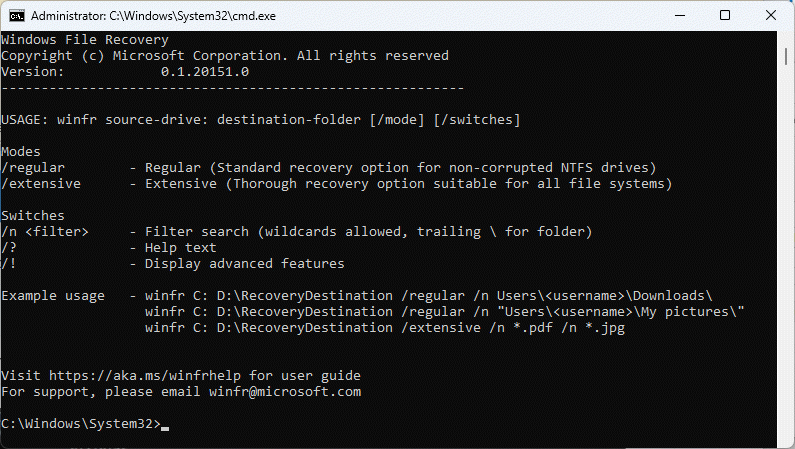
Windows failu atkopšana ir bezmaksas komandrindas rīks no Microsoft, kas var atgūt neatgriezeniski izdzēstus failus:
- Lejupielādēt un instalēt Windows failu atkopšana no Microsoft veikala.
- Nospiediet Windows atslēga, tips Windows failu atkopšanaun atveriet lietotni. Atlasiet Jā kad tiek prasīts.
- Ievadiet atkopšanas komandu šādā formātā:
winfr avota-diska: mērķa-mape [/režīms] [/switches]

lietošana regulārs režīms nesen izdzēstiem failiem NTFS brauc:winfr C: E:\Recovery /regular /n *.docx /n *.doc
lietošana Plaša režīms failiem, kas izdzēsti jau sen vai atrodas ārpusNTFS brauc:
winfr C: E:\Recovery /extensive /n *.docx /n *.doc
- Veids Y kad tiek prasīts apstiprināt un sākt skenēšanu.
- Pēc skenēšanas pabeigšanas atveriet mērķa mapi un pārbaudiet atgūtos failus.
- Dažiem failiem, iespējams, ir zuduši sākotnējie nosaukumi; atveriet katru no tiem, lai pārbaudītu tā saturu.
14. 13. metode: izmantojiet profesionālu failu atkopšanas programmatūru
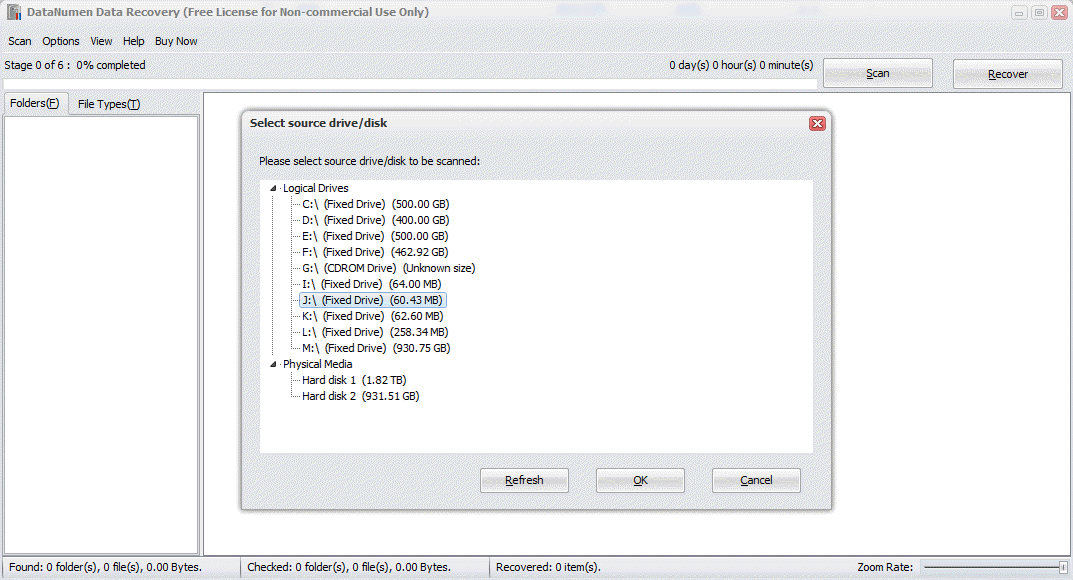
Ja visas iepriekš minētās metodes neizdodas, profesionāla datu atkopšanas programmatūra, piemēram, DataNumen Data Recovery var palīdzēt atgūt izdzēstos Word dokumentus:
- mājas DataNumen Data Recovery.
- Atlasiet avota disku, kurā iepriekš tika saglabāts izdzēstais fails, un pēc tam noklikšķiniet uz OK skenēt.

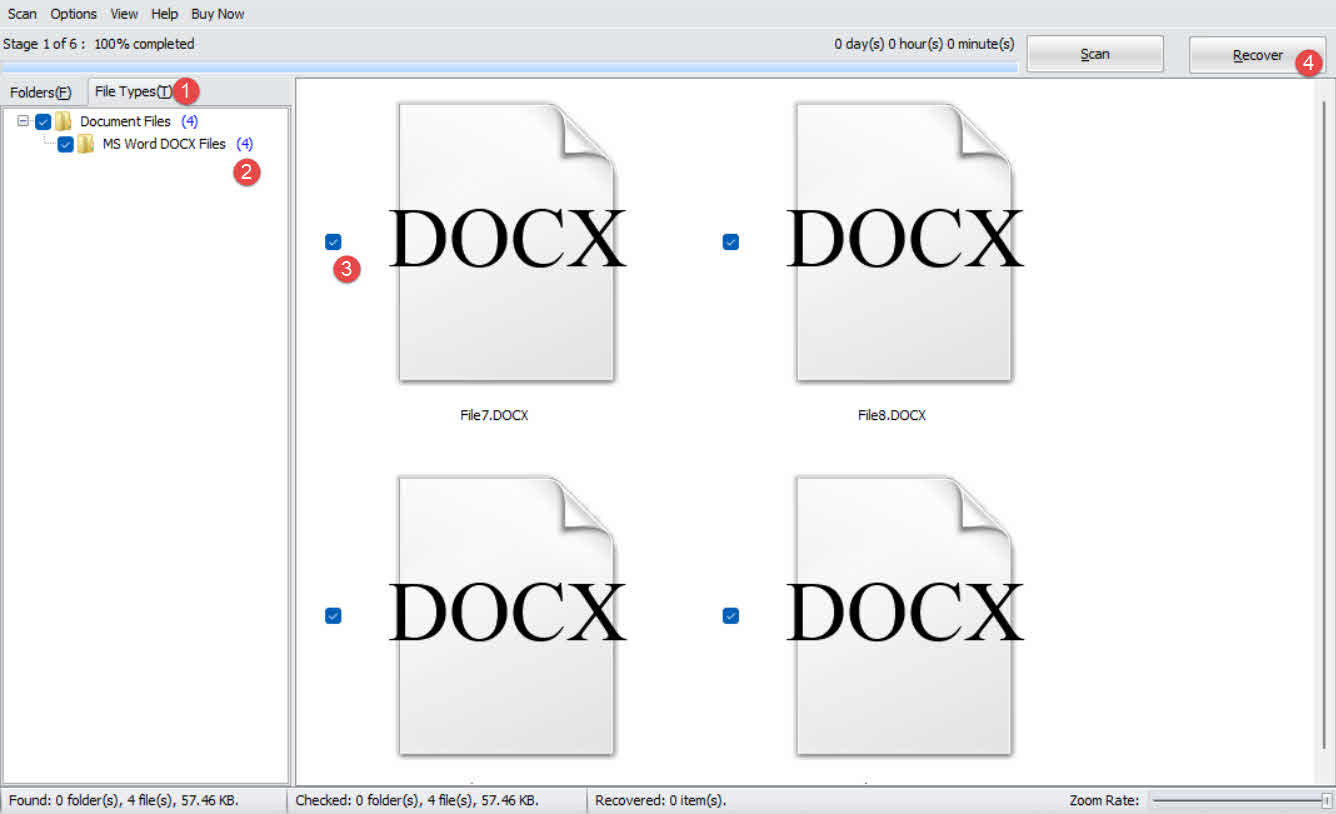
- Skenēšanas rezultātos noklikšķiniet uz pogas Faila tips cilni kreisajā panelī.
- Izvēlēties Dokumentu faili , lai filtrētu rezultātus, vai atlasiet MS Word DOCX faili lai iegūtu konkrētākus rezultātus.
- Pārskatiet rezultātu panelī uzskaitītos kandidātu failus.
- Atzīmējiet failus, kurus vēlaties atgūt, un noklikšķiniet uz Atgūt.

- Izvēlieties atkopšanas galamērķi ierīcē atšķirīgs disku, lai izvairītos no datu pārrakstīšanas, pēc tam noklikšķiniet uz OK.
15. Remontējiet bojātus atgūtos Word dokumentus
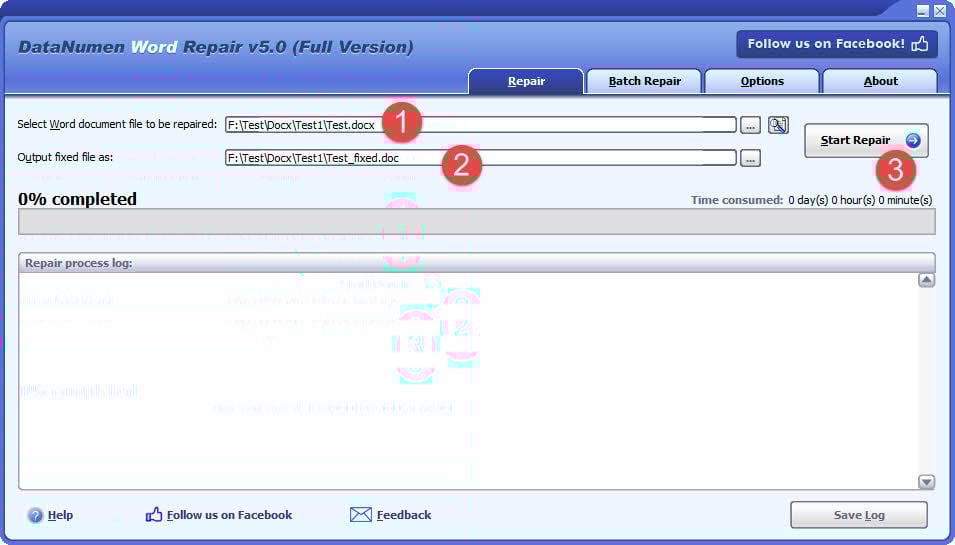
Atgūtie faili, īpaši tie, kas izgūti no pagaidu failiem vai datu atkopšanas skenēšanas, var būt bojāti un tos nevarēs atvērt programmā Word. Šādos gadījumos DataNumen Word Repair var labot šos failus:
- Aizveriet programmu Word un jebkuru citu lietojumprogrammu, kas, iespējams, atvēra avota failu.
- mājas DataNumen Word Repair.
- Atlasiet bojāto Word dokumentu.
- Iestatiet fiksēto izvades faila nosaukumu.
- Noklikšķiniet Sākt remontu.
- Pēc procesa pabeigšanas atveriet izvades failu, lai pārbaudītu atgūtos datus.
16. Kā novērst zaudējumus nākotnē
Šie pasākumi ievērojami samazina risku neatgriezeniski zaudēt Word dokumentu, ja nejauši izdzēšat to:
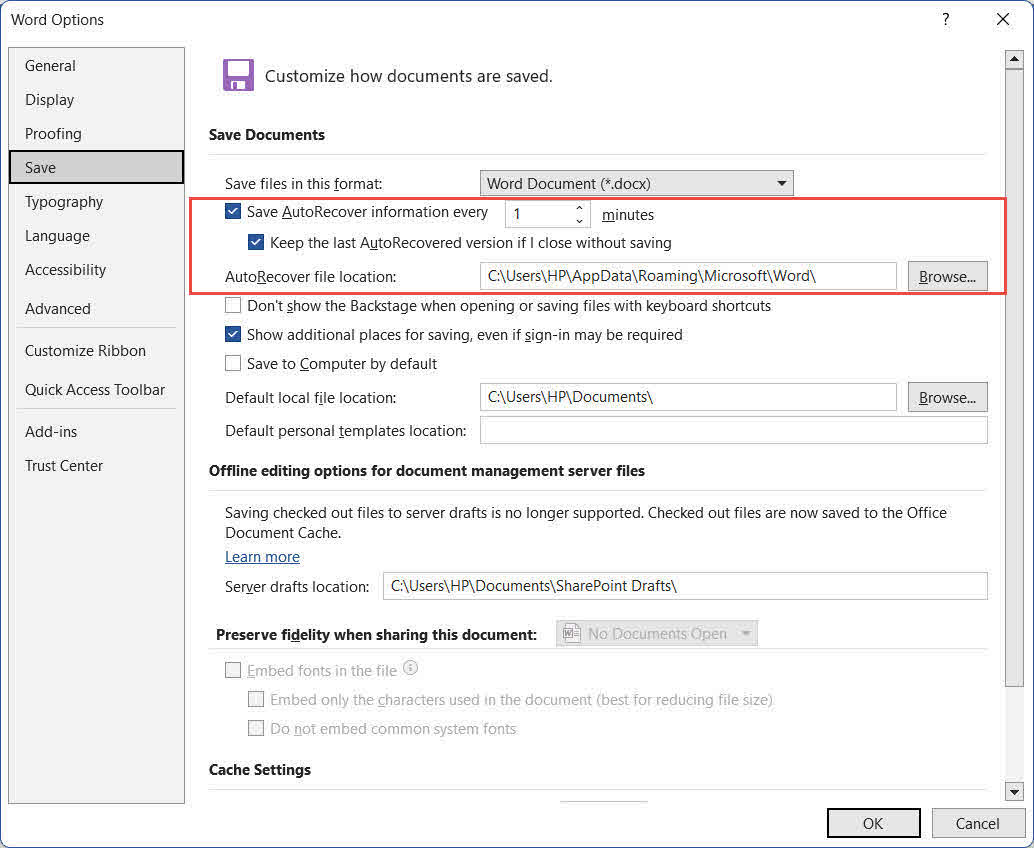
- Iespējot automātisko atjaunošanu ar īsu intervālu. Doties uz fileja -> opcijas -> IETAUPI. Pārliecinies Saglabāt automātiskās atkopšanas informāciju ik pēc [n] minūtēm ir atzīmēta, un samaziniet intervālu līdz 1–2 minūtēm. Pārbaudiet arī Saglabājiet pēdējo automātiski atjaunoto versiju, ja aizveru, nesaglabājot.

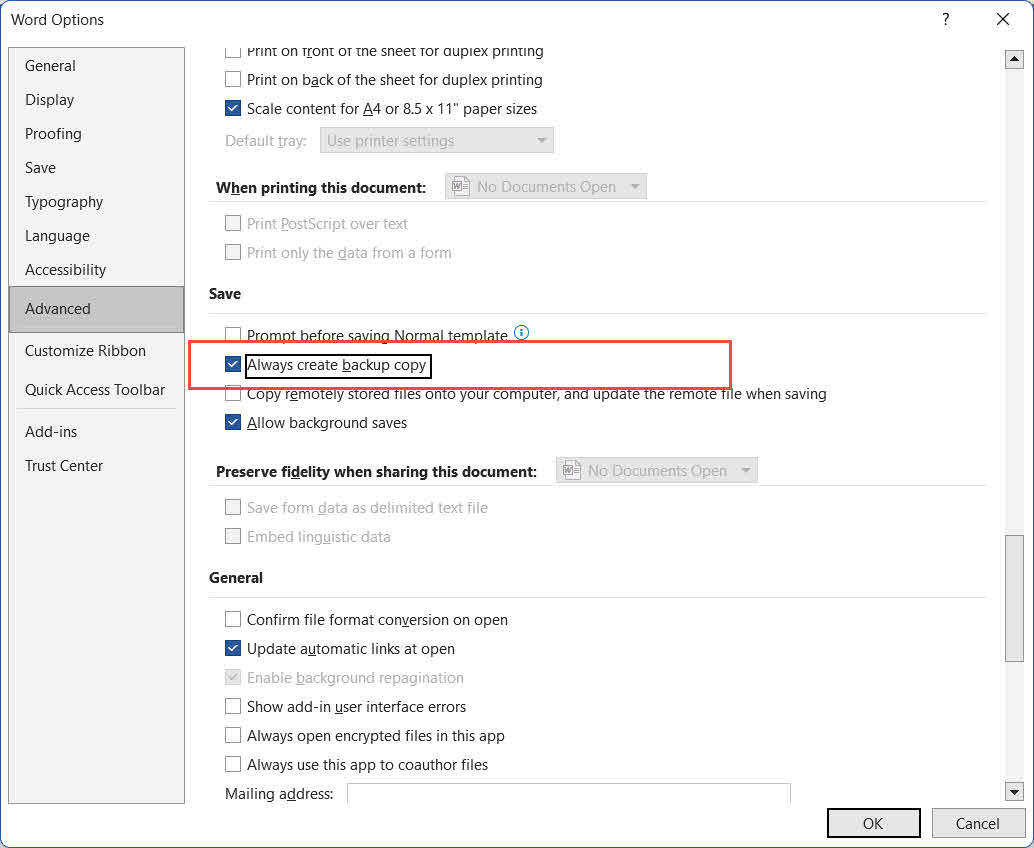
- Iespējot automātisko dublēšanu. Doties uz fileja -> opcijas -> uzlabots, ritiniet līdz IETAUPI sadaļu un pārbaudiet Vienmēr izveidojiet rezerves kopiju. Word izveidos .wbk dublējuma failu tajā pašā mapē katrā saglabāšanas reizē. Piezīme. atšķirībā no programmas Excel šis ir globāls iestatījums, kas attiecas uz visiem dokumentiem, kas saglabāti pēc tā iespējošanas.
- Iespējot failu vēsturi. Pievienojiet ārējo disku un dodieties uz kontroles panelis -> Failu Vēsture lai regulāri iespējotu personīgo failu automātisku dublēšanu.

- Ievērojiet regulāru dublēšanas stratēģiju. Piemērojiet 3-2-1 noteikumu: uzturiet vismaz trīs kritiski svarīgu failu kopijas, kas glabājas divu dažādu veidu datu nesējos, vienu kopiju glabājot ārpus uzņēmuma vai mākonī.
- Izvairieties no taustiņu kombinācijas Shift+Delete. Vienmēr izmantojiet standarta izdzēst taustiņu, lai failus nosūtītu uz atkritni, nevis to neatgriezeniski apietu.
- Izmantojiet pretvīrusu programmatūru. Ļaunprogrammatūra var nemanāmi dzēst vai sabojāt failus. Lai novērstu ar ļaunprogrammatūru saistītu datu zudumu, regulāri atjauniniet pretvīrusu definīcijas.

17. Bieži uzdotie jautājumi
J: Vai es varu atgūt izdzēsto tekstu vai lapas Word dokumentā, nevis visu failu?
A: Ja dokuments joprojām ir atvērts, izmantojiet Ctrl + Z nekavējoties (2.2. sadaļa). Ja fails ir saglabāts un aizvērts, izmantojiet Windows failu vēsture vai mākoņa versiju vēsture (6.2. sadaļa), lai atjaunotu iepriekšējo dokumenta versiju, kurā joprojām ir saturs. Automātiskās atjaunošanas momentuzņēmums (7. pants) vai sevis dublēšana (8. sadaļa) var saturēt arī agrāku versiju ar šo saturu.
J: Mans dokuments tika neatgriezeniski izdzēsts, un atkritne ir tukša — vai to joprojām var atgūt?
A: Jā, ja vien diska vieta nav pārrakstīta. Nekavējoties pārtrauciet skartā diska lietošanu un mēģiniet Windows failu atkopšana (13. pants) vai profesionāla datu atgūšanas programmatūra (14. sadaļa). Atkopšanas panākumi samazinās, disku turpinot lietot.
J: Izdzēstais dokuments atradās tīkla diskā un nav manā lokālajā atkritnē. Kur man to meklēt?
A: No tīkla koplietojumiem izdzēstie faili netiek pārvietoti uz lokālo Windows atkritni. Pārbaudiet tīkla koplietojuma atkritnes vai miskastes mapi. Ja tā nav redzama, sazinieties ar savu IT administratoru — tīkla serverim var būt servera puses atkritne, no kuras failu izgūšanai ir nepieciešama administratora piekļuve.
J: Cik ilgs laiks ir atlicis, pirms neatgriezeniski izdzēsts Word dokuments kļūst neatjaunojams?
A: Nav fiksēta laika loga. Cietajā diskā (HDD) dzēstie dati var saglabāties vairākas dienas vai nedēļas, ja disks netiek intensīvi izmantots. SSD diskā ar iespējotu TRIM dati var tikt dzēsti dažu minūšu laikā. Rīkojieties nekavējoties un izvairieties no jaunu datu ierakstīšanas skartajā diskā.
J: Es pārrakstīju savu Word dokumentu, saglabājot izmaiņas. Vai varu atgūt veco versiju?
A: Iet uz fileja -> Info -> Pārvaldīt dokumentu lai pārbaudītu Automātiskās atkopšanas momentuzņēmumi (7. pants). Ja Vienmēr izveidojiet rezerves kopiju tika iespējots, .wbk dublējuma fails saglabā versiju pirms pēdējās saglabāšanas (8. sadaļa). Failiem pakalpojumā OneDrive vai SharePoint izmantojiet versiju vēsture (6.2. sadaļa). Ja bija iespējota Windows failu vēsture, atjaunojiet Iepriekšējā versija faila (6.1.1. sadaļa).
J: Vai trešo pušu atkopšanas rīkus ir droši lietot?
A: Cienījami rīki skenēšanas laikā darbojas tikai lasīšanas režīmā un nemodificē avota disku. Vienmēr saglabājiet atgūtos failus citā diskā, nevis oriģinālajā, lai izvairītos no citu atgūstamo datu pārrakstīšanas.
J: Kas man jādara nekavējoties pēc nejaušas Word dokumenta izdzēšanas?
A: Nekavējoties pārtrauciet skartā diska lietošanu, jo visi jaunie tajā ierakstītie dati var pārrakstīt izdzēstā faila datu sadaļu un padarīt atkopšanu neiespējamu. Pārbaudiet Recycle Bin vispirms (3. sadaļa). Ja faila tur nav, apstrādājiet metodes secībā, sākot no 4 nodaļa uz priekšu. Atkopšanas mēģinājuma laikā neinstalējiet programmatūru, nelejupielādējiet failus un nepalaidiet diska tīrīšanas rīkus skartajā diskā.
J: Mans atgūtais Word dokuments ir bojāts un to nevar atvērt. Kādas ir manas iespējas?
A: Izmantojiet Word iebūvēto Atveriet un remonts vispirms funkcija: dodieties uz fileja -> atvērts -> Pārlūkot, atlasiet failu, noklikšķiniet uz nolaižamās bultiņas blakus atvērtsun izvēlies Atveriet un remontsJa tas neizdodas, izmantojiet DataNumen Word Repair (15. sadaļa) failu struktūras dziļākai labošanai.
18. secinājums
Lai atgūtu izdzēstos Word dokumentus, sāciet ar ātrākajām metodēm: Ctrl + Z (2. sadaļa) un Recycle Bin (3. sadaļa). Ja šie mēģinājumi neizdodas, pirms diska līmeņa atkopšanas mēģinājuma pārbaudiet, vai faila kopija pastāv citur (sadaļas 4-5). Izmantot Failu vēsture vai laika mašīna tālāk (6. sadaļa), pēc tam strādājiet ar automātiskās atkopšanas, dublēšanas un pagaidu failu metodēm (sadaļas 7-12). Neatgriezeniski dzēstiem failiem bez dublējuma izmantojiet Windows failu atkopšana (13. sadaļa) vai profesionāls atkopšanas rīks, piemēram, DataNumen Data Recovery (Sadaļa 14). Ja atgūtais fails ir bojāts, DataNumen Word Repair (Sadaļa 15) var to atjaunot. Lai izvairītos no šādas situācijas atkārtošanās, iespējojiet preventīvos pasākumus sadaļā 16 nodaļa — īpaši automātiskā atjaunošana ar īsu intervālu, Vienmēr izveidojiet rezerves kopijuun mākoņa vai ārējā diska dublēšanas stratēģiju.
par autoru
Šou Šens ir Microsoft Office speciālists ar vairāk nekā 10 gadu praktisku pieredzi darbā ar Word, Excel un PowerPoint problēmu novēršana uzņēmumu un izglītības vidē. Viņš ir palīdzējis tūkstošiem lietotāju atgūt zaudēto darbu, novērst failu bojāšanas problēmas un optimizēt Office darbplūsmas.
Ar savu tehnisko rakstu palīdzību Šou ir apņēmies sarežģītas Office problēmu novēršanas pārvērst skaidros, praktiski īstenojamos soļos visu prasmju līmeņu lietotājiem. Viņš seko līdzi jaunākajām Microsoft 365 attīstības tendencēm un pastāvīgi testē metodes, ņemot vērā reālus failu bojāšanas scenārijus, lai nodrošinātu precizitāti.
Vai jums ir jautājumi par šo rokasgrāmatu vai nepieciešama papildu palīdzība ar Office problēmām? Laipni lūdzam atsauksmes un ieteikumi lai uzlabotu šos problēmu novēršanas resursus.