
In generale, per estrarre il “.rarPer estrarre gli allegati da un'e-mail, è necessario prima salvarli e poi utilizzare uno strumento specifico per estrarre i file interni. Questo articolo illustra un metodo per estrarre i file RAR direttamente in Outlook.
Outlook non consente di visualizzare in anteprima il “.RARallegati. Inoltre, non è possibile estrarre il file “.RAR“ allegati direttamente in Outlook. Pertanto, se desideri visualizzare un allegato di questo tipo, devi prima salvarlo sul disco locale e poi estrarre i file interni tramite un'utilità specifica, come WinRAR. Concentrandoci su questo problema, qui ti offriremo un modo che ti consente di estrarre “.RAR” allegati solo in Outlook. Ora continua a leggere per ottenere i passaggi dettagliati e i codici VBA.
Unrar .RAR Allegati Direttamente in Outlook
- Innanzitutto, poiché questo metodo si basa su uno strumento specifico, WinRAR, è necessario installarlo sul PC e assicurarsi che sia correttamente montato.
- Quindi puoi aprire la tua applicazione Outlook come al solito.
- Quindi premi i pulsanti "Alt + F11" nella finestra principale di Outlook.
- Successivamente, nell'editor VBA di Outlook, apri un modulo vuoto.
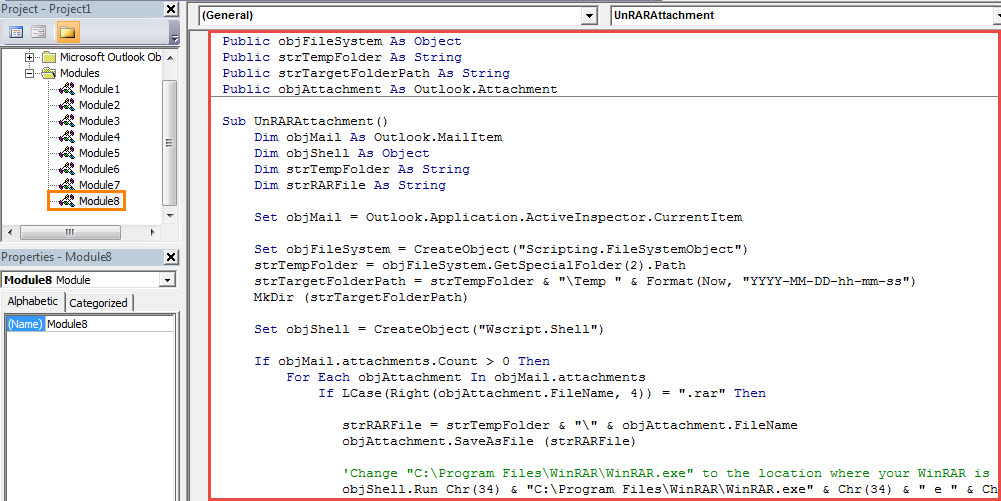
- E poi copia il seguente codice VBA in questo modulo.
Public objFileSystem As Object
Public strTempFolder As String
Public strTargetFolderPath As String
Public objAttachment As Outlook.Attachment

Sub UnRARAttachment()
    Dim objMail As Outlook.MailItem
    Dim objShell As Object
    Dim strTempFolder As String
    Dim strRARFile As String

    Set objMail = Outlook.Application.ActiveInspector.CurrentItem

    Set objFileSystem = CreateObject("Scripting.FileSystemObject")
    strTempFolder = objFileSystem.GetSpecialFolder(2).Path
    strTargetFolderPath = strTempFolder & "\Temp " & Format(Now, "YYYY-MM-DD-hh-mm-ss")
    MkDir (strTargetFolderPath)

    Set objShell = CreateObject("Wscript.Shell")

    If objMail.attachments.Count > 0 Then
       For Each objAttachment In objMail.attachments
           If LCase(Right(objAttachment.FileName, 4)) = ".rar" Then

              strRARFile = strTempFolder & "\" & objAttachment.FileName
              objAttachment.SaveAsFile (strRARFile)

              'Change "C:\Program Files\WinRAR\WinRAR.exe" to the location where your WinRAR is installed
              objShell.Run Chr(34) & "C:\Program Files\WinRAR\WinRAR.exe" & Chr(34) & " e " & Chr(34) & strRARFile & Chr(34) & " " & Chr(34) & strTargetFolderPath & Chr(34)
           End If
       Next
    End If

End Sub

Sub AttachExtractedFiles()
    Dim strFolderPath As String
    Dim strFile As String

    'Attach the extracted files to the current email
    strFolderPath = strTargetFolderPath & "\"
    strFile = Dir(strFolderPath)

    Set objMail = Outlook.Application.ActiveInspector.CurrentItem

    While Len(strFile) > 0
          objMail.attachments.Add strFolderPath & strFile
          strFile = Dir
    Wend

    'Delete the .RAR attachments
    For Each objAttachment In objMail.attachments
        If LCase(Right(objAttachment.FileName, 4)) = ".rar" Then
           objAttachment.Delete
        End If
    Next
End Sub
- Successivamente, devi assicurarti che la macro sia consentita in Outlook.
- Finalmente puoi provare.
- Innanzitutto, apri un'e-mail che contiene .RAR allegati.
- Quindi torna al nuovo pulsante macro.
- Fai clic sulla subroutine "UnRARAttachments" e premi F5.
- Quindi fai clic sulla seguente subroutine "Allega file estratti" e premi il tasto F5.
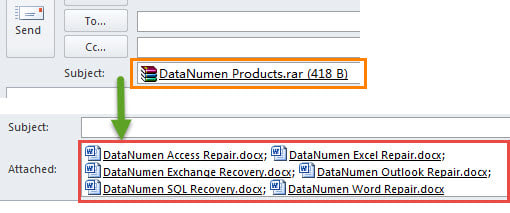
- Dopodiché, puoi tornare alla finestra della posta. Vedrai che .RAR gli allegati sono stati decompressi. Tutti i file estratti sono stati allegati.

Decomprimere .Zip Allegati in Outlook
Come decomprimere il .RAR allegati, Outlook non ha funzionalità native per decomprimere il “.zipallegati. Pertanto, se non sei in grado di decomprimere direttamente il “.Zip” allegati direttamente in Outlook per impostazione predefinita. Fortunatamente, puoi ancora utilizzare Outlook VBA per ottenere questa funzione. Per maggiori dettagli, puoi controllare il mio precedente articolo – “Come aprire la cerniera .Zip Allegati Direttamente in Outlook tramite VBA".
Introduzione dell'autore:
Shirley Zhang è un'esperta di recupero dati in DataNumen, Inc., che è il leader mondiale nelle tecnologie di recupero dati, tra cui fisso SQL Server e prodotti software di riparazione di Outlook. Per maggiori informazioni visita www.datanumen.com