
Las tareas pueden tener cinco estados: «No iniciada», «En curso», «Completada», «En espera de otra persona» y «Aplazada». Si desea contabilizar rápidamente todas las tareas por estado, puede utilizar el método descrito en este artículo.
Outlook permite a los usuarios asignar estados a las tareas o elementos marcados. Existen cinco estados: «No iniciada», «En curso», «Completada», «En espera de respuesta» y «Aplazada». Quizás tenga una gran cantidad de tareas en Outlook con diferentes estados. Si desea contar todas las tareas por estado, puede utilizar el siguiente método.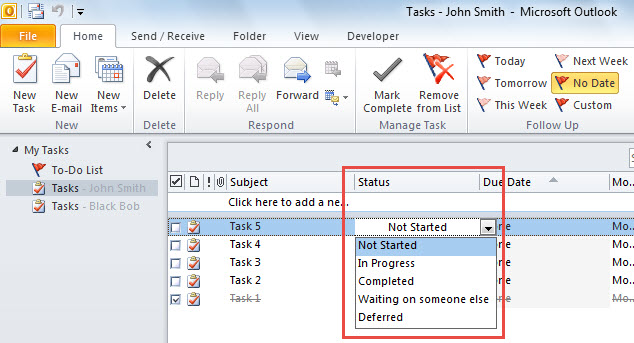
Cuente rápidamente todas las tareas por estado
- En primer lugar, inicie el editor de Outlook VBA consultando "Cómo ejecutar código VBA en su Outlook".
- Luego, en el editor de VBA, habilite la referencia a “Biblioteca de objetos de MS Excel” y a “Entorno de ejecución de scripts de MS” según “Cómo agregar una referencia a una biblioteca de objetos en VBA".
- A continuación, copie el siguiente código en un módulo no utilizado.
Dim objDictionary As New Scripting.Dictionary

Sub CountTasksByStatus()
    Dim objStore As Outlook.Store
    Dim objOutlookFile As Outlook.Folder
    Dim objFolder As Outlook.Folder
    Dim objExcelApp As Excel.Application
    Dim objExcelWorkbook As Excel.Workbook
    Dim objExcelWorksheet As Excel.Worksheet
    Dim varStatuses As Variant
    Dim varTaskCounts As Variant
    Dim i As Integer
    Dim nLastRow As Integer

    'Count by Dictionary
    Set objDictionary = CreateObject("Scripting.Dictionary")

    'Process All Outlook data files
    For Each objStore In Application.Session.Stores
        Set objOutlookFile = objStore.GetRootFolder
        For Each objFolder In objOutlookFile.Folders
            If objFolder.DefaultItemType = olTaskItem Then
               Call ProcessTaskFolders(objFolder)
            End If
        Next
    Next

    'Export the counts to an Excel worksheet
    Set objExcelApp = CreateObject("Excel.Application")
    objExcelApp.Visible = True
    Set objExcelWorkbook = objExcelApp.Workbooks.Add
    Set objExcelWorksheet = objExcelWorkbook.Sheets(1)

    With objExcelWorksheet
        .Cells(1, 1) = "Status"
        .Cells(1, 1).Font.Bold = True
        .Cells(1, 2) = "Task Count"
        .Cells(1, 2).Font.Bold = True
    End With

    varStatuses = objDictionary.Keys
    varTaskCounts = objDictionary.Items

    For i = LBound(varStatuses) To UBound(varStatuses)
        nLastRow = objExcelWorksheet.Range("A" & objExcelWorksheet.Rows.Count).End(xlUp).Row + 1
        With objExcelWorksheet
            .Cells(nLastRow, 1) = varStatuses(i)
            .Cells(nLastRow, 2) = varTaskCounts(i)
        End With
    Next

    objExcelWorksheet.Columns("A:B").AutoFit
End Sub

Sub ProcessTaskFolders(ByVal objCurFolder As Outlook.Folder)
    Dim objTask As Outlook.TaskItem
    Dim strStatus As String
    Dim objSubfolder As Outlook.Folder

    'Count tasks by status
    For Each objTask In objCurFolder.Items
        Select Case objTask.Status
               Case olTaskNotStarted
                    strStatus = "Not Started"

                    If objDictionary.Exists(strStatus) Then
                       objDictionary(strStatus) = objDictionary(strStatus) + 1
                    Else
                       objDictionary.Add strStatus, 1
                    End If
               Case olTaskInProgress
                    strStatus = "In Progress"

                    If objDictionary.Exists(strStatus) Then
                       objDictionary(strStatus) = objDictionary(strStatus) + 1
                    Else
                       objDictionary.Add strStatus, 1
                    End If
               Case olTaskComplete
                    strStatus = "Completed"

                    If objDictionary.Exists(strStatus) Then
                       objDictionary(strStatus) = objDictionary(strStatus) + 1
                    Else
                       objDictionary.Add strStatus, 1
                    End If
               Case olTaskWaiting
                    strStatus = "Waiting on someone else"

                    If objDictionary.Exists(strStatus) Then
                       objDictionary(strStatus) = objDictionary(strStatus) + 1
                    Else
                       objDictionary.Add strStatus, 1
                    End If
               Case olTaskDeferred
                    strStatus = "Deferred"

                    If objDictionary.Exists(strStatus) Then
                       objDictionary(strStatus) = objDictionary(strStatus) + 1
                    Else
                       objDictionary.Add strStatus, 1
                    End If
         End Select
    Next

    'Process all subfolders recursively
    If objCurFolder.Folders.Count > 0 Then
       For Each objSubfolder In objCurFolder.Folders
           Call ProcessTaskFolders(objSubfolder)
       Next
    End If
End Sub
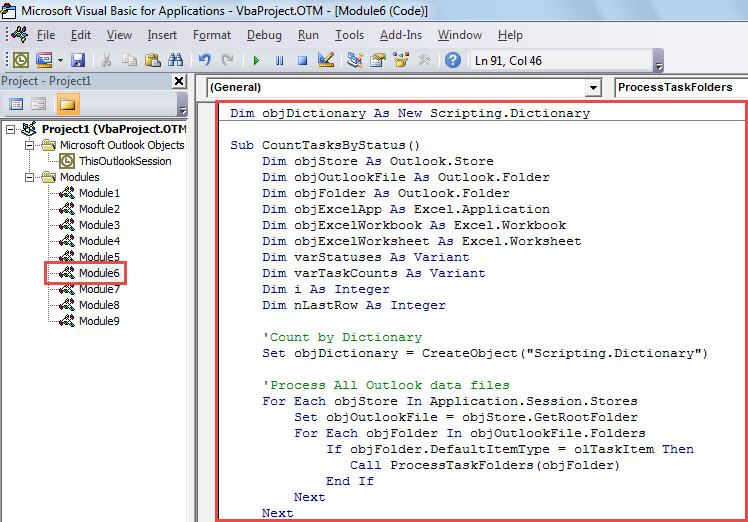
- Después de eso, haga clic en la primera subrutina y presione la tecla "F5".
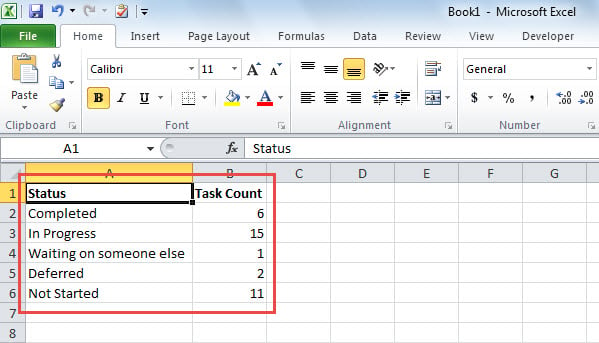
- Inmediatamente, cuando se completa la macro, se mostrará una nueva hoja de cálculo de Excel, como la siguiente captura de pantalla. Contiene los recuentos de tareas en diferentes estados.

Tenga cuidado con las trampas de Outlook
Existe una gran cantidad de riesgos en torno a Outlook, incluidos virus, errores humanos, fallas de software y fallas de hardware, etc. Por lo tanto, si no desea perder sus valiosos datos de Outlook, debe ser cauteloso todo el tiempo. En pocas palabras, nunca debe descargar archivos adjuntos desconocidos o enlaces sospechosos en los correos electrónicos. Además, si es posible, es aconsejable mantener una notable utilidad de corrección de Outlook, como DataNumen Outlook Repair, en los alrededores, en lugar de confiar totalmente en el herramienta de reparación de la bandeja de entrada.
Introducción del autor:
Shirley Zhang es experta en recuperación de datos en DataNumen, Inc., que es el líder mundial en tecnologías de recuperación de datos, incluyendo recuperar sql y productos de software de reparación de Outlook. Para más información visite www.datanumen.com