
Excel tiene una amplia gama de usos. En este artículo, le mostraremos cómo crear un calendario en una hoja de trabajo usando una macro.
A excepción de almacenar y analizar datos en su Excel, también puede usarlo para finalizar otras tareas. Por ejemplo, puede recopilar información utilizando Excel o puede anotar su planificación en la hoja de trabajo. Hoy hemos encontrado un nuevo uso. Puede crear un calendario en una hoja de trabajo. Puedes ver el efecto en la imagen de abajo.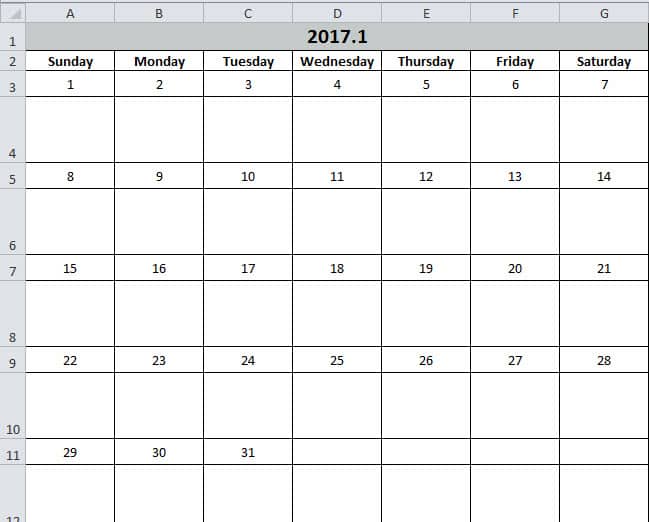
Puede ingresar algunas tareas en este calendario. Y la función es la misma que la de un memorando. Al usar Excel, esas tareas serán más claras. Ahora siga los pasos de la siguiente parte y vea cómo funciona.
Crear un calendario
- Presione el botón "Alt + F11" en el teclado para abrir la hoja de trabajo.
- Y luego inserte un nuevo módulo en el editor de Visual Basic.
- Ahora copiando los siguientes códigos en el nuevo módulo:
Sub Create_Monthly_Calender()
    Dim firstweekday As Integer, EndDay As Integer, _
    FirstWeekColumnIndex As Integer, AssignmentDate As Integer, _
    FirstCountNumber As Integer, SecondCountNumber As Integer, _
    LastDay As Range, objRange As Range, RowIndexofLastday As Integer, FirstCountforTargetRange As Integer, SecondCountforTargetRange As Integer

    firstday = InputBox("Input the year, month and the first day with this format: year/month/day")
    If firstday = "" Then Exit Sub


    Range("A1:G1").Merge
    Range("A1") = Year(firstday) & "." & Month(firstday)
    Range("A2") = "Sunday"
    Range("A2").AutoFill Destination:=Range("A2:G2"), Type:=xlFillDefault
    firstweekday = Application.WorksheetFunction.Weekday(firstday)
    Cells(3, firstweekday) = 1

    Select Case Month(firstday)
        Case 1, 3, 5, 7, 8, 10, 12
            EndDay = 31
        Case 4, 6, 9, 11
            EndDay = 30
        Case 2
            If (Year(firstday) Mod 4) = 0 And (Year(firstday) Mod 100) <> 0 Or ((Year(firstday) Mod 400) = 0) Then
                EndDay = 29
            Else
                EndDay = 28
            End If
    End Select

    For FirstWeekColumnIndex = 1 To (7 - firstweekday)
        Cells(3, firstweekday).Offset(0, FirstWeekColumnIndex) = Cells(3, firstweekday).Offset(0, FirstWeekColumnIndex - 1) + 1
    Next FirstWeekColumnIndex

    AssignmentDate = Range("G3") + 1
    For FirstCountNumber = 2 To 10 Step 2
        For SecondCountNumber = 0 To 6
            Cells(3, firstweekday).Offset(FirstCountNumber, 1 - firstweekday + SecondCountNumber) = AssignmentDate
            AssignmentDate = AssignmentDate + 1
            If Cells(3, firstweekday).Offset(FirstCountNumber, 1 - firstweekday + SecondCountNumber) = EndDay Then
                Exit For
            End If
        Next SecondCountNumber
        If Cells(3, firstweekday).Offset(FirstCountNumber, 1 - firstweekday + SecondCountNumber) = EndDay Then
            Exit For
        End If
    Next FirstCountNumber

    ’set format for the range
    With Range("A1")
        .HorizontalAlignment = xlCenter
        .VerticalAlignment = xlCenter
        .Font.Size = 16
        .Font.Bold = True
        .Interior.Color = RGB(196, 202, 201)
    End With

    With Range("A2:G2")
        .HorizontalAlignment = xlCenter
        .VerticalAlignment = xlCenter
        .Font.Bold = True
    End With

    For Each LastDay In ActiveSheet.UsedRange
        If LastDay = EndDay Then
            RowIndexofLastday = LastDay.Row
        End If
    Next

    For FirstCountforTargetRange = RowIndexofLastday To 3 Step -2
            With Range("A" & FirstCountforTargetRange, "G" & FirstCountforTargetRange)
                .HorizontalAlignment = xlCenter
                .VerticalAlignment = xlCenter
                .RowHeight = 20
            End With
    Next FirstCountforTargetRange

        For SecondCountforTargetRange = RowIndexofLastday + 1 To 4 Step -2
            With Range("A" & SecondCountforTargetRange, "G" & SecondCountforTargetRange)
                .HorizontalAlignment = xlCenter
                .VerticalAlignment = xlCenter
                .Font.Bold = True
                .RowHeight = 50
                .ColumnWidth = 12
            End With
    Next SecondCountforTargetRange

    Set objRange = Range("A1", "G" & (RowIndexofLastday + 1))
    With objRange.Borders
        .Color = vbBlack
        .Weight = xlThin
        .LineStyle = xlContinuous
    End With

    ActiveWindow.DisplayGridlines = False
    Cells(3, firstweekday).Offset(1, 0).Select
End Sub
Por lo tanto, es una macro muy solitaria. Pero puedes usarlo directamente. Y no es necesario modificarlo.
- Luego presione el botón "F5" en el teclado.
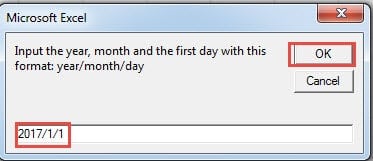
- En la ventana emergente, ingrese la fecha del primer día con el formato “Año / Mes / Día”. El "Día" puede ser cualquier día de este mes, aquí ingresaremos "1".

- Y luego haga clic en el botón "Aceptar". A continuación, volverá al editor. Para comprobar el resultado, puede volver a la hoja de trabajo.
El calendario ya apareció en la hoja de trabajo. Y el cursor se colocará en la celda en blanco del primer día.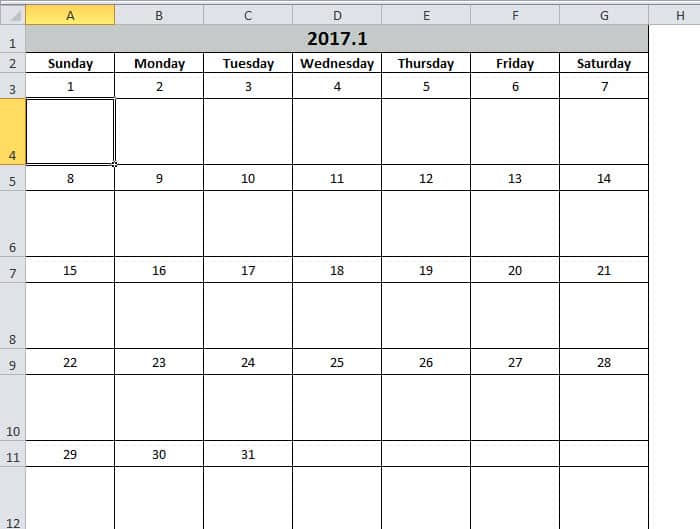
Por otro lado, si no está satisfecho con el formato de las celdas, también puede modificar los códigos según sus preferencias. Con este calendario, seguramente mejorará la eficiencia de su trabajo.
Excel no es menos propenso a fallar
Si usa Excel con frecuencia, no le resultará difícil descubrir que Excel siempre se corrompe. La mayoría de las veces, cerrar Excel y volver a abrirlo puede solucionar el problema. Sin embargo, a veces se encontrará con una corrupción grave de Excel. Y en este momento, puede usar nuestra potente herramienta para reparar error de datos de Excel xlsxMediante esta herramienta, casi todos los errores se pueden solucionar fácilmente.
Introducción del autor:
Anna Ma es una experta en recuperación de datos en DataNumen, Inc., que es el líder mundial en tecnologías de recuperación de datos, incluyendo reparar archivo docx de Word y productos de software de reparación de Outlook. Para más información visite www.datanumen.com