
有時,當您轉發包含多個附件的電子郵件時,您可能希望在轉發時直接重命名附件。 本文將教您如何使用Outlook VBA完成此任務。
默認情況下,Outlook不允許用戶在轉發時重命名附件。 因此,如果要重命名它們,唯一的方法是先將文件保存到計算機上的本地文件夾中,然後重命名它們,然後將其重新附加到轉發電子郵件中。 顯然,這種方法很麻煩。 而且,有時候,這些文件對您而言可能是無關緊要的,因此您確實不想將它們保存到計算機中。 在這種情況下,您必須渴望有一種更快的方法,讓您直接在轉發電子郵件中重命名附件。 以下是通過Outlook VBA實現它的方法。
轉發電子郵件時重命名附件
- 首先,啟動Outlook並轉到“開發人員”選項卡。
- 然後找到並單擊“ Visual Basic”按鈕。
- 之後,在新的彈出窗口中,通過選擇“插入”>“模塊”來打開新模塊。
- 隨後,您應該將以下VBA代碼複製並粘貼到其中。
Sub RenameAttachmentsWhenForwarding()
    Dim olItem As MailItem
    Dim Att As Attachment
    Dim Atts As Attachments
    Dim olForward As MailItem
    Dim FWAtt As Attachment
    Dim FWAtts As Attachments
    Dim FSO As Object
    Dim TempFPath As Object
    Dim FilePath As String
    Dim strName As String
    Dim strExten As String
    Dim strFile As String

    Set olItem = Application.ActiveExplorer.Selection.Item(1)
    Set Atts = olItem.Attachments
    Set olForward = olItem.Forward
    olForward.Display

    On Error Resume Next

    For Each Att In Atts
        'Get the path to Temporary Folder
        Set FSO = CreateObject("Scripting.FileSystemObject")
        Set TempFPath = FSO.GetSpecialFolder(2)
        FilePath = TempFPath.Path & "\"

        'Rename the attachments
        strName = InputBox("Enter a new name for" & vbCrLf & Att.FileName)
        'Change "4" based on the length of the attachment file extension
        strExten = Right(Att.FileName, 4)
        strFile = FilePath & strName & "." & strExten

        If strName <> "" Then
           'Save the attachments to the Temporary Folder
           Att.SaveAsFile (strFile)

           'Add the attachments saved in new names from the Temporary Folder
           olForward.Attachments.Add (strFile)
           Set FWAtts = olForward.Attachments

           'Remove the original attachments
           For Each FWAtt In FWAtts
               If InStr(FWAtt.FileName, Att.FileName) > 0 Then
                  FWAtt.Delete
               End If
           Next
        End If
    Next
End Sub
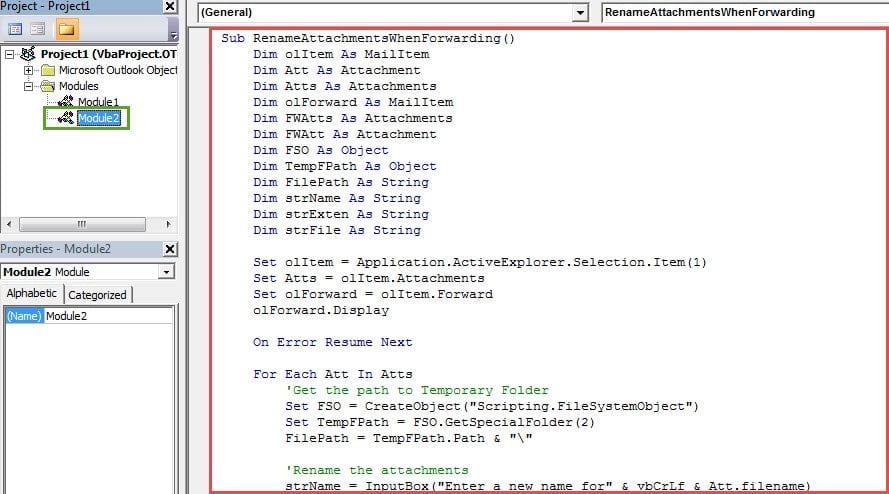
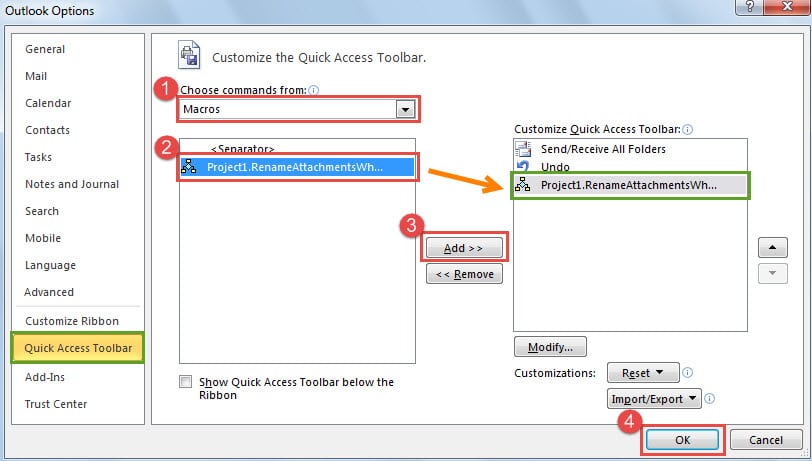
- 之後,您可以退出當前的“ Visual Basic”窗口,並照常繼續將新的宏添加到快速訪問工具欄。

- 最後,您可以嘗試一下。
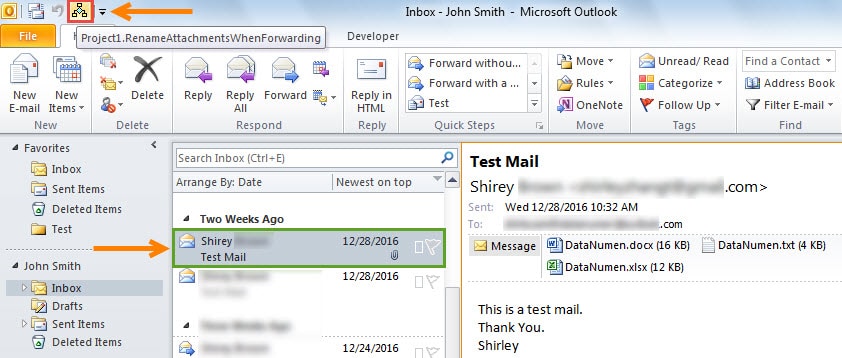
- 首先,選擇一封電子郵件,然後在快速訪問工具欄中單擊新的宏按鈕。

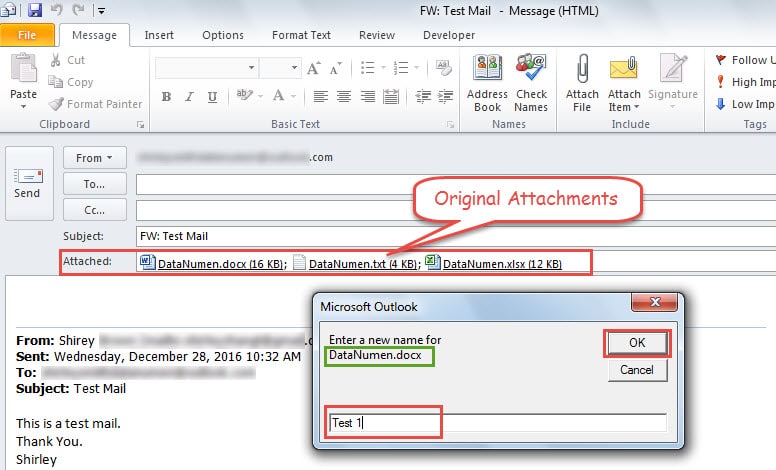
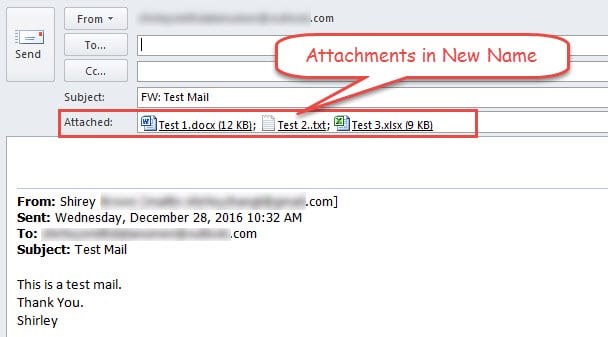
- 然後會打開一個新的轉發電子郵件。 您可以在“附加”行中以原始名稱查看附件,並且還會收到一個對話框,要求您為特定附件輸入新名稱。

- 為所有文件指定新名稱並單擊“確定”後,您將看到所有附加文件均位於新名稱中。

- 最終,您可以編寫轉發電子郵件,然後單擊“發送”按鈕以發送消息。
保持對Outlook的所有潛在威脅的警覺
公認的是Outlook容易受到損壞。 因此,保護Outlook數據免受所有威脅(包括病毒感染,惡意軟件攻擊和 Outlook PST數據損壞等等。最重要的措施是定期備份 Outlook 資料。此外,最好手邊備有一款頂級的修復工具,例如… DataNumen Outlook Repair,這將派上用場。
作者簡介:
Shirley Zhang是的數據恢復專家 DataNumen,Inc.是數據恢復技術的全球領導者,包括 修復損壞的MDF 和Outlook修復軟件產品。 欲了解更多信息,請訪問 萬維網。datanumen.COM