
為了節省打印機墨水和紙張,一些用戶希望將電子郵件中附加的所有圖像僅打印在一頁上,而不是每頁一張圖像。 現在,本文將分享一種實現方法。
眾所周知,打印圖像是相當浪費打印機墨水的。 因此,為了節省打印機墨水和紙張,您可能更喜歡在同一頁上打印許多圖像附件,而不是在單獨的頁面上打印圖像。 雖然Outlook不提供這樣的功能,但您仍然可以通過以下方式實現。
僅在一頁上打印 Outlook 電子郵件的所有圖像附件
- 首先,啟動 Outlook 應用程式。
- 然後,在 Outlook 窗口中,點擊“Alt + F11”鍵按鈕。
- 接下來,您將進入「Microsoft Visual Basic for Applications」窗口,您首先需要在該視窗中啟用「Microsoft Word 物件庫」。
- 之後,您需要打開一個未使用的模塊。
- 隨後,將以下VBA代碼複製並粘貼到該模塊中。
Sub PrintAllImageAttachmentsOnOnePage()
    Dim objSourceMail As Outlook.MailItem
    Dim objAttachment As Outlook.Attachment
    Dim objTempMail As Outlook.MailItem
    Dim objTempDocument As Word.Document
    Dim objWordApp As Word.Application
    Dim strImage As String
    Dim objImage As Word.InlineShape

    Select Case Outlook.Application.ActiveWindow.Class
           Case olInspector
                Set objSourceMail = ActiveInspector.currentItem
           Case olExplorer
                Set objSourceMail = ActiveExplorer.Selection.Item(1)
    End Select

    If Not (objSourceMail Is Nothing) Then
       'Create a temp mail
       Set objTempMail = Outlook.Application.CreateItem(olMailItem)
       objTempMail.Display
       Set objTempDocument = objTempMail.GetInspector.WordEditor
       Set objWordApp = objTempDocument.Application

       Set objFileSystem = CreateObject("Scripting.FileSystemObject")

       For Each objAttachment In objSourceMail.attachments
           'Get the Image attachments, instead of inserted Images
           If IsEmbedded(objAttachment) = False Then
              Select Case LCase(objFileSystem.GetExtensionName(objAttachment.filename))
                     Case "jpg", "jpeg", "png", "bmp", "gif"
                          strImage = "E:\" & objAttachment.filename
                          objAttachment.SaveAsFile strImage

                          'Insert the images into the temp mail
                          Set objImage = objWordApp.Selection.InlineShapes.AddPicture(filename:=strImage, LinkToFile:=False, SaveWithDocument:=True)
                          objWordApp.Selection.TypeText Text:=" "

                          'shrink the images to insure that they are on one page
                          objImage.ScaleHeight = 20
                          objImage.ScaleWidth = 20

                          Kill strImage
             End Select
           End If
       Next

       objTempMail.PrintOut
       objTempMail.Close olDiscard
    End If
End Sub

Function IsEmbedded(objCurAttachment As Outlook.Attachment) As Boolean
    Dim objPropertyAccessor As Outlook.propertyAccessor
    Dim strProperty As String

    Set objPropertyAccessor = objCurAttachment.propertyAccessor
    strProperty = objPropertyAccessor.GetProperty("http://schemas.microsoft.com/mapi/proptag/0x3712001E")

    If InStr(1, strProperty, "@") > 0 Then
       IsEmbedded = True
    Else
       IsEmbedded = False
    End If
End Function
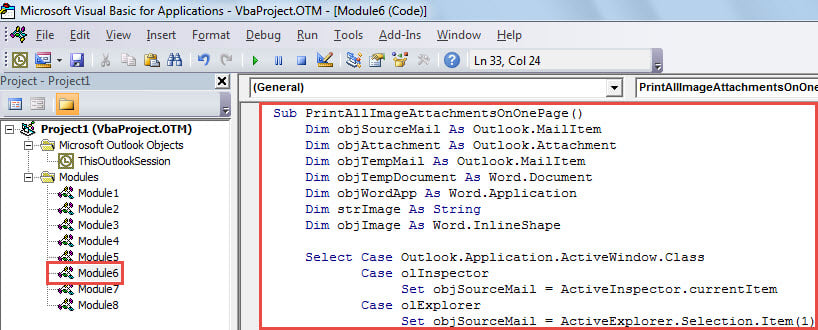
- 稍後,您可以返回電子郵件列表。 選擇或打開您想要打印其圖片附件的電子郵件。
- 然後,觸發這個宏。 在當前宏窗口中,只需按“F5”鍵或單擊工具欄中的“運行”圖標即可。
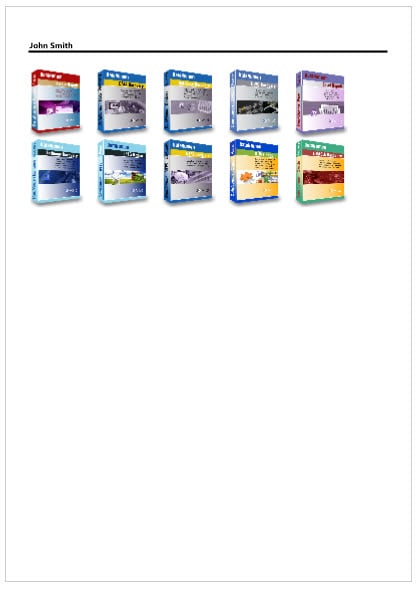
- 最後,當宏運行完成後,源電子郵件的所有圖像附件將打印在一頁上,如下截圖:

處理損壞的 Outlook 文件
隨著 Outlook 中存儲的數據越來越多,您的 Outlook 文件也越來越容易受到攻擊。 它可能會因各種內部和外部因素而受到損害。 此外,預測 Outlook 損壞也很困難。 因此,您能做的就是確保在遇到 Outlook 損壞時立即有效地進行救援。 例如,你必須保留一個專門的 PST維修 工具,例如 DataNumen Outlook Repair 在附近。 它將輕鬆掃描並恢復損壞的文件。
作者簡介:
Shirley Zhang是的數據恢復專家 DataNumen,Inc.是數據恢復技術的全球領導者,包括 恢復 Sql Server 和Outlook修復軟件產品。 欲了解更多信息,請訪問 萬維網。datanumen.COM