
在 Outlook 行事曆中建立或變更約會時,Outlook 會自動檢查是否有衝突的約會。此時,如果您想檢查衝突情況,可以使用本文介紹的方法。
也許您在創建或更改 Outlook 約會時見過“與另一個約會衝突”文本。 這是因為 Outlook 可以自動檢查衝突。 但是,Outlook 的默認功能無法幫助您快速找到衝突。 因此,在這裡我們將告訴您一種生成搜索所有衝突約會的函數的方法。
找出與特定約會衝突的所有其他約會
- 首先,啟動Outlook程序。
- 然後,在 Outlook 主窗口中,按“Alt + F11”鍵按鈕。
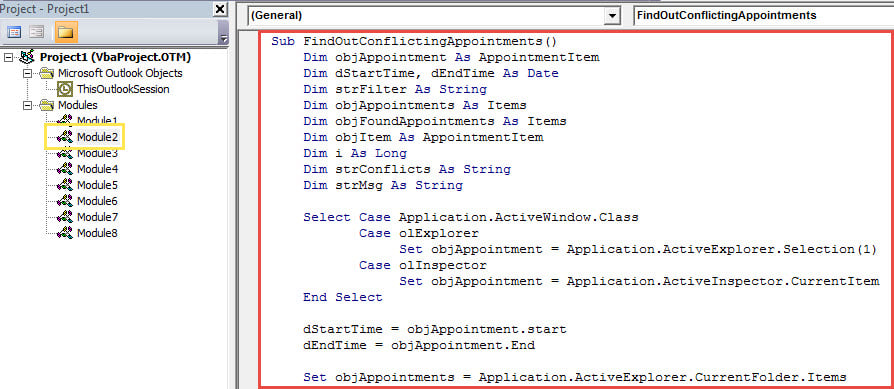
- 您將立即訪問 Outlook VBA 編輯器,需要在其中打開未使用的模塊。
- 接下來,將以下VBA代碼複製到該模塊中。
Sub FindOutConflictingAppointments()
    Dim objAppointment As AppointmentItem
    Dim dStartTime, dEndTime As Date
    Dim strFilter As String
    Dim objAppointments As Items
    Dim objFoundAppointments As Items
    Dim objItem As AppointmentItem
    Dim i As Long
    Dim strConflicts As String
    Dim strMsg As String

    Select Case Application.ActiveWindow.Class
           Case olExplorer
                Set objAppointment = Application.ActiveExplorer.Selection(1)
           Case olInspector
                Set objAppointment = Application.ActiveInspector.CurrentItem
    End Select

    dStartTime = objAppointment.start
    dEndTime = objAppointment.End

    Set objAppointments = Application.ActiveExplorer.CurrentFolder.Items

    i = 1

    '1: Find all appts whose end time within the start and end time of source appt
    strFilter = "[End] >= " & Chr(34) & Format(dStartTime, "mm/dd/yyyy hh:mm AMPM") & Chr(34) & " AND [End] <= " & Chr(34) & Format(dEndTime, "mm/dd/yyyy hh:mm AMPM") & Chr(34)

    Set objFoundAppointments = objAppointments.Restrict(strFilter)

    For Each objItem In objFoundAppointments
        If objItem.Subject <> objAppointment.Subject Then
           strConflicts = strConflicts & i & ". " & objItem.Subject & vbCrLf
           i = i + 1
        End If
    Next

    '2: Find all appts occurring within the start and end time of source appt
    strFilter = "[Start] >= " & Chr(34) & Format(dStartTime, "mm/dd/yyyy hh:mm AMPM") & Chr(34) & " AND [End] <= " & Chr(34) & Format(dEndTime, "mm/dd/yyyy hh:mm AMPM") & Chr(34)

    Set objFoundAppointments = objAppointments.Restrict(strFilter)

    For Each objItem In objFoundAppointments
        If objItem.Subject <> objAppointment.Subject Then
           strConflicts = strConflicts & i & ". " & objItem.Subject & vbCrLf
           i = i + 1
        End If
    Next

    '3: Find all appts whose start time within the start and end time of source appt
    strFilter = "[Start] >= " & Chr(34) & Format(dStartTime, "mm/dd/yyyy hh:mm AMPM") & Chr(34) & " AND [Start] <= " & Chr(34) & Format(dEndTime, "mm/dd/yyyy hh:mm AMPM") & Chr(34)

    Set objFoundAppointments = objAppointments.Restrict(strFilter)

    For Each objItem In objFoundAppointments
        If objItem.Subject <> objAppointment.Subject Then
           strConflicts = strConflicts & i & ". " & objItem.Subject & vbCrLf
           i = i + 1
        End If
    Next

    '4: Find all appts cover the entire source appt
    strFilter = "[Start] <= " & Chr(34) & Format(dStartTime, "mm/dd/yyyy hh:mm AMPM") & Chr(34) & " AND [End] >= " & Chr(34) & Format(dEndTime, "mm/dd/yyyy hh:mm AMPM") & Chr(34)

    Set objFoundAppointments = objAppointments.Restrict(strFilter)

    For Each objItem In objFoundAppointments
        If objItem.Subject <> objAppointment.Subject Then
           strConflicts = strConflicts & i & ". " & objItem.Subject & vbCrLf
           i = i + 1
        End If
    Next

    strMsg = i - 1 & " Conflicting Appointments:" & vbCrLf & vbCrLf & strConflicts
    MsgBox strMsg, vbInformation + vbOKOnly, "Check Conflicts"
End Sub
- 之後,您可以退出當前窗口。
- 然後像往常一樣將此宏添加到快速訪問工具欄。
- 稍後您還應該確保 Outlook 中啟用了宏。 只需進入“宏設置”即可查看。
- 最後,您可以嘗試一下。
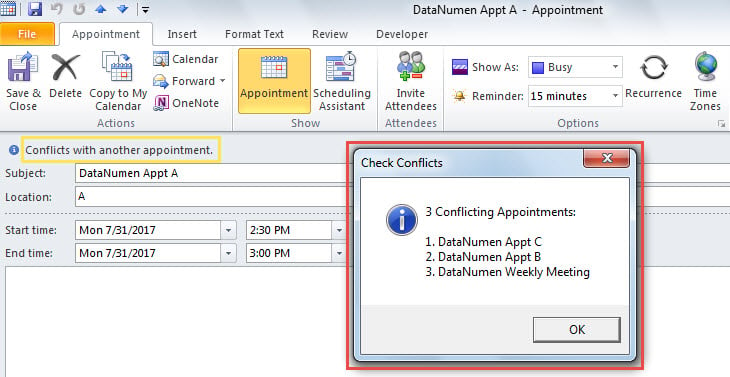
- 首先,選擇或打開一個約會,其中有“與另一個約會衝突”提示。
- 然後在快速訪問工具欄中單擊宏按鈕。
- 您將立即收到一條消息,其中列出了所有衝突的約會,如下圖所示:

Outlook損壞前的基本預防措施
眾所周知,Outlook 容易崩潰和出現錯誤。因此,做好應對 Outlook 損壞的準備至關重要。最重要的預防措施之一是定期備份。此外,建議準備一個功能強大的專用備份工具。 Outlook修復 工具,例如 DataNumen Outlook Repair.
作者簡介:
Shirley Zhang是的數據恢復專家 DataNumen,Inc.是數據恢復技術的全球領導者,包括 mdf恢復 和Outlook修復軟件產品。 欲了解更多信息,請訪問 萬維網。datanumen.COM