
如果您想快速將Outlook郵件的所有圖片附件導出到Excel工作表,可以參考這篇文章。 這裡我們將向您展示一種比手動導出更有效的方法。
當您收到一封包含大量圖片附件的電子郵件時,如果您想用它們在 Excel 中製作報告,您一定會渴望找到一種能夠批量將這些圖片匯出到 Excel 工作表中的方法。接下來,我們將為您介紹這樣一種方法。
將電子郵件的所有圖像附件導出到 Excel 工作表
- 首先,以正常方式訪問 Outlook 應用程序。
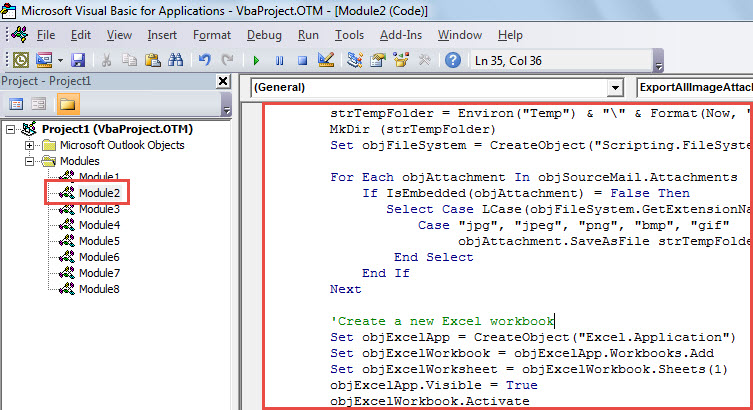
- 然後,在 Outlook 窗口中,按“Alt + F11”快捷鍵,這將彈出“Microsoft Visual Basic for Applications”窗口。
- 在此屏幕中,您需要打開一個未使用的模塊或直接插入一個新模塊。
- 接下來,您應該將下面的 VBA 代碼複製到該模塊中。
Sub ExportAllImageAttachmentsToExcelWorksheet()
    Dim objSourceMail As Outlook.MailItem
    Dim objAttachment As Outlook.Attachment
    Dim strImage As String
    Dim objExcelApp As Excel.Application
    Dim objExcelWorkbook As Excel.Workbook
    Dim objExcelWorksheet As Excel.Worksheet
    Dim objFile As Object
    Dim objFiles As Object
    Dim nRow As Integer

    Select Case Outlook.Application.ActiveWindow.Class
           Case olInspector
                Set objSourceMail = ActiveInspector.currentItem
           Case olExplorer
                Set objSourceMail = ActiveExplorer.Selection.Item(1)
    End Select

    If Not (objSourceMail Is Nothing) Then

       'Save the image attachments to a temporary folder
       strTempFolder = Environ("Temp") & "\" & Format(Now, "yyyymmddhhmmss") & "\"
       MkDir (strTempFolder)
       Set objFileSystem = CreateObject("Scripting.FileSystemObject")

       For Each objAttachment In objSourceMail.Attachments
           If IsEmbedded(objAttachment) = False Then
              Select Case LCase(objFileSystem.GetExtensionName(objAttachment.filename))
                     Case "jpg", "jpeg", "png", "bmp", "gif"
                          objAttachment.SaveAsFile strTempFolder & objAttachment.filename
              End Select
           End If
       Next

       'Create a new Excel workbook
        Set objExcelApp = CreateObject("Excel.Application")
        Set objExcelWorkbook = objExcelApp.Workbooks.Add
        Set objExcelWorksheet = objExcelWorkbook.Sheets(1)
        objExcelApp.Visible = True
        objExcelWorkbook.Activate

        'Get the images in the temporary folder
        Set objFiles = objFileSystem.GetFolder(strTempFolder).Files

        'Insert the images into this new Excel worksheet
        For Each objFile In objFiles
            strImage = strTempFolder & Trim(objFile.Name)
            nRow = nRow + 1
            With objExcelWorksheet
                 .Range("A" & nRow).value = objFile.Name
                 'Change the height and width as per your needs
                 .Range("B" & nRow).ColumnWidth = 10
                 .Range("B" & nRow).RowHeight = 80
                 .Range("B" & nRow).Activate
                 With .Pictures.insert(strImage)
                      With .ShapeRange
                           .LockAspectRatio = msoTrue
                           .Width = 50
                           .Height = 70
                      End With
                 End With
                 .Columns("A").AutoFit
                 .Activate
            End With
       Next
    End If
End Sub

Function IsEmbedded(objCurAttachment As Outlook.Attachment) As Boolean
    Dim objPropertyAccessor As Outlook.propertyAccessor
    Dim strProperty As String

    Set objPropertyAccessor = objCurAttachment.propertyAccessor
    strProperty = objPropertyAccessor.GetProperty("http://schemas.microsoft.com/mapi/proptag/0x3712001E")

    If InStr(1, strProperty, "@") > 0 Then
       IsEmbedded = True
    Else
       IsEmbedded = False
    End If
End Function
- 之後,您可以退出宏。
- 然後,前往“文件”>“選項”>“快速訪問工具欄”將此宏添加到快速訪問工具欄。
- 最後,您現在就可以嘗試這個宏。
- 首先,選擇或打開源電子郵件。
- 然後,單擊快速訪問工具欄中的宏按鈕。
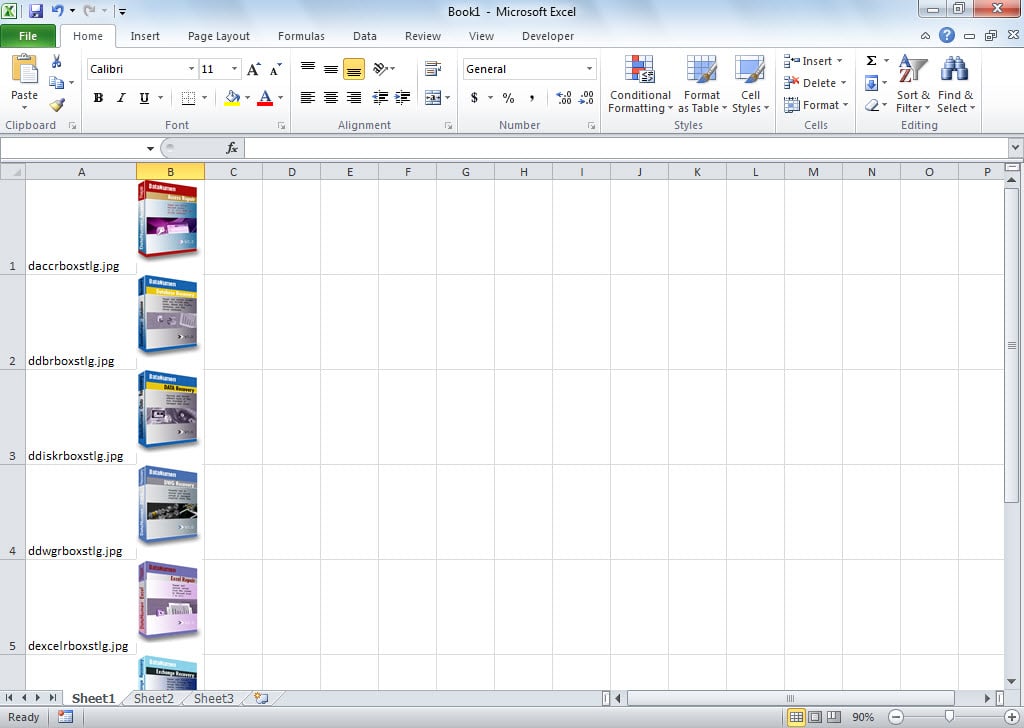
- 宏完成後,您將獲得一個 Excel 工作表,如下圖所示:

保護 Outlook 文件免遭損壞
眾所周知,Outlook 很容易損壞。 因此,我們應該了解如何保護 Outlook 免受損壞。 首先,為了阻止病毒的攻擊,一定要安裝殺毒軟件,切勿下載不明附件。 此外,我們最好擁有一個有效的修復工具,例如 DataNumen Outlook Repair在以下情況下,它可以提供最有效的解決方案: Outlook損壞.
作者簡介:
Shirley Zhang是的數據恢復專家 DataNumen,Inc.是數據恢復技術的全球領導者,包括 sql恢復 和Outlook修復軟件產品。 欲了解更多信息,請訪問 萬維網。datanumen.COM