
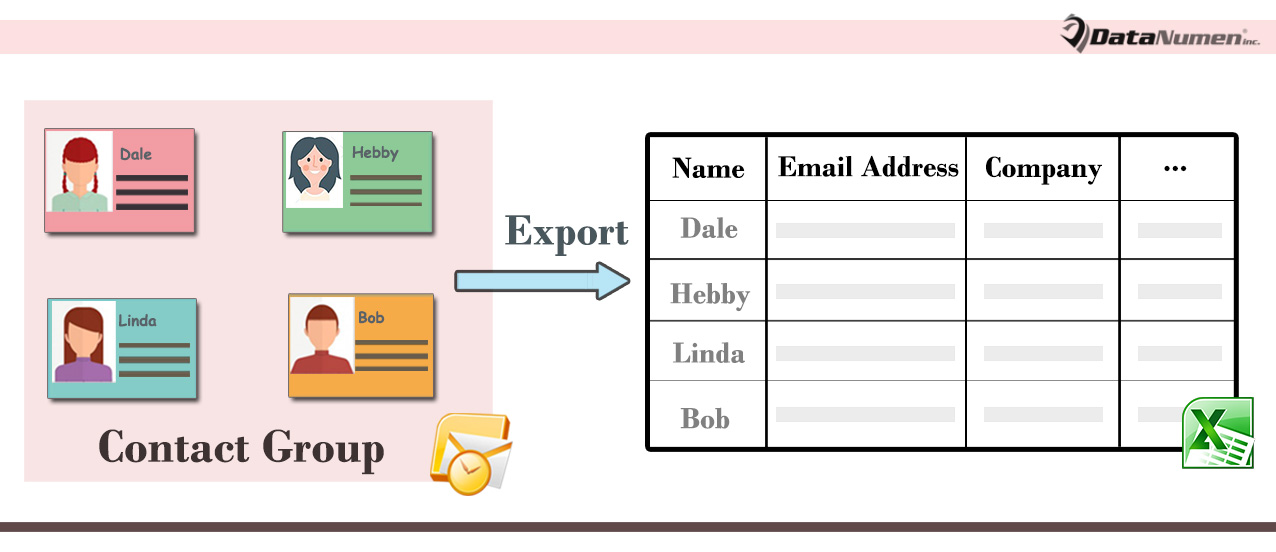
默認情況下,您只能看到聯繫人組中的成員姓名和電子郵件地址。 如果您想獲取成員的其他詳細信息,可以使用本文介紹的方式。
當您雙擊一個聯繫人群組將其打開時,在其窗口中,您只能看到群組成員的姓名和電子郵件地址。 您無法獲取成員的其他詳細信息,例如公司、職位、電話號碼或公司地址等。通常,要獲取這些詳細信息,您必須手動在“聯繫人”文件夾中找到與成員對應的聯繫人。 太麻煩了。 在這裡,我們將向您展示一段 VBA 代碼,它可以將這些詳細信息快速導出到 Excel 工作簿。
將聯繫人組中所有成員的詳細信息導出到 Excel
- 首先,啟動 Outlook 應用程式。
- 然後你應該在主 Outlook 窗口中按“Alt + F11”快捷鍵。
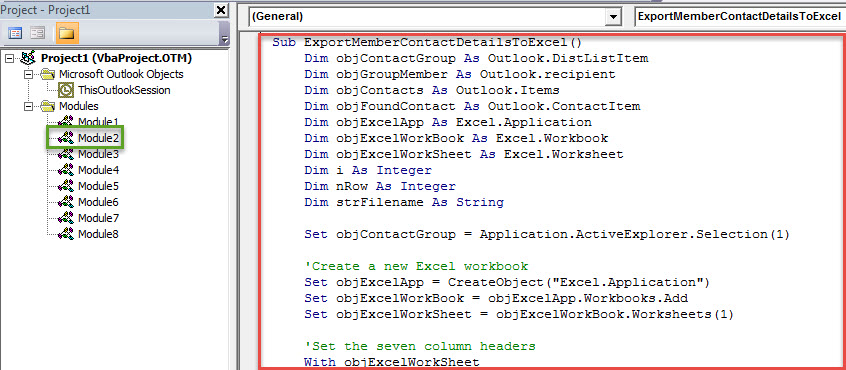
- 接下來在新的“Microsoft Visual Basic for Applications”窗口中,您需要打開一個未使用的模塊或直接插入一個新模塊。
- 隨後,將以下VBA代碼複製並粘貼到該模塊中。
Sub ExportMemberContactDetailsToExcel()
    Dim objContactGroup As Outlook.DistListItem
    Dim objGroupMember As Outlook.recipient
    Dim objContacts As Outlook.Items
    Dim objFoundContact As Outlook.ContactItem
    Dim objExcelApp As Excel.Application
    Dim objExcelWorkBook As Excel.Workbook
    Dim objExcelWorkSheet As Excel.Worksheet
    Dim i As Integer
    Dim nRow As Integer
    Dim strFilename As String

    Set objContactGroup = Application.ActiveExplorer.Selection(1)

    'Create a new Excel workbook
    Set objExcelApp = CreateObject("Excel.Application")
    Set objExcelWorkBook = objExcelApp.Workbooks.Add
    Set objExcelWorkSheet = objExcelWorkBook.Worksheets(1)

    'Set the seven column headers
    With objExcelWorkSheet
         .Cells(1, 1) = "Name"
         .Cells(1, 2) = "Email Address"
         .Cells(1, 3) = "Company"
         .Cells(1, 4) = "Job Title"
         .Cells(1, 5) = "Phone Number"
         .Cells(1, 6) = "Mailing Address"
         .Cells(1, 7) = "Birthday"
    End With

    Set objContacts = Application.Session.GetDefaultFolder(olFolderContacts).Items.Restrict("[Email1Address]>''")

    nRow = 2
    For i = 1 To objContactGroup.MemberCount
        Set objGroupMember = objContactGroup.GetMember(i)

        strFilter = "[Email1Address] = '" & objGroupMember.Address & "'"
        Set objFoundContact = objContacts.Find(strFilter)

        If Not (objFoundContact Is Nothing) Then
           'Input the Contact Details
           With objExcelWorkSheet
                .Cells(nRow, 1) = objFoundContact.FullName
                .Cells(nRow, 2) = objFoundContact.Email1Address
                .Cells(nRow, 3) = objFoundContact.CompanyName
                .Cells(nRow, 4) = objFoundContact.JobTitle
                .Cells(nRow, 5) = objFoundContact.BusinessTelephoneNumber
                .Cells(nRow, 6) = objFoundContact.MailingAddress
             If objFoundContact.Birthday = #1/1/4501# Then
                .Cells(nRow, 7) = ""
             Else
                .Cells(nRow, 7) = objFoundContact.Birthday
             End If
           End With
       Else
           With objExcelWorkSheet
               .Cells(nRow, 1) = objGroupMember.Name
               .Cells(nRow, 2) = objGroupMember.Address
           End With
       End If
       nRow = nRow + 1
    Next

    'Fit the columns
    objExcelWorkSheet.Columns("A:G").AutoFit

    'Change the Path as per where you want to save the new Excel file
    strFilename = "E:\" & objContactGroup.DLName & " Member Contact Details.xlsx"
    'Save the Excel workbook
    objExcelWorkBook.Close True, strFilename

    MsgBox ("Complete!")
End Sub
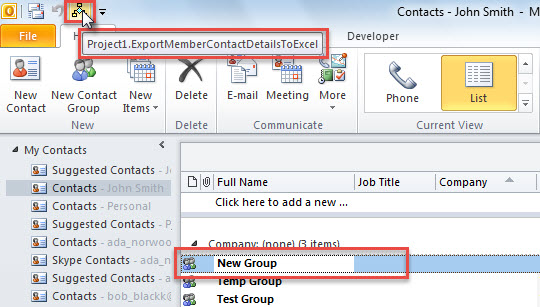
- 之後,為了方便檢查,您可以將新的 VBA 項目添加到快速訪問工具欄或功能區。
- 稍後將您的 Outlook 宏安全級別設置為低。
- 最終,您可以嘗試一下。
- 首先,選擇一個聯繫人組。
- 然後按快速訪問工具欄或功能區中的宏按鈕。

- 立即,宏將運行。
- 完成後,您將收到“完成!”的提示。
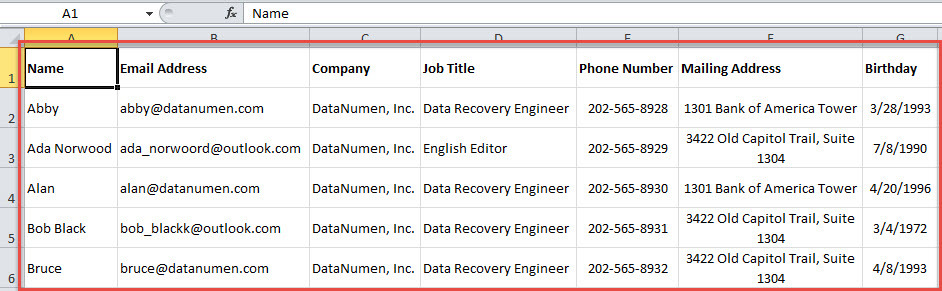
- 之後,您可以轉到預定義的目標本地文件夾,您可以在其中找到一個新的 Excel 文件。
- 打開它,您將看到群組成員的聯繫方式,如下圖所示:

面對 Outlook 問題不要驚慌
沒有人願意接受任何 Outlook 的麻煩,無論是彈出錯誤消息還是 腐敗的Outlook 數據文件。 因此,用戶在遇到 Outlook 問題時往往會感到恐慌。 如果你想在這種情況下保持冷靜,你應該有兩個必需品。 一種是當前的 Outlook 數據備份。 另一個是強大的 Outlook 修復軟件,例如 DataNumen Outlook Repair.
作者簡介:
Shirley Zhang是的數據恢復專家 DataNumen,Inc.是數據恢復技術的全球領導者,包括 sql恢復 和Outlook修復軟件產品。 欲了解更多信息,請訪問 萬維網。datanumen.COM