
本文將教您一種簡單的方法,以打印出所有約會的列表,這些約會顯示為“忙碌”並在特定日期範圍內安排。
要遍歷所有日曆,查找特定日期範圍內的所有繁忙預約,非常簡單。只需將搜尋範圍設為“所有日曆項目”,然後搜尋“顯示時間”為“忙碌”且開始日期和結束日期在指定範圍內的預約即可。但是,這樣一來,當您想要列印找到的預約並轉到“文件”>“列印”時,會發現只有“備忘錄樣式”可用。這表示您無法以清單形式列印找到的預約。因此,如果您想列印此類預約的列表,可以使用以下方法。
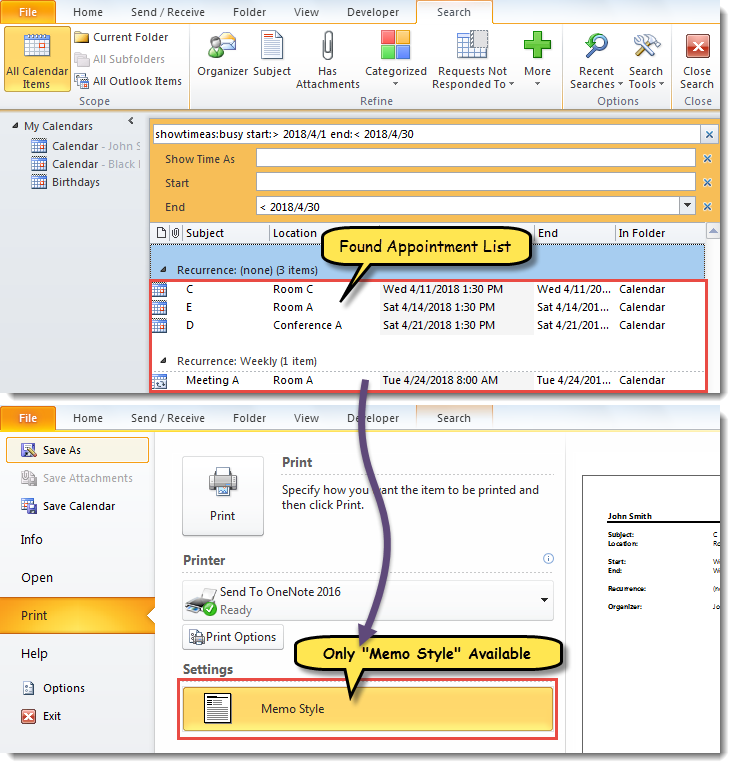
打印特定日期範圍內所有忙碌約會的列表
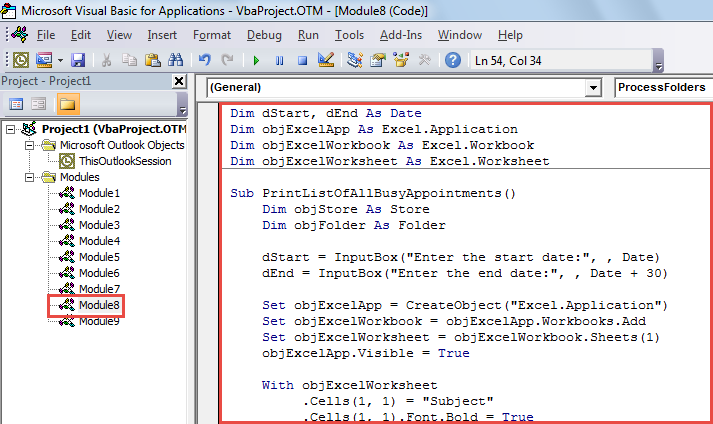
- 首先,通過“ Alt + F11”啟動Outlook VBA編輯器。
- 然後,在彈出的「Microsoft Visual Basic for Applications」視窗中,依照「…」的說明新增對「MS Excel Object Library」的參考。如何在 VBA 中新增物件庫引用“。
- 之後,將以下VBA代碼放入模塊中。
Dim dStart, dEnd As Date
Dim objExcelApp As Excel.Application
Dim objExcelWorkbook As Excel.Workbook
Dim objExcelWorksheet As Excel.Worksheet

Sub PrintListOfAllBusyAppointments()
    Dim objStore As Store
    Dim objFolder As Folder

    dStart = InputBox("Enter the start date:", , Date)
    dEnd = InputBox("Enter the end date:", , Date + 30)

    Set objExcelApp = CreateObject("Excel.Application")
    Set objExcelWorkbook = objExcelApp.Workbooks.Add
    Set objExcelWorksheet = objExcelWorkbook.Sheets(1)
    objExcelApp.Visible = True

    With objExcelWorksheet
         .Cells(1, 1) = "Subject"
         .Cells(1, 1).Font.Bold = True
         .Cells(1, 2) = "Location"
         .Cells(1, 2).Font.Bold = True
         .Cells(1, 3) = "Start"
         .Cells(1, 3).Font.Bold = True
         .Cells(1, 4) = "End"
         .Cells(1, 4).Font.Bold = True
         .Cells(1, 5) = "In Folder"
         .Cells(1, 5).Font.Bold = True
    End With

    For Each objStore In Application.Session.Stores
        For Each objFolder In objStore.GetRootFolder.Folders
            If objFolder.DefaultItemType = olAppointmentItem Then
               Call ProcessFolders(objFolder)
            End If
        Next
    Next

    objExcelWorksheet.Columns("A:E").AutoFit
    objExcelWorksheet.PrintOut
    objExcelWorkbook.Close False
    objExcelApp.Quit
End Sub

Sub ProcessFolders(ByVal objCurFolder As Folder)
    Dim strFilter As String
    Dim objItems As Outlook.Items
    Dim objRestrictedItems As Outlook.Items
    Dim objAppointment As AppointmentItem
    Dim nLastRow As Integer
    Dim objSubFolder As Folder

    Set objItems = objCurFolder.Items
    objItems.IncludeRecurrences = True
    objItems.Sort "[Start]"

    'Get the appointments in the specific date range
    strFilter = "[Start] >= " & Chr(34) & dStart & " 00:00 AM" & Chr(34) & " AND [End] <= " & Chr(34) & dEnd & " 11:59 PM" & Chr(34)
    Set objRestrictedItems = objItems.Restrict(strFilter)

    For Each objAppointment In objRestrictedItems
        If objAppointment.BusyStatus = olBusy Then
           nLastRow = objExcelWorksheet.Range("A" & objExcelWorksheet.Rows.Count).End(xlUp).Row + 1

           With objExcelWorksheet
                .Range("A" & nLastRow) = objAppointment.Subject
                .Range("B" & nLastRow) = objAppointment.Location
                .Range("C" & nLastRow) = objAppointment.Start
                .Range("D" & nLastRow) = objAppointment.End
                .Range("E" & nLastRow) = objCurFolder.FolderPath
           End With
        End If
    Next

    'Process all subfolders recursively
    If objCurFolder.Folders.Count > 0 Then
       For Each objSubFolder In objCurFolder.Folders
           Call ProcessFolders(objSubFolder)
       Next
    End If
End Sub
- 之後,單擊進入第一個子例程,然後按“ F5”鍵按鈕。
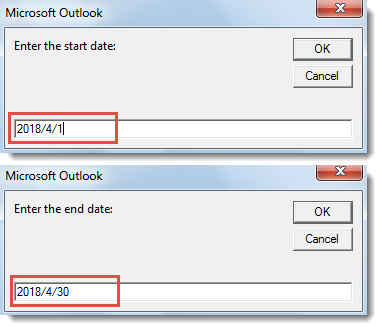
- 接下來,您需要指定搜索約會的日期範圍。

- 隨後,單擊“確定”以繼續宏。
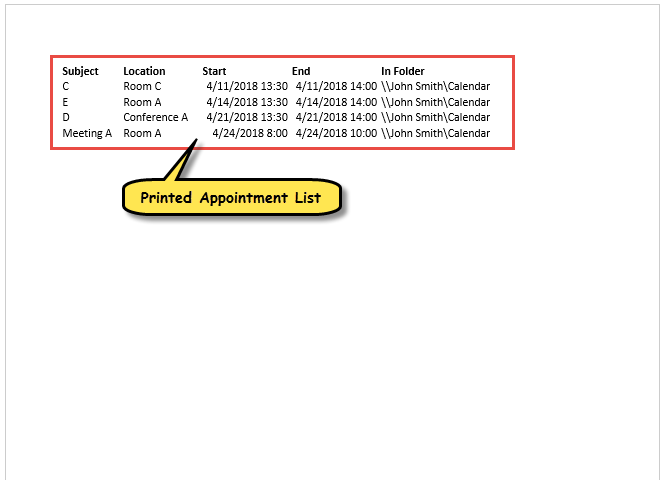
- 最後,當宏結束時,將打印所有日曆文件夾中預定義日期範圍內的忙碌約會列表,如下面的屏幕快照所示。

解決令人不安的前景腐敗
如果您的Outlook總是以不正確的方式關閉,則以後可能會遇到很多問題。 其中,Outlook文件損壞是最糟糕的文件。 如果您不想丟失數據,則需要使用PST修復工具,例如 DataNumen Outlook Repair。 它能夠從中獲取最大數據 損壞的Outlook 文件。
作者簡介:
Shirley Zhang是的數據恢復專家 DataNumen,Inc.是數據恢復技術的全球領導者,包括 SQL修復 和Outlook修復軟件產品。 欲了解更多信息,請訪問 萬維網。datanumen.COM