
本文將教您一個快速技巧,使用VBA讓Outlook在您在特定時間內沒有收到特定電子郵件的回复時自動提示您是否發送通知電子郵件。
有時,對於至關重要的電子郵件,您肯定會期待其回复。 換句話說,你一定希望收件人能夠盡快給你回复。 否則,只要您在預期時間內尚未收到回复,您就會再次向收件人發送後續通知電子郵件。 因此,針對這一需求,這裡介紹一種使用VBA使Outlook在這種情況下自動警告和提示的方法。 繼續閱讀以獲取詳細的步驟和代碼。
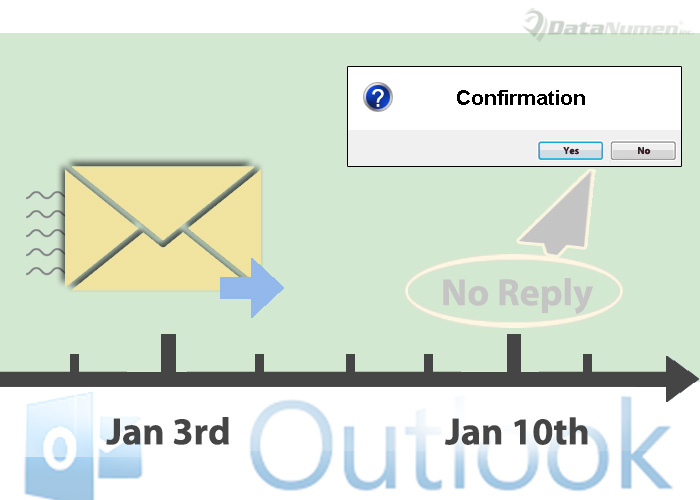
如果在預期時間內未收到特定電子郵件的回复,則會收到通知
- 首先,啟動 Outlook。
- 然後您需要為特定的電子郵件設置特定的提醒時間。
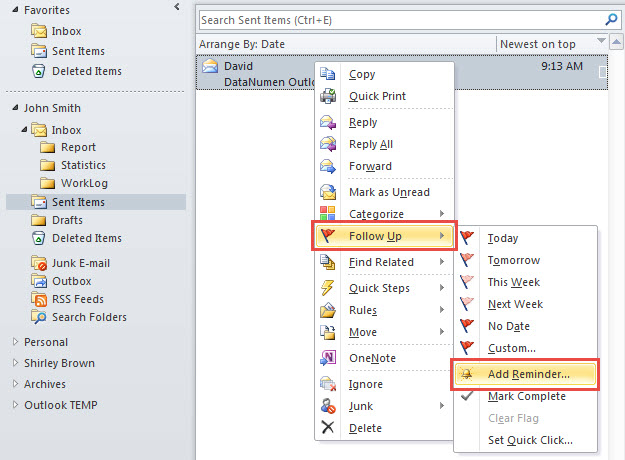
- 首先,右鍵單擊特定電子郵件。
- 然後選擇“跟進”>“添加提醒”。

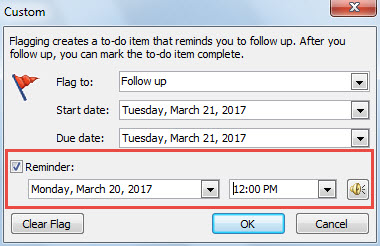
- 在該對話框中,您可以將提醒時間設置為與您希望收到回复的具體時間相同。

- 之後,按“Alt + F11”鍵按鈕即可訪問 Outlook VBA 編輯器。
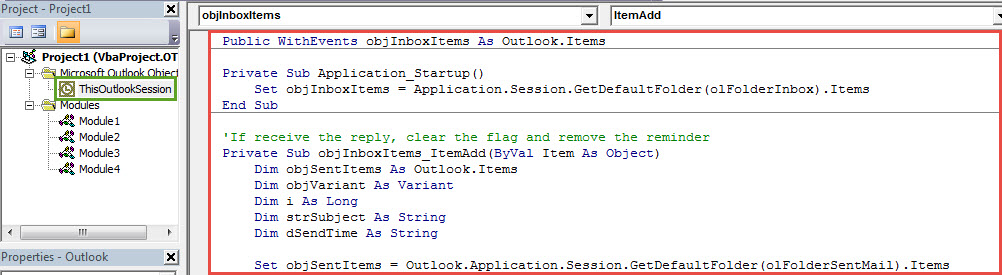
- 接下來在新窗口中打開“ThisOutlookSession”項目並將以下代碼複製到其中。
Public WithEvents objInboxItems As Outlook.Items

Private Sub Application_Startup()
    Set objInboxItems = Application.Session.GetDefaultFolder(olFolderInbox).Items
End Sub

'If receive the reply, clear the flag and remove the reminder
Private Sub objInboxItems_ItemAdd(ByVal Item As Object)
    Dim objSentItems As Outlook.Items
    Dim objVariant As Variant
    Dim i As Long
    Dim strSubject As String
    Dim dSendTime As String

    Set objSentItems = Outlook.Application.Session.GetDefaultFolder(olFolderSentMail).Items

    If Item.Class = olMail Then
       For i = 1 To objSentItems.Count
           If objSentItems.Item(i).Class = olMail Then
              Set objVariant = objSentItems.Item(i)
              strSubject = LCase(objVariant.Subject)
              dSendTime = objVariant.SentOn

              If LCase(Item.Subject) = "re: " & strSubject Or InStr(LCase(Item.Subject), strSubject) > 0 Then
                 If Item.SentOn > dSendTime Then
                    With objVariant
                         .ClearTaskFlag
                         .ReminderSet = False
                         .Save
                    End With
                 End If
              End If
           End If
       Next i
    End If
End Sub

'Get a prompt asking if to send a notification email
Private Sub Application_Reminder(ByVal Item As Object)
    Dim strPrompt As String
    Dim nResponse As Integer
    Dim objFollowUpMail As Outlook.MailItem

    'You can change the subject as per your real case
    If (Item.Class = olMail) And (LCase(Item.Subject) = "datanumen outlook repair") Then
       strPrompt = "You haven't yet recieved the reply of " & Chr(34) & Item.Subject & Chr(34) & " within your expected time. Do you want to send a follow-up notification email?"
       nResponse = MsgBox(strPrompt, vbYesNo + vbQuestion, "Confirm to Send a Follow-Up Notification Email")
       If nResponse = vbYes Then
          Set objFollowUpMail = Application.CreateItem(olMailItem)
          With objFollowUpMail
               .To = Item.Recipients.Item(1).Address
               .Subject = "Follow Up: " & Chr(34) & Item.Subject & Chr(34)
               .Body = "Please respond to my email " & Chr(34) & Item.Subject & Chr(34) & "as soon as possible"
               .attachments.Add Item
               .Display
          End With
       End If
    End If
End Sub
- 隨後,簽署此代碼。
- 稍後更改 Outlook 宏設置以允許數字簽名的宏。
- 最後重啟 Outlook 以啟動新巨集。從現在開始,Outlook 將按如下方式運行:
- 如果您在彈出提醒之前收到了特定電子郵件的回复,Outlook 將自動清除標記並禁用提醒。
- 如果您在提醒觸發時尚未收到回复,Outlook 會詢問您是否發送後續通知電子郵件。 如果您選擇“是”,則會發送電子郵件。 如果選擇“否”,該提示將立即消失。
解決煩人的 Outlook 問題
由於 Outlook 容易出錯,為了防止 Outlook損壞,你最好不要只依賴收件箱工具Scanpst.exe。 您應該準備另一種有效且信譽良好的修復工具,例如 DataNumen Outlook Repair,它可以解決 Scanpst.exe 無法解決的惱人問題。
作者簡介:
Shirley Zhang是的數據恢復專家 DataNumen,Inc.是數據恢復技術的全球領導者,包括 sql損壞 和Outlook修復軟件產品。 欲了解更多信息,請訪問 萬維網。datanumen.COM