
使用 Excel,您可以輕鬆建立自己的 Whois 查詢工具。該工具可以幫助網站開發者或主機託管公司將網域轉換為潛在客戶。它會顯示擁有不同網域的個人或組織的名稱。
立即下載
如果您想盡快開始使用該軟體,那麼您可以:
否則,如果要DIY,可以閱讀以下內容。
讓我們準備GUI
該工具的GUI非常簡單。 如圖中所示,僅一張帶有必要標題和列的紙就足夠了。 在此示例中,對於給定的域,該工具將刮取註冊人名稱和註冊人組織。 若要允許用戶運行宏,請在同一工作表上創建一個按鈕。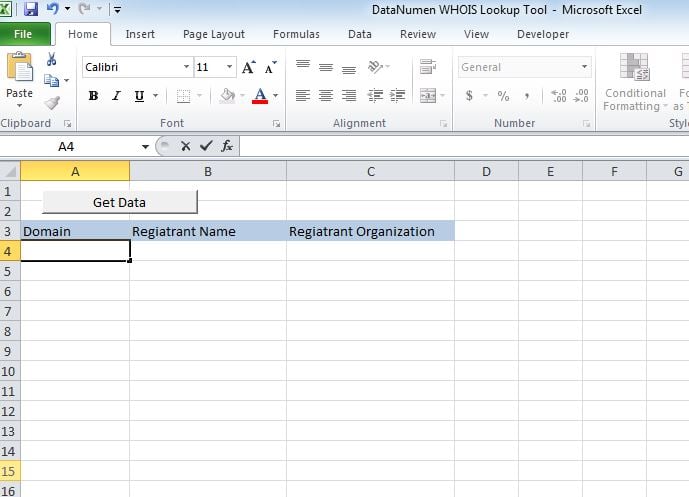
讓它發揮作用
將腳本粘貼到一個新模塊中,並將子“ whoismacor”附加到我們在Sheet1上創建的按鈕上。
讓我們測試一下
在列A中添加域並運行宏。 值將顯示在相應的列上。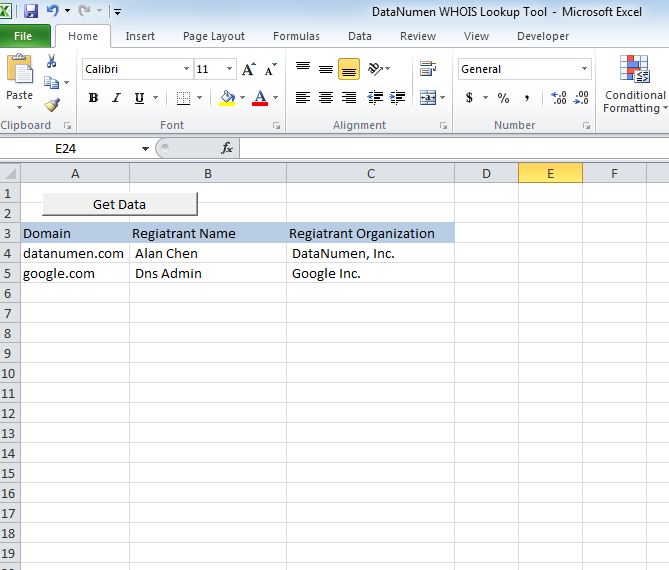
修改它
到目前為止,該工具顯示2個標頭,即註冊人名稱和註冊人組織。 您可以自定義該工具以獲取以下任何標題。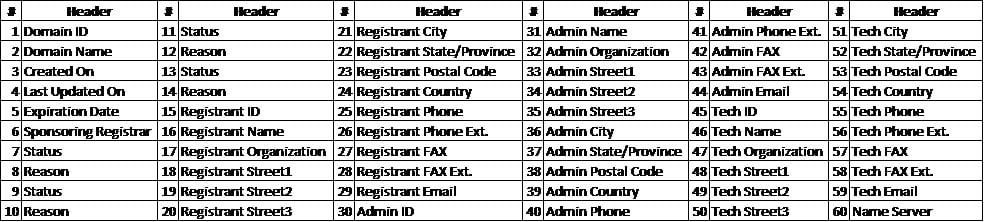
恢復XLSM文件
如果您在打開或保存此工具時遇到問題,則可能有很大的變化 損壞的Excel文件 您必須先修復它,然後才能使用它。
腳本
Sub whoismacro()
    Dim v_lrow As Long
    Application.DisplayStatusBar = True
    v_lrow = Sheets("whois").Range("A" & Rows.Count).End(xlUp).Row
    Dim r As Long
    Dim v_string As String
    For r = 4 To v_lrow
        Application.StatusBar = "Macro is running... Now fetching Registrant Name and Organization info for domain at Row : " & r & " /// Total Rows : " & v_lrow
        Sheets("whois").Range("B" & r).Value = WhoIsName(Sheets("whois").Range("A" & r).Value)
        Sheets("whois").Range("C" & r).Value = WhoIsorganization(Sheets("whois").Range("A" & r).Value)
    Next r
    Application.StatusBar = "Ready"
End Sub

Function WhoIsName(v_string As String) As String
    Application.DisplayStatusBar = True
    v_string = Replace(v_string, "http://www.", "")
    v_string = Replace(v_string, "https://www.", "")
    v_string = Replace(v_string, "http://", "")
    v_string = Replace(v_string, "https://", "")
    Dim I As Long
    Dim browobj As Object
    Dim obj1 As Object
    Dim obj2 As Object
    Dim obj3 As Object
    Dim v_website As String
    Dim ws As Worksheet
    Dim rng As Range
    Dim tbl As Object
    Dim rw As Object
    Dim cl As Object
    Dim tabno As Long
    Dim nextrow As Long
    Dim URl As String
    Dim lastRow As Long
    Dim xmlobj As Object
    Dim htmobj As Object
    Dim divobj As Object
    Dim objH3 As Object
    Dim linkobj As Object
    Dim vv_startrow As Integer
    Dim vv_lastrow As Integer
    Application.DisplayAlerts = False
    Application.DisplayStatusBar = True
    URl = "https://www.whois.com/whois/" & v_string
    Set xmlobj = CreateObject("MSXML2.XMLHTTP")
    xmlobj.Open "GET", URl, False
    xmlobj.setRequestHeader "Content-Type", "text/xml"
    xmlobj.setRequestHeader "Cache-Control", "no-cache"
    xmlobj.send
    Set htmobj = CreateObject("htmlfile")
    htmobj.body.innerHTML = xmlobj.responseText
    x = InStr(htmobj.body.innertext, "Registrant Name:")
    y = InStr(x, htmobj.body.innertext, Chr(10))
    WhoIsName = Replace(Mid(htmobj.body.innertext, x, y - x), "Registrant Name:", "")
End Function

Function WhoIsorganization(v_string As String) As String
    Application.DisplayStatusBar = True
    v_string = Replace(v_string, "http://www.", "")
    v_string = Replace(v_string, "https://www.", "")
    v_string = Replace(v_string, "http://", "")
    v_string = Replace(v_string, "https://", "")
    Dim I As Long
    Dim browobj As Object
    Dim obj1 As Object
    Dim obj2 As Object
    Dim obj3 As Object
    Dim v_website As String
    Dim ws As Worksheet
    Dim rng As Range
    Dim tbl As Object
    Dim rw As Object
    Dim cl As Object
    Dim tabno As Long
    Dim nextrow As Long
    Dim URl As String
    Dim lastRow As Long
    Dim xmlobj As Object
    Dim htmobj As Object
    Dim divobj As Object
    Dim objH3 As Object
    Dim linkobj As Object
    Dim vv_startrow As Integer
    Dim vv_lastrow As Integer
    Application.DisplayAlerts = False
    Application.DisplayStatusBar = True
    URl = "https://www.whois.com/whois/" & v_string
    Set xmlobj = CreateObject("MSXML2.XMLHTTP")
    xmlobj.Open "GET", URl, False
    xmlobj.setRequestHeader "Content-Type", "text/xml"
    xmlobj.setRequestHeader "Cache-Control", "no-cache"
    xmlobj.send
    Set htmobj = CreateObject("htmlfile")
    htmobj.body.innerHTML = xmlobj.responseText
    x = InStr(htmobj.body.innertext, "Registrant Organization:")
    Debug.Print x
    y = InStr(x, htmobj.body.innertext, Chr(10))
    Debug.Print y
    WhoIsorganization = Replace(Mid(htmobj.body.innertext, x, y - x), "Registrant Organization:", "")
End Function
作者簡介:
Nick Vipond是的數據恢復專家 DataNumen,Inc.是數據恢復技術的全球領導者,包括 修復docx問題 和Outlook恢復軟件產品。 欲了解更多信息,請訪問 萬維網。datanumen.COM