
如果您希望將聯繫人的照片及其主要信息批量提取到本地磁盤上的文件夾中,則需要使用Outlook VBA。 本文將教您如何詳細實現它。
Outlook允許您通過“導入和導出”功能導出聯繫人信息。 您可以轉到“文件”>“打印”>“導入”>“導出到文件”。
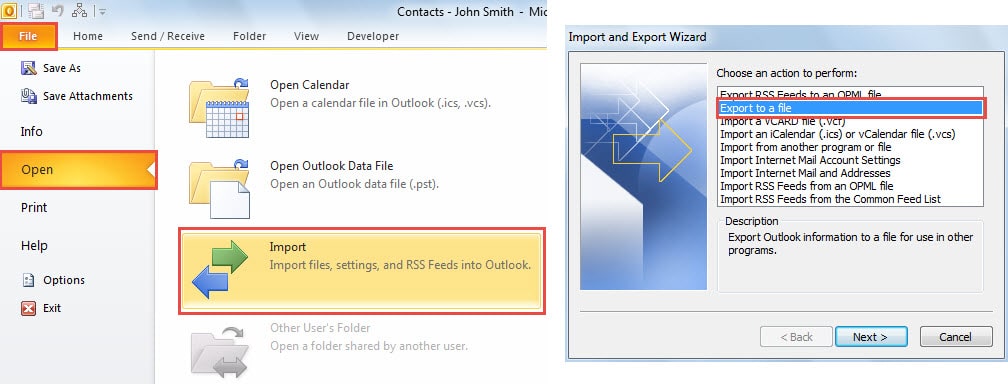
但是,此功能不允許您導出聯繫人照片。 因此,如果您想提取聯繫人信息和照片,則必須重新使用Outlook VBA。 以下是VBA代碼和步驟,可以將聯繫人照片保存到指定的本地文件夾,並將聯繫人信息提取到文本文件中。
批量導出多個聯繫人的照片和信息
- 首先,啟動Outlook並按“ Alt + F11”鍵按鈕。
- 然後,您將可以訪問VBA編輯器。 現在,您應該打開一個未使用的模塊,或者通過“插入”>“模塊”來創建一個新模塊。
- 隨後,將以下VBA代碼複製並粘貼到新模塊中。
Sub BatchExportContactPhotosandInformation()
    Dim objContacts As Outlook.Items
    Dim objContact As ContactItem
    Dim strContactInfo As String
    Dim objFileSystem As Object
    Dim objTextfile As Object
    Dim objAttachments As Attachments
    Dim objAttachment As Attachment
    Dim strName As String

    'Specify the contacts in the default contact folder
    Set objContacts = Outlook.Application.Session.GetDefaultFolder(olFolderContacts).Items

    For Each objContact In objContacts
        If TypeOf objContact Is ContactItem Then
           'Get the contact's primary informtaion
           strContactInfo = "Name: " & objContact.FullName & vbCrLf & "Email: " & objContact.Email1Address & vbCrLf & "Company: " & objContact.Companies & vbCrLf & "Job Title: " & objContact.JobTitle & vbCrLf & "Business Address: " & objContact.BusinessAddress & vbCrLf & "Business Phone: " & objContact.BusinessTelephoneNumber
           'Create a Text file
           Set objFileSystem = CreateObject("Scripting.FileSystemObject")
           'You can change the folder path as per your needs
           Set objTextfile = objFileSystem.CreateTextFile("C:\Outlook Contacts\" & objContact.FullName & ".txt", True)
           objTextfile.WriteLine (strContactInfo)

           'Save the contact photos
           If objContact.Attachments.Count > 0 Then
              Set objAttachments = objContact.Attachments
              For Each objAttachment In objAttachments
                  If InStr(LCase(objAttachment.filename), "contactpicture.jpg") > 0 Then
                     strName = objContact.FullName & ".jpg"
                     objAttachment.SaveAsFile ("C:\Outlook Contacts\" & strName)
                  End If
              Next
           End If
       End If
    Next
End Sub
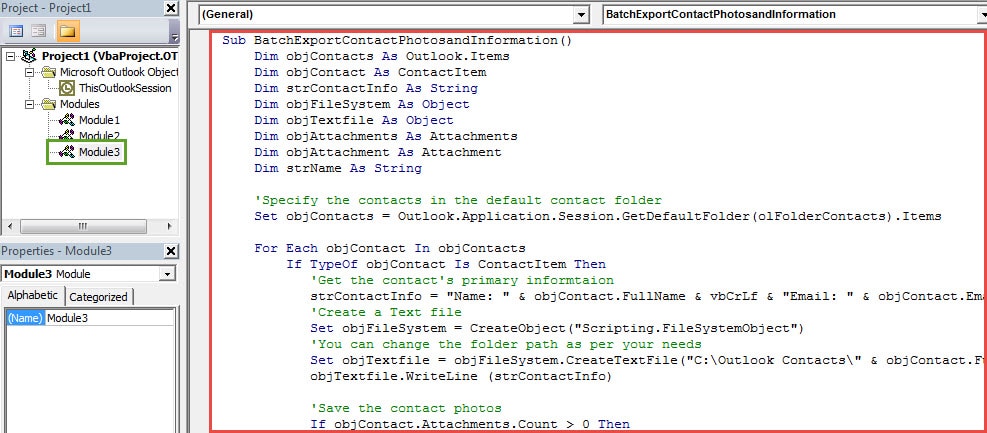
請注意: 上面的代碼將在您的默認聯繫人文件夾中導出聯繫人的照片和信息。 您可以更改指定的聯繫人。
- 如果要導出當前打開的文件夾中聯繫人的照片和信息,則應將“ Set objContacts =…..”替換為:
Set objContacts = Outlook.Application.ActiveExplorer.CurrentFolder.Items
- 如果僅希望導出所選聯繫人的照片和信息,則可以使用以下幾行:
Dim objSelection as Selection
Set objSelection = Outlook.Application.ActiveExplorer.Selection
For each objContact in objSelection
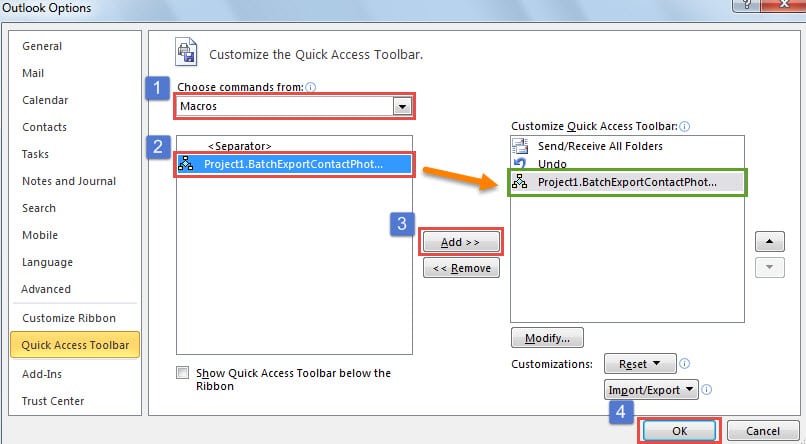
- 之後,您可以關閉VBA編輯器,並照常繼續將新項目添加到快速訪問工具欄。

- 最後,您可以單擊快速訪問工具欄中的宏按鈕。 一次,聯繫人照片和信息將被導出到本地磁盤中的指定文件夾。

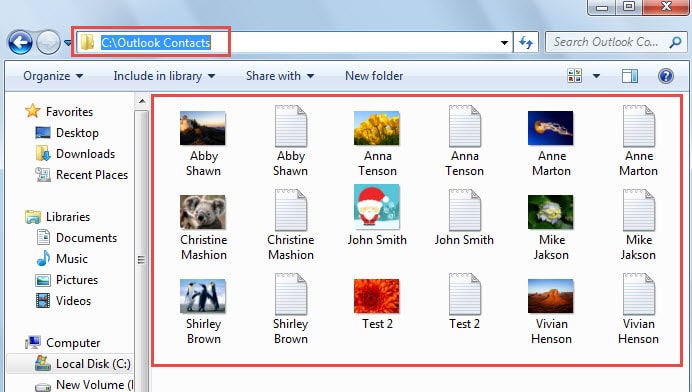
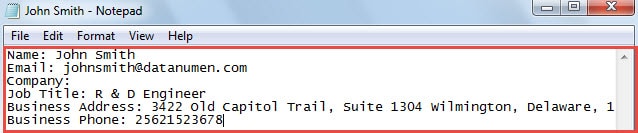
您可以打開一個文本文件,其中將列出主要信息,如以下屏幕截圖所示:
處理意外的Outlook腐敗
毫無疑問,Outlook容易受到攻擊。 因此,如果您遭受Outlook損壞,那麼您首先要做的就是冷靜下來。 然後,您可以繼續修復 損壞的Outlook PST電子郵件。 您可以使用收件箱修復工具進行嘗試。 如果失敗,那麼您別無選擇,只能使用功能更強大的工具,例如 DataNumen Outlook Repair.
作者簡介:
Shirley Zhang是的數據恢復專家 DataNumen,Inc.是數據恢復技術的全球領導者,包括 修復損壞的SQL mdf數據庫 和Outlook修復軟件產品。 欲了解更多信息,請訪問 萬維網。datanumen.COM