
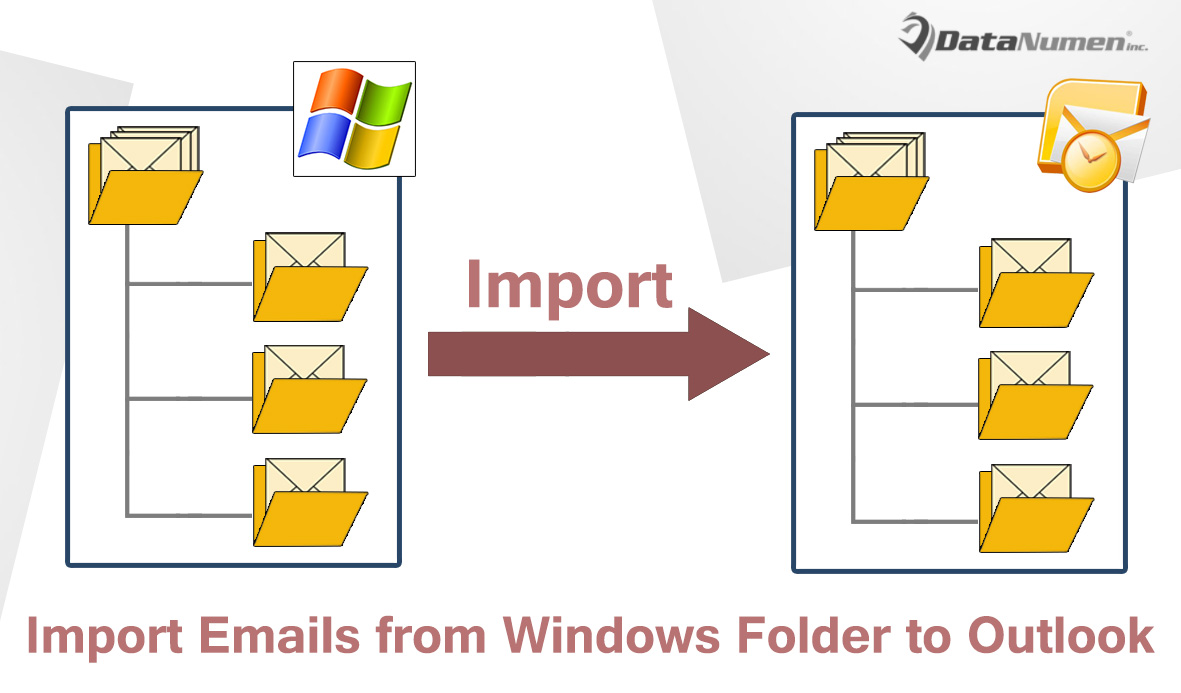
也許您已經在Windows文件夾中保存了幾封Outlook電子郵件。 現在,如果要將它們導入回Outlook文件夾,該怎麼辦? 本文將教您3種方法。
眾所周知,Outlook提供了一個內置選項“另存為”,您可以通過該選項將電子郵件保存到Windows文件夾中。 但是,您沒有將導出的電子郵件重新添加到Outlook文件夾的功能。 因此,如果您想將Outlook電子郵件導入回Outlook,您將如何實現呢? 在下文中,我們將教您3種方法。 您可以根據自己的喜好選擇任何一個。
方法1:拖放以導入
- 首先,您需要訪問源Windows文件夾,該文件夾存儲要導入到Outlook的Outlook電子郵件。
- 然後,啟動您的Outlook應用程序。
- 接下來,打開您要將電子郵件導入到的Outlook文件夾。
- 隨後,您需要縮小Windows文件夾窗口和Outlook窗口的範圍,直到可以同時查看它們為止。
- 之後,您可以在Windows文件夾中選擇其中一封Outlook電子郵件,然後按“ Ctrl + A”將其全部選中。
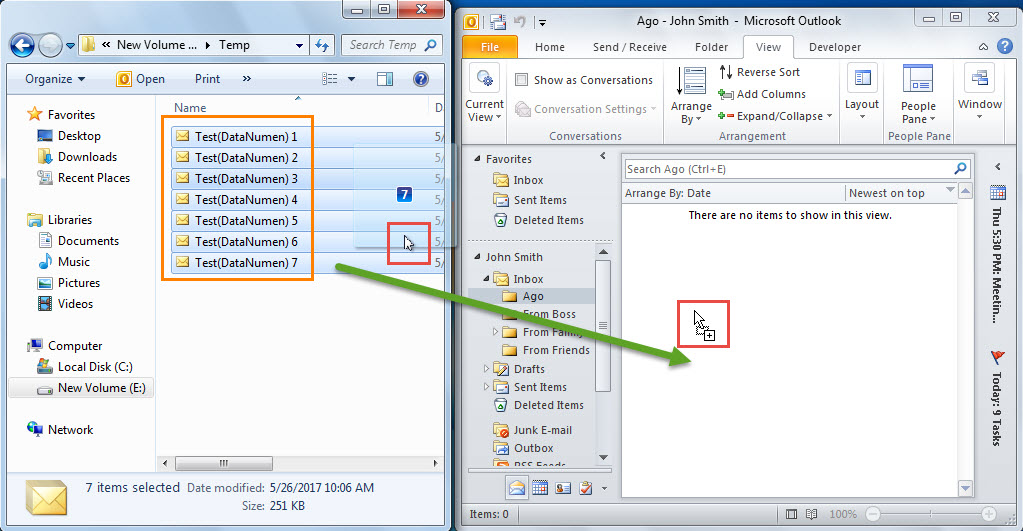
- 稍後,您可以將選定的電子郵件拖放到可見的Outlook文件夾中,如以下屏幕截圖所示:

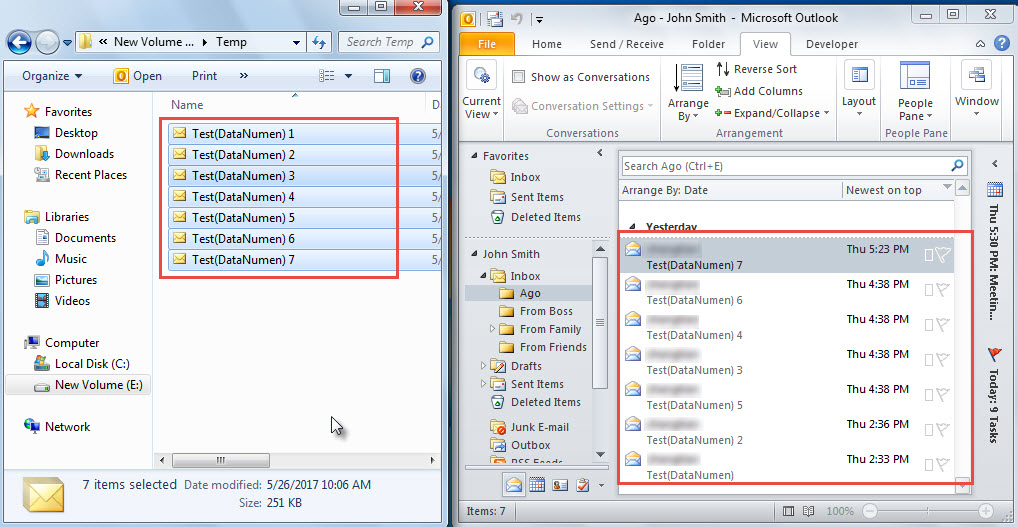
- 最後,您將看到所有Outlook電子郵件都已從Windows文件夾導入到Outlook文件夾,如下圖所示:

方法2:在VBA中使用“ CreateItemFromTemplate”
- 首先,在 Outlook 主視窗中,按下「Alt + F11」鍵。
- 接下來,您將可以訪問Outlook VBA編輯器窗口。
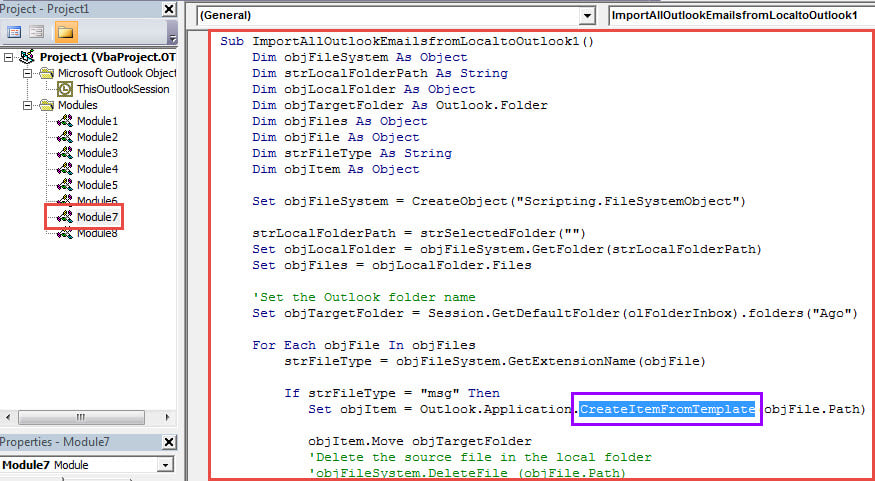
- 然後將以下VBA代碼複製到空白模塊中。
Sub ImportAllOutlookEmailsfromLocaltoOutlook1()
    Dim objFileSystem As Object
    Dim strLocalFolderPath As String
    Dim objLocalFolder As Object
    Dim objTargetFolder As Outlook.Folder
    Dim objFiles As Object
    Dim objFile As Object
    Dim strFileType As String
    Dim objItem As Object

    Set objFileSystem = CreateObject("Scripting.FileSystemObject")

    strLocalFolderPath = strSelectedFolder("")
    Set objLocalFolder = objFileSystem.GetFolder(strLocalFolderPath)
    Set objFiles = objLocalFolder.Files

    'Set the target Outlook folder
    Set objTargetFolder = Session.GetDefaultFolder(olFolderInbox).folders("Ago")

    For Each objFile In objFiles
        strFileType = objFileSystem.GetExtensionName(objFile)

        If strFileType = "msg" Then
           Set objItem = Outlook.Application.CreateItemFromTemplate(objFile.Path)

           objItem.Move objTargetFolder
           'Delete the source file in the Windows folder
           'objFileSystem.DeleteFile (objFile.Path)
        End If
    Next
End Sub

Function strSelectedFolder(strStartFolder As String) As String
    Dim objShell As Object
    Dim objFolder As Object

    On Error Resume Next
    Set objShell = CreateObject("Shell.Application")
    Set objFolder = objShell.BrowseForFolder(0, "Select the source folder:", 0, strStartFolder)

    strSelectedFolder = objFolder.self.Path
End Function
- 接下來,您可以在目前模組視窗中按 F5 鍵來啟動巨集。
- 之後,您需要瀏覽至彈出對話框中的源Windows文件夾。
- 最後,選擇源文件夾後,該文件夾中的所有Outlook項目都將導入到預定義的Outlook文件夾中。
- 注意:這樣,導入的電子郵件都是全新的電子郵件,您可以隨意編寫,如以下屏幕截圖所示:

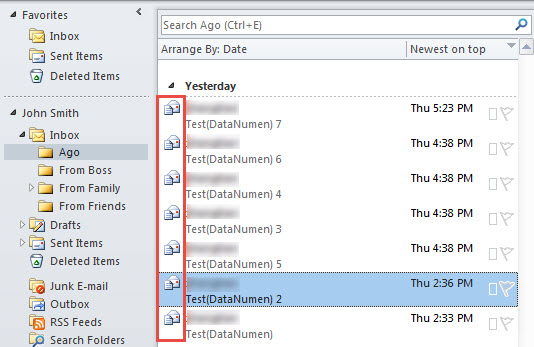
方法3:在VBA中使用“ OpenSharedItem”
- 與方法2一樣,將以下VBA代碼複製到另一個模塊中。
Sub ImportAllOutlookEmailsfromLocaltoOutlook2()
    Dim objFileSystem As Object
    Dim strLocalFolderPath As String
    Dim objLocalFolder As Object
    Dim objTargetFolder As Outlook.Folder
    Dim objFiles As Object
    Dim objFile As Object
    Dim strFileType As String
    Dim objItem As Object
    Dim objCopiedItem As Outlook.MailItem

    Set objFileSystem = CreateObject("Scripting.FileSystemObject")

    strLocalFolderPath = strSelectedFolder("")
    Set objLocalFolder = objFileSystem.GetFolder(strLocalFolderPath)
    Set objFiles = objLocalFolder.Files

    'Set the target Outlook folder
    Set objTargetFolder = Session.GetDefaultFolder(olFolderInbox).folders("Ago")

    For Each objFile In objFiles
        strFileType = objFileSystem.GetExtensionName(objFile)

        If strFileType = "msg" Then
           Set objItem = Session.OpenSharedItem(objFile.Path)
           'Only import emails
           If TypeOf objItem Is MailItem Then
              Set objCopiedItem = objItem.Copy
              objCopiedItem.Move objTargetFolder
              'Delete the source file in the Windows folder
              'objFileSystem.DeleteFile (objFile.Path)
           End If
       End If
    Next
End Sub

Function strSelectedFolder(strStartFolder As String) As String
    Dim objShell As Object
    Dim objFolder As Object

    On Error Resume Next
    Set objShell = CreateObject("Shell.Application")
    Set objFolder = objShell.BrowseForFolder(0, "Select the source folder:", 0, strStartFolder)

    strSelectedFolder = objFolder.self.Path
End Function
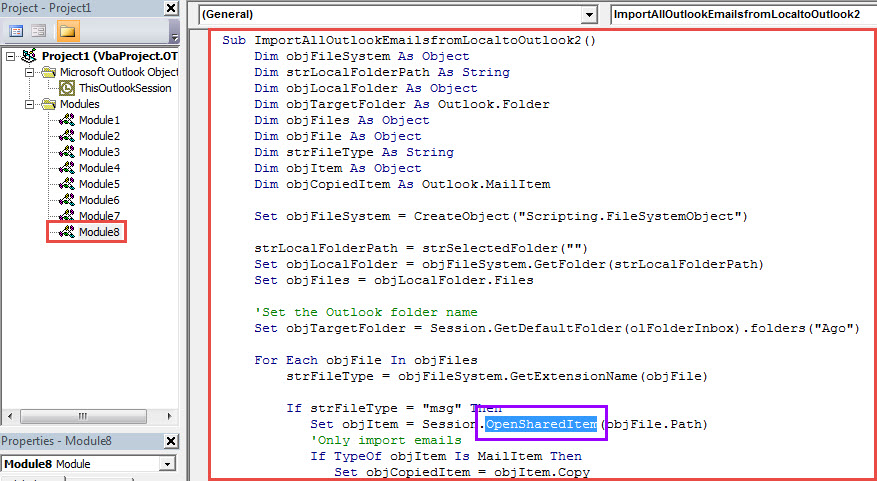
- 然後點擊“ F5”鍵運行該宏。
- 接下來選擇源文件夾。
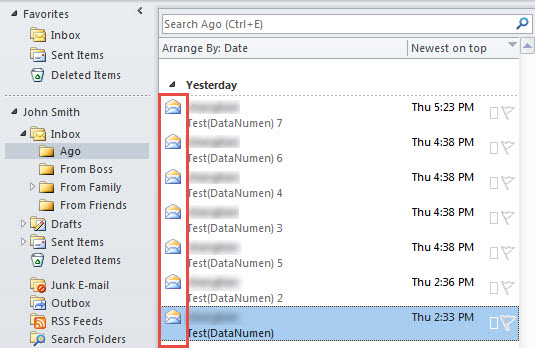
- 最終,所有電子郵件將作為下圖導入:
比較
| 方法 | 優點 | 缺點 |
| 方法1 | 不熟悉VBA的人更容易被接受。 | 這要求您縮小兩個窗口的範圍,直到可以看到兩個窗口為止。 |
| 方法2 | 您可以將導入的電子郵件用作新的新電子郵件,可以隨意編寫和發送。 | 如果Windows文件夾中還有其他以“ .msg”格式保存的Outlook項目,例如聯繫人或任務,則也可以導入它們。 |
| 方法3 | 它可以精確識別Outlook電子郵件,並轉義其他Outlook項目。 | 這樣,您將無法像方法2一樣輕鬆地編寫和發送導入的電子郵件。 |
阻止PST數據損壞的方法
眾所周知,Outlook預先安裝了內置工具– 掃描儀大多數情況下,它能夠解決一些小問題。但是,如果問題非常嚴重,內建工具往往會失效。因此,您最好使用更強大的工具,例如… DataNumen Outlook Repair.
作者簡介:
Shirley Zhang是的數據恢復專家 DataNumen,Inc.是數據恢復技術的全球領導者,包括 SQL Server 腐敗 和Outlook修復軟件產品。 欲了解更多信息,請訪問 萬維網。datanumen.COM