
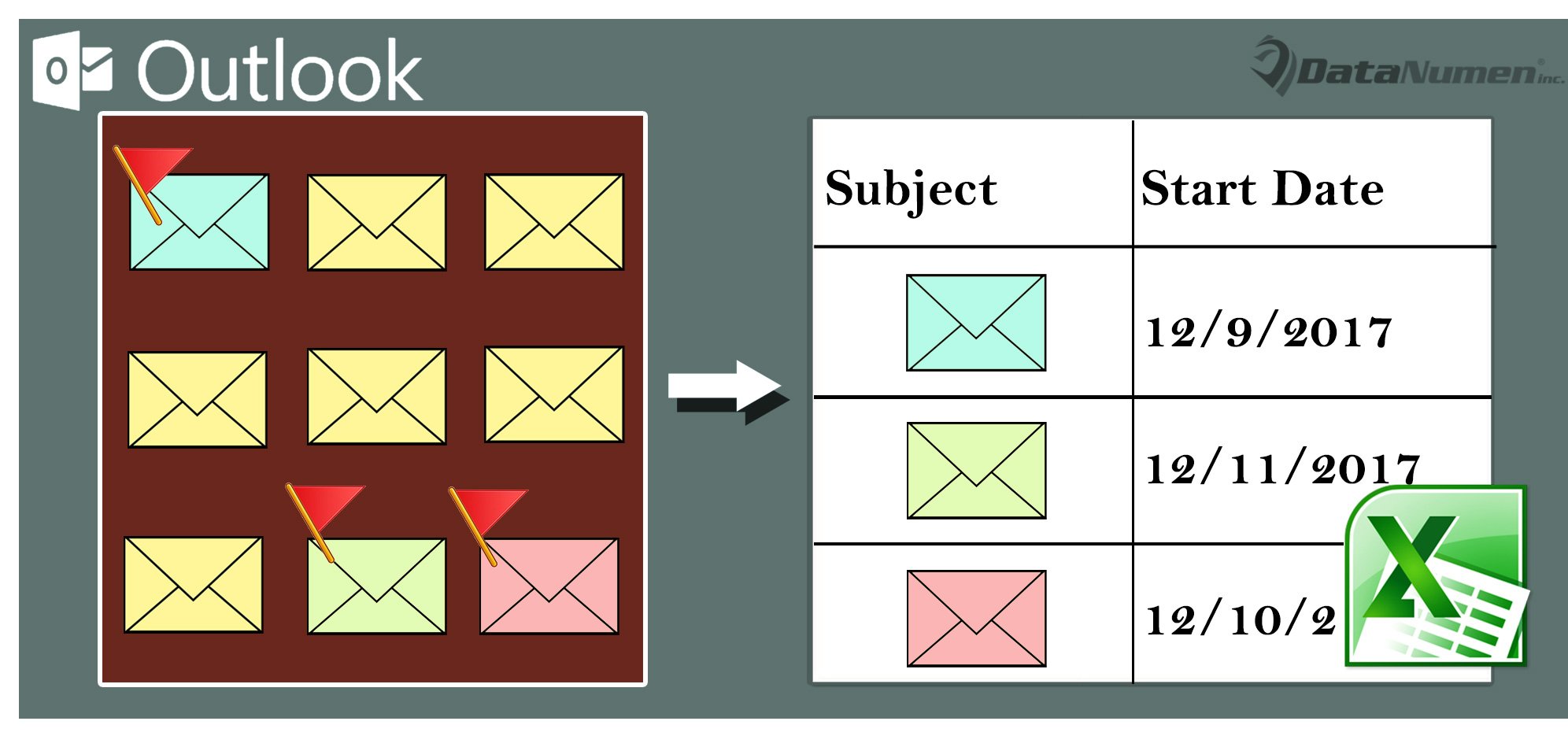
如果要將所有標記的電子郵件列表從 Outlook 郵箱導出到 Excel,可以使用本文中共享的兩種方法之一。
例如,為了更及時地處理所有標記的電子郵件或與其他人共享,您可能希望將它們導出到 Excel 工作表。 這裡我們將介紹2種實現方式。 前者在找到標記的電子郵件後使用標準的“導入和導出”功能。 老實說,這有點乏味。 因此,在後一個中,我們將教您一種更方便的應用VBA的方法。
方法 1:手動導出所有找到的標記電子郵件
- 首先,點擊郵件列表上方的搜索框。
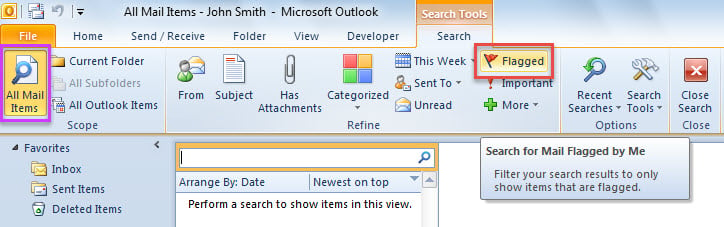
- 然後,單擊“搜索”選項卡上“範圍”組中的“所有郵件項目”。
- 接下來,單擊“定義”組中的“標記”按鈕。

- 在列表中顯示所有標記的電子郵件後,選擇一封郵件並按“Ctrl + A”選擇所有郵件。
- 然後,按“Ctrl + Shift + V”快捷鍵。
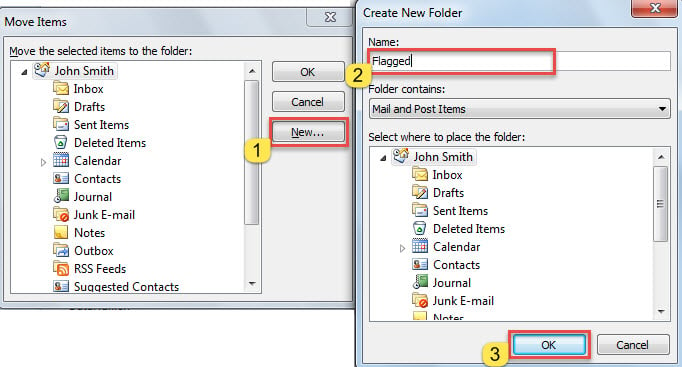
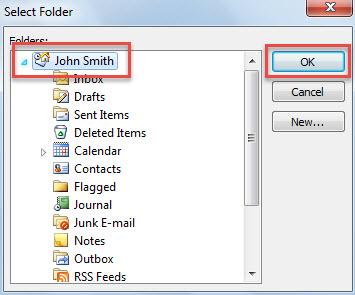
- 在新對話框中,在 Outlook 文件下創建一個新文件夾。

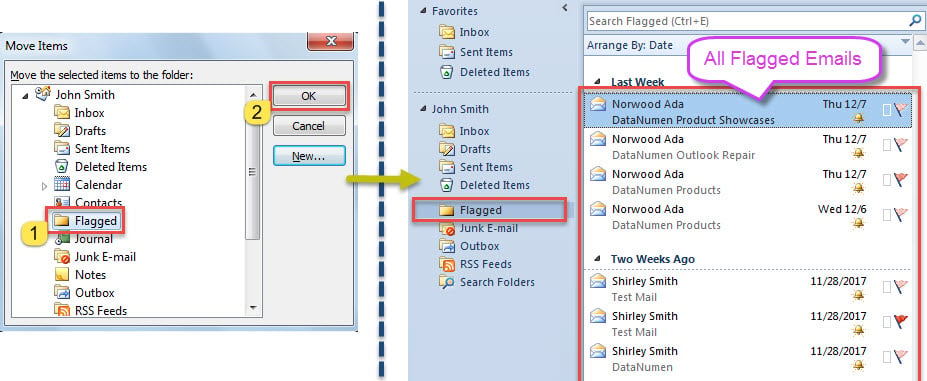
- 稍後,選擇新創建的文件夾並單擊“確定”,這會將所有找到的標記電子郵件移動到新文件夾。

- 然後,單擊“文件”>“打開”>“導入”,
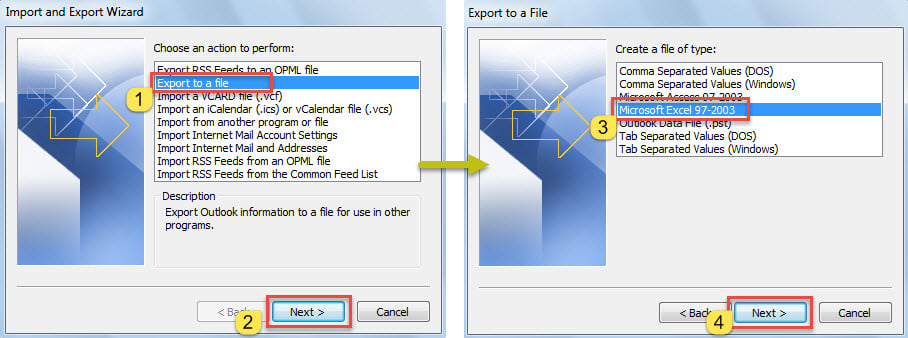
- 在彈出的對話框中,選擇“導出到文件”>“下一步”>“Microsoft Excel 97-2003”>“下一步”。

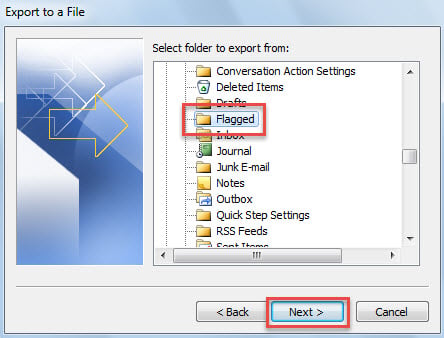
- 在新屏幕中,選擇正確的文件夾並點擊“下一步”。

- 隨後,按照嚮導完成“導出”。
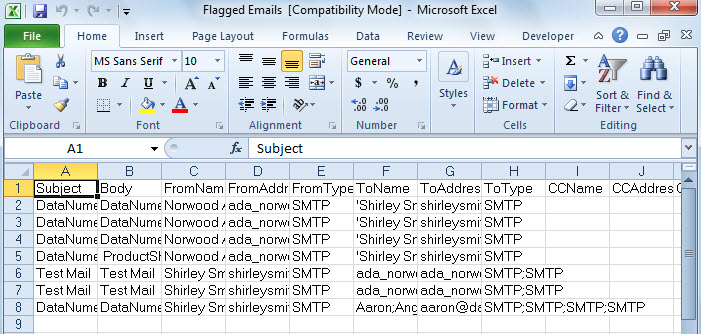
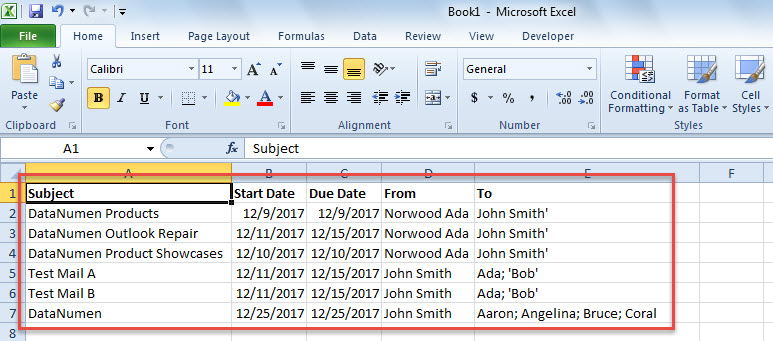
- 您將獲得一個新的 Excel 文件,如下面的屏幕截圖所示。

方法 2:通過 VBA 導出所有標記的電子郵件列表
- 在 Outlook 中,按“Alt + F11”觸發 VBA 編輯器。
- 然後,根據“如何在 VBA 中新增物件庫引用“。
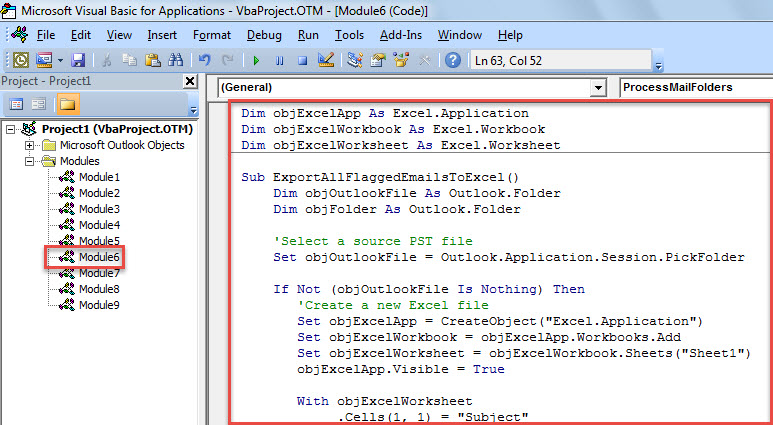
- 接下來,將下面的 VBA 代碼複製到一個模塊中。
Dim objExcelApp As Excel.Application
Dim objExcelWorkbook As Excel.Workbook
Dim objExcelWorksheet As Excel.Worksheet

Sub ExportAllFlaggedEmailsToExcel()
    Dim objOutlookFile As Outlook.Folder
    Dim objFolder As Outlook.Folder

    'Select a source PST file
    Set objOutlookFile = Outlook.Application.Session.PickFolder

    If Not (objOutlookFile Is Nothing) Then
       'Create a new Excel file
       Set objExcelApp = CreateObject("Excel.Application")
       Set objExcelWorkbook = objExcelApp.Workbooks.Add
       Set objExcelWorksheet = objExcelWorkbook.Sheets("Sheet1")
       objExcelApp.Visible = True

       With objExcelWorksheet
           .Cells(1, 1) = "Subject"
           .Cells(1, 1).Font.Bold = True
           .Cells(1, 2) = "Start Date"
           .Cells(1, 2).Font.Bold = True
           .Cells(1, 3) = "Due Date"
           .Cells(1, 3).Font.Bold = True
           .Cells(1, 4) = "From"
           .Cells(1, 4).Font.Bold = True
           .Cells(1, 5) = "To"
           .Cells(1, 5).Font.Bold = True
      End With

      For Each objFolder In objOutlookFile.Folders
          If objFolder.DefaultItemType = olMailItem Then
             Call ProcessMailFolders(objFolder)
          End If
      Next

      objExcelWorksheet.Columns("A:E").AutoFit

      MsgBox "Completed!", vbInformation + vbOKOnly, "Export Emails"
    End If
End Sub

Sub ProcessMailFolders(ByVal objCurrentFolder As Outlook.Folder)
    Dim i As Long
    Dim objMail As Outlook.MailItem
    Dim objFlaggedMail As Outlook.MailItem
    Dim nLastRow As Integer
    Dim objSubfolder As Outlook.Folder

    For i = 1 To objCurrentFolder.Items.Count
        If objCurrentFolder.Items(i).Class = olMail Then
           'Export the information of each flagged email to Excel
           Set objMail = objCurrentFolder.Items(i)
           If objMail.IsMarkedAsTask = True And objMail.FlagStatus <> olFlagComplete Then
              Set objFlaggedMail = objMail

              With objExcelWorksheet
                   nLastRow = .Range("A" & .Rows.Count).End(xlUp).Row + 1
                   .Range("A" & nLastRow) = objFlaggedMail.Subject
                   .Range("B" & nLastRow) = objFlaggedMail.TaskStartDate
                   .Range("C" & nLastRow) = objFlaggedMail.TaskDueDate
                   .Range("D" & nLastRow) = objFlaggedMail.SenderName
                   .Range("E" & nLastRow) = objFlaggedMail.To
              End With
          End If
        End If
    Next i

    If objCurrentFolder.Folders.Count > 0 Then
       For Each objSubfolder In objCurrentFolder.Folders
           Call ProcessMailFolders(objSubfolder)
       Next
    End If
End Sub
- 最後,將光標放在“ExportAllFlaggedEmailsToExcel”子程序中並點擊“F5”鍵按鈕。
- 然後,在新對話框中選擇 Outlook 文件。

- 當您收到“已完成”提示時,您還將獲得一個新的 Excel 文件,如下圖所示。

保護您的 Outlook 免受損壞
Outlook 容易出現錯誤和資料損壞,因此保護 Outlook 資料是一項非常艱鉅的任務。毫無疑問,最有效且實用的方法是定期備份 Outlook 資料。此外,我們還需要一款功能強大且值得信賴的 Outlook 修復工具,例如… DataNumen Outlook Repair. 如果它會派上用場 收件箱維修工具 沒有效果。
作者簡介:
Shirley Zhang是的數據恢復專家 DataNumen,Inc.是數據恢復技術的全球領導者,包括 固定 SQL Server 和Outlook修復軟件產品。 欲了解更多信息,請訪問 萬維網。datanumen.COM