
1. Giới thiệu
Thùng rác là "lưới an toàn" tích hợp sẵn của Windows dành cho các tệp đã xóa. Miễn là tệp vẫn còn bên trong, việc khôi phục nó chỉ mất vài cú nhấp chuột. Hướng dẫn này giải thích cách khôi phục các tệp đã xóa từ Thùng rác trên Windows, bao gồm cả các tệp trên các vị trí lưu trữ bên ngoài, mạng và được đồng bộ hóa với OneDrive.
1.1 Nội dung của Hướng dẫn này
- Khôi phục các tập tin vẫn còn trong Thùng rác
- Khôi phục các tệp đã xóa về vị trí ban đầu của chúng.
- Khôi phục các tệp đã xóa vào một vị trí mới khi thư mục gốc bị mất.
1.2 Những điều mà hướng dẫn này không đề cập đến
- Các tệp đã bị xóa bằng sự thay đổi + Xóa bỏ, bỏ qua hoàn toàn Thùng rác
- Các tệp đã bị xóa hoặc bị làm trống khỏi Thùng rác. Trong trường hợp này, hãy kiểm tra hướng dẫn này để phục hồi các tập tin.
- Các tệp vượt quá giới hạn dung lượng của Thùng rác và đã bị xóa vĩnh viễn.
2. Khôi phục các tập tin đã xóa từ Thùng rác
Nếu tệp tin bị xóa khỏi ổ đĩa cục bộ bằng Xóa bỏ phím hoặc nhấp chuột phải Xóa bỏ Lệnh này sẽ được chuyển thẳng vào Thùng rác. Để khôi phục, bạn cần thực hiện 3 bước sau:
2.1 Mở thùng rác tái chế
Sử dụng bất kỳ phương pháp nào sau đây:
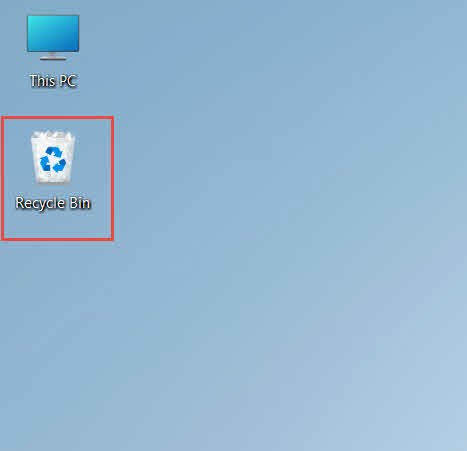
- Nhấp đúp vào Recycle Bin biểu tượng trên màn hình máy tính

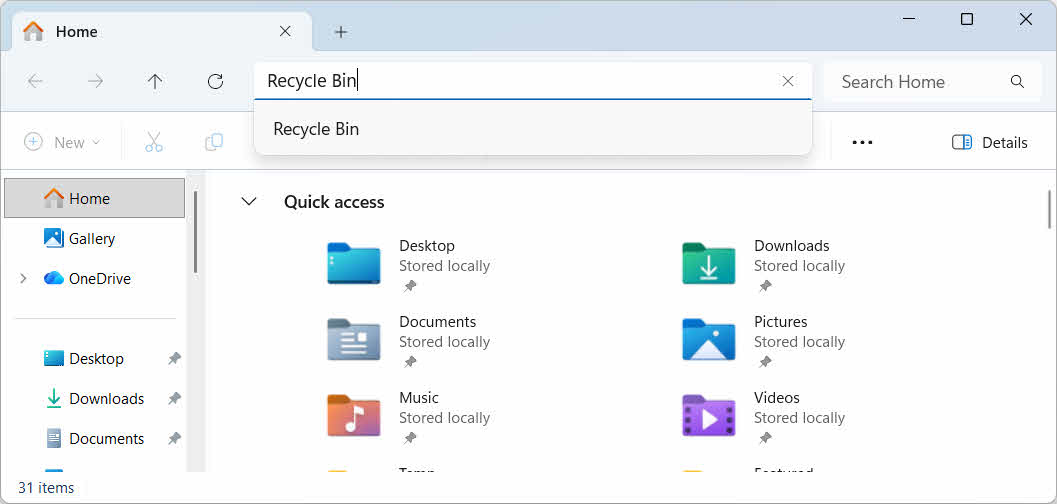
- Mở File Explorer và nhập Recycle Bin trong thanh địa chỉ

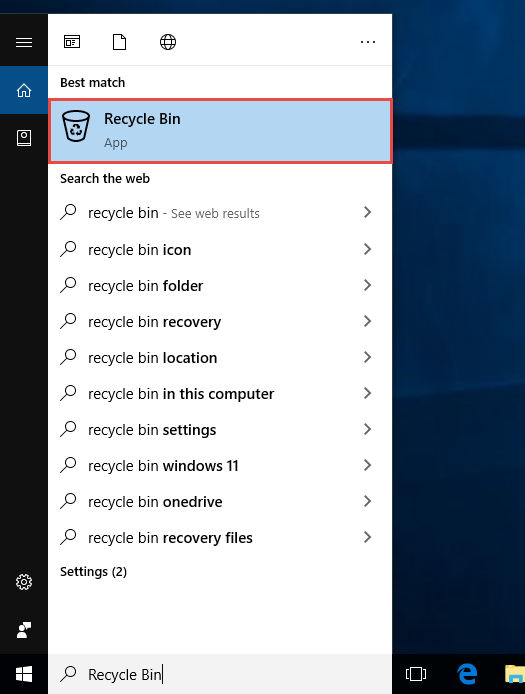
- Kiểu Recycle Bin Nhập vào ô Tìm kiếm của Windows và chọn nó từ kết quả.

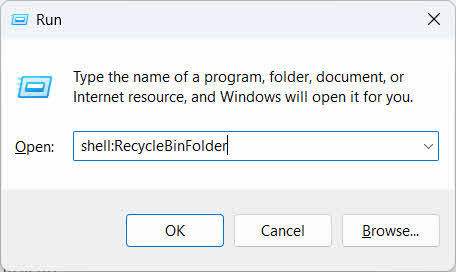
- Ấn Bản Giành chiến thắng + R, kiểu shell: RecycleBinFolder, và hãy nhấn đăng ký hạng mục thi

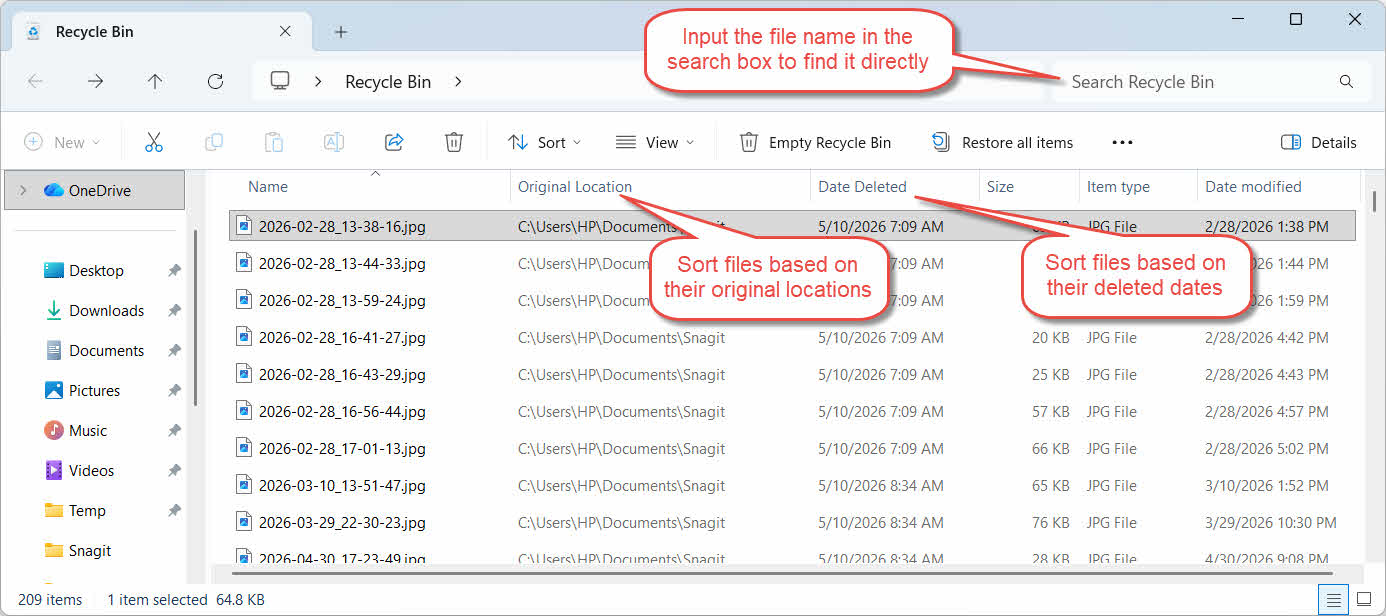
2.2 Tìm tệp hoặc thư mục đã xóa
Sau khi thùng rác tái chế được mở, hãy tìm các vật phẩm bạn muốn bằng một trong những cách sau:
- Nhập tên tệp vào ô tìm kiếm ở góc trên bên phải.
- Nhấn vào Ngày xóa Tiêu đề cột để sắp xếp theo các lần xóa gần đây nhất
- Kiểm tra Vị trí ban đầu cột này dùng để xác nhận tệp tin đến từ thư mục bạn mong đợi.
2.3 Khôi phục tập tin hoặc thư mục
Để khôi phục một hoặc nhiều mục:
- Chọn một tệp tin duy nhất hoặc giữ tệp tin đó. Ctrl và nhấp chuột để chọn nhiều tệp, hoặc giữ chuột. sự thay đổi và nhấp chuột để chọn phạm vi
- Nhấp chuột phải vào lựa chọn và chọn Khôi phục
- Mở thư mục gốc để xác nhận tệp đã được khôi phục.

Để khôi phục tất cả các mục trong Thùng rác cùng một lúc, hãy nhấp vào đây. Khôi phục tất cả các mục trên thanh công cụ mà không cần chọn bất kỳ tệp nào trước.
3. Khôi phục các tập tin đã xóa từ Thùng rác sang vị trí khác
Khôi phục Lệnh này luôn trả về tập tin về thư mục gốc của nó. Tuy nhiên, trong một số trường hợp, cần phải di chuyển tập tin đến một vị trí khác.
3.1 Khi nào bạn nên sử dụng phương pháp này
- Thư mục gốc không còn tồn tại nữa.
- Một tệp mới có cùng tên đã tồn tại trong thư mục gốc.
- Bạn không có quyền truy cập vào thư mục gốc.
- Bạn không chắc tệp tin đó đến từ thư mục nào.
- Bạn cần xem lại tập tin trước khi đặt nó trở lại vị trí ban đầu.
3.2 Kéo hoặc Cắt Tệp Từ Thùng Rác
Để di chuyển một tập tin từ Thùng rác sang thư mục bạn chọn:
- Mở Thùng rác
- Chọn tệp hoặc thư mục cần khôi phục.
- Hãy sử dụng một trong những phương pháp sau để di chuyển tệp hoặc thư mục đến thư mục đích:
- Kéo trực tiếp vào cửa sổ thư mục đích.
- Ấn Bản Ctrl + X Để cắt, hãy mở thư mục đích và nhấn Ctrl + V để dán nó
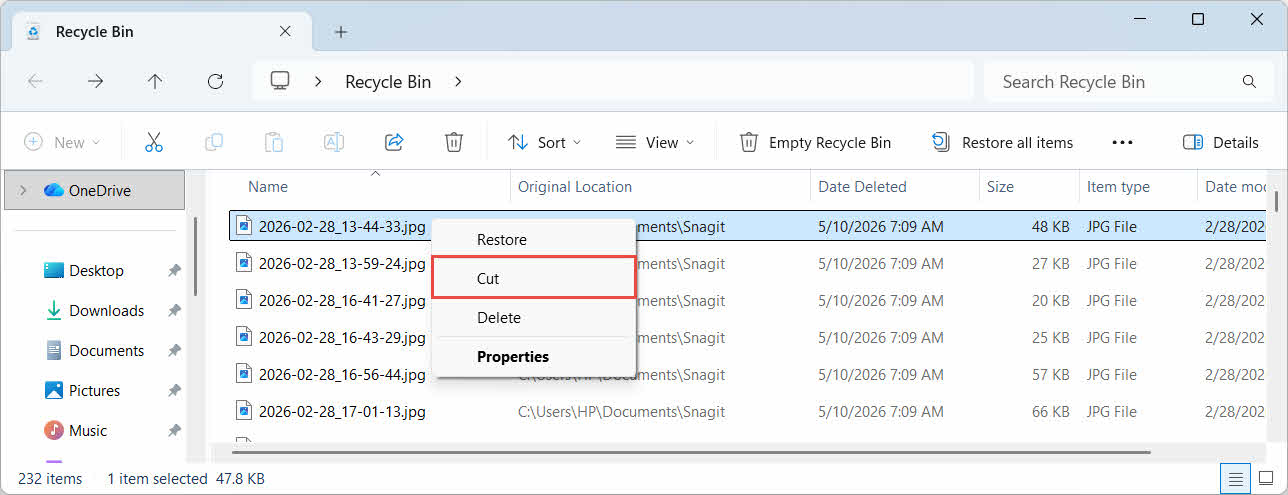
- Nhấp chuột phải vào vùng chọn và chọn Cắt, mở thư mục đích, nhấp chuột phải và chọn Dán để dán nó

4. Khôi phục tập tin từ thùng rác trên ổ đĩa ngoài, ổ đĩa mạng và ổ đĩa đám mây
Các bước trong Mục 2 Giả sử tệp đã bị xóa khỏi ổ đĩa chính của máy tính. Bộ nhớ ngoài, bộ nhớ mạng và bộ nhớ đám mây được đồng bộ hóa hoạt động khác nhau.
4.1 Ổ cứng ngoài và ổ USB Flash
Windows xử lý các ổ cứng ngoài (bao gồm cả SSD kết nối qua USB) giống như các ổ cứng trong: mỗi ổ đều có thư mục Thùng rác ẩn riêng theo mặc định. Các phương tiện lưu trữ di động như ổ USB flash và thẻ SD được xử lý khác và không có Thùng rác theo mặc định, vì vậy các tệp bị xóa từ chúng sẽ bị xóa ngay lập tức.
4.1.1 Kích hoạt hỗ trợ Thùng rác cho ổ đĩa
Đối với ổ cứng ngoài, hãy xác nhận rằng chức năng Thùng rác đã được bật:
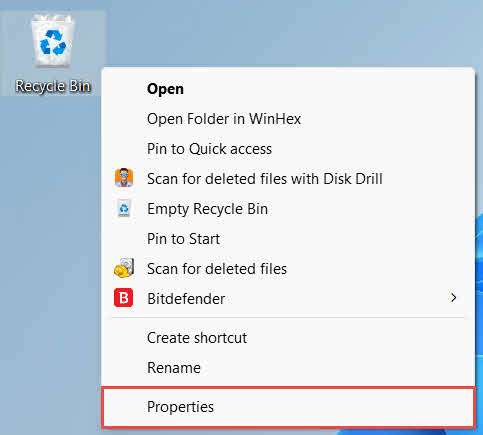
- Nhấp chuột phải vào Recycle Bin biểu tượng trên màn hình nền và chọn Bất động sản

- Trong tạp chí Vị trí thùng rác Trong danh sách, chọn hàng dành cho ổ đĩa ngoài. Nó chỉ xuất hiện ở đây sau khi ổ đĩa được kết nối và có ký tự ổ đĩa.
- Theo Cài đặt cho vị trí đã chọn, bảo đảm Kích thước tùy chỉnh được chọn, không Không di chuyển tệp vào Thùng rác. Xóa tệp ngay lập tức khi bị xóa

- Nhấp chuột Rắc bộtthì OK
Mỗi ổ đĩa giữ cài đặt này một cách độc lập, vì vậy ổ đĩa ngoài có thể tắt hỗ trợ Thùng rác ngay cả khi tính năng này vẫn được bật trên ổ đĩa hệ thống.
Đối với ổ USB flash hoặc thẻ SD, chúng sẽ không xuất hiện trong Thuộc tính Thùng rác, vì Windows không tạo thư mục Thùng rác trên các thiết bị lưu trữ di động theo mặc định. Để kích hoạt chức năng này, cần phải chỉnh sửa registry:
- Ấn Bản Giành chiến thắng + R, kiểu regedit, nhấn đăng ký hạng mục thivà chấp thuận lời nhắc
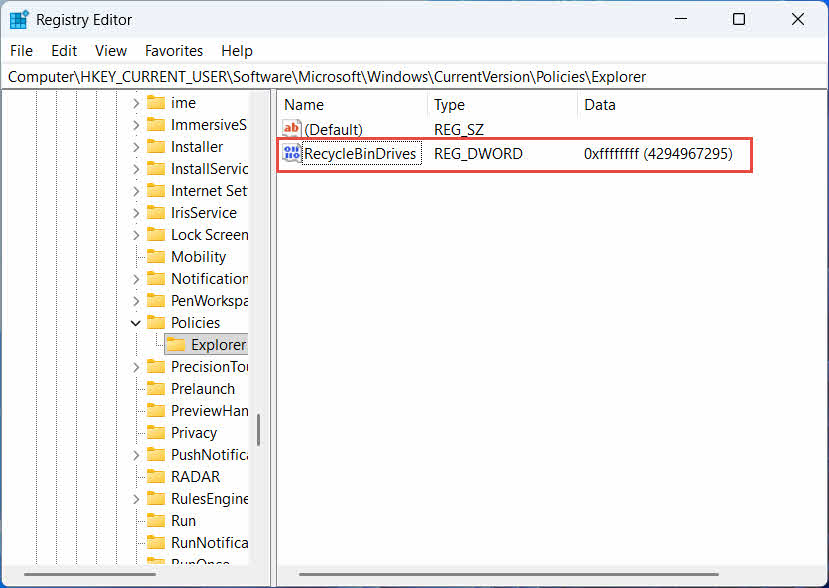
- Hướng đến HKEY_CURRENT_USER \ Software \ Microsoft \ Windows \ CurrentVersion \ Policies \ Explorer. Nếu Gói Thử Nghiệm Khóa không tồn tại dưới Chính sách, nhấp chuột phải Chính sách, lựa chọn Mới -> Key, và đặt tên cho nó Gói Thử Nghiệm
- Nhấp chuột phải vào một vùng trống trong ngăn bên phải, chọn Mới -> DWORD (32-bit) Value, và đặt tên cho nó RecycleBinDrives
- Nhấn đúp chuột RecycleBinDrives, bộ Căn cứ đến Hexadecimal, đi vào ffffffff làm dữ liệu giá trị và nhấp chuột OK

- Lặp lại các bước 2 đến 4 bên dưới HKEY_LOCAL_MACHINE \ SOFTWARE \ Microsoft \ Windows \ CurrentVersion \ Policies \ Explorer
- Khởi động lại máy tính
Để hoàn tác thay đổi, hãy xóa tệp đó. RecycleBinDrives Giá trị từ cả hai vị trí. Vì việc này liên quan đến việc chỉnh sửa registry, hãy tạo điểm khôi phục trước, và cân nhắc xem việc dựa vào bản sao lưu có đơn giản hơn đối với các ổ đĩa bạn chỉ sử dụng thỉnh thoảng hay không.
4.1.2 Khôi phục tập tin
Sau khi bật Thùng rác cho ổ đĩa, việc khôi phục tệp sẽ thực hiện theo quy trình tương tự như mô tả trong phần tiếp theo. Mục 2.3.
Việc xóa một tập tin khỏi ổ đĩa mạng được ánh xạ hoặc thư mục chia sẻ sẽ xóa trực tiếp tập tin đó khỏi máy chủ. Nó không đi qua thùng rác cục bộ trên máy tính của bạn. Nhưng nếu thùng rác phía máy chủ được bật, bạn có thể khôi phục các tập tin đã xóa từ đó.
4.2.1 Thùng rác phía máy chủ (nếu được bật)
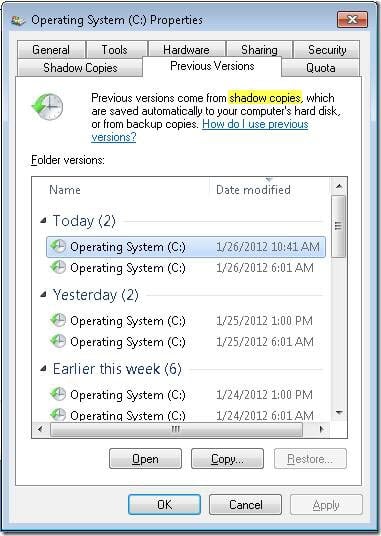
Một số máy chủ tập tin cho phép Bản sao bóng (Dịch vụ sao chép bóng ổ đĩa)Tính năng này cho phép bạn khôi phục về các phiên bản trước đó của thư mục được chia sẻ, nhờ đó bạn có thể khôi phục các tệp đã xóa bằng chức năng này:
- Nhấp chuột phải vào thư mục cha trên thư mục chia sẻ mạng và chọn Bất động sản
- Mở Phiên bản trước chuyển hướng
- Chọn phiên bản có ngày tạo trước khi xóa và nhấp vào Khôi phục
4.2.2 Phải làm gì nếu không có thùng rác phía máy chủ
Nếu Phiên bản trước Nếu tab trống hoặc không khả dụng, nghĩa là thư mục chia sẻ không được cấu hình khôi phục dựa trên ảnh chụp nhanh. Hãy liên hệ với quản trị viên mạng của bạn để kiểm tra xem máy chủ có lịch sao lưu riêng hay không.
4.3 Thùng rác OneDrive (Thư mục được đồng bộ hóa trên đám mây)
Các thư mục được đồng bộ hóa với OneDrive có thể liên quan đến hai thùng rác riêng biệt: thùng rác cục bộ của Windows và thùng rác trực tuyến của OneDrive. Thùng rác nào chứa tệp của bạn tùy thuộc vào nơi tệp bị xóa.
4.3.1 Xóa tập tin đã đồng bộ cục bộ (Lưu vào cả thùng rác cục bộ và thùng rác trên web)
Nếu bạn xóa một tệp đã được đồng bộ hóa từ File Explorer trên máy tính của mình, tệp đó sẽ được chuyển vào Thùng rác cục bộ đúng như mô tả trong phần tiếp theo. Mục 2Và trình đồng bộ OneDrive cũng sao chép thao tác xóa lên đám mây, do đó tệp tin cũng có thể được khôi phục từ Thùng rác trên web của OneDrive.
4.3.2 Xóa do hệ thống đám mây khởi tạo (Chỉ áp dụng cho Thùng rác trên web, từ tháng 5 năm 2026 trở đi)
Nếu tệp bị xóa từ phía đám mây, ví dụ như thông qua trang web OneDrive hoặc thiết bị được đồng bộ hóa khác, thì hành vi đã thay đổi kể từ tháng 5 năm 2026: Microsoft đã ngừng gửi các thao tác xóa do đám mây khởi tạo đến Thùng rác Windows cục bộ. Tệp bị xóa theo cách này sẽ biến mất khỏi thư mục cục bộ của bạn mà không xuất hiện trong Thùng rác cục bộ, và chỉ có thể khôi phục từ Thùng rác web của OneDrive hoặc SharePoint.
4.3.3 Khôi phục từ OneDrive.com
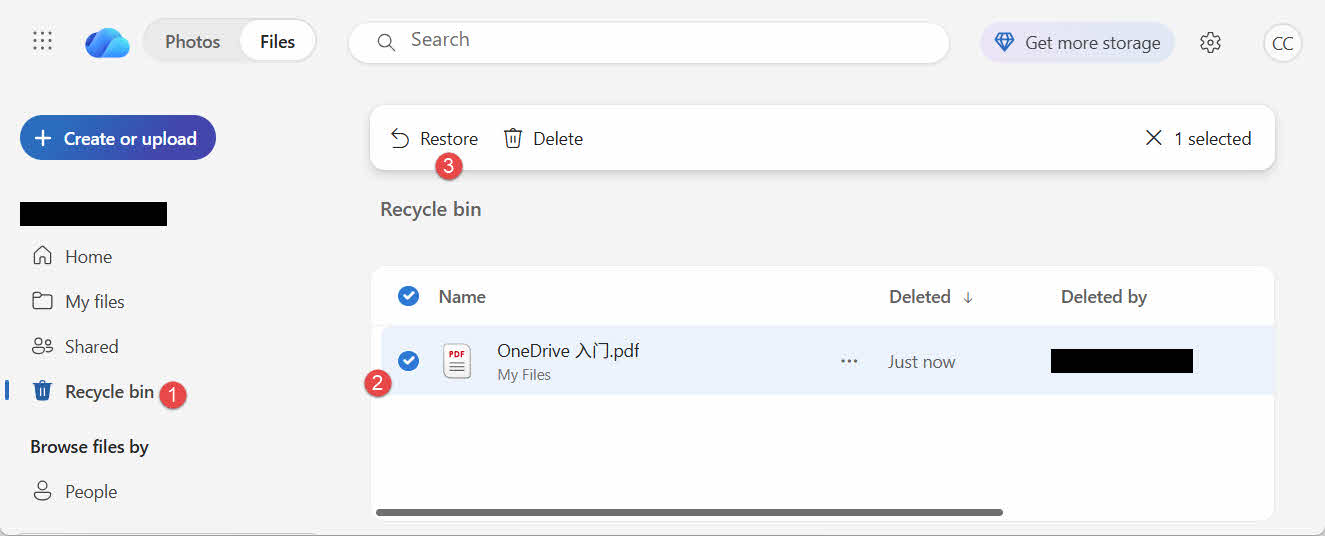
Để khôi phục tệp từ Thùng rác trên web OneDrive:
- Đăng nhập tại onedrive.live.com or onedrive.com
- Chọn Recycle bin trong ngăn điều hướng
- Chọn tệp hoặc thư mục rồi nhấp chuột. Khôi phục
Tài khoản Microsoft cá nhân giữ lại các mục đã xóa trong tối đa 30 ngày; tài khoản công việc hoặc trường học giữ lại trong tối đa 93 ngày.
5. Khắc phục sự cố khôi phục thùng rác
5.1 Biểu tượng thùng rác biến mất khỏi màn hình máy tính
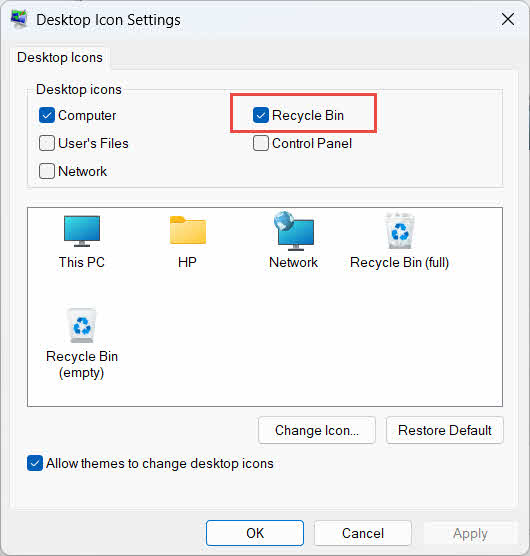
Thùng rác vẫn tồn tại ngay cả khi biểu tượng của nó đã bị ẩn. Để khôi phục biểu tượng:
- Nhấp chuột phải vào màn hình và chọn Cá nhân
- Mở chủ đềthì Cài đặt biểu tượng màn hình
- kiểm tra Recycle Bin và nhấp vào OK
Bạn cũng có thể mở trực tiếp bằng cách gõ Recycle Bin trong Windows Search, File Explorer hoặc sử dụng tổ hợp phím Win + R, như được mô tả trong Mục 2.1.
5.2 Tệp không có trong Thùng rác
Nếu các tệp bạn muốn không có trong Thùng rác, hãy xem xét các nguyên nhân sau:
- Nó đã bị xóa khỏi ổ cứng ngoài không hỗ trợ Thùng rác (xem Mục 4.1)
- Nó đã bị xóa khỏi ổ đĩa mạng (xem Mục 4.2)
- Nó đã bị xóa trực tiếp từ OneDrive trên web (xem Mục 4.3)
- Nó đã bị xóa vĩnh viễn, ví dụ như bằng sự thay đổi + Xóa bỏhoặc thùng rác đã được làm trống.
Nếu tập tin đã bị xóa vĩnh viễn, việc khôi phục nó đòi hỏi phần mềm phục hồi dữ liệu chuyên dụng, chẳng hạn như... DataNumen Data RecoveryThay vì sử dụng Thùng rác, hãy ngừng lưu các tệp mới vào ổ đĩa đó trước để giảm nguy cơ dữ liệu bị ghi đè.
5.3 Tùy chọn Khôi phục bị mờ, thiếu hoặc không hoạt động
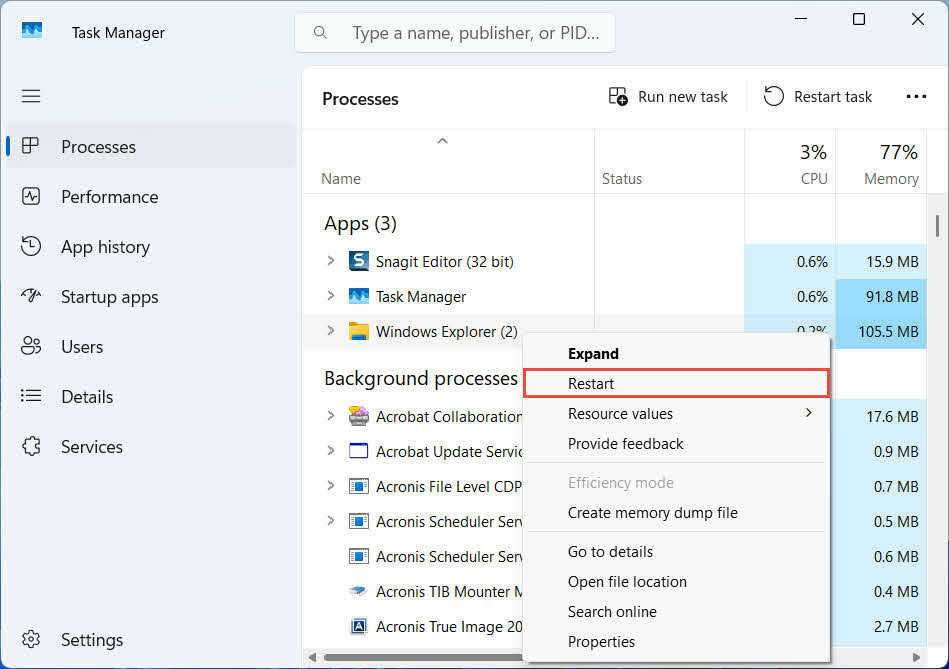
Lỗi này thường xảy ra khi các mục đã chọn đến từ một vị trí không còn tồn tại hoặc chỉ mục nội bộ của Thùng rác không được đồng bộ. Hãy thử các cách khắc phục sau:
- Khởi động lại File Explorer: sử dụng tổ hợp phím Ctrl + Alt + Del để mở Trình quản lý tác vụ, sau đó nhấp chuột phải. Windows Explorer, Và chọn Khởi động lại

- Khôi phục từng mục một thay vì khôi phục hàng loạt.
- If Khôi phục Nếu vẫn không thấy, hãy kéo tệp ra theo cách thủ công như mô tả trong hướng dẫn. Mục 3.2
5.4 Lỗi “Truy cập bị từ chối” hoặc lỗi về quyền khi khôi phục
Điều này cho thấy vấn đề nằm ở quyền truy cập của thư mục gốc, chứ không phải của chính tập tin. Hãy kiểm tra lại:
- Bạn đang đăng nhập bằng cùng một tài khoản đã xóa tệp tin.
- Quyền truy cập thư mục đích vẫn cho phép tài khoản của bạn có quyền ghi.
- File Explorer không bị chặn bởi chính sách nào trên máy tính được quản lý hoặc máy tính công ty.
Nếu quyền truy cập của thư mục gốc đã thay đổi, hãy khôi phục tệp vào một vị trí khác, theo hướng dẫn sau: Mục 3.
5.5 Thùng rác có vẻ trống nhưng tôi không hề đổ rác vào đó.
Các tập tin có thể biến mất khỏi Thùng rác mà không cần người dùng tự tay xóa:
- Bạn có thể cấu hình Storage Sense để tự động xóa các mục sau một số ngày nhất định.
- Thùng rác đã đạt đến giới hạn dung lượng, vì vậy Windows đã xóa các mục cũ nhất để tạo chỗ trống (xem Mục 6.1)
- Một tài khoản khác trên máy tính dùng chung đã xóa hết dữ liệu.
- Chính sách nhóm trên thiết bị được quản lý sẽ thực thi việc tự động xóa dữ liệu.
5.6 Tệp đã khôi phục bị hỏng, trống hoặc không mở được
Khôi phục chỉ di chuyển tệp tin trở lại vị trí cũ; nó không sửa chữa tệp tin. Nếu tệp tin đã bị hỏng trước khi bị xóa, hoặc nếu tệp tin đang được ghi vào thời điểm bị xóa, nó vẫn có thể không mở được sau khi khôi phục. Trong trường hợp đó, vấn đề là do tệp tin bị hỏng, chứ không phải do thùng rác, và cần được xử lý. một dụng cụ sửa chữa phù hợp với định dạng tệp đó hơn là một nỗ lực khôi phục khác.
6. Quản lý và cấu hình thùng rác
6.1 Thay đổi kích thước thùng chứa rác tái chế
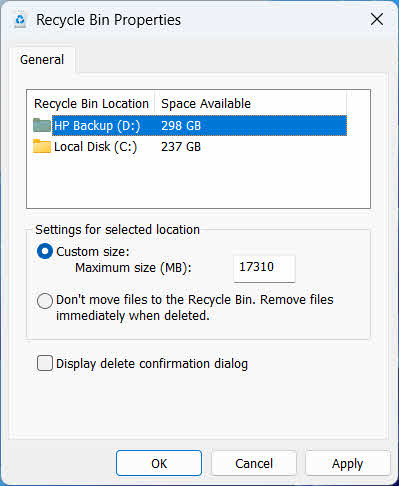
Mỗi ổ đĩa có dung lượng Thùng rác riêng. Để xem hoặc thay đổi:
- Nhấp chuột phải vào Recycle Bin biểu tượng và chọn Bất động sản
- Chọn vị trí thùng rác tái chế từ danh sách các địa điểm đặt thùng rác tái chế.
- Chọn Kích thước tùy chỉnh và nhập một Kích thước tối đa (MB)hoặc chọn Không di chuyển tệp vào Thùng rác. Xóa tệp ngay lập tức khi bị xóa để vô hiệu hóa nó cho ổ đĩa đó
- Nhấp chuột OK
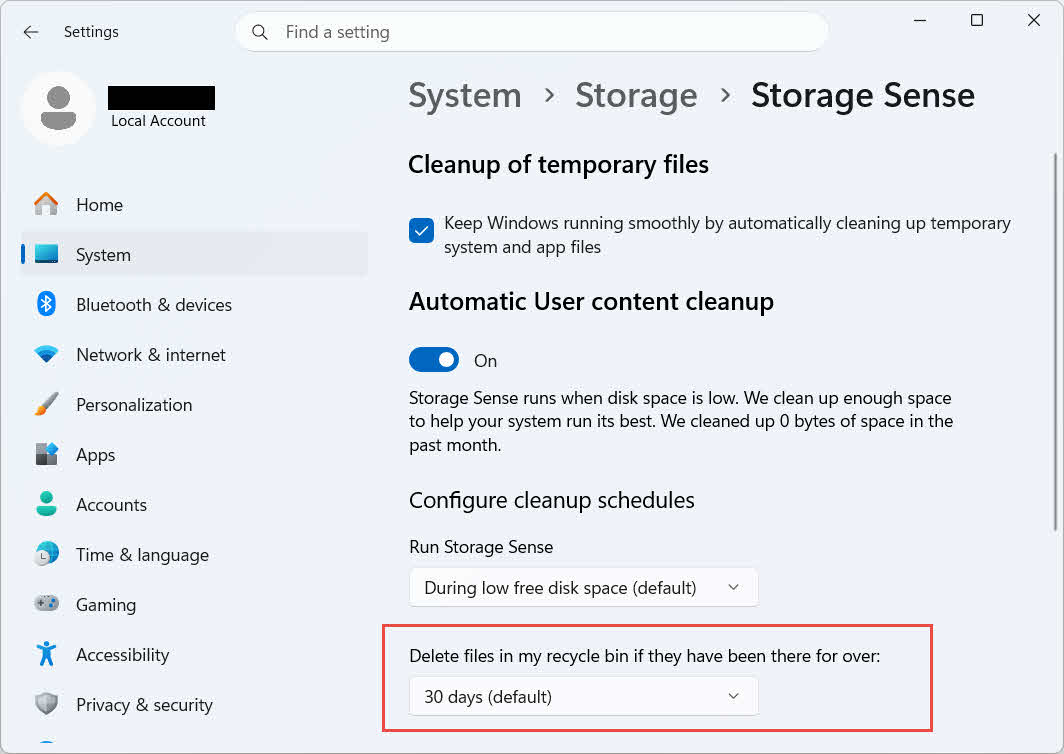
Windows cũng cung cấp một tùy chọn dọn dẹp riêng biệt dựa trên thời gian sử dụng: hãy truy cập vào... Cài đặt -> Hệ thống -> Bộ nhớ -> Storage Sense và thiết lập Xóa các tệp trong thùng rác của tôi nếu chúng đã ở đó quá lâu một số ngày đã chọn. Thời gian lưu giữ mặc định là 30 ngày.
6.2 Kích hoạt hộp thoại xác nhận xóa
Theo mặc định, Windows 11 không hiển thị lời nhắc xác nhận trước khi di chuyển tệp vào Thùng rác. Để bật tính năng này:
- Nhấp chuột phải vào Recycle Bin biểu tượng và chọn Bất động sản
- kiểm tra Hiển thị hộp thoại xác nhận xóa
- Nhấp chuột OK
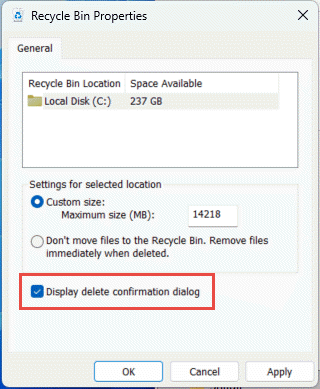
Cài đặt này không ngăn chặn việc xóa vĩnh viễn, chẳng hạn như sự thay đổi + Xóa bỏ hoặc xóa dữ liệu từ các ổ đĩa không hỗ trợ Thùng rác.
6.3 Thiết lập tệp để bỏ qua thùng rác (và lý do nên tránh điều này)
Như nhau Không di chuyển tệp vào Thùng rác. Xóa tệp ngay lập tức khi bị xóa tùy chọn được đề cập trong Mục 6.1 Có thể áp dụng thao tác này cho bất kỳ ổ đĩa nào để xóa vĩnh viễn mọi dữ liệu. Thao tác này giải phóng dung lượng ổ đĩa ngay lập tức nhưng loại bỏ tùy chọn khôi phục nhanh duy nhất được mô tả trong hướng dẫn này, vì vậy tốt nhất nên dành nó cho các ổ đĩa không chứa tệp cá nhân, chẳng hạn như ổ đĩa tạm thời hoặc ổ đĩa lưu trữ tạm thời.
7. Các biện pháp tốt nhất để ngăn ngừa mất dữ liệu trong tương lai
7.1 Kích hoạt tính năng Lịch sử tập tin hoặc giải pháp sao lưu
Thùng rác chỉ bảo vệ khỏi việc xóa nhầm, chứ không bảo vệ khỏi lỗi ổ đĩa hoặc thùng rác đã bị xóa sạch. Bật Lịch sử Tệp (Bảng điều khiển -> Hệ thống và Bảo mật -> Lịch sử Tệp)

Hoặc một công cụ sao lưu của bên thứ ba sẽ bổ sung thêm một lớp bảo vệ thứ hai với lịch sử phiên bản riêng của nó.
7.2 Sử dụng tính năng đồng bộ hóa đám mây cho các thư mục quan trọng
Việc đồng bộ hóa Desktop, Documents và Pictures lên OneDrive hoặc dịch vụ đám mây khác sẽ cung cấp cho bạn thùng rác trên web như đã mô tả ở trên. Mục 4.3 như một phương thức phục hồi bổ sung, độc lập với Thùng rác tái chế cục bộ.
7.3 Kiểm tra kỹ trước khi đổ hết rác trong thùng tái chế
Trước khi nhấp vào Empty Recycle Binsắp xếp theo Ngày xóa và quét tìm bất kỳ dữ liệu nào mới được lưu gần đây. Sau khi xóa sạch, lựa chọn duy nhất còn lại là sử dụng phần mềm phục hồi dữ liệu chuyên dụng, và tỷ lệ thành công cũng không được đảm bảo.
8. Câu hỏi thường gặp
Hỏi: Tôi có thể khôi phục tệp sau khi đã xóa sạch thùng rác không?
A: Không phải thông qua Thùng rác. Tại thời điểm đó, tệp được đánh dấu là đã xóa ở cấp độ hệ thống tệp nhưng vẫn có thể tồn tại về mặt vật lý trên ổ đĩa cho đến khi bị ghi đè. Các công cụ như... DataNumen Data Recovery Chúng được thiết kế để quét và khôi phục loại dữ liệu này. Hãy ngừng sử dụng ổ đĩa càng sớm càng tốt để tăng khả năng khôi phục thành công.
Hỏi: Máy Mac có chức năng tương tự như Thùng rác của Windows không?
A: Đúng vậy, nó được gọi là Thùng rác, và cách hoạt động cũng tương tự: mở Thùng rác, nhấp chuột phải vào tệp và chọn Khôi phục. Hướng dẫn này tập trung cụ thể vào Thùng rác của Windows. Và hướng dẫn này Bài viết này đề cập cụ thể đến thùng rác trên máy Mac.
Hỏi: Các tập tin sẽ tồn tại trong Thùng rác bao lâu trước khi bị xóa tự động?
A: Thùng rác cục bộ không có giới hạn thời gian cố định theo mặc định; các mục chỉ bị xóa khi đạt đến giới hạn dung lượng hoặc khi Storage Sense được cấu hình để xóa các mục cũ (xem Mục 6.1Thùng rác web của OneDrive sử dụng một khoảng thời gian cố định: 30 ngày đối với tài khoản cá nhân và tối đa 93 ngày đối với tài khoản công việc hoặc trường học (xem Mục 4.3).
Hỏi: Tôi nên khôi phục tập tin về vị trí ban đầu hay sang một vị trí mới?
A: Khôi phục về vị trí ban đầu (Mục 2) đơn giản hơn và giữ nguyên đường dẫn ban đầu của tệp. Khôi phục vào một vị trí khác (Mục 3) thay vào đó nếu thư mục gốc đó không còn tồn tại hoặc đã chứa một tệp có cùng tên.
Hỏi: Tôi có thể khôi phục các tập tin đã xóa khỏi ổ USB bằng Thùng rác không?
A: Theo mặc định thì không. Ổ USB và thẻ nhớ SD không có thư mục Thùng rác trừ khi bạn bật thủ công, như đã giải thích trong phần tiếp theo. Mục 4.1.
Hỏi: Tại sao tùy chọn Khôi phục bị mờ hoặc biến mất?
A: Lỗi này thường do thư mục gốc bị thiếu hoặc chỉ mục Thùng rác không đồng bộ. Xem Mục 5.3 để sửa lỗi.
Hỏi: Nếu thùng rác tái chế trống rỗng nhưng tôi chưa bao giờ xóa nó thì sao?
A: Chức năng Storage Sense, đạt đến giới hạn dung lượng, tài khoản người dùng khác hoặc thiết lập Chính sách Nhóm đều có thể tự động xóa dung lượng đó. Xem thêm Mục 5.5.
Hỏi: Phần mềm nào có thể khôi phục các tập tin đã bị xóa khỏi Thùng rác?
A: Phần mềm phục hồi dữ liệu chuyên dụng, chẳng hạn như DataNumen Data RecoveryNó quét ổ đĩa ở cấp độ thấp hơn để tìm dữ liệu mà hệ thống tập tin không còn tham chiếu nữa, điều mà giao diện Thùng rác thông thường không thể làm được.
Hỏi: Việc khôi phục tập tin có đảm bảo rằng tập tin đó sẽ được mở đúng cách không?
A: Không. Khôi phục chỉ đưa tệp tin trở lại thư mục; nó không sửa chữa bất kỳ hư hỏng nào mà tệp tin đã gặp phải trước hoặc trong quá trình xóa. Xem Mục 5.6.
9. Phần kết luận
Khôi phục các tệp đã xóa từ Thùng rác khá đơn giản miễn là mục đó vẫn còn ở đó: mở Thùng rác, tìm tệp và khôi phục nó. Ổ cứng ngoài, chia sẻ mạng và thư mục được đồng bộ hóa với OneDrive đều có những điều kiện riêng, và các phần khắc phục sự cố và cấu hình ở trên đã đề cập đến các trường hợp mà quá trình khôi phục tiêu chuẩn không diễn ra như mong đợi. Nếu tệp đã bị xóa vĩnh viễn hoặc Thùng rác đã được làm trống, phần mềm phục hồi dữ liệu chuyên dụng là bước tiếp theo, chứ không phải chính Thùng rác.
Lưu ý
Thiên Quái Là một chuyên gia phục hồi dữ liệu với hơn 10 năm kinh nghiệm về hệ thống tệp Windows, công nghệ lưu trữ và các giải pháp phục hồi sau thảm họa. Anh ấy đã hướng dẫn thành công hàng nghìn người dùng vượt qua các tình huống mất dữ liệu nghiêm trọng trong cả môi trường cá nhân và doanh nghiệp.
Qian chuyên về các phương pháp phục hồi dữ liệu Windows, phân tích hệ thống tập tin và các chiến lược sao lưu phòng ngừa. Kinh nghiệm thực tiễn sâu rộng của anh bao gồm phục hồi dữ liệu từ ổ đĩa, triển khai các giải pháp sao lưu toàn diện và khắc phục sự cố hệ thống tập tin phức tạp. NTFSÔng ấy đã làm việc với nhiều hệ thống tệp khác nhau, bao gồm các định dạng FAT, exFAT và ReFS. Ông ấy đã sử dụng nhiều công cụ và kỹ thuật phục hồi dữ liệu, từ các tiện ích tích hợp sẵn trong Windows đến phần mềm phục hồi dữ liệu chuyên nghiệp.
Thông qua các bài viết kỹ thuật của mình, Qian tận tâm trang bị cho người dùng kiến thức thực tiễn để bảo vệ và khôi phục dữ liệu quý giá của họ. Anh luôn cập nhật những phát triển mới nhất trong công nghệ khôi phục tập tin Windows, những cải tiến về thiết bị lưu trữ và các phương pháp bảo vệ dữ liệu tốt nhất. Khi không bận rộn giúp người dùng khôi phục dữ liệu, Qian viết bài cho cộng đồng.ost fileQian thích nghiên cứu các công nghệ lưu trữ mới nổi và chia sẻ các mẹo bảo mật dữ liệu để ngăn ngừa mất dữ liệu trong tương lai.
Bạn có thắc mắc về hướng dẫn này hoặc cần trợ giúp về khôi phục dữ liệu? Qian luôn sẵn sàng hỗ trợ bạn. phản hồi và đề xuất nhằm cải thiện các nguồn lực phục hồi dữ liệu này.