
1. pagpapakilala
Ang Recycle Bin ay ang built-in na safety net ng Windows para sa mga nabura na file. Hangga't ang isang file ay nasa loob pa rin nito, ang pagbawi nito ay kailangan lamang ng ilang pag-click. Ipinapaliwanag ng gabay na ito kung paano i-recover ang mga nabura na file mula sa Recycle Bin sa Windows, kabilang ang mga file sa external, network, at mga lokasyon na naka-sync sa OneDrive.
1.1 Ano ang Saklaw ng Gabay na Ito
- Pagbawi ng mga file na nasa Recycle Bin pa rin
- Pagbabalik ng mga tinanggal na file sa kanilang orihinal na lokasyon
- Pagbawi ng mga tinanggal na file sa isang bagong lokasyon kapag nawawala ang orihinal na folder
1.2 Ang Hindi Saklaw ng Gabay na Ito
- Mga file na tinanggal gamit ang Ilipat + alisin, na ganap na lumalampas sa Recycle Bin
- Mga file na tinanggal o inalisan ng laman mula sa Recycle Bin. Sa kasong ito, suriin gabay na ito upang mabawi ang mga file.
- Mga file na lumampas sa limitasyon ng imbakan ng Recycle Bin at permanenteng nabura
2. Ibalik ang mga Natanggal na File mula sa Recycle Bin
Kung ang file ay tinanggal mula sa isang lokal na drive gamit ang alisin susi o ang pag-right-click alisin utos, diretso itong mapupunta sa Recycle Bin. Ire-recover ito gamit ang sumusunod na 3 hakbang:
2.1 Buksan ang Recycle Bin
Gamitin ang alinman sa mga sumusunod na pamamaraan:
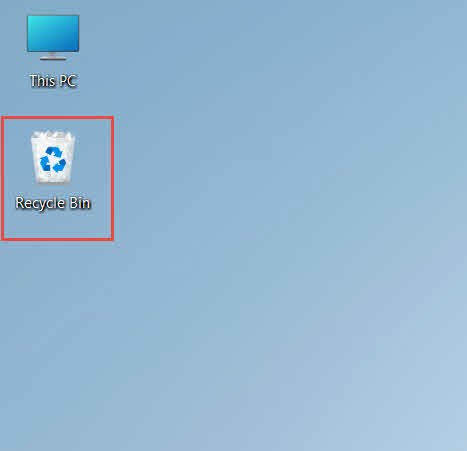
- I-double-click ang Recycle Bin icon sa desktop

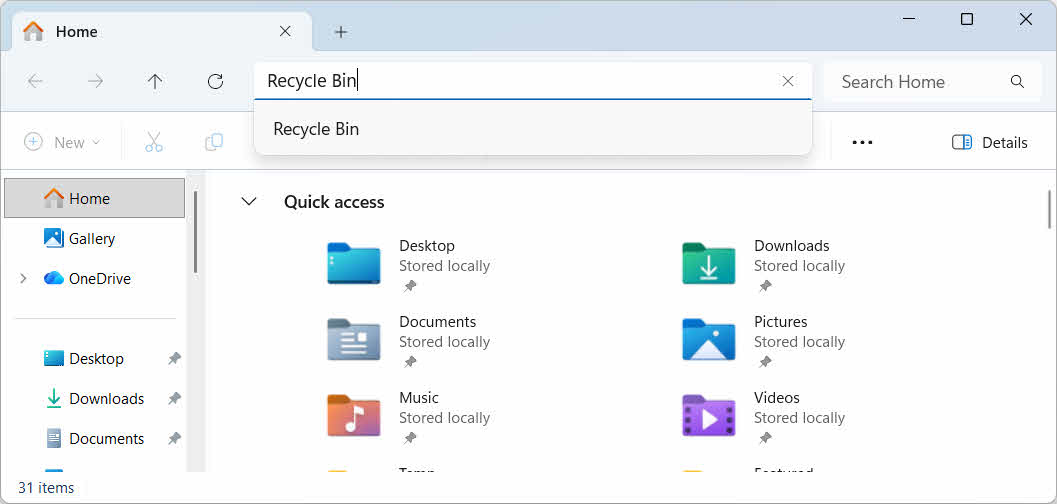
- Buksan ang File Explorer at ipasok ang Recycle Bin sa address bar

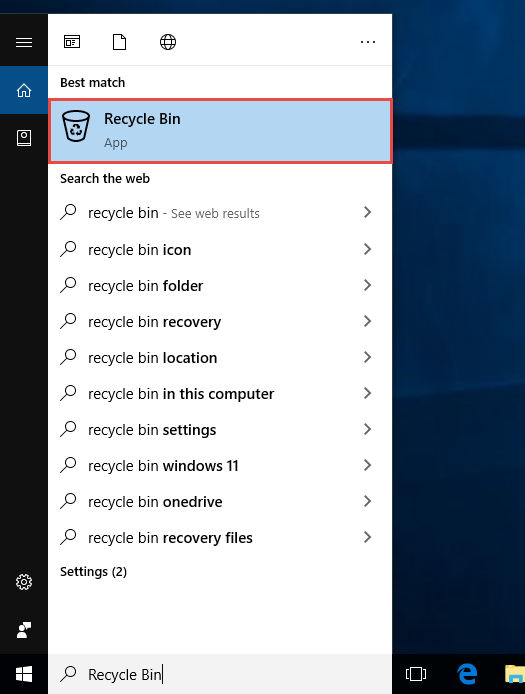
- uri Recycle Bin sa Windows Search at piliin ito mula sa mga resulta

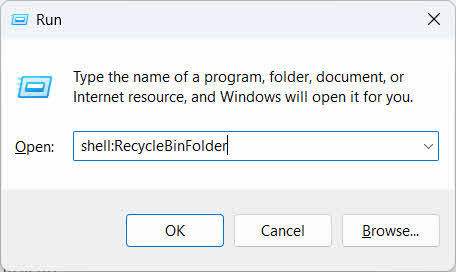
- pindutin Manalo + R, type shell:RecycleBinFolder, at pindutin ang Magpasok

2.2 Hanapin ang Nabura na File o Folder
Kapag bukas na ang Recycle Bin, hanapin ang mga bagay na gusto mo gamit ang isa sa mga sumusunod na paraan:
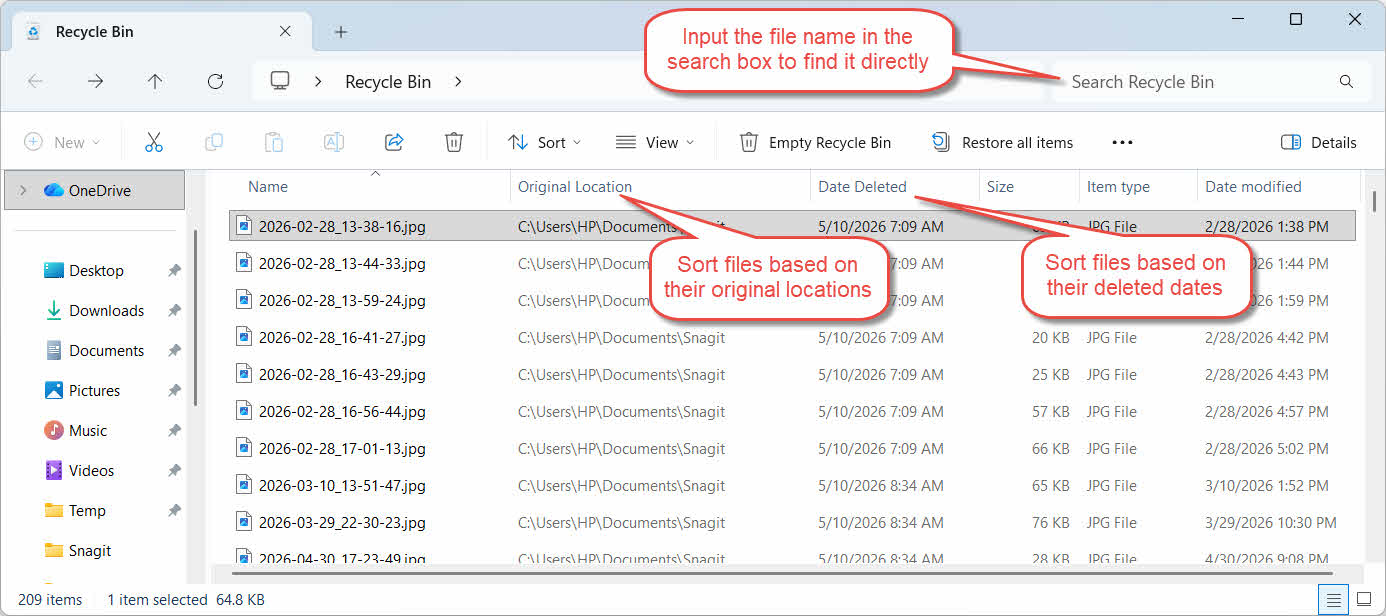
- I-type ang pangalan ng file sa search box sa kanang sulok sa itaas
- I-click ang Petsa ng Pagtanggal header ng column para ayusin ayon sa mga pinakahuling pagbura
- Lagyan ng check ang Orihinal na Lokasyon column para kumpirmahin na ang file ay nagmula sa folder na iyong inaasahan
2.3 Ibalik ang mga File o Folder
Para ibalik ang isa o higit pang mga item:
- Pumili ng isang file, o pindutin nang matagal Ctrl at i-click upang pumili ng maraming file, o pindutin nang matagal Ilipat at i-click para pumili ng saklaw
- I-right-click ang napili at piliin ang Ibalik ang
- Buksan ang orihinal na folder upang kumpirmahin na nakabalik na ang file

Para ibalik ang bawat item sa Recycle Bin nang sabay-sabay, i-click ang Ibalik ang lahat ng mga item sa toolbar nang hindi muna pumipili ng anumang indibidwal na file.
3. Ibalik ang mga Natanggal na File mula sa Recycle Bin papunta sa Ibang Lokasyon
Ang Ibalik ang Ang utos ay palaging nagbabalik ng isang file sa orihinal nitong folder. Sa ilang mga sitwasyon, kinakailangan itong ilipat sa ibang lugar.
3.1 Kailan Mo Dapat Gamitin ang Paraang Ito
- Wala na ang orihinal na folder
- Mayroon nang bagong file na may parehong pangalan sa orihinal na folder
- Wala kang pahintulot na ma-access ang orihinal na folder
- Hindi ka sigurado kung saang folder nagmula ang file
- Gusto mong suriin ang file bago ito ibalik sa orihinal nitong lugar
3.2 I-drag o Gupitin ang File Mula sa Recycle Bin
Para ilipat ang isang file mula sa Recycle Bin papunta sa isang folder na iyong napili:
- Buksan ang Recycle Bin
- Piliin ang file o folder na ire-restore.
- Gumamit ng isa sa mga sumusunod na paraan upang ilipat ang file o folder sa target na folder:
- I-drag ito nang direkta sa window ng target na folder
- pindutin Ctrl + X para putulin ito, buksan ang target na folder, at pindutin ang Ctrl + V para idikit ito
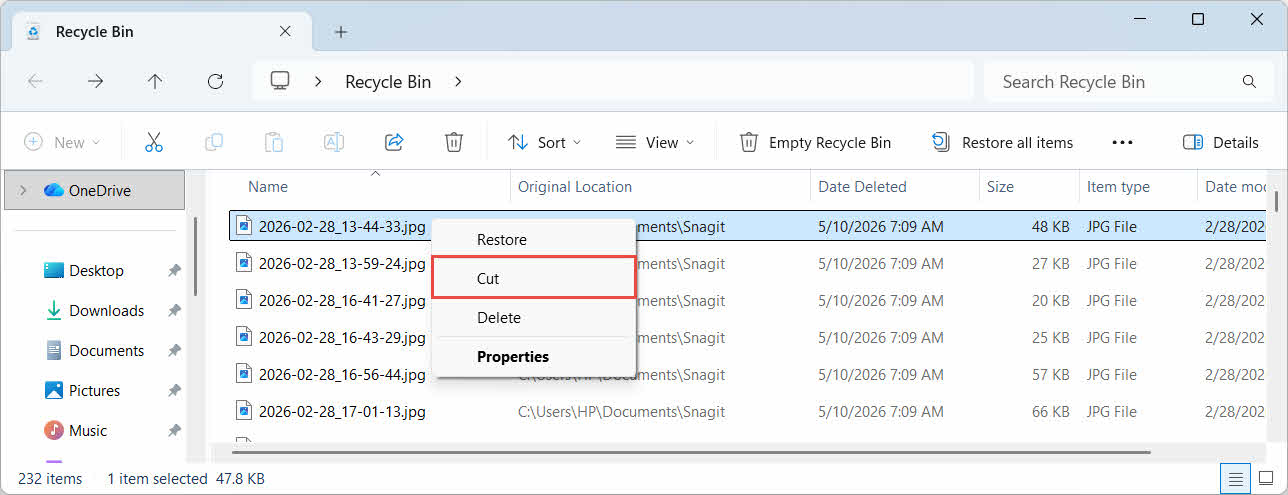
- I-right-click ang napili at piliin Bawasan, buksan ang target na folder, i-right-click at piliin ang Ilagay para idikit ito

4. Pagbawi ng mga File mula sa Recycle Bin sa mga External, Network at Cloud Drive
Ang mga hakbang sa Seksyon 2 ipagpalagay na nabura na ang file mula sa pangunahing drive ng iyong computer. Magkaiba ang paggana ng external, network, at cloud-synced storage.
4.1 Mga Panlabas na Hard Drive at USB Flash Drive
Tinatrato ng Windows ang mga external hard drive (kabilang ang mga SSD na nakakonekta sa pamamagitan ng USB) kapareho ng mga internal drive: bawat isa ay may sarili nitong nakatagong folder ng Recycle Bin bilang default. Ang mga naaalis na media tulad ng mga USB flash drive at SD card ay tinatrato nang iba at hindi nakakakuha ng Recycle Bin bilang default, kaya ang mga file na binura mula sa mga ito ay agad na natatanggal.
4.1.1 Paganahin ang Suporta sa Recycle Bin para sa Drive
Para sa isang external hard drive, kumpirmahin na naka-on ang suporta sa Recycle Bin:
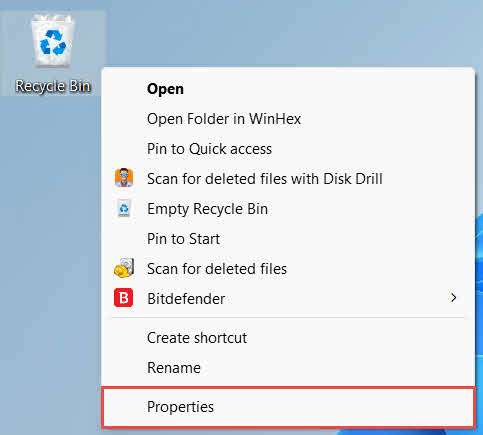
- Mag-right-click ang Recycle Bin icon sa desktop at piliin ang Mga Katangian

- Sa Lokasyon ng Recycle Bin listahan, piliin ang hilera para sa external drive. Lalabas lang ito rito kapag nakakonekta na ang drive at mayroon nang drive letter
- Sa ilalim Mga setting para sa napiling lokasyon, siguraduhin Custom na laki ay napili, hindi Huwag ilipat ang mga file sa Recycle Bin. Alisin agad ang mga file kapag nabura na.

- I-click ang gamitin, Pagkatapos OK
Pinapanatili ng bawat drive ang setting na ito nang hiwalay, kaya maaaring naka-off ang suporta para sa Recycle Bin sa isang external drive kahit na naka-on ito para sa system drive.
Para sa isang USB flash drive o SD card, hindi ito lilitaw sa Recycle Bin Properties, dahil ang Windows ay hindi lumilikha ng Recycle Bin folder sa removable media bilang default. Ang pag-enable nito ay nangangailangan ng pag-edit sa registry:
- pindutin Manalo + R, type regedit, pindutin Magpasok, at aprubahan ang prompt
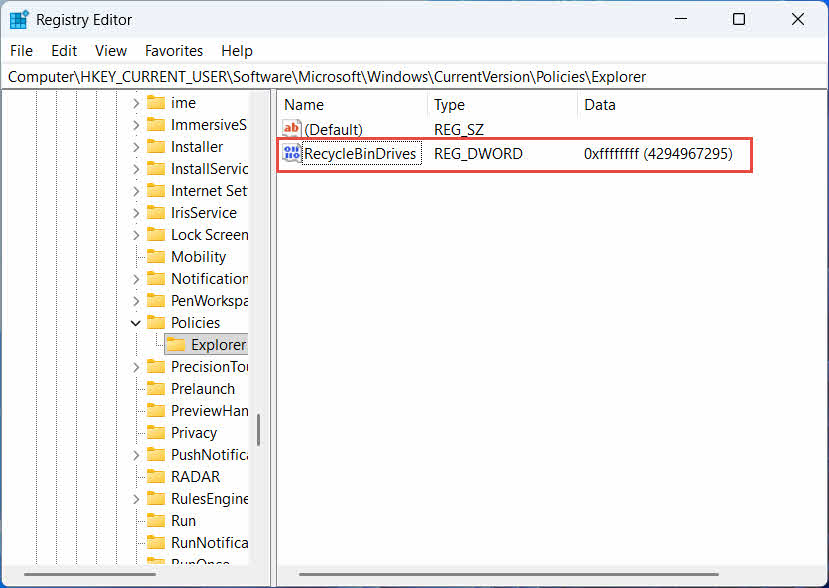
- Mag-navigate sa HKEY_CURRENT_USER \ Software \ Microsoft \ Windows \ CurrentVersion \ Policies \ Explorer. Kung ang Explorer wala ang susi sa ilalim ng Mga Patakaran, pag-click sa kanan Mga Patakaran, piliin bago -> Key, at pangalanan ito Explorer
- Mag-right-click sa isang bakanteng lugar sa kanang pane, piliin ang bago -> Halaga ng DWORD (32-bit), at pangalanan ito Mga RecycleBinDrive
- I-double-click ang Mga RecycleBinDrive, itakda Base sa Hexadecimal, pasok ffffffff bilang datos ng halaga, at i-click ang OK

- Ulitin ang mga hakbang 2 hanggang 4 sa ilalim HKEY_LOCAL_MACHINE \ SOFTWARE \ Microsoft \ Windows \ CurrentVersion \ Policies \ Explorer
- I-restart ang computer
Para baligtarin ang pagbabago, burahin ang Mga RecycleBinDrive halaga mula sa parehong lokasyon. Dahil kasama rito ang pag-edit ng registry, gumawa muna ng restore point, at isaalang-alang kung mas simple ba ang pag-asa sa mga backup para sa mga drive na paminsan-minsan mo lang ginagamit.
4.1.2 Pagpapanumbalik ng mga File
Kapag na-enable na ang Recycle Bin para sa drive, ang pag-restore ng file ay susunod sa parehong proseso na inilarawan sa Seksyon 2.3.
Ang pagbura ng isang file mula sa isang naka-map na network drive o isang nakabahaging folder ay direktang nag-aalis nito mula sa server. Hindi ito dumadaan sa lokal na Recycle Bin ng iyong computer. Ngunit kung naka-enable ang isang server-side recycle bin, maaari mong mabawi ang mga nabura na file mula rito.
4.2.1 Server-Side Recycle Bin (kung pinagana)
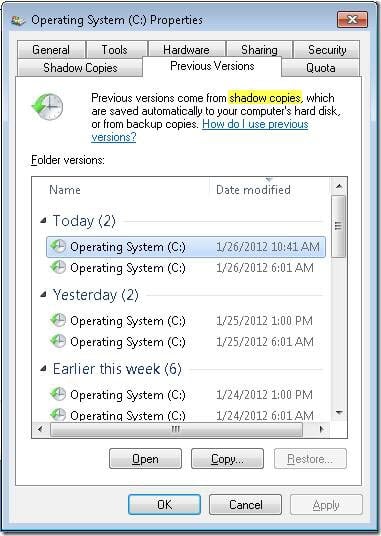
Pinapagana ng ilang file server Mga Shadow Copies (Serbisyo ng Shadow Copy ng Volume), na nagbibigay-daan sa iyong ibalik sa mga naunang bersyon ng isang nakabahaging folder, para mabawi mo ang mga natanggal na file gamit ang feature na ito:
- I-right-click ang parent folder sa network share at piliin ang Mga Katangian
- Buksan ang Nakaraang bersyon tab
- Pumili ng bersyon na may petsa bago ang pagbura at i-click ang Ibalik ang
4.2.2 Ano ang Gagawin Kung Walang Umiiral na Server-Side Recycle Bin
Kung ang Nakaraang bersyon Walang laman o hindi magagamit ang tab, walang naka-configure na snapshot-based recovery ang share. Makipag-ugnayan sa iyong network administrator upang tingnan kung may sarili itong iskedyul ng pag-backup.
4.3 OneDrive Recycle Bin (Mga Folder na Naka-sync sa Cloud)
Ang mga folder na naka-sync sa OneDrive ay maaaring may kasamang dalawang magkahiwalay na Recycle Bin: ang lokal na Windows Recycle Bin at ang web-based na OneDrive Recycle Bin. Kung alin ang naglalaman ng iyong file ay depende sa kung saan nangyari ang pagbura.
4.3.1 Lokal na Pagbubura ng Naka-sync na File (Pupunta sa Parehong Local at Web Recycle Bin)
Kung magbubura ka ng naka-sync na file mula sa File Explorer sa iyong PC, mapupunta ito sa lokal na Recycle Bin nang eksakto tulad ng inilarawan sa Seksyon 2, at ginagaya rin ng OneDrive sync client ang pagtanggal sa cloud, kaya mababawi rin ang file mula sa OneDrive web Recycle Bin.
4.3.2 Pagtanggal na Pinasimulan ng Cloud (Web Recycle Bin Lamang, Simula Mayo 2026)
Kung ang file ay tinanggal mula sa cloud side, halimbawa sa pamamagitan ng website ng OneDrive o ibang naka-sync na device, nagbago ang gawi simula noong Mayo 2026: Itinigil ng Microsoft ang pagpapadala ng mga pagbura na sinimulan ng cloud sa lokal na Windows Recycle Bin. Ang isang file na tinanggal sa ganitong paraan ay nawawala mula sa iyong lokal na folder nang hindi lumalabas sa lokal na Recycle Bin, at ang pagbawi ay posible lamang mula sa OneDrive o SharePoint web Recycle Bin.
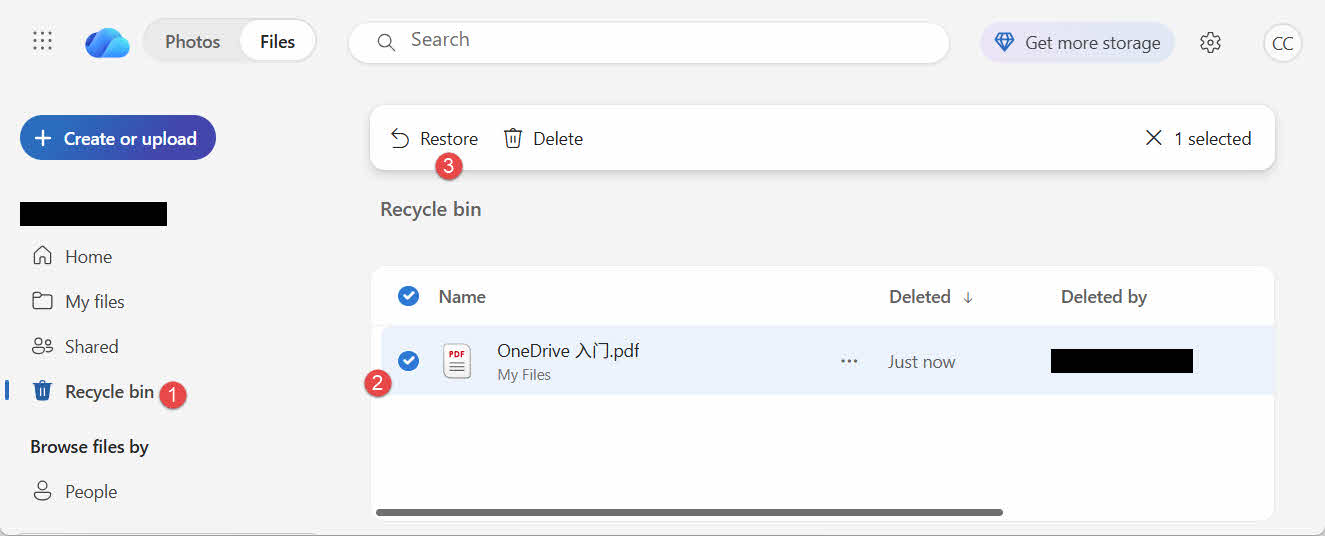
4.3.3 Pagpapanumbalik mula sa OneDrive.com
Para ibalik ang isang file mula sa OneDrive web Recycle Bin:
- Mag-sign in sa onedrive.live.com or onedrive.com
- piliin Tapunan sa pane ng nabigasyon
- Piliin ang file o folder at i-click ang Ibalik ang
Ang mga personal na Microsoft account ay nagpapanatili ng mga na-delete na item nang hanggang 30 araw; ang mga account sa trabaho o paaralan naman ay nagpapanatili ng mga ito nang hanggang 93 araw.
5. Pag-troubleshoot ng mga Isyu sa Pagbawi ng Recycle Bin
5.1 Nawawala ang Icon ng Recycle Bin sa Desktop
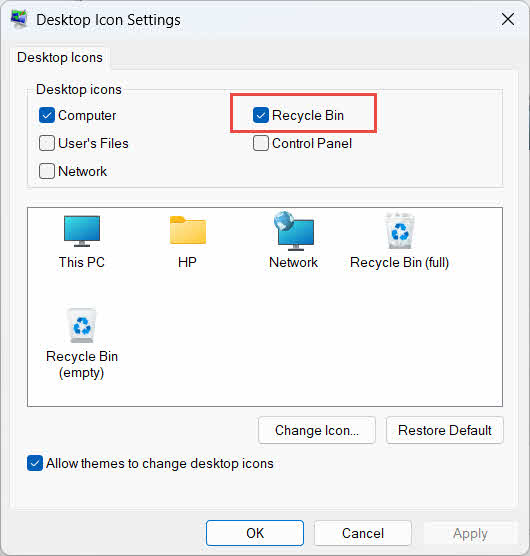
Nariyan pa rin ang Recycle Bin kahit na nakatago na ang desktop icon nito. Para maibalik ang icon:
- Mag-right-click sa desktop at piliin ang I-personalize ang
- Pagbubukas Mga Tema, Pagkatapos Mga setting ng icon ng desktop
- Tsek Recycle Bin at i-click ang OK
Maaari mo rin itong buksan nang direkta sa pamamagitan ng pag-type Recycle Bin sa Windows Search, File Explorer o gamit ang Win + R, gaya ng inilarawan sa Seksyon 2.1.
5.2 Wala sa Recycle Bin ang File
Kung ang iyong mga file na gusto mo ay wala sa Recycle Bin, isaalang-alang ang mga dahilan na ito:
- Binura ito mula sa isang external drive na walang suporta sa Recycle Bin (tingnan ang Seksyon 4.1)
- Binura ito mula sa isang network drive (tingnan ang Seksyon 4.2)
- Direkta itong tinanggal mula sa OneDrive sa web (tingnan ang Seksyon 4.3)
- Ito ay permanenteng tinanggal, halimbawa sa Ilipat + alisin, o na-empty na ang Recycle Bin
Kung permanenteng nabura ang file, ang pagbawi nito ay nangangailangan ng nakalaang software sa pagbawi ng data, tulad ng DataNumen Data Recovery, sa halip na sa Recycle Bin. Itigil muna ang pag-save ng mga bagong file sa drive na iyon upang mabawasan ang posibilidad na ma-overwrite ang data.
5.3 Kulay-abo, Nawawala, o Hindi Gumagana ang Opsyon sa Pagbawi
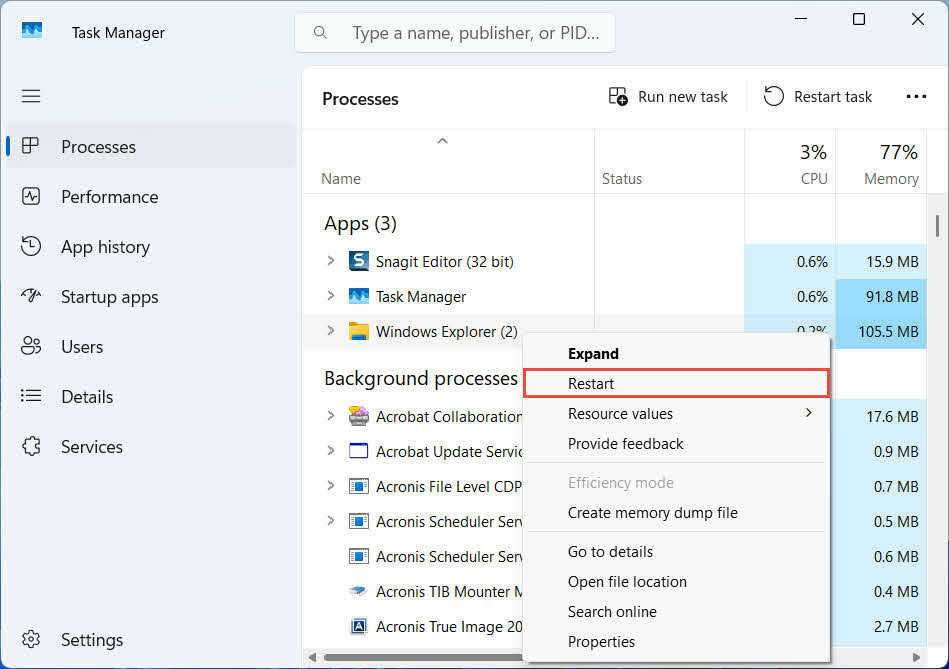
Karaniwan itong nangyayari kapag ang mga napiling item ay nagmula sa isang lokasyon na wala na, o ang panloob na index ng Recycle Bin ay hindi naka-sync. Subukan ang mga pag-aayos na ito:
- I-restart ang File Explorer: gamitin ang Ctrl + Alt + Del para buksan ang Task Manager, i-right click Windows Explorer, at piliin restart

- Ibalik ang mga item nang paisa-isa sa halip na bilang isang batch
- If Ibalik ang hindi pa rin lumalabas, i-drag palabas nang manu-mano ang file gaya ng inilarawan sa Seksyon 3.2
5.4 "Tinanggihan ang Pag-access" o Mga Error sa Pahintulot Kapag Nagre-restore
Ito ay nagpapahiwatig ng isyu sa mga pahintulot sa orihinal na folder, hindi sa mismong file. Suriin kung:
- Naka-sign in ka gamit ang parehong account na nag-delete ng file
- Ang mga pahintulot ng destination folder ay nagpapahintulot pa rin ng write access para sa iyong account
- Hindi hinaharangan ng isang patakaran ang File Explorer sa isang pinamamahalaang o computer sa trabaho
Kung nagbago ang mga pahintulot ng orihinal na folder, ibalik ang file sa ibang lokasyon, kasunod ng Seksyon 3.
5.5 Mukhang Walang Laman ang Recycle Bin Pero Hindi Ko Ito Inaalisan ng Laman
Maaaring mawala ang mga file mula sa Recycle Bin nang hindi ito mano-manong inaalisan ng laman:
- Maaaring i-configure ang Storage Sense para awtomatikong magbura ng mga item pagkatapos ng isang takdang bilang ng mga araw
- Naabot na ng Recycle Bin ang limitasyon sa laki nito, kaya inalis ng Windows ang mga pinakalumang item para magkaroon ng espasyo (tingnan ang Seksyon 6.1)
- Inalis ito sa trabaho ng isa pang account sa isang nakabahaging computer.
- Ipinapatupad ng isang Group Policy sa isang pinamamahalaang device ang awtomatikong pag-aalis ng laman
5.6 Ang Naibalik na File ay Sira, Blangko, o Ayaw Bumukas
Ang pagpapanumbalik ay nagbabalik lamang sa file; hindi nito ito inaayos. Kung ang file ay nasira na bago ang pagbura, o kung ito ay sinusulatan noong sandaling ito ay binura, maaari pa rin itong hindi mabuksan pagkatapos ng pagpapanumbalik. Sa kasong iyon, ang isyu ay ang pagkasira ng file, hindi ang problema sa Recycle Bin, at nangangailangan ng... isang kagamitan sa pagkukumpuni angkop sa format ng file na iyon sa halip na isa pang pagtatangka sa pagbawi.
6. Pamamahala at Pag-configure ng Recycle Bin
6.1 Pagbabago ng Laki ng Imbakan ng Recycle Bin
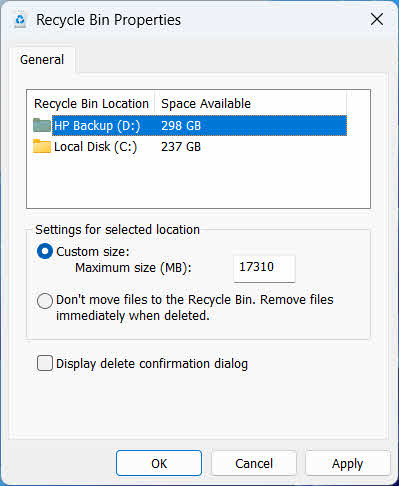
Ang bawat drive ay may kanya-kanyang alokasyon para sa Recycle Bin. Para suriin o baguhin ito:
- Mag-right-click ang Recycle Bin icon at piliin Mga Katangian
- Pumili ng drive mula sa listahan ng mga lokasyon ng Recycle Bin
- Piliin Custom na laki at magpasok ng isang Pinakamataas na laki (MB), o pumili Huwag ilipat ang mga file sa Recycle Bin. Alisin agad ang mga file kapag nabura na. para i-disable ito para sa drive na iyon
- I-click ang OK
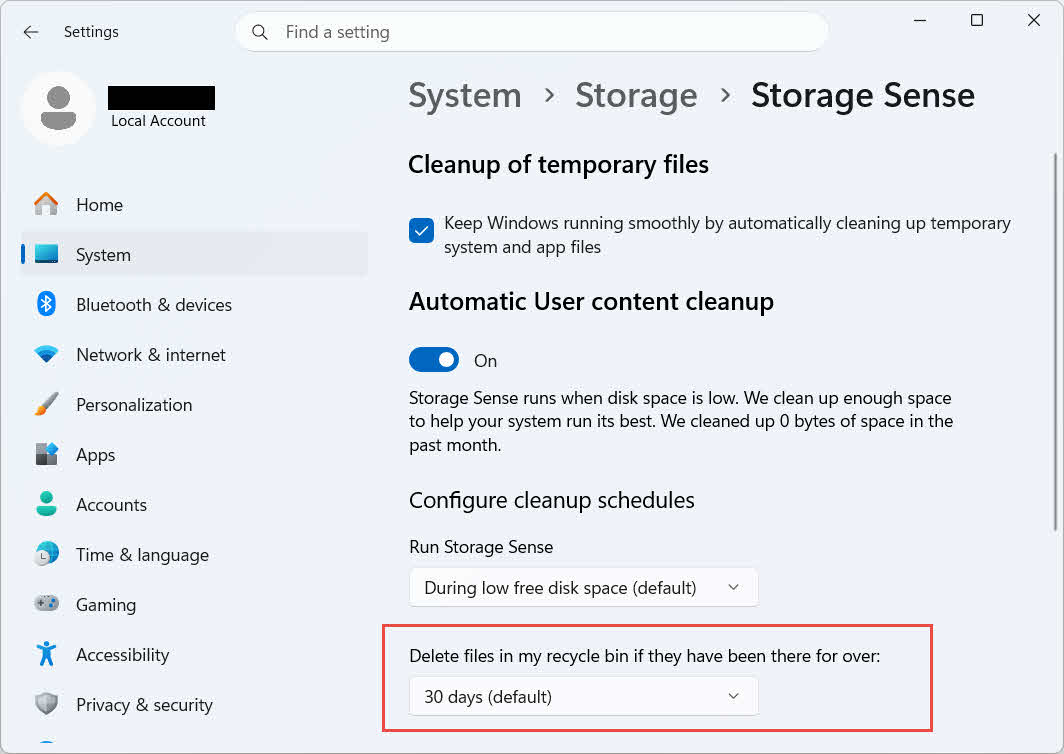
Nag-aalok din ang Windows ng hiwalay na opsyon sa paglilinis batay sa edad: pumunta sa Mga Setting -> Sistema -> Imbakan -> Kahulugan ng Imbakan at itakda Burahin ang mga file sa aking recycle bin kung mahigit na ang mga ito roon isang napiling bilang ng mga araw. Ang default na panahon ng pagpapanatili ay 30 araw.
6.2 Paganahin ang Dialog ng Kumpirmasyon ng Pagtanggal
Hindi nagpapakita ang Windows 11 ng prompt ng kumpirmasyon bago ilipat ang mga file sa Recycle Bin bilang default. Para i-on ito:
- Mag-right-click ang Recycle Bin icon at piliin Mga Katangian
- Tsek Ipakita ang dialog ng kumpirmasyon ng pagbura
- I-click ang OK
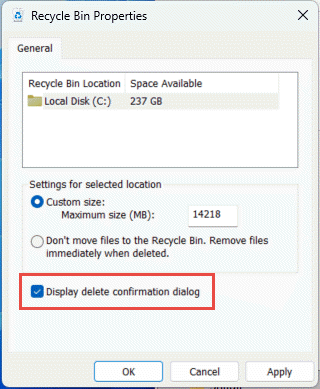
Hindi pinipigilan ng setting na ito ang mga permanenteng pagbura, tulad ng Ilipat + alisin o mga pagbura mula sa mga drive na walang suporta sa Recycle Bin.
6.3 Pagtatakda ng mga File na Iwasan ang Recycle Bin (at Bakit Ito Dapat Iwasan)
Pareho Huwag ilipat ang mga file sa Recycle Bin. Alisin agad ang mga file kapag nabura na. opsyon na sakop ng Seksyon 6.1 maaaring ilapat sa anumang drive upang gawing permanente ang bawat pagbura. Agad nitong pinapalaya ang espasyo sa disk ngunit inaalis ang tanging opsyon sa mabilisang pagbawi na inilalarawan ng gabay na ito, kaya pinakamahusay itong nakalaan para sa mga drive na walang personal na file, tulad ng isang nakalaang scratch o temp volume.
7. Mga Pinakamahusay na Kasanayan upang Maiwasan ang Pagkawala ng Datos sa Hinaharap
7.1 Paganahin ang Kasaysayan ng File o isang Solusyon sa Pag-backup
Pinoprotektahan lamang ng Recycle Bin ang hindi sinasadyang pagbura, hindi ang pagkabigo ng drive o isang Recycle Bin na na-empty na. Pag-on sa File History (Control Panel -> System and Security -> File History)

o ang isang third-party backup tool ay nagdaragdag ng pangalawang layer ng proteksyon na may sarili nitong history ng bersyon.
7.2 Gamitin ang Cloud Sync para sa Mahahalagang Folder
Ang pag-sync ng Desktop, Mga Dokumento, at Mga Larawan sa OneDrive o iba pang serbisyo sa cloud ay magbibigay sa iyo ng web Recycle Bin na inilarawan sa Seksyon 4.3 bilang karagdagang landas sa pagbawi, na hiwalay sa lokal na Recycle Bin.
7.3 Suriing Muli Bago Ilabas ang Alisan ng Laman sa Recycle Bin
Bago mag-click Walang laman na Recycle Bin, ayusin ayon sa Petsa ng Pagtanggal at i-scan para sa anumang kamakailang impormasyon. Kapag na-empty na ito, ang tanging natitirang opsyon ay ang nakalaang data recovery software, at hindi garantisado ang tagumpay.
8. FAQ
T: Maaari ko pa ring mabawi ang isang file pagkatapos kong alisin ang laman ng Recycle Bin?
A: Hindi sa pamamagitan mismo ng Recycle Bin. Sa puntong iyon, ang file ay minarkahan bilang nabura na sa antas ng file-system ngunit maaaring pisikal pa ring naroroon sa drive hanggang sa ma-overwrite. Mga tool tulad ng DataNumen Data Recovery ay ginawa upang i-scan at muling buuin ang ganitong uri ng data. Itigil ang paggamit ng drive sa lalong madaling panahon upang mapataas ang posibilidad ng isang matagumpay na pagbawi.
T: Mayroon bang katulad ang Mac sa Recycle Bin ng Windows?
A: Oo, ito ay tinatawag na Trash, at pareho lang ang paraan ng paggana nito: buksan ang Trash, i-right-click ang file, at piliin ang Put Back. Saklaw ng gabay na ito ang Windows Recycle Bin. At gabay na ito partikular na sumasaklaw sa Mac Trash.
T: Gaano katagal nananatili ang mga file sa Recycle Bin bago awtomatikong mabura ang mga ito?
A: Ang lokal na Recycle Bin ay walang takdang limitasyon sa oras bilang default; ang mga item ay inaalis lamang kapag naabot na ang limitasyon sa laki o kapag na-configure ang Storage Sense upang i-purge ang mga lumang item (tingnan ang Seksyon 6.1Ang OneDrive web Recycle Bin ay gumagamit ng isang nakapirming palugit: 30 araw para sa mga personal na account at hanggang 93 araw para sa mga account sa trabaho o paaralan (tingnan ang Seksyon 4.3).
T: Dapat ko bang ibalik ang isang file sa orihinal nitong lokasyon o sa bago?
A: Pagbabalik sa orihinal na lokasyon (Seksyon 2) ay mas simple at pinapanatili ang orihinal na landas ng file. Ibalik sa ibang lokasyon (Seksyon 3) sa halip kung ang orihinal na folder na iyon ay wala na o naglalaman na ng file na may parehong pangalan.
T: Maaari ko bang mabawi ang mga file na nabura mula sa isang USB flash drive gamit ang Recycle Bin?
A: Hindi bilang default. Ang mga flash drive at SD card ay hindi makakakuha ng folder na Recycle Bin maliban kung manu-mano mong paganahin ang isa, gaya ng ipinaliwanag sa Seksyon 4.1.
T: Bakit kulay abo o nawawala ang opsyong Ibalik?
A: Karaniwan itong sanhi ng nawawalang orihinal na folder o isang hindi naka-sync na Recycle Bin index. Tingnan ang Seksyon 5.3 para sa mga pag-aayos.
T: Paano kung walang laman ang Recycle Bin pero hindi ko naman ito na-empty?
A: Ang Storage Sense, isang naabot na limitasyon sa laki, isa pang user account, o isang setting ng Group Policy ay maaaring awtomatikong mag-clear nito. Tingnan ang Seksyon 5.5.
T: Anong software ang makakapag-recover ng mga file na wala na sa Recycle Bin?
A: Nakalaang software sa pagbawi ng datos, tulad ng DataNumen Data Recovery, ini-scan ang drive sa mas mababang antas upang mahanap ang data na hindi na tinutukoy ng file system, na hindi kayang gawin mismo ng Recycle Bin interface.
T: Ginagarantiya ba ng pag-restore ng file na magbubukas ito nang tama?
A: Hindi. Ang pagpapanumbalik ay nagbabalik lamang ng file sa isang folder; hindi nito inaayos ang anumang pinsala na natamo ng file bago o habang binubura. Tingnan ang Seksyon 5.6.
9. Konklusyon
Madali lang ang pagbawi ng mga nabura na file mula sa Recycle Bin basta't naroon pa rin ang item: buksan ang Recycle Bin, hanapin ang file, at ibalik ito. Ang mga external drive, network share, at OneDrive-synced folder ay may kanya-kanyang kundisyon, at ang mga seksyon ng pag-troubleshoot at configuration sa itaas ay sumasaklaw sa mga sitwasyon kung saan ang karaniwang proseso ng pag-restore ay hindi nangyayari ayon sa inaasahan. Kung ang file ay permanenteng nabura o ang Recycle Bin ay na-empty na, ang nakalaang data recovery software ang susunod na hakbang, hindi ang Recycle Bin mismo.
Tungkol sa Author
Qian Gua ay isang espesyalista sa pagbawi ng datos na may mahigit 10 taong karanasan sa mga Windows file system, mga teknolohiya sa imbakan, at mga solusyon sa pagbawi mula sa sakuna. Matagumpay niyang ginabayan ang libu-libong gumagamit sa mga kritikal na sitwasyon ng pagkawala ng datos sa parehong personal at pang-enterprise na kapaligiran.
Espesyalista si Qian sa mga metodolohiya sa pagbawi ng data ng Windows, pagsusuri ng file system, at mga estratehiya sa pag-backup na pang-iwas. Kasama sa kanyang malawak na karanasan ang pagbawi ng data mula sa mga drive, pagpapatupad ng mga komprehensibong solusyon sa pag-backup, at pag-troubleshoot ng mga kumplikadong isyu sa file system sa iba't ibang aspeto. NTFS, FAT, exFAT, at mga volume ng ReFS. Nakagamit na siya ng iba't ibang tool at pamamaraan sa pagbawi, mula sa mga built-in na Windows utilities hanggang sa propesyonal na data recovery software.
Sa pamamagitan ng kanyang teknikal na pagsusulat, si Qian ay nakatuon sa pagbibigay ng praktikal na kaalaman sa mga gumagamit upang protektahan at mabawi ang kanilang mahalagang data. Nanatili siyang napapanahon sa mga pinakabagong pag-unlad sa mga teknolohiya sa pagbawi ng file ng Windows, mga inobasyon sa storage device, at mga pinakamahusay na kasanayan sa proteksyon ng data. Kapag hindi tinutulungan ang mga gumagamit na mabawi ang kanilang mga fileost files, nasisiyahan si Qian sa pagsasaliksik ng mga umuusbong na teknolohiya sa pag-iimbak at pagbabahagi ng mga tip sa kaligtasan ng data na pumipigil sa pagkawala ng data sa hinaharap.
May mga tanong ba tungkol sa gabay na ito o kailangan ng tulong sa pagbawi ng datos? Malugod na tinatanggap ng Qian puna at mungkahi para sa pagpapabuti ng mga mapagkukunang ito sa pagbawi ng datos.