
Excel มีการใช้งานที่หลากหลาย ในบทความนี้ เราจะแสดงวิธีสร้างปฏิทินในแผ่นงานโดยใช้แมโคร
นอกจากการจัดเก็บและวิเคราะห์ข้อมูลใน Excel แล้ว คุณยังสามารถใช้เพื่อทำงานอื่นๆ ให้เสร็จได้อีกด้วย ตัวอย่างเช่น คุณสามารถรวบรวมข้อมูลโดยใช้ Excel หรือคุณสามารถจดบันทึกการวางแผนของคุณในเวิร์กชีต วันนี้เราได้พบการใช้งานใหม่ คุณสามารถสร้างปฏิทินในเวิร์กชีตได้ คุณสามารถดูเอฟเฟกต์ในภาพด้านล่าง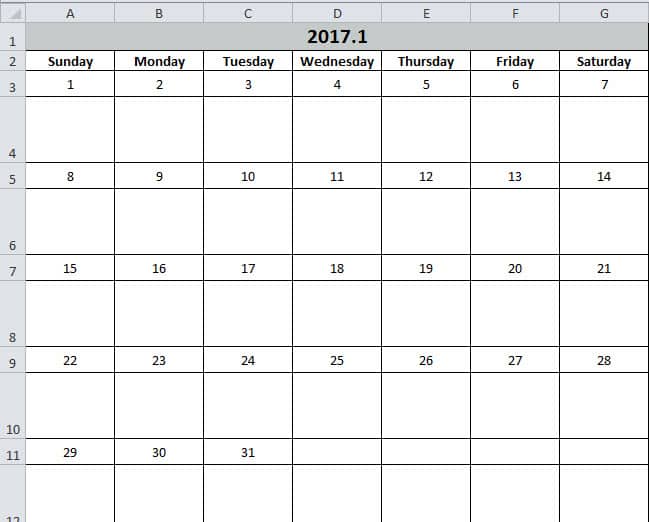
คุณสามารถป้อนงานบางอย่างลงในปฏิทินนี้ได้ และหน้าที่เหมือนกับบันทึก เมื่อใช้ Excel งานเหล่านั้นจะชัดเจนขึ้น ตอนนี้ทำตามขั้นตอนในส่วนต่อไปนี้และดูวิธีการทำงาน
สร้างปฏิทิน
- กดปุ่ม “Alt +F11” บนแป้นพิมพ์เพื่อเปิดแผ่นงาน
- แล้วแทรกโมดูลใหม่ในโปรแกรมแก้ไข Visual Basic
- ตอนนี้คัดลอกรหัสต่อไปนี้ไปยังโมดูลใหม่:
Sub Create_Monthly_Calender()
    Dim firstweekday As Integer, EndDay As Integer, _
    FirstWeekColumnIndex As Integer, AssignmentDate As Integer, _
    FirstCountNumber As Integer, SecondCountNumber As Integer, _
    LastDay As Range, objRange As Range, RowIndexofLastday As Integer, FirstCountforTargetRange As Integer, SecondCountforTargetRange As Integer

    firstday = InputBox("Input the year, month and the first day with this format: year/month/day")
    If firstday = "" Then Exit Sub


    Range("A1:G1").Merge
    Range("A1") = Year(firstday) & "." & Month(firstday)
    Range("A2") = "Sunday"
    Range("A2").AutoFill Destination:=Range("A2:G2"), Type:=xlFillDefault
    firstweekday = Application.WorksheetFunction.Weekday(firstday)
    Cells(3, firstweekday) = 1

    Select Case Month(firstday)
        Case 1, 3, 5, 7, 8, 10, 12
            EndDay = 31
        Case 4, 6, 9, 11
            EndDay = 30
        Case 2
            If (Year(firstday) Mod 4) = 0 And (Year(firstday) Mod 100) <> 0 Or ((Year(firstday) Mod 400) = 0) Then
                EndDay = 29
            Else
                EndDay = 28
            End If
    End Select

    For FirstWeekColumnIndex = 1 To (7 - firstweekday)
        Cells(3, firstweekday).Offset(0, FirstWeekColumnIndex) = Cells(3, firstweekday).Offset(0, FirstWeekColumnIndex - 1) + 1
    Next FirstWeekColumnIndex

    AssignmentDate = Range("G3") + 1
    For FirstCountNumber = 2 To 10 Step 2
        For SecondCountNumber = 0 To 6
            Cells(3, firstweekday).Offset(FirstCountNumber, 1 - firstweekday + SecondCountNumber) = AssignmentDate
            AssignmentDate = AssignmentDate + 1
            If Cells(3, firstweekday).Offset(FirstCountNumber, 1 - firstweekday + SecondCountNumber) = EndDay Then
                Exit For
            End If
        Next SecondCountNumber
        If Cells(3, firstweekday).Offset(FirstCountNumber, 1 - firstweekday + SecondCountNumber) = EndDay Then
            Exit For
        End If
    Next FirstCountNumber

    ’set format for the range
    With Range("A1")
        .HorizontalAlignment = xlCenter
        .VerticalAlignment = xlCenter
        .Font.Size = 16
        .Font.Bold = True
        .Interior.Color = RGB(196, 202, 201)
    End With

    With Range("A2:G2")
        .HorizontalAlignment = xlCenter
        .VerticalAlignment = xlCenter
        .Font.Bold = True
    End With

    For Each LastDay In ActiveSheet.UsedRange
        If LastDay = EndDay Then
            RowIndexofLastday = LastDay.Row
        End If
    Next

    For FirstCountforTargetRange = RowIndexofLastday To 3 Step -2
            With Range("A" & FirstCountforTargetRange, "G" & FirstCountforTargetRange)
                .HorizontalAlignment = xlCenter
                .VerticalAlignment = xlCenter
                .RowHeight = 20
            End With
    Next FirstCountforTargetRange

        For SecondCountforTargetRange = RowIndexofLastday + 1 To 4 Step -2
            With Range("A" & SecondCountforTargetRange, "G" & SecondCountforTargetRange)
                .HorizontalAlignment = xlCenter
                .VerticalAlignment = xlCenter
                .Font.Bold = True
                .RowHeight = 50
                .ColumnWidth = 12
            End With
    Next SecondCountforTargetRange

    Set objRange = Range("A1", "G" & (RowIndexofLastday + 1))
    With objRange.Borders
        .Color = vbBlack
        .Weight = xlThin
        .LineStyle = xlContinuous
    End With

    ActiveWindow.DisplayGridlines = False
    Cells(3, firstweekday).Offset(1, 0).Select
End Sub
ดังนั้นจึงเป็นมาโครที่โดดเดี่ยวมาก แต่คุณสามารถใช้งานได้โดยตรง และคุณไม่จำเป็นต้องแก้ไข
- จากนั้นกดปุ่ม “F5” บนแป้นพิมพ์
- ในหน้าต่างป๊อปอัป ให้ป้อนวันที่ของวันแรกในรูปแบบ “ปี/เดือน/วัน” "วัน" สามารถเป็นวันใดก็ได้ในเดือนนี้ ที่นี่เราจะป้อน "1"

- จากนั้นคลิกปุ่ม “ตกลง” ต่อไปคุณจะกลับมาที่ตัวแก้ไข เพื่อตรวจสอบผลลัพธ์ คุณสามารถกลับมาที่แผ่นงาน
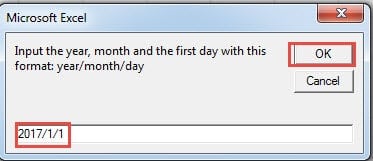
ปฏิทินได้ปรากฏในแผ่นงานแล้ว และเคอร์เซอร์จะอยู่ที่เซลล์ว่างของวันแรก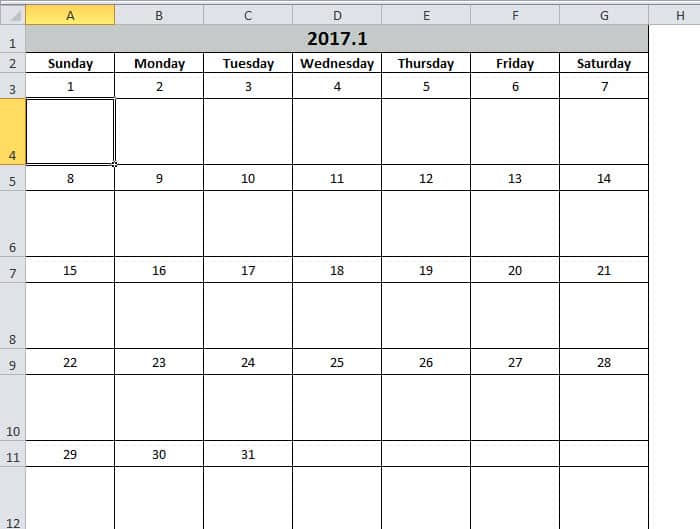
ในทางกลับกัน หากคุณไม่พอใจกับรูปแบบเซลล์ คุณสามารถแก้ไขโค้ดได้ตามต้องการ ด้วยปฏิทินนี้ คุณจะปรับปรุงประสิทธิภาพการทำงานของคุณได้อย่างแน่นอน
Excel ไม่ได้มีแนวโน้มที่จะล้มเหลวน้อยลง
หากคุณใช้ Excel บ่อยๆ คุณคงพบว่า Excel มักจะเกิดความเสียหายอยู่บ่อยครั้ง ส่วนใหญ่แล้ว การปิด Excel แล้วเปิดใหม่ก็สามารถแก้ไขปัญหาได้ อย่างไรก็ตาม บางครั้งคุณอาจเจอปัญหา Excel เสียหายอย่างรุนแรง และในเวลานั้น คุณสามารถใช้เครื่องมืออันทรงพลังของเราเพื่อแก้ไขปัญหาได้ ซ่อมแซมข้อผิดพลาดของข้อมูล Excel xlsxด้วยเครื่องมือนี้ ข้อผิดพลาดเกือบทั้งหมดสามารถแก้ไขได้อย่างง่ายดาย
บทนำผู้เขียน:
Anna Ma เป็นผู้เชี่ยวชาญด้านการกู้คืนข้อมูลใน DataNumen, Inc. ซึ่งเป็นผู้นำระดับโลกด้านเทคโนโลยีการกู้คืนข้อมูล ได้แก่ ซ่อมแซมไฟล์ Word docx และผลิตภัณฑ์ซอฟต์แวร์ซ่อมแซมแนวโน้ม ดูข้อมูลเพิ่มเติมได้ที่ wwwdatanumenด้วย.