
Vo všeobecnosti, na rozbalenie „.rar„prílohy v e-maile, mali by ste ich najprv uložiť a potom použiť špeciálny nástroj na extrahovanie interných súborov. Tento článok vám poskytne metódu na rozbalenie archívu priamo v programe Outlook.
Program Outlook neumožňuje zobraziť ukážku súboru „.RARPrílohy typu „“. Tiež nemôžete rozbaliť súbor „.RAR„prílohy priamo v programe Outlook. Preto, ak si chcete takúto prílohu zobraziť, mali by ste ju najprv uložiť na lokálny disk a potom z nej extrahovať interné súbory pomocou špeciálneho nástroja, ako je WinRAR. V súvislosti s touto problematikou vám tu ponúkneme spôsob, ktorý vám umožní rozbaliť súbory.“.RAR”Prílohy iba v Outlooku. Teraz čítajte ďalej a získate podrobné kroky a kódy VBA.
unrar .RAR Prílohy priamo v Outlooku
- V prvom rade, keďže táto metóda využíva špecifický nástroj – WinRAR, mali by ste si ho najprv nainštalovať do počítača a uistiť sa, kde je pripojený.
- Potom by ste mohli otvoriť aplikáciu Outlook ako obvykle.
- Ďalej stlačte „Alt + F11“ v hlavnom okne Outlooku.
- Následne v editore Outlook VBA otvorte prázdny modul.
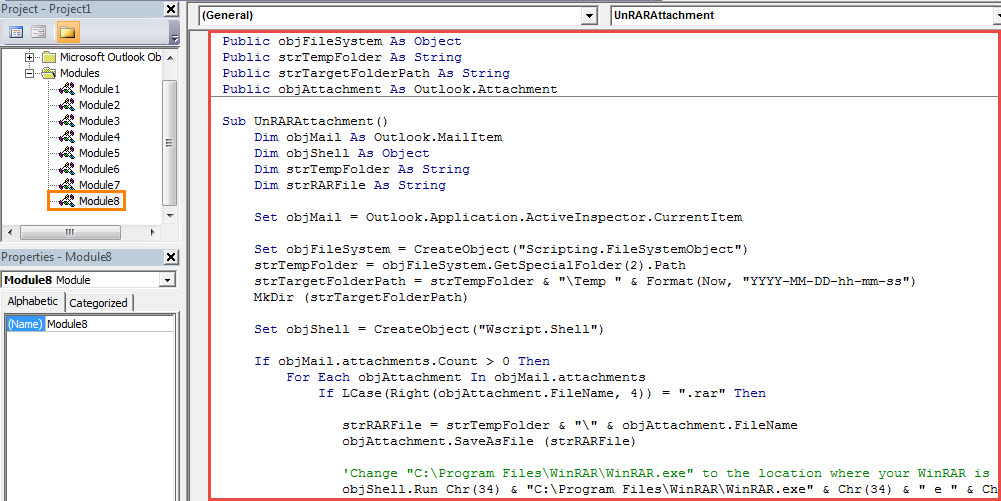
- A potom skopírujte nasledujúci kód VBA do tohto modulu.
Public objFileSystem As Object
Public strTempFolder As String
Public strTargetFolderPath As String
Public objAttachment As Outlook.Attachment

Sub UnRARAttachment()
    Dim objMail As Outlook.MailItem
    Dim objShell As Object
    Dim strTempFolder As String
    Dim strRARFile As String

    Set objMail = Outlook.Application.ActiveInspector.CurrentItem

    Set objFileSystem = CreateObject("Scripting.FileSystemObject")
    strTempFolder = objFileSystem.GetSpecialFolder(2).Path
    strTargetFolderPath = strTempFolder & "\Temp " & Format(Now, "YYYY-MM-DD-hh-mm-ss")
    MkDir (strTargetFolderPath)

    Set objShell = CreateObject("Wscript.Shell")

    If objMail.attachments.Count > 0 Then
       For Each objAttachment In objMail.attachments
           If LCase(Right(objAttachment.FileName, 4)) = ".rar" Then

              strRARFile = strTempFolder & "\" & objAttachment.FileName
              objAttachment.SaveAsFile (strRARFile)

              'Change "C:\Program Files\WinRAR\WinRAR.exe" to the location where your WinRAR is installed
              objShell.Run Chr(34) & "C:\Program Files\WinRAR\WinRAR.exe" & Chr(34) & " e " & Chr(34) & strRARFile & Chr(34) & " " & Chr(34) & strTargetFolderPath & Chr(34)
           End If
       Next
    End If

End Sub

Sub AttachExtractedFiles()
    Dim strFolderPath As String
    Dim strFile As String

    'Attach the extracted files to the current email
    strFolderPath = strTargetFolderPath & "\"
    strFile = Dir(strFolderPath)

    Set objMail = Outlook.Application.ActiveInspector.CurrentItem

    While Len(strFile) > 0
          objMail.attachments.Add strFolderPath & strFile
          strFile = Dir
    Wend

    'Delete the .RAR attachments
    For Each objAttachment In objMail.attachments
        If LCase(Right(objAttachment.FileName, 4)) = ".rar" Then
           objAttachment.Delete
        End If
    Next
End Sub
- Potom sa musíte ubezpečiť, že je vo vašom Outlooku povolené makro.
- Nakoniec to môžete vyskúšať.
- Najprv otvorte e-mail, ktorý obsahuje .RAR prílohy.
- Potom späť na tlačidlo nového makra.
- Kliknite na podprogram „UnRARAAttachments“ a stlačte kláves F5.
- Potom kliknite na nasledujúci podprogram „AttachExtractedFiles“ a stlačte kláves F5.
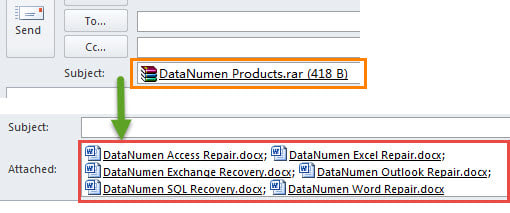
- Potom sa môžete vrátiť späť do okna pošty. Uvidíte, že .RAR prílohy boli dekomprimované. Všetky extrahované súbory sú pripojené.

Rozbaľte .Zip Prílohy v Outlooku
Rovnako ako dekompresia .RAR prílohy, Outlook nemá natívne funkcie na dekomprimáciu „.zipprílohy typu „“. Preto, ak nemôžete priamo rozbaliť súbor „.Zip”Prílohy predvolene priamo v Outlooku. Našťastie stále môžete na dosiahnutie tejto funkcie využiť Outlook VBA. Viac podrobností nájdete v mojom predchádzajúcom článku - „Ako rozbaliť .Zip Prílohy priamo v Outlooku cez VBA".
Úvod autora:
Shirley Zhang je expertkou na obnovu dát v DataNumen, Inc., ktorá je svetovým lídrom v oblasti technológií obnovy dát, vrátane fixné SQL Server a výhľadové softvérové produkty na opravu. Pre viac informácií navštívte www.datanumen. S