
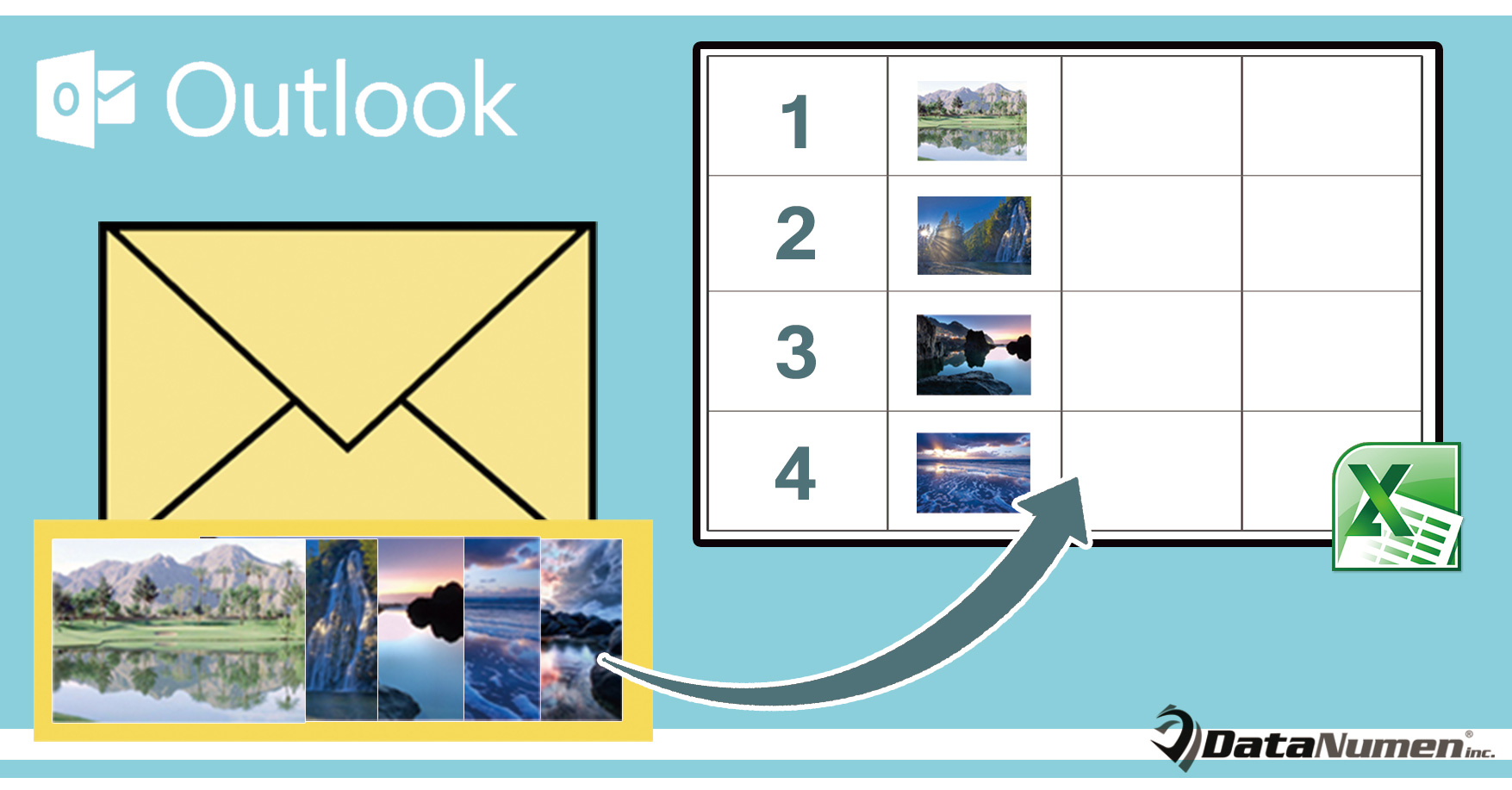
Als u snel alle afbeeldingsbijlagen van een Outlook-e-mail naar een Excel-werkblad wilt exporteren, kunt u dit artikel raadplegen. Hier laten we u een effectievere manier zien dan handmatig exporteren.
Wanneer je een e-mail ontvangt met een groot aantal afbeeldingen als bijlage, en je wilt deze gebruiken voor een rapport in Excel, dan wil je waarschijnlijk een manier om deze afbeeldingen in batches naar een Excel-werkblad te exporteren. In het volgende leggen we uit hoe je dat kunt doen.
Exporteer alle afbeeldingsbijlagen van een e-mail naar een Excel-werkblad
- Open om te beginnen uw Outlook-toepassing op de normale manier.
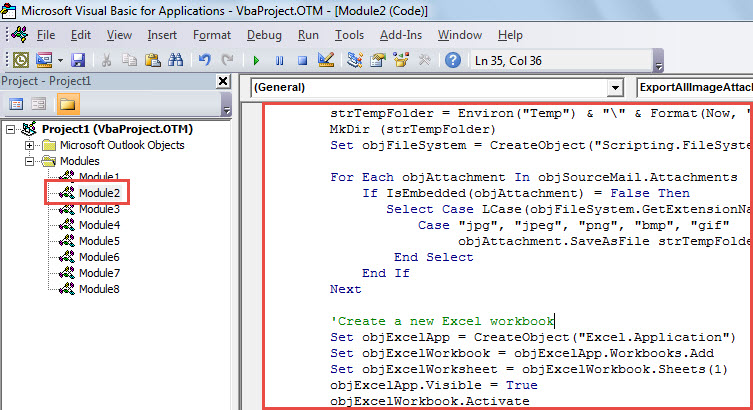
- Druk vervolgens in het Outlook-venster op de sneltoetsen "Alt + F11", waardoor het venster "Microsoft Visual Basic for Applications" verschijnt.
- In dit scherm moet u een module openen die niet in gebruik is, of direct een nieuwe invoegen.
- Vervolgens moet u het onderstaande stukje VBA-code naar deze module kopiëren.
Sub ExportAllImageAttachmentsToExcelWorksheet()
    Dim objSourceMail As Outlook.MailItem
    Dim objAttachment As Outlook.Attachment
    Dim strImage As String
    Dim objExcelApp As Excel.Application
    Dim objExcelWorkbook As Excel.Workbook
    Dim objExcelWorksheet As Excel.Worksheet
    Dim objFile As Object
    Dim objFiles As Object
    Dim nRow As Integer

    Select Case Outlook.Application.ActiveWindow.Class
           Case olInspector
                Set objSourceMail = ActiveInspector.currentItem
           Case olExplorer
                Set objSourceMail = ActiveExplorer.Selection.Item(1)
    End Select

    If Not (objSourceMail Is Nothing) Then

       'Save the image attachments to a temporary folder
       strTempFolder = Environ("Temp") & "\" & Format(Now, "yyyymmddhhmmss") & "\"
       MkDir (strTempFolder)
       Set objFileSystem = CreateObject("Scripting.FileSystemObject")

       For Each objAttachment In objSourceMail.Attachments
           If IsEmbedded(objAttachment) = False Then
              Select Case LCase(objFileSystem.GetExtensionName(objAttachment.filename))
                     Case "jpg", "jpeg", "png", "bmp", "gif"
                          objAttachment.SaveAsFile strTempFolder & objAttachment.filename
              End Select
           End If
       Next

       'Create a new Excel workbook
        Set objExcelApp = CreateObject("Excel.Application")
        Set objExcelWorkbook = objExcelApp.Workbooks.Add
        Set objExcelWorksheet = objExcelWorkbook.Sheets(1)
        objExcelApp.Visible = True
        objExcelWorkbook.Activate

        'Get the images in the temporary folder
        Set objFiles = objFileSystem.GetFolder(strTempFolder).Files

        'Insert the images into this new Excel worksheet
        For Each objFile In objFiles
            strImage = strTempFolder & Trim(objFile.Name)
            nRow = nRow + 1
            With objExcelWorksheet
                 .Range("A" & nRow).value = objFile.Name
                 'Change the height and width as per your needs
                 .Range("B" & nRow).ColumnWidth = 10
                 .Range("B" & nRow).RowHeight = 80
                 .Range("B" & nRow).Activate
                 With .Pictures.insert(strImage)
                      With .ShapeRange
                           .LockAspectRatio = msoTrue
                           .Width = 50
                           .Height = 70
                      End With
                 End With
                 .Columns("A").AutoFit
                 .Activate
            End With
       Next
    End If
End Sub

Function IsEmbedded(objCurAttachment As Outlook.Attachment) As Boolean
    Dim objPropertyAccessor As Outlook.propertyAccessor
    Dim strProperty As String

    Set objPropertyAccessor = objCurAttachment.propertyAccessor
    strProperty = objPropertyAccessor.GetProperty("http://schemas.microsoft.com/mapi/proptag/0x3712001E")

    If InStr(1, strProperty, "@") > 0 Then
       IsEmbedded = True
    Else
       IsEmbedded = False
    End If
End Function
- Hierna kunt u de macro afsluiten.
- Ga vervolgens naar "Bestand"> "Opties"> "Werkbalk Snelle toegang" om deze macro toe te voegen aan de werkbalk Snelle toegang.
- Ten slotte kunt u deze macro nu meteen proberen.
- Selecteer of open eerst een bron-e-mail.
- Klik vervolgens op de macroknop in de werkbalk Snelle toegang.
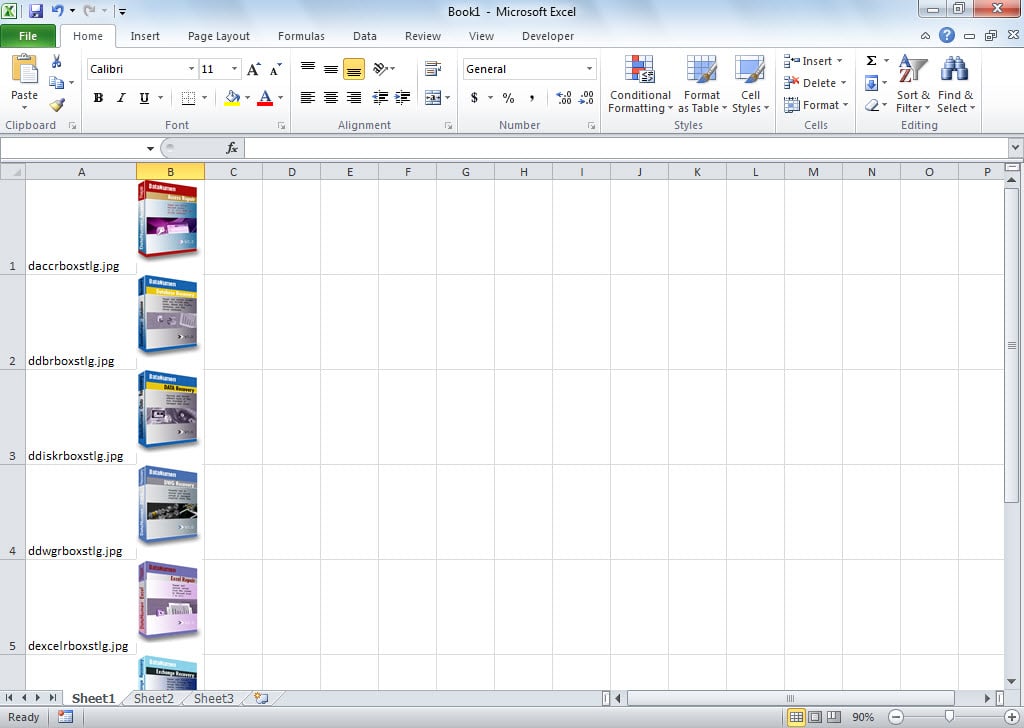
- Wanneer de macro is voltooid, krijgt u een Excel-werkblad, weergegeven zoals in de volgende schermafbeelding:

Bescherm het Outlook-bestand tegen corruptie
Het is bekend dat Outlook gevoelig is voor corruptie. Daarom moeten we begrijpen hoe we Outlook kunnen beschermen tegen corruptie. Ten eerste is het, om virusaanvallen te blokkeren, noodzakelijk om antivirussoftware te installeren en nooit onbekende bijlagen te downloaden. Bovendien kunnen we beter een krachtig reparatiemiddel aanschaffen, zoals DataNumen Outlook RepairHet kan de meest effectieve remedie bieden in geval van Outlook corruptie.
Auteur Introductie:
Shirley Zhang is een expert op het gebied van gegevensherstel in DataNumen, Inc., de wereldleider in technologieën voor gegevensherstel, waaronder sql herstel en Outlook-reparatiesoftwareproducten. Voor meer informatie bezoek www.datanumen.com