
ပုံမှန်အားဖြင့် သင်သည် တစ်ကြိမ်လျှင် ဖိုင်တွဲတစ်ခုတွင် စည်းကမ်းတစ်ခုသာ လုပ်ဆောင်နိုင်သည်။ ဤဆောင်းပါးတွင်၊ မေးလ်ဖိုင်တွဲများအားလုံးတွင် တိကျသောစည်းမျဉ်းတစ်ခုလုပ်ဆောင်ရန် VBA ကုဒ်တစ်ပိုင်းကို မည်သို့အသုံးပြုရမည်ကို သင်ပေးပါမည်။
Outlook သည် အသုံးပြုသူများအား စည်းမျဉ်းကို ကိုယ်တိုင်လုပ်ဆောင်ရန် ခွင့်ပြုသည်။ သင်သည် “စည်းကမ်းများနှင့် သတိပေးချက်များ” ဒိုင်ယာလော့ဂ်ဘောက်စ်ကို ဝင်ရောက်ကြည့်ရှုနိုင်ပြီး “စည်းကမ်းများကို ယခုလုပ်ဆောင်ရန်” ခလုတ်ကို နှိပ်ပါ။ နောက်ဆက်တွဲ dialog box တွင်၊ သတ်မှတ်ထားသော စည်းမျဉ်းတစ်ခုကို ရွေးချယ်ပြီး ဤစည်းမျဉ်းကို သင်လုပ်ဆောင်လိုသည့် ဖိုင်တွဲတစ်ခုကို ရွေးချယ်ပါ။ သို့သော် သင်သည် မေးလ်ဖိုင်တွဲများအားလုံးတွင် စည်းကမ်းချက်တစ်ခုကို အမြန်လုပ်ဆောင်လိုပါက အောက်ပါ VBA ကုဒ်ကို အသုံးပြုနိုင်သည်။
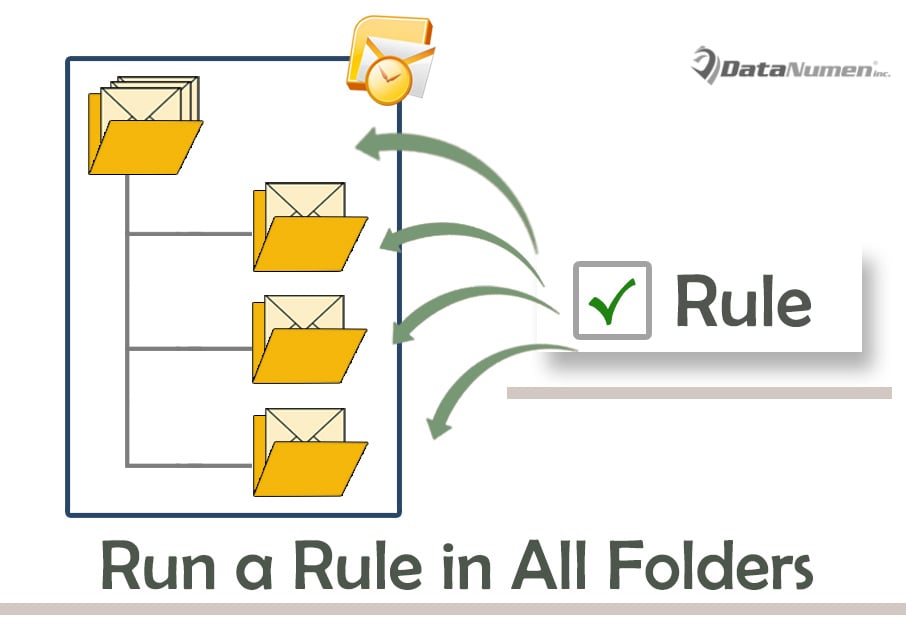
Mail Folders များအားလုံးတွင် သတ်မှတ်ထားသော စည်းမျဉ်းတစ်ခုကို အမြန်လုပ်ဆောင်ပါ။
- အရင်ဆုံး Outlook ပရိုဂရမ်ကို စတင်လိုက်ပါ။
- ထို့နောက် ပင်မ Outlook ဝင်းဒိုးတွင် Alt + F11 ခလုတ်များကို နှိပ်ပါ။
- ပေါ်ထွက်လာသော “Microsoft Visual Basic for Applications” ဝင်းဒိုးတွင်၊ အသုံးမပြုရသေးသော module တစ်ခုကို ဖွင့်သင့်သည်။
- ပြီးနောက်၊ ဤ module window တွင် အောက်ပါ VBA ကုဒ်ကို ကူးယူပါ။ ထို့အပြင်၊ သင်သည် စည်းကမ်းအမည်ကဲ့သို့သော သင့်ကိုယ်ပိုင်ကိစ္စအပေါ် အခြေခံ၍ စာကြောင်းအချို့ကို ပြောင်းလဲသင့်သည်။
Sub RunSpecificRule_AllMailFolders()
    Dim objStores As Outlook.Stores
    Dim objStore As Outlook.Store
    Dim objPSTFile As Outlook.Folder
    Dim objFolders As Outlook.folders
    Dim objFolder As Object

    Set objStores = Outlook.Application.Session.Stores

    'Process all Outlook PST files in your Outlook
    For Each objStore In objStores
        Set objPSTFile = objStore.GetRootFolder
        For Each objFolder In objPSTFile.folders
            Call ProcessFolders(objFolder)
        Next
    Next

    MsgBox "Complete!", vbExclamation + vbOKOnly, "Run Rule "
End Sub

Sub ProcessFolders(ByVal objCurrentFolder As Outlook.Folder)
    Dim objRules As Outlook.Rules
    Dim objRule As Outlook.Rule
    Dim objSubfolder As Outlook.Folder

    Set objRules = Outlook.Application.Session.DefaultStore.GetRules
    'Change the rule name as per your actual case
    Set objRule = objRules.Item("Move Mails to Temp")

    On Error Resume Next
    'Only work on non-empty Mail folder
    If objCurrentFolder.Items.count > 0 And objCurrentFolder.DefaultItemType = olMailItem Then
       With objRule
            .Enabled = True
            .Execute ShowProgress:=True, Folder:=objCurrentFolder, IncludeSubfolders:=True
       End With
    End If

    'Process subfolders recursively
    If objCurrentFolder.folders.count > 0 Then
       For Each objSubfolder In objCurrentFolder.folders
           Call ProcessFolders(objSubfolder)
       Next
    End If
End Sub
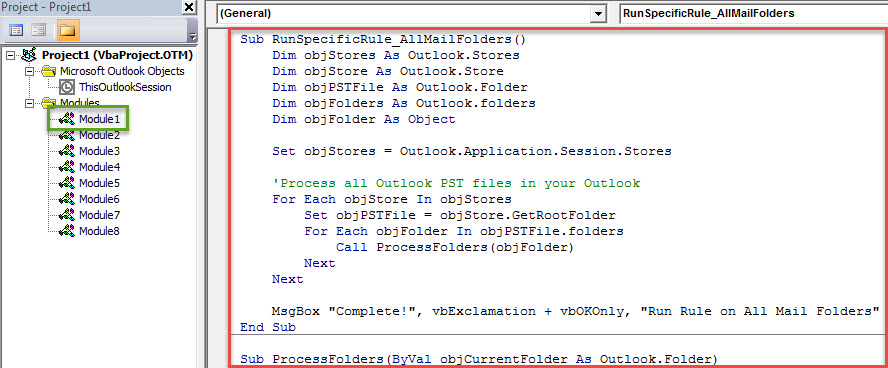
- ထို့နောက်တွင်၊ Macro ကိုခွင့်ပြုကြောင်းသေချာစေရန် သင်၏ Outlook မက်ခရိုဆက်တင်များကို စစ်ဆေးသင့်သည်။
- နောက်ဆုံးမှာ သင်ကြိုးစားနိုင်မှာပါ။
- “RunSpecificRule_AllMailFolders” လုပ်ရိုးလုပ်စဉ်အခွဲထဲသို့ ကလစ်နှိပ်ပါ။
- ထို့နောက် ဤကုဒ်ကို စတင်ရန် F5 ခလုတ်ကို နှိပ်ပါ။
- နောက်တစ်ခုကတော့ macro က ချက်ချင်း run ပါလိမ့်မယ်။
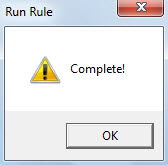
- ပြီးပါက အောက်ပါ screenshot ကဲ့သို့ မက်ဆေ့ချ်တစ်ခု ရရှိပါမည်။ စည်းကမ်းချက် ပြီးသွားပြီလို့ ရည်ညွှန်းပါတယ်။

Malicious Macros ကို သတိထားပါ။
ကျွန်ုပ်တို့အားလုံးသိကြသည့်အတိုင်း၊ အန္တရာယ်ရှိသောအီးမေးလ်များသည် ပိုမိုများပြားလာပါသည်။ ထိုသို့သောအီးမေးလ်များသည် အန္တရာယ်ရှိသော မက်ခရိုများနှင့်အတူ သယ်ဆောင်လေ့ရှိသည်။ ထို့ကြောင့် သင်၏ Outlook မက်ခရိုလုံခြုံရေးအဆင့်ကို နိမ့်အောင်ထားလျှင် ဝှက်ထားသော ဗိုင်းရပ်စ်များနှင့် malware များကို သတိထားရမည်ဖြစ်သည်။ ထို့အပြင်၊ ကဲ့သို့သော အစွမ်းထက်သော PST ပြုပြင်ရေးကိရိယာကို ကိုင်ဆောင်ထားခြင်းသည် အထိုက်အလျောက်ရှိသည်။ DataNumen Outlook Repair. တတ်နိုင်သည် PST ပြုပြင်ခြင်း။ ဖိုင်ကို ချွေးမချိုးဘဲ သင့်အတွက် အများဆုံးဒေတာကို ထုတ်ယူပါ။
စာရေးသူနိဒါန်း:
Shirley Zhang သည် ဒေတာပြန်လည်ရယူရေးဆိုင်ရာ ကျွမ်းကျင်သူဖြစ်သည်။ DataNumen, Inc. အပါအဝင် ဒေတာပြန်လည်ရယူရေးနည်းပညာများတွင် ကမ္ဘာ့ခေါင်းဆောင်ဖြစ်သည်။ mdf ကိုပြန်လည်ရယူပါ။ နှင့် outlook ပြုပြင်ရေး software ထုတ်ကုန်များ။ ပိုမိုသိရှိလိုပါကသွားရောက်ကြည့်ရှု www ။datanumen.com