
တစ်ခါတစ်ရံတွင်၊ သင်သည် Windows ဖိုင်တွဲတစ်ခုသို့ ဖိုင်တွဲခွဲများနှင့် အရာများအားလုံးကို Outlook ဖိုင်တွဲတစ်ခုသို့ အစုလိုက် တင်ပို့လိုပေမည်။ ဤဆောင်းပါးသည် သင့်အား Outlook VBA ကိုအသုံးပြုသည့်နည်းလမ်းကို သင်ကြားပေးမည်ဖြစ်သည်။
တူညီသောဖိုင်တွဲဖွဲ့စည်းပုံရှိ ဖိုင်များအားလုံးပါရှိသည့် Outlook ဖိုင်တွဲကို local drive သို့ တင်ပို့လိုသောအခါ၊ သိမ်းဆည်းရန်နှင့် ကိုယ်တိုင်ထုတ်ရန်ကို ရွေးချယ်ပါက၊ ၎င်းသည် သင့်အား အချိန်များစွာ ယူရမည်ဖြစ်သည်။ ထို့ကြောင့်၊ တင်ပို့သည့်ကိရိယာများ သို့မဟုတ် VBA ကုဒ်များကဲ့သို့သော အခြားနည်းလမ်းများကို အဘယ်ကြောင့် မှီခိုအားထားနေရသနည်း။ ဤနေရာတွင် ဤကဲ့သို့သော VBA ကုဒ်အပိုင်းအစကို သင့်အား ထုတ်ဖော်ပြသပါမည်။ လေညင်းကဲ့သို့ အောင်မြင်ရန် သင့်အား ခွင့်ပြုလိမ့်မည်။
ဖိုင်တွဲခွဲများနှင့် အရာများအားလုံးကို Outlook ဖိုဒါတစ်ခုရှိ Windows ဖိုင်တွဲသို့ တင်ပို့ပါ။
- အစပိုင်းမှာ Outlook ပရိုဂရမ်ကို စတင်ပါ။
- ထို့နောက် ပင်မ Outlook ဝင်းဒိုးတွင် “Alt + F11” သော့ဖြတ်လမ်းများကို နှိပ်ပါ။
- ထို့နောက်တွင်၊ "Microsoft Visual Basic for Applications" window ပေါ်လာပါမည်။
- ထို့နောက် သင်သည် ဗလာ module တစ်ခုကိုဖွင့်ပြီး အောက်ဖော်ပြပါ VBA ကုဒ်များကို ၎င်းထဲသို့ ကူးယူရန် လိုအပ်သည်။
Private objFileSystem As Object

Private Sub ExportFolderWithAllItems()
    Dim objFolder As Outlook.Folder
    Dim strPath As String

    'Specify the root local folder
    'Change it as per your needs
    strPath = "E:\Outlook\"

    Set objFileSystem = CreateObject("Scripting.FileSystemObject")

    'Select a Outlook PST file or Outlook folder
    Set objFolder = Outlook.Application.Session.PickFolder

    Call ProcessFolders(objFolder, strPath)

    MsgBox "Complete", vbExclamation
End Sub

Private Sub ProcessFolders(objCurrentFolder As Outlook.Folder, strCurrentPath As String)
    Dim objItem As Object
    Dim strSubject, strFileName, strFilePath As String
    Dim objSubfolder As Outlook.Folder

    'Create the local folder based on the Outlook folder
    strCurrentPath = strCurrentPath & objCurrentFolder.Name
    objFileSystem.CreateFolder strCurrentPath

    For Each objItem In objCurrentFolder.Items

        strSubject = objItem.Subject

        'Remove unsupported characters in the subject
        strSubject = Replace(strSubject, "/", " ")
        strSubject = Replace(strSubject, "\", " ")
        strSubject = Replace(strSubject, ":", "")
        strSubject = Replace(strSubject, "?", " ")
        strSubject = Replace(strSubject, Chr(34), " ")

        strFileName = strSubject & ".msg"

        i = 0
        Do Until False
           strFilePath = strCurrentPath & "\" & strFileName
           'Check if there exist a file in the same name
           If objFileSystem.FileExists(strFilePath) Then
              'Add a sequence order to the file name
              i = i + 1
              strFileName = strSubject & " (" & i & ").msg"
           Else
              Exit Do
          End If
        Loop

        'Save as MSG file
        objItem.SaveAs strFilePath, olMSG
    Next

    'Process subfolders recursively
    If objCurrentFolder.folders.Count > 0 Then
       For Each objSubfolder In objCurrentFolder.folders
           Call ProcessFolders(objSubfolder, strCurrentPath & "\")
       Next
    End If
End Sub
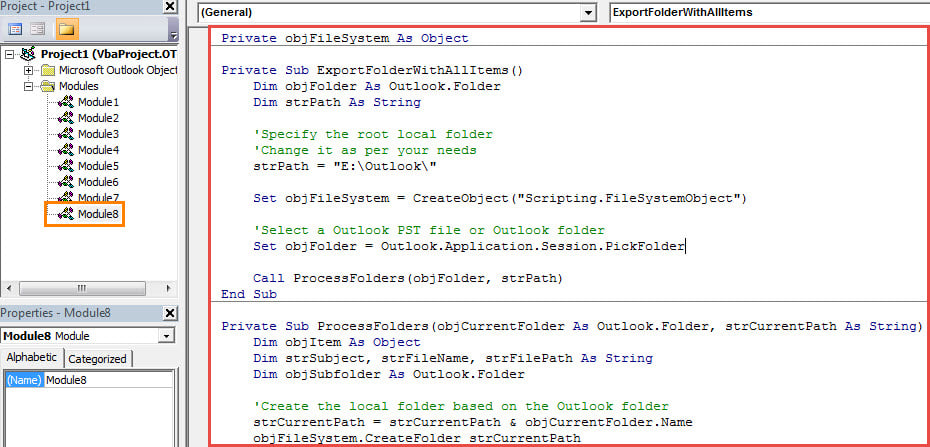
- ၎င်းနောက်၊ သင်၏ Outlook သည် မက်ခရိုဆက်တင်များတွင် မက်ခရိုကို ခွင့်ပြုကြောင်း သေချာရန် လိုအပ်သည်။
- နောက်ဆုံးတွင်၊ သင်ကြိုးစားနိုင်သည်။
- ပထမဦးစွာ Macro Window အသစ်သို့ ပြန်သွားရန်။
- ထို့နောက် “ExportFolderWithAllItems” ၏ လုပ်ငန်းစဉ်ခွဲသို့ နှိပ်ပါ။
- ထို့နောက် ဤ macro ကိုလည်ပတ်ရန် F5 ခလုတ်ကိုနှိပ်ပါ။
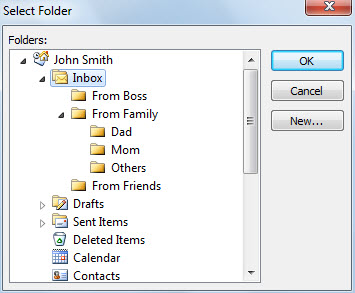
- ၎င်းနောက်၊ သင်သည် သီးခြား folder တစ်ခုကို ရွေးချယ်ရန် လိုအပ်သည်။

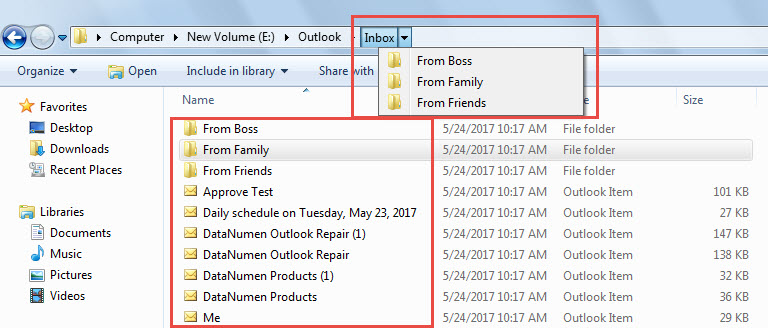
- နောက်ဆုံးအနေနဲ့၊ "ပြီးပါပြီ" ဟူသော မက်ဆေ့ချ်ကို သင်ရရှိသောအခါ၊ သင်သည် ကြိုတင်သတ်မှတ်ထားသော ဒေသတွင်းဖိုင်တွဲကို ဝင်ရောက်ကြည့်ရှုနိုင်မည်ဖြစ်သည်။ ဖိုင်အားလုံးကို တူညီသော ဖိုဒါဖွဲ့စည်းပုံတွင် သိမ်းဆည်းထားသည်ကို တွေ့ရမည်ဖြစ်သည်။

Outlook ပျက်ကျခြင်းမှ ဒေတာဆုံးရှုံးမှုကို ကာကွယ်ပါ။
Outlook crash တွေ အများကြီး ကြုံဖူးမှာပါ။ restart လုပ်ပြီးရင် Outlook က ပုံမှန်အတိုင်း အလုပ်လုပ်နိုင်ပါတယ်။ ဒါပေမယ့် ကျွန်တော်တို့ရဲ့ PST ဖိုင် ပျက်စီးသွားနိုင်တဲ့ အခြေအနေလည်း ရှိပါတယ်။ အဲဒီအချိန်မှာ အတွေ့အကြုံရှိတဲ့ tool တစ်ခုလိုမျိုး PST data ကို ပြန်ယူဖို့ အကောင်းဆုံး ကြိုးစားပါလိမ့်မယ်။ DataNumen Outlook Repair. တတ်နိုင်သည် Outlook ကိုပြင်ပါ။ အမှားအယွင်းများနှင့် ချွေးမခွဲဘဲ ခိုးယူထားသော PST ဖိုင်မှ ဒေတာကို ထုတ်ယူပါ။
စာရေးသူနိဒါန်း:
Shirley Zhang သည် ဒေတာပြန်လည်ရယူရေးဆိုင်ရာ ကျွမ်းကျင်သူဖြစ်သည်။ DataNumen, Inc. အပါအဝင် ဒေတာပြန်လည်ရယူရေးနည်းပညာများတွင် ကမ္ဘာ့ခေါင်းဆောင်ဖြစ်သည်။ SQL Server ပြုပြင် နှင့် outlook ပြုပြင်ရေး software ထုတ်ကုန်များ။ ပိုမိုသိရှိလိုပါကသွားရောက်ကြည့်ရှု www ။datanumen.com