
“Reply All” ကိုအသုံးပြုသည့်အခါ၊ တုံ့ပြန်သည့်အီးမေးလ်တွင် “CC” အကွက်တွင် မူရင်းအီးမေးလ်၏ “CC” လက်ခံသူများလည်း ပါဝင်မည်ဖြစ်သည်။ သို့သော် သင်သည် ဤလက်ခံသူအမျိုးအစားကို ဖယ်ထုတ်လိုပါက၊ ဤဆောင်းပါးတွင် ဖော်ပြထားသော နည်းလမ်းကို အသုံးပြုနိုင်ပါသည်။
တစ်ခါတစ်ရံတွင် မူရင်းပေးပို့သူနှင့် “လက်ခံသူများထံသို့” အီးမေးလ်တစ်စောင်ကို သင်ပြန်ကြားလိုပါသည်။ ဤအခြေအနေတွင် သင်သည် “Reply All” option ကို အသုံးပြုရန် သေချာပေါက် တွေးနေမည်ဖြစ်သည်။ သို့သော်၊ ဤနည်းအားဖြင့်၊ မူရင်းမေးလ်တွင် “CC” လက်ခံသူများလည်း ပါရှိပါက “Reply All” အီးမေးလ်သည် “CC” လက်ခံသူများကို “CC” အကွက်သို့ အလိုအလျောက်ကူးယူမည်ဖြစ်သည်။ ၎င်းတို့ကို စာမပြန်ချင်ပါက၊ ၎င်းတို့ကို ကိုယ်တိုင် ဖယ်ရှားရန် လိုအပ်ပြီး အနည်းငယ် အခက်အခဲ ဖြစ်နေပါသည်။ ယခု အောက်ပါတို့၌၊ သင့်လိုအပ်ချက်အရ Outlook ကို အလိုအလျောက် ပြီးမြောက်အောင် လုပ်နည်းကို သင်ပေးပါမည်။
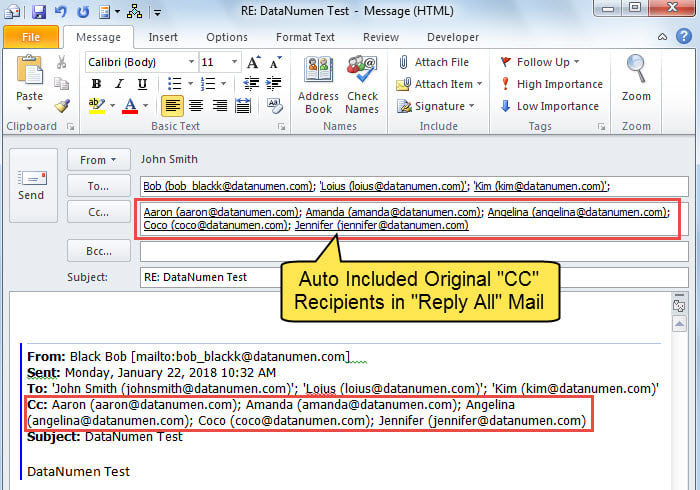
“အားလုံးအကြောင်းပြန်ပါ” ကိုအသုံးပြုသည့်အခါ မူရင်း “CC” လက်ခံသူများကို အမြန်ဖယ်ထုတ်ပါ
- အစပြုရန်အတွက် Outlook ကိုဖွင့်ပါ။
- ထို့နောက် ယခင်ဆောင်းပါးကိုဖတ်ခြင်းဖြင့် VBA တည်းဖြတ်သူအား ဝင်ရောက်ကြည့်ရှုပါ – “သင်၏ Outlook တွင် VBA ကုဒ်ကိုမည်သို့ဖွင့်မည်နည်း။"။
- ထို့နောက်၊ အောက်ပါ VBA ကုဒ်ကို “ThisOutlookSession” ပရောဂျက်သို့ ကူးယူပါ။
Public WithEvents objInspectors As Outlook.Inspectors
Public WithEvents objExplorer As Outlook.Explorer
Public WithEvents objMail As Outlook.MailItem

Private Sub Application_Startup()
    Set objInspectors = Outlook.Application.Inspectors
    Set objExplorer = Outlook.Application.ActiveExplorer
End Sub

Private Sub objExplorer_Activate()
    On Error Resume Next
    If TypeOf objExplorer.Selection.Item(1) Is MailItem Then
       Set objMail = objExplorer.Selection.Item(1)
    End If
End Sub

Private Sub objInspectors_NewInspector(ByVal Inspector As Inspector)
    If TypeOf Inspector.CurrentItem Is MailItem Then
       Set objMail = Inspector.CurrentItem
    End If
End Sub

'Occurs when you click "Reply All"
Private Sub objMail_ReplyAll(ByVal Response As Object, Cancel As Boolean)
    Dim objRecipient As Outlook.Recipient
    Dim i As Long

    'Ask you if to exclude CC recipients
    If MsgBox("Do you want to exclude original CC recipients? " , vbQuestion + vbYesNo) = vbYes Then
       'If select Yes, remove CC recipients
       For i = Response.Recipients.Count To 1 Step -1
           If Response.Recipients(i).Type = olCC Then
              Response.Recipients.Remove (i)
           End If
       Next
    End If
End Sub
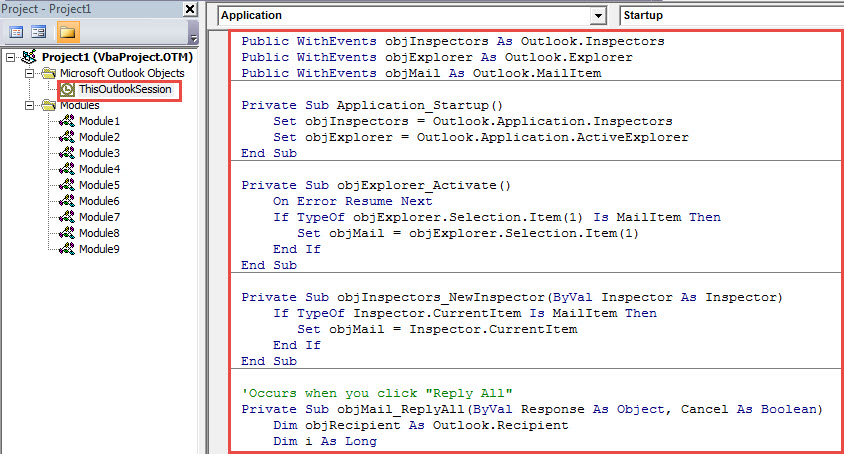
- ထို့နောက် ဤပရောဂျက်အသစ်ကို အသက်သွင်းရန် သင့် Outlook ကို restart လုပ်ပါ။
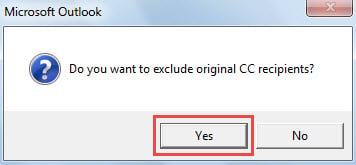
- ထိုအချိန်မှစ၍၊ “Reply All” ခလုတ်ကိုနှိပ်သည့်အခါတိုင်း၊ မူရင်း CC လက်ခံရရှိသူများကို ဖယ်ထုတ်လိုခြင်းရှိမရှိကို အောက်ပါပုံတွင်ပြထားသည့်အတိုင်း အမှာစာတစ်ခုရရှိမည်ဖြစ်ပါသည်။

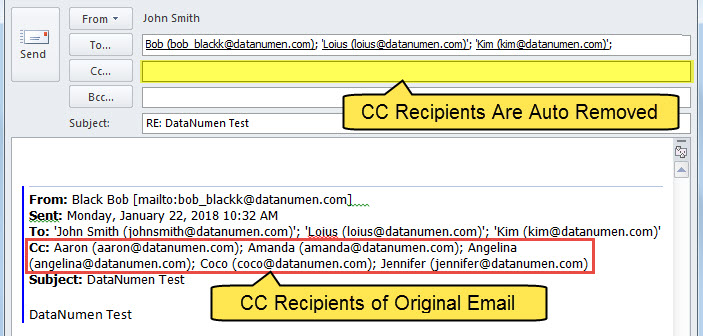
- “Yes” ကို ရွေးချယ်ပါက Outlook သည် “CC” အကွက်တွင် လက်ခံသူများကို အလိုအလျောက် ဖယ်ရှားမည်ဖြစ်သည်။

Outlook ပျက်စီးမှုအတွက် ကောင်းစွာပြင်ဆင်ထားပါ။
ကျွန်ုပ်တို့အားလုံးသိကြတဲ့အတိုင်း Outlook ပျက်စီးမှုမှ မည်သူမျှ 100% ကင်းလွတ်နိုင်မည်ဟု အာမမခံနိုင်ပါ။ ထို့ကြောင့် Outlook ကို ပုံမှန်အသုံးပြုသူအားလုံး ကြိုတင်ကာကွယ်မှုများပြုလုပ်ရန် အရေးကြီးပါသည်။ ပထမဦးစွာ အရေးကြီးဆုံးတစ်ခုမှာ Outlook data backup ကို စဉ်ဆက်မပြတ်နှင့် အပ်ဒိတ်လုပ်ထားရန်ဖြစ်သည်။ ထို့နောက် inbox ပြုပြင်ရေးကိရိယာကို မည်သို့အသုံးပြုရမည်ကို လေ့လာရန် လိုအပ်ပါသည်။ နောက်ဆုံးအနေဖြင့် အတွေ့အကြုံရှိသူတစ်ဦးဦးကို ထားရှိရန် အကြံပြုအပ်ပါသည်။ Outlook ပြင်ဆင်မှု အနီးနားက tool တွေဖြစ်တဲ့ DataNumen Outlook Repair.
စာရေးသူနိဒါန်း:
Shirley Zhang သည် ဒေတာပြန်လည်ရယူရေးဆိုင်ရာ ကျွမ်းကျင်သူဖြစ်သည်။ DataNumen, Inc. အပါအဝင် ဒေတာပြန်လည်ရယူရေးနည်းပညာများတွင် ကမ္ဘာ့ခေါင်းဆောင်ဖြစ်သည်။ mdf ကိုပြန်လည်ရယူပါ။ နှင့် outlook ပြုပြင်ရေး software ထုတ်ကုန်များ။ ပိုမိုသိရှိလိုပါကသွားရောက်ကြည့်ရှု www ။datanumen.com