
Se hai assegnato varie categorie di colori alle tue attività di Outlook e ora desideri stampare gli elenchi di attività con categorie diverse in pagine diverse, puoi fare riferimento a questo articolo. Qui ti condivideremo 2 metodi per ottenerlo.
Per classificare e gestire bene le tue attività, forse hai applicato categorie di colori alle tue attività. Ora, se desideri stampare gli elenchi delle tue attività con categorie diverse in pagine diverse, continua a leggere. Di seguito, ti presenteremo 2 mezzi per ottenerlo.
Metodo 1: stampare manualmente gli elenchi di attività uno per uno
- Prima di tutto, in Outlook, accedi al riquadro "Attività".
- Quindi, apri una cartella Attività.
- Successivamente, premi "Ctrl + E" per attivare la barra multifunzione "Cerca".
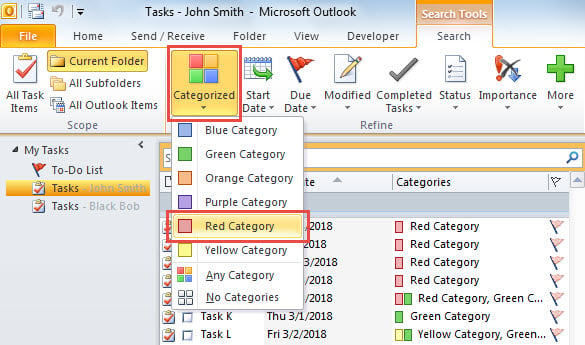
- Successivamente, nella scheda "Cerca", fai clic sul pulsante "Categorizza".
- Dall'elenco a discesa, scegli una categoria di colore.
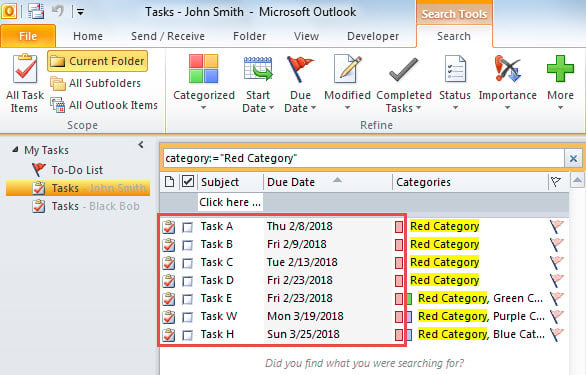
- Quindi, nell'elenco rimarranno solo le attività con la categoria selezionata.

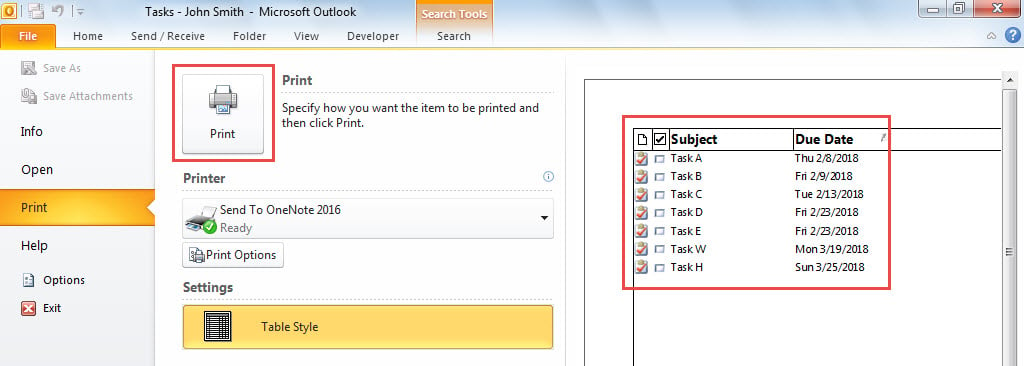
- Ora vai su "File"> "Stampa" per stampare questo elenco di attività.

- Successivamente, allo stesso modo, stampare manualmente uno per uno gli elenchi delle attività con le altre categorie di colori.
Metodo 2: stampa in batch degli elenchi di attività tramite VBA
- All'inizio, attiva l'editor VBA in base a "Come eseguire il codice VBA in Outlook".
- Quindi, aggiungi il riferimento a “MS Excel Object Library” come da “Come aggiungere un riferimento a una libreria di oggetti in VBA".
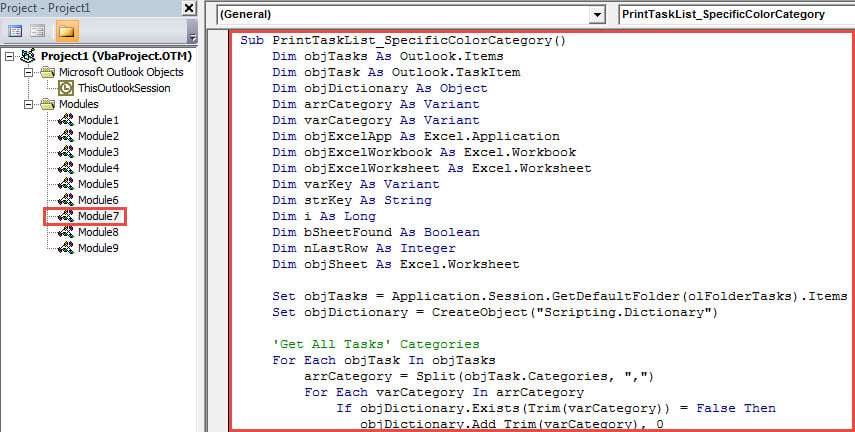
- Successivamente, copia il seguente codice VBA in un modulo.
Sub PrintTaskList_SpecificColorCategory()
    Dim objTasks As Outlook.Items
    Dim objTask As Outlook.TaskItem
    Dim objDictionary As Object
    Dim arrCategory As Variant
    Dim varCategory As Variant
    Dim objExcelApp As Excel.Application
    Dim objExcelWorkbook As Excel.Workbook
    Dim objExcelWorksheet As Excel.Worksheet
    Dim varKey As Variant
    Dim strKey As String
    Dim i As Long
    Dim bSheetFound As Boolean
    Dim nLastRow As Integer
    Dim objSheet As Excel.Worksheet

    Set objTasks = Application.Session.GetDefaultFolder(olFolderTasks).Items
    Set objDictionary = CreateObject("Scripting.Dictionary")

     'Get All Tasks' Categories
    For Each objTask In objTasks
        arrCategory = Split(objTask.Categories, ",")
        For Each varCategory In arrCategory
            If objDictionary.Exists(Trim(varCategory)) = False Then
               objDictionary.Add Trim(varCategory), 0
            End If
        Next
    Next

    'Export the Tasks with Different Categories into Different Sheet in an Excel Workbook
    Set objExcelApp = CreateObject("Excel.Application")
    Set objExcelWorkbook = objExcelApp.Workbooks.Add
    objExcelApp.Visible = True

    i = 0
    For Each varKey In objDictionary.Keys
        strKey = CStr(varKey)

        On Error Resume Next
        objExcelWorkbook.Sheets(strKey).Select
        bSheetFound = (Err = 0)
        On Error GoTo 0
        If bSheetFound = False Then
           i = i + 1
           If i < 4 Then
              Set objExcelWorksheet = objExcelWorkbook.Sheets(i)
           Else
              Set objExcelWorksheet = objExcelWorkbook.Sheets.Add(After:=objExcelWorkbook.Sheets(objExcelWorkbook.Sheets.Count))
           End If
           objExcelWorksheet.Name = strKey
        End If

        With objExcelWorksheet
             .Cells(1, 1) = strKey
             .Cells(1, 1).Font.Bold = True
             .Cells(1, 1).Font.Size = 18
             .Cells(2, 1) = "Subject"
             .Cells(2, 1).Font.Bold = True
             .Cells(2, 2) = "Start Date"
             .Cells(2, 2).Font.Bold = True
             .Cells(2, 3) = "Due Date"
             .Cells(2, 3).Font.Bold = True
        End With

        For Each objTask In objTasks
            If InStr(objTask.Categories, strKey) > 0 Then
               nLastRow = objExcelWorksheet.Range("A" & objExcelWorksheet.Rows.Count).End(xlUp).Row + 1
               With objExcelWorksheet
                    .Range("A" & nLastRow) = objTask.Subject
                    .Range("B" & nLastRow) = objTask.startDate
                    .Range("C" & nLastRow) = objTask.DueDate
               End With
            End If
        Next

        objExcelWorksheet.Columns("A:C").AutoFit
    Next

    'Print out All Sheets in this Excel Workbook
    For Each objSheet In objExcelWorkbook.Sheets
        objSheet.PrintOut
    Next

    objExcelWorkbook.Close False
    objExcelApp.Quit
End Sub
- Successivamente, premi il tasto "F5" per eseguire subito questa macro.
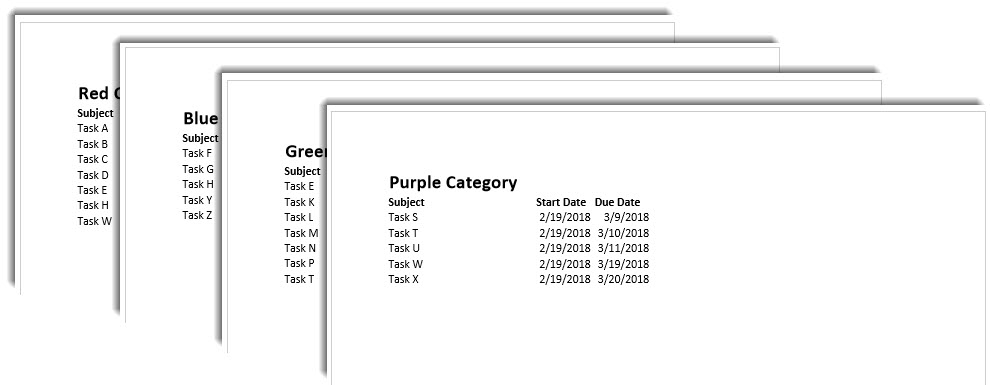
- Al termine della macro, gli elenchi di attività con categorie diverse verranno stampati in pagine diverse, come mostrato nello screenshot seguente.

Recupera dati preziosi dal file PST compromesso
Se sei soggetto a file PST inaccessibili, il tuo prossimo passo è senza dubbio Riparazione PST. In questo caso, puoi prima provare lo strumento di riparazione della posta in arrivo. A condizione che fallisca, puoi procedere a provare un altro strumento esterno, ad esempio DataNumen Outlook Repair. È in grado di recuperare i dati PST in tempi rapidi.
Introduzione dell'autore:
Shirley Zhang è un'esperta di recupero dati in DataNumen, Inc., che è il leader mondiale nelle tecnologie di recupero dati, tra cui recuperare mdf e prodotti software di riparazione di Outlook. Per maggiori informazioni visita www.datanumen.com