
在本文中,我们将向您展示如何将两个特定单词之间的内容从一个 Word 文档提取到另一个文档。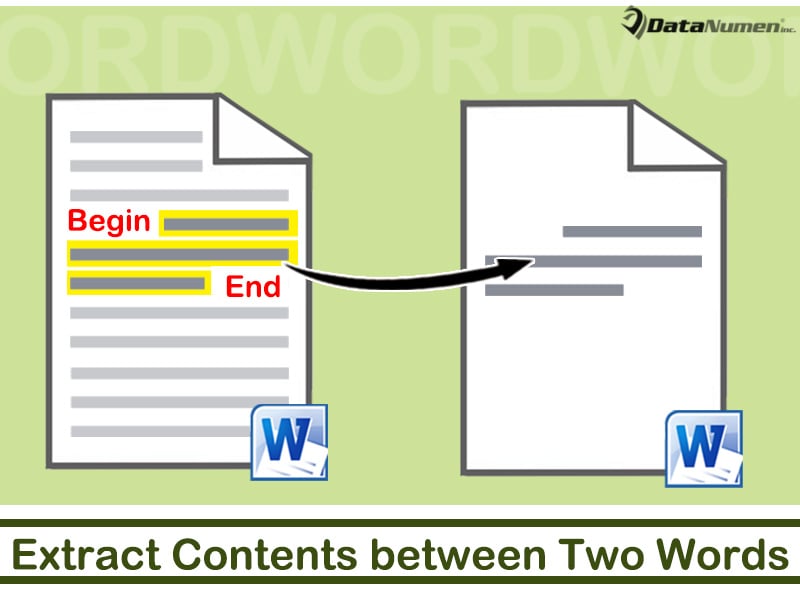
有时,您将不得不在某些情况下提取特定单词之间的内容。 以下是您可能遇到的 2 种情况:
- 首先,在 Word 表格中,对于列中以相同的 2 个单词开头和结尾的所有单元格,您可能只需要提取不同的中间部分,例如:

- 其次,在一些具有多个条目的日志文件中,您可能需要只提取您需要的那些。 然后您可以指定第一个和最后一个单词并使用本文中的方法来获取您需要的内容。
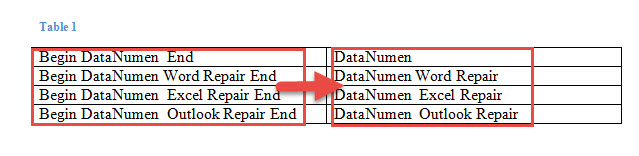
要完成这样的任务,我们更喜欢运行 Word 宏。 只需按照以下步骤操作。
提取两个单词之间的内容
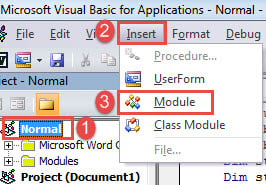
- 首先,按下“Alt+F11”键在Word中打开VBA编辑器。
- 接下来单击左栏中的“正常”项目。
- 然后单击菜单栏上的“插入”选项卡。
- 从下拉菜单中选择“模块”。

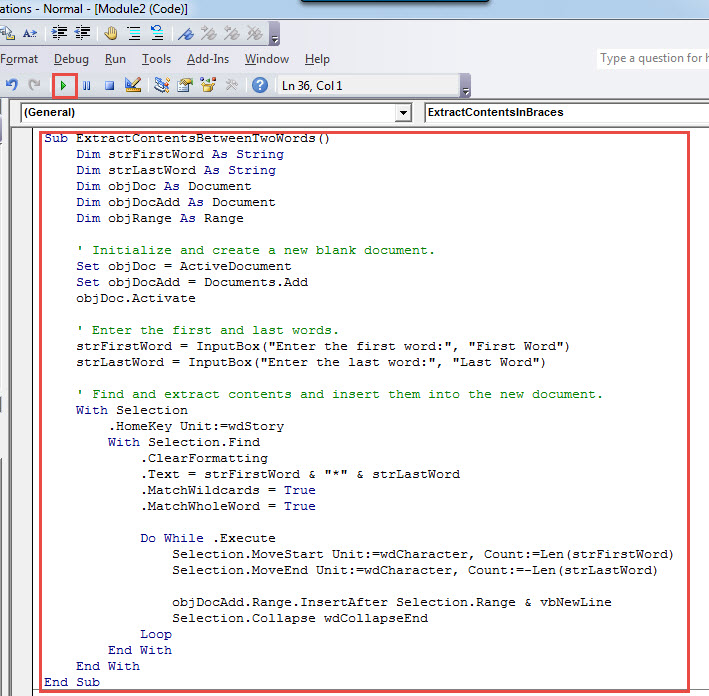
- 双击进入新模块的编码空间,粘贴这些代码:
Sub ExtractContentsBetweenTwoWords()
  Dim strFirstWord As String
  Dim strLastWord As String
  Dim objDoc As Document
  Dim objDocAdd As Document
  Dim objRange As Range

  ' Initialize and create a new blank document.
  Set objDoc = ActiveDocument
  Set objDocAdd = Documents.Add
  objDoc.Activate

  ' Enter the first and last words.
  strFirstWord = InputBox("Enter the first word:", "First Word")
  strLastWord = InputBox("Enter the last word:", "Last Word")

  ' Find and extract contents and insert them into the new document.
  With Selection
    .HomeKey Unit:=wdStory
    With Selection.Find
      .ClearFormatting
      .Text = strFirstWord & "*" & strLastWord
      .MatchWildcards = True
      .MatchWholeWord = True

      Do While .Execute
        Selection.MoveStart Unit:=wdCharacter, Count:=Len(strFirstWord)
        Selection.MoveEnd Unit:=wdCharacter, Count:=-Len(strLastWord)

        objDocAdd.Range.InsertAfter Selection.Range & vbNewLine
        Selection.Collapse wdCollapseEnd
      Loop
    End With
  End With
End Sub
- 接下来单击“运行”或按“F5”以执行代码。

- 在“首字”输入框中,输入首字。 请记住宏是区分大小写的。 因此,如有必要,请初始化单词。
- 然后单击“确定”以转到“最后一个词”框。

- 同样,输入word,点击“确定”。 不要忘记遵循根据初始化单词的相同规则。
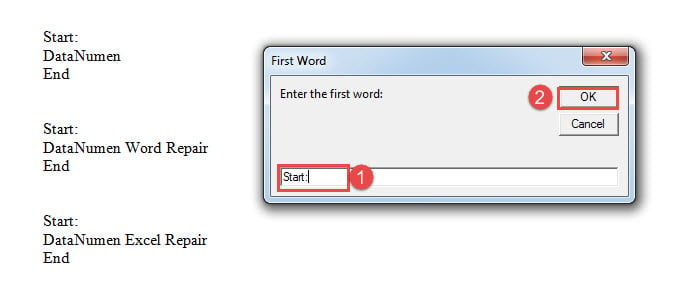
将打开一个新文档,提取的所有内容都将出现在那里。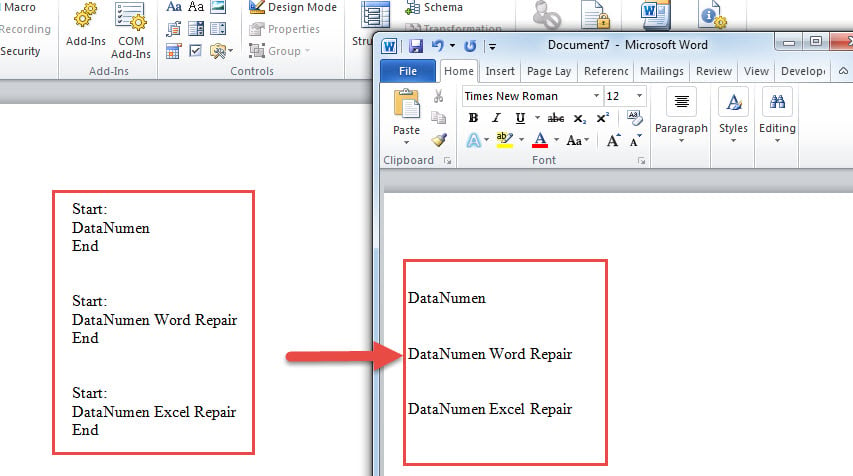
提取括号中的内容
正如我们所提到的,一些内容在括号中。 那么您可以执行以下操作:
- 首先,您需要按照上述步骤安装并运行宏。
- 现在根据括号的类型,您可以在下面选择相应的宏:
对于大括号 {}:
Sub ExtractContentsInBraces()
  Dim objDoc As Document
  Dim objDocAdd As Document
  Dim objRange As Range

  Set objDoc = ActiveDocument
  Set objDocAdd = Documents.Add
  objDoc.Activate

  With Selection
    .HomeKey Unit:=wdStory
    With Selection.Find
      .ClearFormatting
      .Replacement.ClearFormatting
      .Text = "\{(*)\}"
      .MatchWildcards = True

      Do While .Execute
        Selection.MoveStart Unit:=wdCharacter, Count:=1
        Selection.MoveEnd Unit:=wdCharacter, Count:=-1

        objDocAdd.Range.InsertAfter Selection.Range & vbNewLine
        Selection.Collapse wdCollapseEnd
      Loop
    End With
  End With
End Sub
- 对于方括号 [ ]:
只需替换此代码行:
.Text = "\{(*)\}"
附:
.Text =\[(*)\]
- 然后对于括号():
将步骤 3 中的相同代码行替换为:
.Text = "\((*)\)"
- 对于尖括号<>:
使用此行:
.Text = "\<(*)\>"
处理数据灾难
在我们这个高度互联的世界中,时刻牢记数据安全至关重要。 更重要的是,人们必须知道在发生数据灾难时该怎么做。 而你最好的选择是得到一个 文档修复 工具。
作者简介:
Vera Chen 是一位数据恢复专家 DataNumen, Inc.,它是数据恢复技术领域的世界领先者,包括 xls恢复 和 pdf 修复软件产品。 欲了解更多信息,请访问 datanumen.com