
在本文中,我们将为您提供 2 种快速简便的方法,将部分从您的 Word 文档中提取到另一个或多个文档中。
将内容从一个文档提取到另一个文档的情况经常发生。 在我们之前的文章中,我们已经讨论了如何从文档中提取页面。 详细信息可以参考这篇文章: 从 Word 文档中提取单个页面的 2 种快速方法
今天,我们将向您展示如何按部分提取。 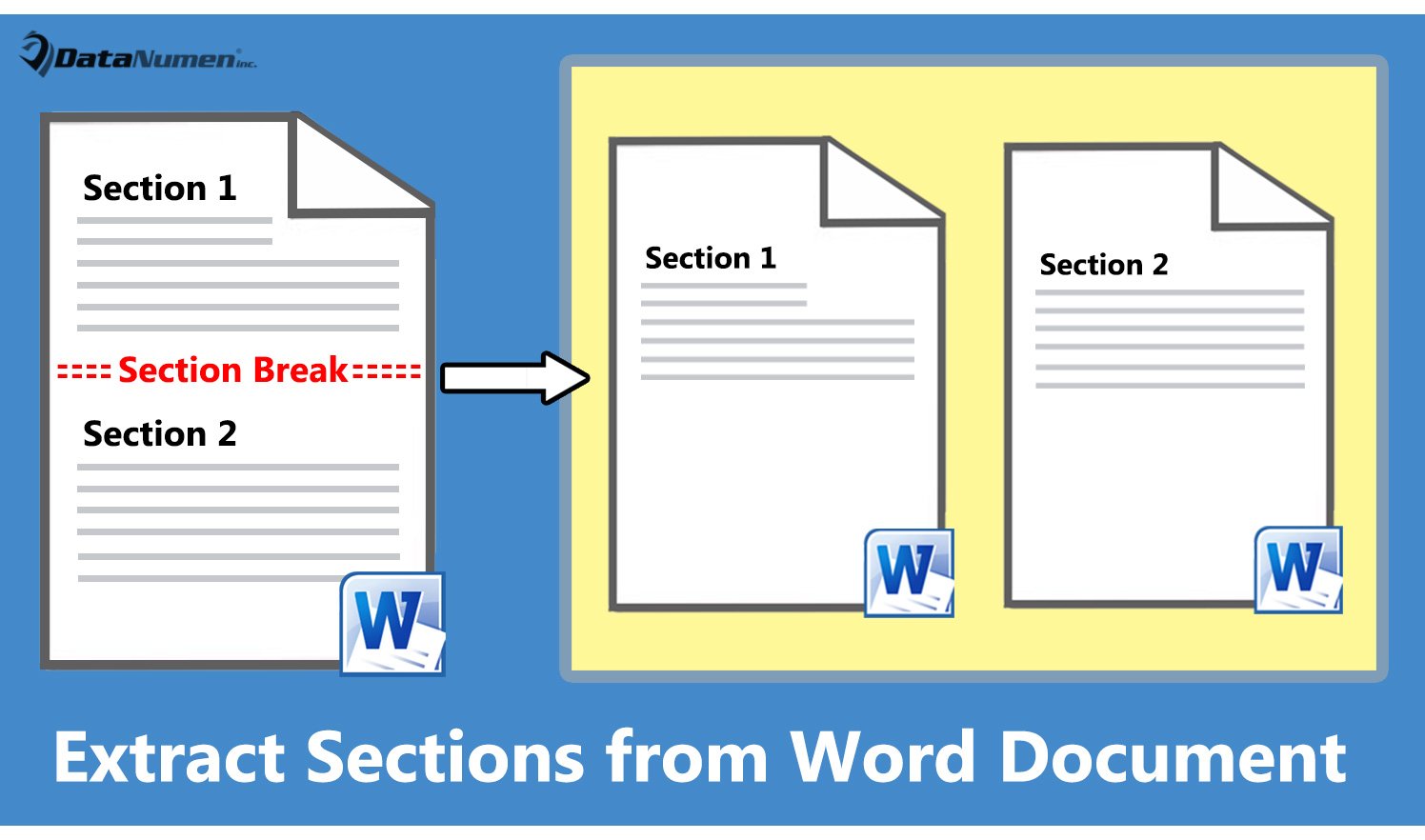
方法 1:将当前部分提取到新文档
- 首先,将光标定位到目标区域。
- 接下来按“Alt+F11”在 Word 中调用 VBA 编辑器。
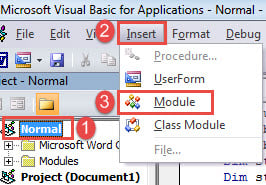
- 然后在左侧栏中,单击“正常”。
- 在菜单栏上,单击“插入”。
- 然后在该下拉菜单中选择“模块”。

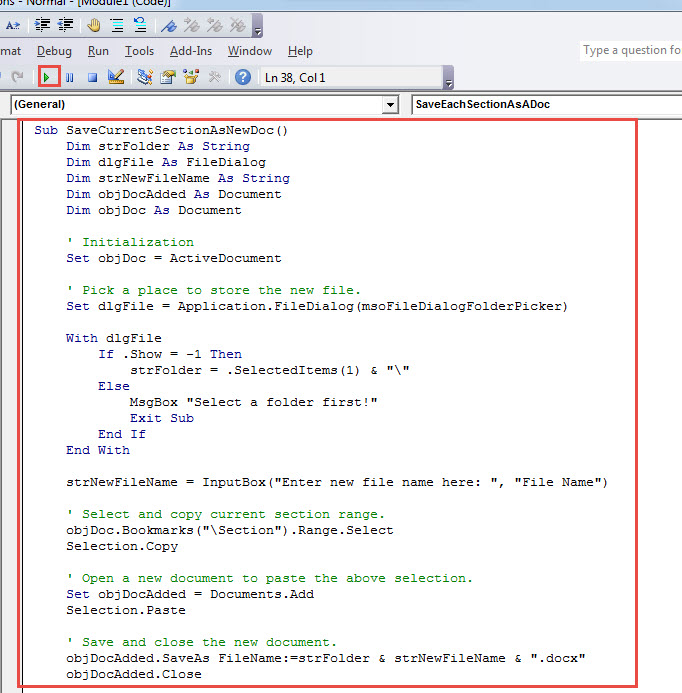
- 双击打开新模块并在其中粘贴以下代码:
Sub SaveCurrentSectionAsNewDoc()
  Dim strFolder As String
  Dim dlgFile As FileDialog
  Dim strNewFileName As String
  Dim objDocAdded As Document
  Dim objDoc As Document

  ' Initialization
  Set objDoc = ActiveDocument

  ' Pick a place to store the new file.
  Set dlgFile = Application.FileDialog(msoFileDialogFolderPicker)

  With dlgFile
    If .Show = -1 Then
      strFolder = .SelectedItems(1) & "\"
    Else
      MsgBox "Select a folder first!"
      Exit Sub
    End If
  End With

  strNewFileName = InputBox("Enter new file name here: ", "File Name")

  ' Select and copy current section range.
  objDoc.Bookmarks("\Section").Range.Select
  Selection.Copy

  ' Open a new document to paste the above selection.
  Set objDocAdded = Documents.Add
  Selection.Paste

  ' Save and close the new document.
  objDocAdded.SaveAs FileName:=strFolder & strNewFileName & ".docx"
  objDocAdded.Close
End Sub
- 接下来,单击菜单栏上的“运行”或按“F5”。

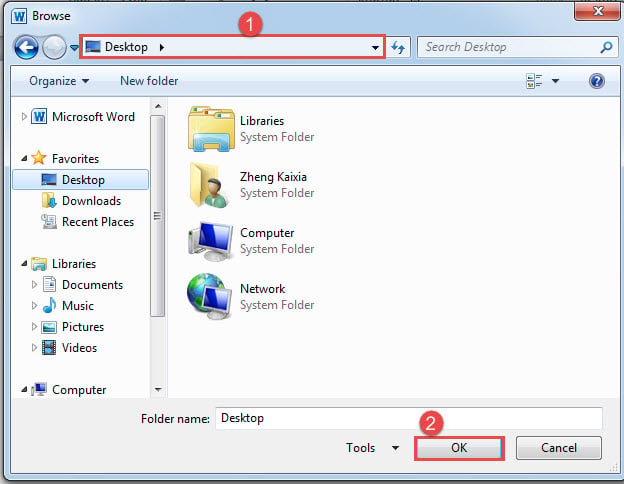
- 然后会弹出“浏览”窗口。 选择一个存储新文档的位置,然后单击“确定”。

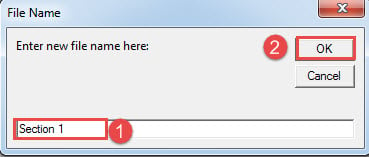
- 在“文件名”框中,输入新文件的名称,然后单击“确定”。

现在您已将部分提取到新文档中。
方法2:将文档中的每个部分提取为单独的新部分
这种方式可以帮助您批量处理文档中的所有部分。 当然,我们也需要一个宏。
- 首先,打开目标文档。
- 然后按照方法 1 中的步骤安装并运行宏。
- 只有这一次用这个替换那个宏:
Sub SaveEachSectionAsADoc()
  Dim objDocAdded As Document
  Dim objDoc As Document
  Dim nSectionNum As Integer
  Dim strFolder As String

  Dim dlgFile As FileDialog

  ' Initialization
  Set objDoc = ActiveDocument

  Set dlgFile = Application.FileDialog(msoFileDialogFolderPicker)

  ' Pick a location to keep new files.
  With dlgFile
    If .Show = -1 Then
      strFolder = .SelectedItems(1) & "\"
    Else
      MsgBox "Select a folder first!"
      Exit Sub
    End If
  End With

  ' Step through each section in current document, copy and paste each to a new one.
  For nSectionNum = 1 To ActiveDocument.Sections.Count
    Selection.GoTo What:=wdGoToSection, Which:=wdGoToNext, Name:=nSectionNum
    ActiveDocument.Sections(nSectionNum).Range.Copy

    Set objDocAdded = Documents.Add
    Selection.Paste

    ' Save and close new documents.
    objDocAdded.SaveAs FileName:=strFolder & "Section " & nSectionNum & ".docx"
    objDocAdded.Close
  Next nSectionNum
End Sub
- 尽管如此,在“浏览”窗口中,选择一个存储路径并单击“确定”。
修复恼人的单词错误
使用它时遇到一些 Word 错误是很常见的。 这可能很烦人,我们必须花时间 恢复单词 尽快地。 因为我们延迟的时间越长,数据丢失就越严重。 因此,建议提前弄好维修工具。
作者简介:
Vera Chen 是一位数据恢复专家 DataNumen, Inc.,它是数据恢复技术领域的世界领先者,包括 损坏的 xls 和 pdf 修复软件产品。 欲了解更多信息,请访问 datanumen.com