
1. Úvod
Kôš je vstavaná bezpečnostná sieť systému Windows pre odstránené súbory. Pokiaľ sa v ňom súbor stále nachádza, jeho obnovenie trvá len niekoľko kliknutí. Táto príručka vysvetľuje, ako obnoviť odstránené súbory z Koša v systéme Windows vrátane súborov na externých, sieťových a OneDrive synchronizovaných miestach.
1.1 Čo táto príručka zahŕňa
- Obnova súborov, ktoré sú stále v koši
- Obnovenie odstránených súborov do ich pôvodného umiestnenia
- Obnovenie odstránených súborov na nové miesto, keď pôvodný priečinok chýba
1.2 Čo táto príručka nepokrýva
- Súbory odstránené pomocou smena + vymazať, ktoré úplne obchádzajú kôš
- Súbory odstránené alebo vyprázdnené z koša. V takom prípade skontrolujte táto príručka obnoviť súbory.
- Súbory, ktoré prekročili limit úložiska Koša a boli natrvalo odstránené
2. Obnovte odstránené súbory z koša
Ak bol súbor odstránený z lokálneho disku pomocou vymazať kláves alebo kliknutie pravým tlačidlom myši vymazať príkazom, ide priamo do koša. Obnovíte ho pomocou nasledujúcich 3 krokov:
2.1 Otvorenie koša
Použite ktorúkoľvek z nasledujúcich metód:
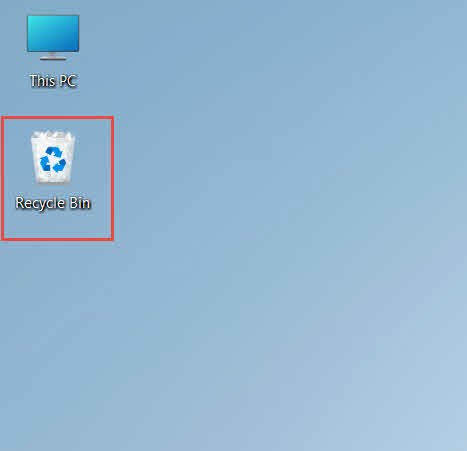
- dvakrát kliknite kôš ikona na pracovnej ploche

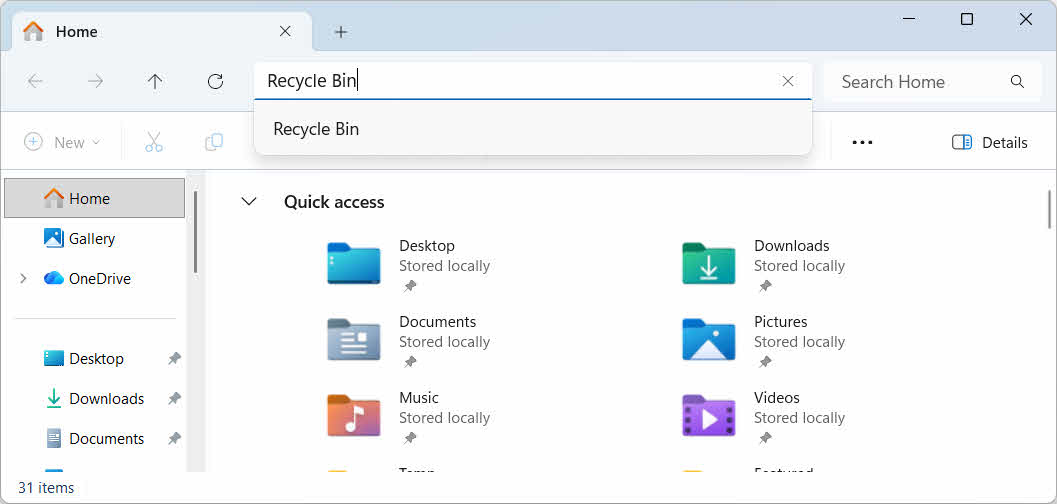
- Otvorte Prieskumníka súborov a zadajte kôš v paneli s adresou

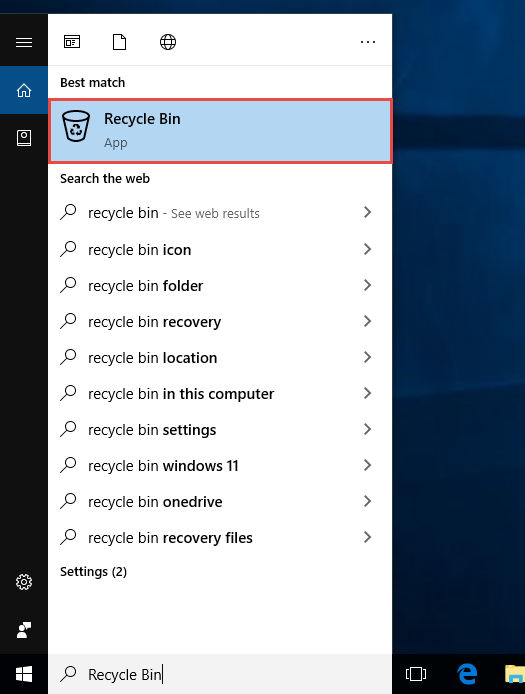
- Typ kôš do vyhľadávania vo Windowse a vyberte ho z výsledkov

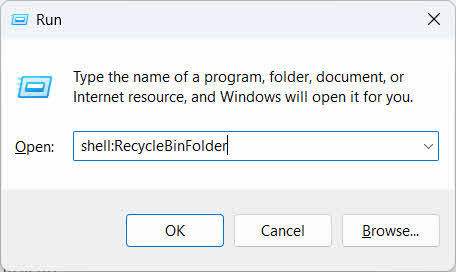
- Pre médiá výhra + R, typ shell: RecycleBinFoldera stlačte tlačidlo vstúpiť

2.2 Vyhľadanie odstráneného súboru alebo priečinka
Po otvorení koša vyhľadajte požadované položky jedným z týchto spôsobov:
- Zadajte názov súboru do vyhľadávacieho poľa v pravom hornom rohu
- Kliknite na tlačidlo Dátum vymazania hlavička stĺpca na zoradenie podľa najnovších odstránení
- Skontrolovať Pôvodná poloha stĺpec na potvrdenie, že súbor pochádza z očakávaného priečinka
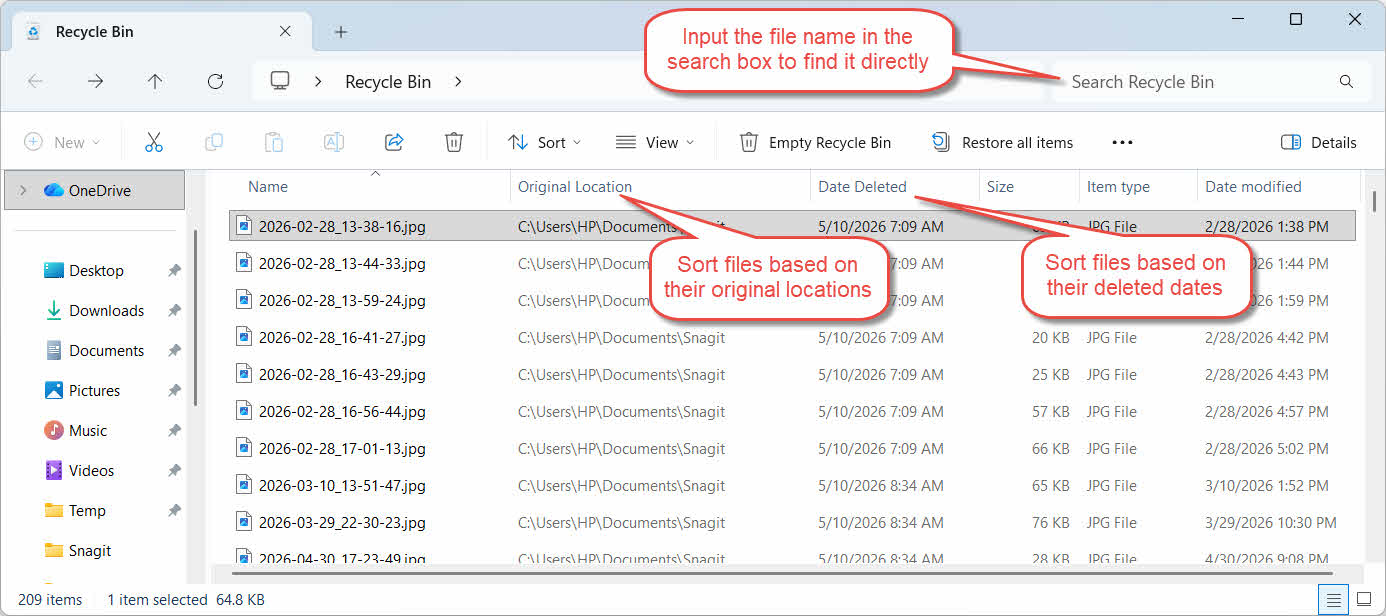
2.3 Obnovenie súborov alebo priečinkov
Ak chcete obnoviť jednu alebo viacero položiek:
- Vyberte jeden súbor alebo podržte ctrl a kliknutím vyberte viacero súborov alebo podržte smena a kliknutím vyberte rozsah
- Kliknite pravým tlačidlom myši na výber a vyberte obnoviť
- Otvorte pôvodný priečinok a overte, či je súbor späť

Ak chcete obnoviť všetky položky v koši naraz, kliknite na Obnoviť všetky položky na paneli s nástrojmi bez predchádzajúceho výberu jednotlivého súboru.
3. Obnovte odstránené súbory z koša na iné miesto
obnoviť Príkaz vždy vráti súbor do pôvodného priečinka. Niektoré situácie si vyžadujú jeho presunutie niekam inam.
3.1 Kedy by ste mali použiť túto metódu
- Pôvodný priečinok už neexistuje
- V pôvodnom priečinku už existuje nový súbor s rovnakým názvom
- Nemáte povolenie na prístup k pôvodnému priečinku
- Nie ste si istí, z ktorého priečinka súbor pochádza
- Chcete súbor skontrolovať predtým, ako ho vrátite na pôvodné miesto
3.2 Presunutie alebo vystrihnutie súboru z koša
Ak chcete presunúť súbor z koša do priečinka podľa vlastného výberu:
- Otvoriť kôš
- Vyberte súbor alebo priečinok, ktorý chcete obnoviť.
- Na presunutie súboru alebo priečinka do cieľového priečinka použite jednu z nasledujúcich metód:
- Presuňte ho priamo do okna cieľového priečinka
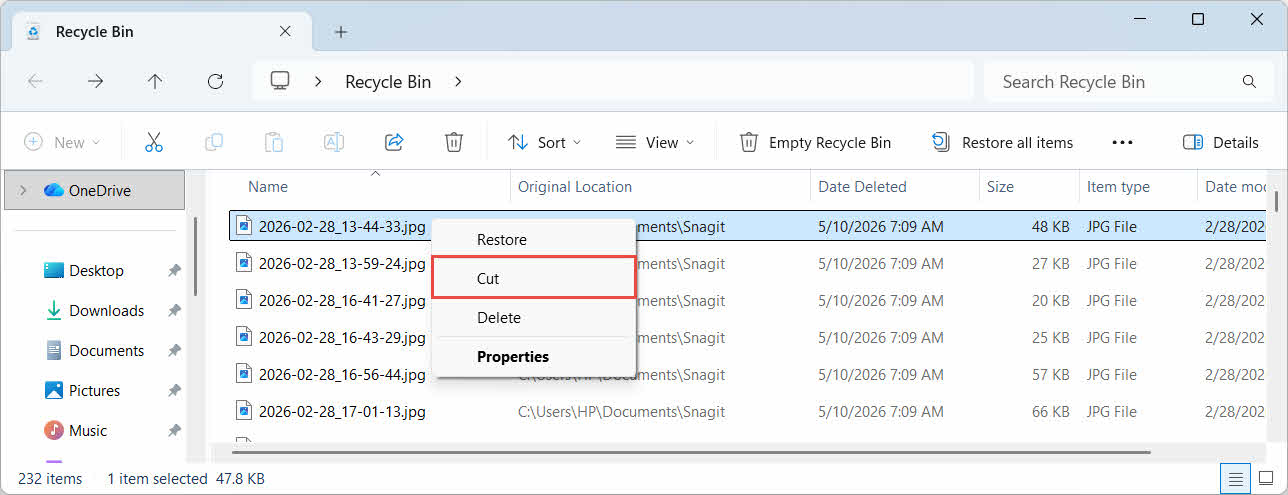
- Pre médiá ctrl + X Ak ho chcete vystrihnúť, otvorte cieľový priečinok a stlačte ctrl + V prilepiť to
- Kliknite pravým tlačidlom myši na výber a vyberte Znížiť, otvorte cieľový priečinok, kliknite pravým tlačidlom myši a vyberte Koncentrovaná Pasta prilepiť to

4. Obnova súborov z koša na externých, sieťových a cloudových diskoch
Kroky v Oddiel 2 Predpokladajme, že súbor bol odstránený z hlavného disku počítača. Externé, sieťové a cloudovo synchronizované úložisko sa správajú odlišne.
4.1 Externé pevné disky a USB kľúče
Systém Windows zaobchádza s externými pevnými diskami (vrátane SSD diskov pripojených cez USB) rovnako ako s internými diskami: každý z nich má štandardne svoj vlastný skrytý priečinok Kôš. Vymeniteľné médiá, ako sú USB kľúče a SD karty, sa zaobchádza inak a štandardne nemajú priečinok Kôš, takže súbory z nich odstránené sa okamžite odstránia.
4.1.1 Povolenie podpory koša pre disk
V prípade externého pevného disku skontrolujte, či je zapnutá podpora Koša:
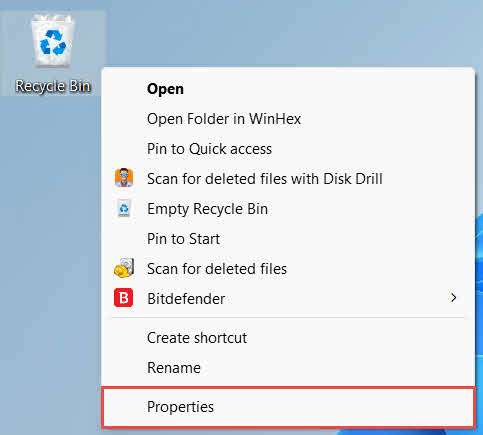
- Kliknite pravým tlačidlom na kôš ikonu na pracovnej ploche a vyberte vlastnosti

- V Umiestnenie koša V zozname vyberte riadok pre externý disk. Zobrazí sa tu až po pripojení disku a jeho priradení písmena.
- pod Nastavenia pre vybratú lokalitu, uisti sa Vlastné veľkosť je vybraný, nie Nepresúvajte súbory do koša. Súbory ihneď po vymazaní odstráňte.

- kliknite Aplikovať, Potom sa OK
Každý disk si toto nastavenie uchováva nezávisle, takže na externom disku môže byť podpora Koša vypnutá, aj keď je pre systémový disk zapnutá.
V prípade USB kľúča alebo SD karty sa priečinok Kôš vôbec nezobrazí vo vlastnostiach Koša, pretože systém Windows štandardne nevytvára priečinok Kôš na vymeniteľných médiách. Jeho povolenie si vyžaduje úpravu registra:
- Pre médiá výhra + R, typ regedit, stlačte vstúpiťa schváliť výzvu
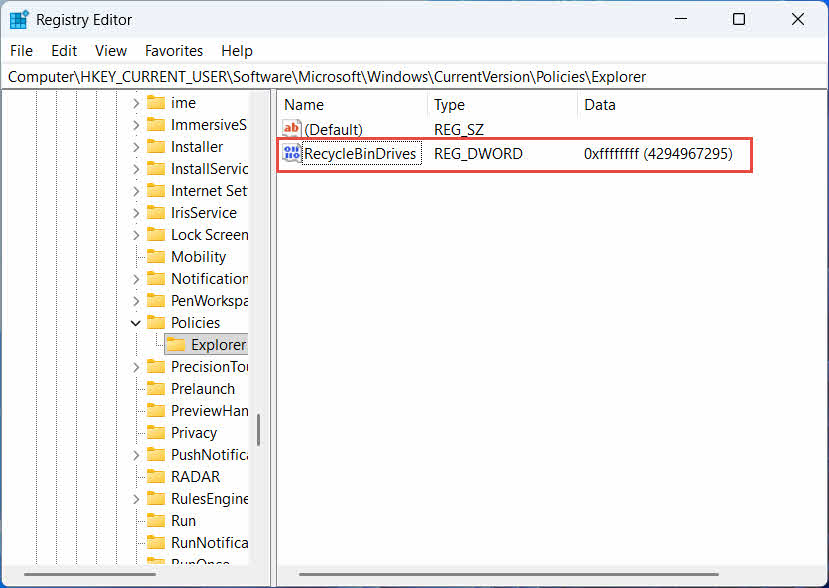
- prejdite na HKEY_CURRENT_USER\Software\Microsoft\Windows\CurrentVersion\Policies\Explorer, V prípade, že cestovateľ kľúč neexistuje pod Obchodné podmienky, kliknite pravým tlačidlom myši Obchodné podmienkyvyberte Nový -> Kľúča pomenujte to cestovateľ
- Kliknite pravým tlačidlom myši na prázdnu oblasť v pravom paneli a vyberte Nový -> DWORD (32-bit) Valuea pomenujte to Recyklačný kôšDisky
- Dvojité kliknutie Recyklačný kôšDisky, nastaviť základňa na Hexadecimálne, vstúpiť ffffffff ako údaj hodnoty a kliknite na OK

- Opakujte kroky 2 až 4 nižšie HKEY_LOCAL_MACHINE \ SOFTWARE \ Microsoft \ Windows \ CurrentVersion \ Policies \ Explorer
- Reštartujte počítač
Ak chcete zmenu vrátiť späť, vymažte Recyklačný kôšDisky hodnotu z oboch miest. Keďže to zahŕňa úpravu databázy Registry, najskôr vytvorte bod obnovenia a zvážte, či je pre disky, ktoré používate len príležitostne, jednoduchšie spoliehať sa na zálohy.
4.1.2 Obnova súborov
Po povolení Koša pre daný disk sa obnovenie súboru bude vykonávať rovnakým spôsobom, ako je popísané v Oddiel 2.3.
Odstránením súboru z namapovanej sieťovej jednotky alebo zdieľaného priečinka sa súbor odstráni priamo zo servera. Neprechádza cez lokálny kôš vášho počítača. Ak je však povolený kôš na strane servera, môžete z neho obnoviť odstránené súbory.
4.2.1 Kôš na strane servera (ak je povolený)
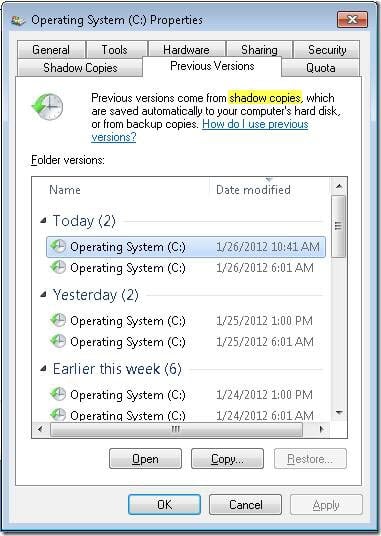
Niektoré súborové servery umožňujú Tieňové kópie (služba tieňovej kópie zväzku), ktorá vám umožňuje obnoviť staršie verzie zdieľaného priečinka, aby ste mohli obnoviť odstránené súbory pomocou tejto funkcie:
- Kliknite pravým tlačidlom myši na nadradený priečinok v sieťovom zdieľanom priečinku a vyberte vlastnosti
- Otvorte Predchádzajúca verzia pútko
- Vyberte verziu s dátumom pred odstránením a kliknite na obnoviť
4.2.2 Čo robiť, ak neexistuje žiadny kôš na strane servera
v prípade, že Predchádzajúca verzia Karta je prázdna alebo nedostupná, zdieľaný priečinok nemá nakonfigurovanú obnovu na základe snímok. Ak chcete skontrolovať, či má server vlastný plán zálohovania, kontaktujte správcu siete.
4.3 Kôš OneDrive (priečinky synchronizované s cloudom)
Priečinky synchronizované s OneDrivem môžu zahŕňať dva samostatné koše: lokálny kôš systému Windows a webový kôš OneDrive. Ktorý z nich obsahuje váš súbor, závisí od miesta odstránenia.
4.3.1 Lokálne odstránenie synchronizovaného súboru (presunie sa do lokálneho aj webového koša)
Ak odstránite synchronizovaný súbor z Prieskumníka súborov v počítači, presunie sa do lokálneho koša presne tak, ako je popísané v Oddiel 2a synchronizačný klient OneDrive tiež zrkadlí odstránenie do cloudu, takže súbor je možné obnoviť aj z koša OneDrive web.
4.3.2 Odstránenie iniciované cloudom (iba webový kôš, od mája 2026)
Ak sa súbor odstráni z cloudu, napríklad prostredníctvom webovej stránky OneDrive alebo iného synchronizovaného zariadenia, správanie sa od mája 2026 zmenilo: Spoločnosť Microsoft prestala odosielať odstránenia iniciované cloudom do lokálneho koša systému Windows. Súbor odstránený týmto spôsobom zmizne z lokálneho priečinka bez toho, aby sa zobrazil v lokálnom koši, a jeho obnovenie je možné iba z koša OneDrive alebo webového koša SharePointu.
4.3.3 Obnovenie z OneDrive.com
Ak chcete obnoviť súbor z koša OneDrive webu:
- Prihláste sa na onedrive.live.com or onedrive.com
- vybrať Kôš v navigačnom paneli
- Vyberte súbor alebo priečinok a kliknite naň obnoviť
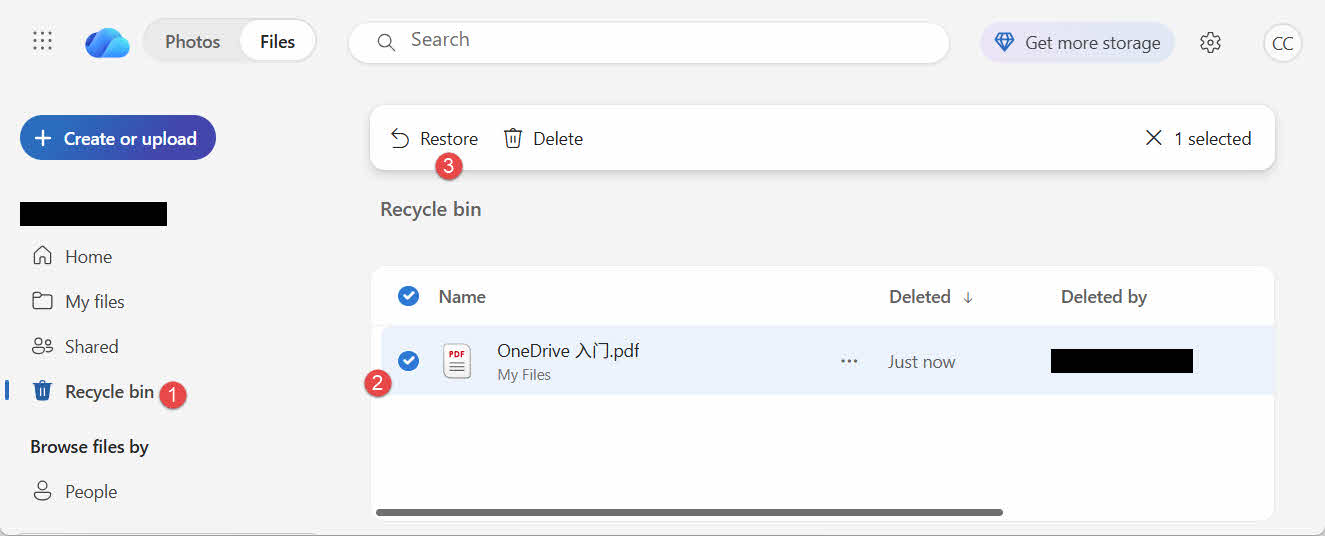
Osobné účty Microsoft uchovávajú odstránené položky až 30 dní; pracovné alebo školské účty ich uchovávajú až 93 dní.
5. Riešenie problémov s obnovením koša
5.1 Na pracovnej ploche chýba ikona koša
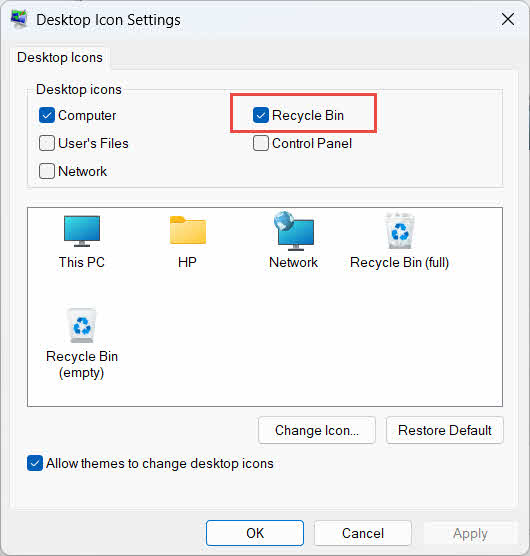
Kôš stále existuje, aj keď je jeho ikona na pracovnej ploche skrytá. Ak chcete ikonu obnoviť:
- Kliknite pravým tlačidlom myši na pracovnú plochu a vyberte Prispôsobte
- Otvorený témy, Potom sa Nastavenie ikonu na ploche
- Kontrola kôš a kliknite na tlačidlo OK
Môžete ho otvoriť aj priamo zadaním kôš vo Vyhľadávaní systému Windows, Prieskumníkovi súborov alebo pomocou klávesovej skratky Win + R, ako je popísané v Oddiel 2.1.
5.2 Súbor sa nenachádza v koši
Ak sa požadované súbory nenachádzajú v koši, zvážte tieto príčiny:
- Bol odstránený z externého disku bez podpory Koša (pozri Oddiel 4.1)
- Bol odstránený zo sieťového disku (pozri Oddiel 4.2)
- Bol odstránený priamo z OneDrive na webe (pozri Oddiel 4.3)
- Bolo to natrvalo odstránené, napríklad pomocou smena + vymazaťalebo bol Kôš vyprázdnený
Ak bol súbor natrvalo odstránený, jeho obnova si vyžaduje špecializovaný softvér na obnovu dát, ako napríklad DataNumen Data Recovery, a nie do koša. Prestaňte najskôr ukladať nové súbory na túto jednotku, aby ste znížili riziko prepísania údajov.
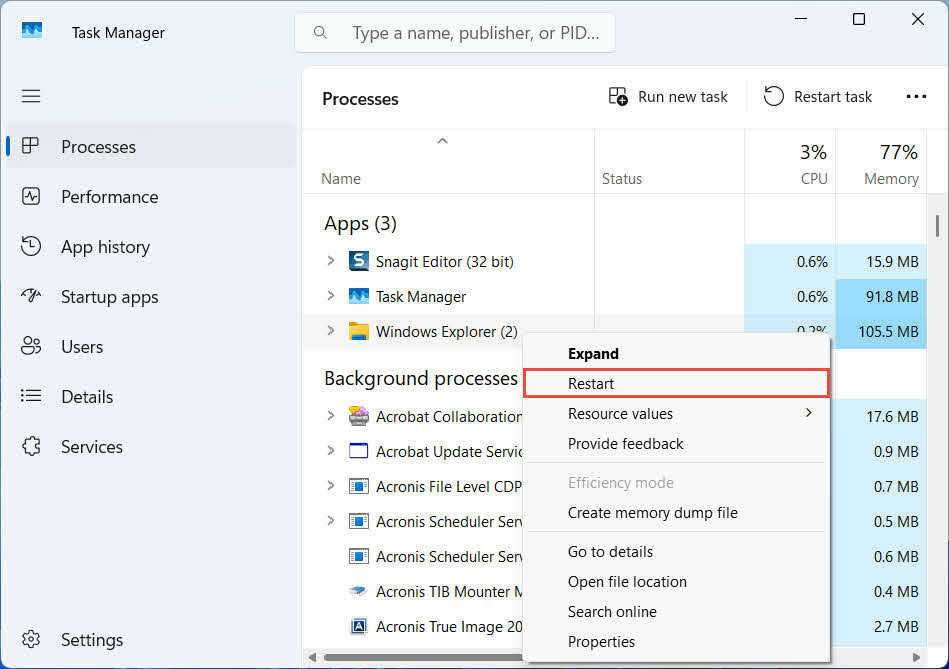
5.3 Možnosť obnovenia je sivá, chýba alebo nefunguje
Toto sa zvyčajne stáva, keď vybraté položky pochádzajú z umiestnenia, ktoré už neexistuje, alebo keď je interný index koša nesynchronizovaný. Vyskúšajte tieto riešenia:
- Reštartujte Prieskumníka súborov: použite Ctrl + Alt + Del na otvorenie Správcu úloh, kliknite pravým tlačidlom myši Prieskumník Windowsa vyberte položku reštart

- Obnovujte položky jednu po druhej, nie hromadne
- If obnoviť stále sa nezobrazuje, potiahnite súbor manuálne podľa popisu v Oddiel 3.2
5.4 Chyby „Prístup zamietnutý“ alebo chyby povolení pri obnove
Toto poukazuje na problém s oprávneniami v pôvodnom priečinku, nie v samotnom súbore. Skontrolujte, či:
- Ste prihlásený/á s rovnakým účtom, z ktorého bol súbor odstránený.
- Povolenia cieľového priečinka stále umožňujú vášmu účtu prístup na zápis.
- Prieskumník súborov nie je blokovaný politikou na spravovanom alebo pracovnom počítači
Ak sa zmenili povolenia pôvodného priečinka, obnovte súbor na iné miesto podľa pokynov Oddiel 3.
5.5 Kôš sa zdá byť prázdny, ale ja ho nevysypem
Súbory môžu zmiznúť z koša bez toho, aby ho niekto musel manuálne vyprázdniť:
- Senzor úložiska môže byť nakonfigurovaný tak, aby automaticky odstraňoval položky po stanovenom počte dní.
- Kôš dosiahol svoj limit veľkosti, takže systém Windows vymazal najstaršie položky, aby uvoľnil miesto (pozri Oddiel 6.1)
- Iný účet na zdieľanom počítači ho vyprázdnil
- Skupinová politika na spravovanom zariadení vynucuje automatické vyprázdňovanie
5.6 Obnovený súbor je poškodený, prázdny alebo sa nedá otvoriť
Obnovenie iba vráti súbor späť, neopraví ho. Ak bol súbor poškodený už pred odstránením alebo ak sa doň zapisovalo v momente odstránenia, nemusí sa po obnovení otvoriť. V takom prípade ide o poškodenie súboru, nie o problém s košom, a preto je potrebné ho opraviť. nástroj na opravu vhodný pre daný formát súboru, a nie ďalší pokus o obnovu.
6. Správa a konfigurácia koša
6.1 Zmena veľkosti úložiska koša
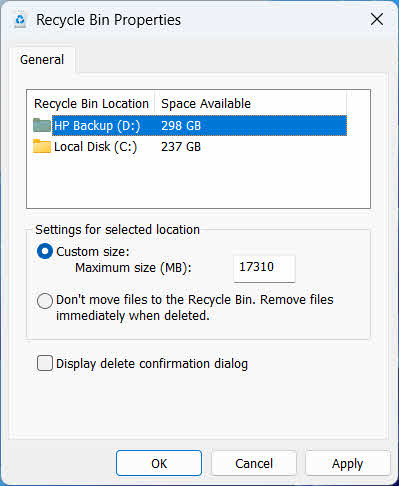
Každý disk má vlastné priradenie koša. Ak ho chcete skontrolovať alebo zmeniť:
- Kliknite pravým tlačidlom na kôš a vyberte položku vlastnosti
- Vyberte disk zo zoznamu umiestnení v Koši
- Vybrať Vlastné veľkosť a zadajte a Maximálna veľkosť (MB)alebo vyberte Nepresúvajte súbory do koša. Súbory ihneď po vymazaní odstráňte. zakázať ho pre daný disk
- kliknite OK
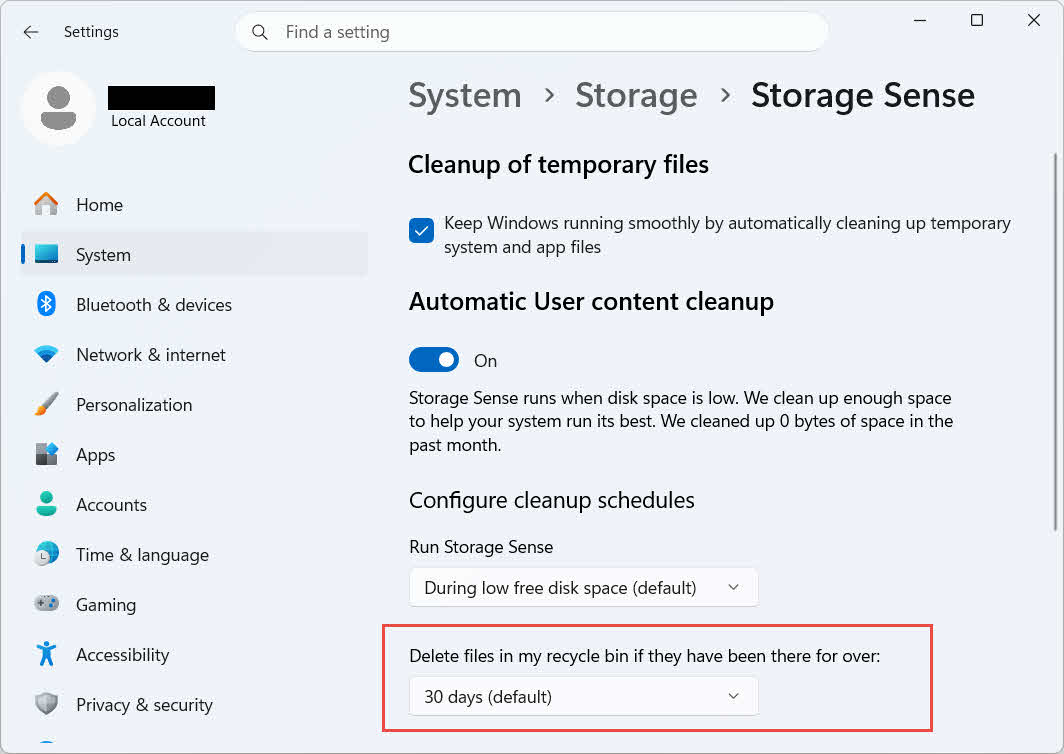
Systém Windows ponúka aj samostatnú možnosť čistenia podľa veku: prejdite na Nastavenia -> Systém -> Úložisko -> Senzor úložiska a nastaviť Odstrániť súbory z koša, ak sa tam nachádzajú dlhšie ako zvolený počet dní. Predvolená doba uchovávania je 30 dní.
6.2 Povolenie dialógového okna s potvrdením vymazania
Systém Windows 11 predvolene nezobrazuje výzvu na potvrdenie pred presunutím súborov do koša. Ak ju chcete zapnúť:
- Kliknite pravým tlačidlom na kôš a vyberte položku vlastnosti
- Kontrola Zobraziť dialógové okno s potvrdením odstránenia
- kliknite OK
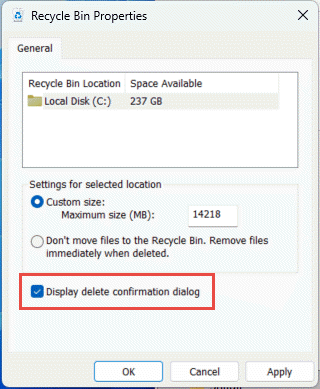
Toto nastavenie nezabráni trvalému vymazaniu, ako napríklad smena + vymazať alebo vymazania z diskov bez podpory Koša.
6.3 Nastavenie obchádzania koša súbormi (a prečo sa tomu vyhnúť)
Rovnaký Nepresúvajte súbory do koša. Súbory ihneď po vymazaní odstráňte. možnosť uvedená v Oddiel 6.1 možno použiť na ľubovoľný disk, aby sa každé odstránenie stalo trvalým. Týmto sa okamžite uvoľní miesto na disku, ale odstráni sa jediná možnosť rýchlej obnovy, ktorú táto príručka popisuje, takže je najlepšie si ho nechať pre disky, ktoré neobsahujú žiadne osobné súbory, ako napríklad vyhradený pomocný alebo dočasný zväzok.
7. Najlepšie postupy na zabránenie strate údajov v budúcnosti
7.1 Povolenie histórie súborov alebo zálohovacieho riešenia
Kôš chráni iba pred náhodným vymazaním, nie pred zlyhaním disku alebo košom, ktorý už bol vyprázdnený. Zapnutie histórie súborov (Ovládací panel -> Systém a zabezpečenie -> História súborov)

alebo zálohovací nástroj tretej strany pridáva druhú vrstvu ochrany s vlastnou históriou verzií.
7.2 Používanie cloudovej synchronizácie pre dôležité priečinky
Synchronizáciou plochy, dokumentov a obrázkov do služby OneDrive alebo inej cloudovej služby získate webový kôš opísaný v časti Oddiel 4.3 ako dodatočná cesta obnovenia, nezávislá od lokálneho koša.
7.3 Pred vyprázdnením koša to dvakrát skontrolujte
Pred kliknutím Vysypať kôš, zoradiť podľa Dátum vymazania a vyhľadajte niečo nedávne. Po vyprázdnení zostáva jedinou možnosťou špecializovaný softvér na obnovu dát a úspech nie je zaručený.
8. Najčastejšie otázky
Otázka: Môžem súbor obnoviť aj po vyprázdnení koša?
A: Nie cez samotný Kôš. V tomto bode je súbor označený ako odstránený na úrovni súborového systému, ale môže byť fyzicky stále prítomný na disku, kým nebude prepísaný. Nástroje ako napríklad DataNumen Data Recovery sú určené na skenovanie a rekonštrukciu tohto typu údajov. Prestaňte disk používať čo najskôr, aby ste zvýšili šance na úspešnú obnovu.
Otázka: Má Mac niečo podobné ako Koš vo Windowse?
A: Áno, volá sa Kôš a funguje rovnako: otvorte Kôš, kliknite pravým tlačidlom myši na súbor a vyberte možnosť Vrátiť späť. Táto príručka sa zaoberá konkrétne Kôšom systému Windows. A táto príručka sa konkrétne týka koša na Mac.
Otázka: Ako dlho zostávajú súbory v koši, kým sa automaticky odstránia?
A: Lokálny Kôš nemá štandardne pevný časový limit; položky sa odstránia iba vtedy, keď sa dosiahne limit veľkosti alebo keď je funkcia Storage Sense nakonfigurovaná na vymazanie starých položiek (pozri Oddiel 6.1). Webový kôš OneDrive používa fixné obdobie: 30 dní pre osobné kontá a až 93 dní pre pracovné alebo školské kontá (pozri Oddiel 4.3).
Otázka: Mám obnoviť súbor do pôvodného umiestnenia alebo do nového?
A: Obnovenie na pôvodné miesto (Oddiel 2) je jednoduchšie a zachováva pôvodnú cestu k súboru. Obnoviť na iné miesto (Oddiel 3) namiesto toho, ak pôvodný priečinok už neexistuje alebo už obsahuje súbor s rovnakým názvom.
Otázka: Môžem obnoviť súbory odstránené z USB kľúča pomocou koša?
A: Nie je to štandardne. USB kľúče a SD karty nemajú priečinok Kôš, pokiaľ ho manuálne nepovolíte, ako je vysvetlené v Oddiel 4.1.
Otázka: Prečo je možnosť Obnoviť sivá alebo chýba?
A: Toto je zvyčajne spôsobené chýbajúcim pôvodným priečinkom alebo nesynchronizovaným indexom koša. Pozrite si Oddiel 5.3 pre opravy.
Otázka: Čo ak je Kôš prázdny, ale nikdy som ho nevyprázdnil?
A: Senzor úložiska, dosiahnutý limit veľkosti, iný používateľský účet alebo nastavenie skupinovej politiky ho môžu automaticky vymazať. Pozrite si Oddiel 5.5.
Otázka: Aký softvér dokáže obnoviť súbory, ktoré už nie sú v koši?
A: Vyhradený softvér na obnovu dát, ako napríklad DataNumen Data Recovery, prehľadáva disk na nižšej úrovni, aby našiel údaje, na ktoré sa súborový systém už neodkazuje, čo samotné rozhranie Koša nedokáže.
Otázka: Zaručuje obnovenie súboru, že sa otvorí správne?
A: Nie. Obnovenie iba vráti súbor do priečinka; neopravuje žiadne poškodenie, ktoré súbor utrpel pred alebo počas odstránenia. Pozrite si Oddiel 5.6.
9. Záver
Obnova odstránených súborov z Koša je jednoduchá, pokiaľ sa tam položka stále nachádza: otvorte Kôš, vyhľadajte súbor a obnovte ho. Externé disky, sieťové zdieľania a priečinky synchronizované s OneDrive majú svoje vlastné podmienky a vyššie uvedené časti o riešení problémov a konfigurácii pokrývajú situácie, keď štandardný proces obnovy neprebieha podľa očakávaní. Ak bol súbor natrvalo odstránený alebo Kôš už bol vyprázdnený, ďalším krokom je špecializovaný softvér na obnovu dát, nie samotný Kôš.
O autorovi
Qian Gua je špecialista na obnovu dát s viac ako 10-ročnými skúsenosťami so súborovými systémami Windows, technológiami ukladania dát a riešeniami pre obnovu po havárii. Úspešne sprevádzal tisíce používateľov kritickými scenármi straty dát v osobnom aj podnikovom prostredí.
Qian sa špecializuje na metodiky obnovy dát v systéme Windows, analýzu súborových systémov a stratégie preventívneho zálohovania. Jeho rozsiahle praktické skúsenosti zahŕňajú obnovu dát z diskov, implementáciu komplexných zálohovacích riešení a riešenie zložitých problémov so súborovými systémami naprieč... NTFS, FAT, exFAT a ReFS zväzky. Pracoval s rôznymi nástrojmi a technikami obnovy, od vstavaných utilít systému Windows až po profesionálny softvér na obnovu dát.
Prostredníctvom svojich technických textov sa Qian venuje poskytovaniu praktických znalostí používateľom na ochranu a obnovu ich cenných údajov. Je informovaný o najnovšom vývoji v oblasti technológií obnovy súborov systému Windows, inovácií v oblasti úložných zariadení a osvedčených postupov v oblasti ochrany údajov. Keď nepomáha používateľom obnoviť ich údaje...ost fileQian sa venuje výskumu nových technológií ukladania dát a zdieľaniu tipov na zabezpečenie údajov, ktoré zabraňujú strate údajov v budúcnosti.
Máte otázky týkajúce sa tejto príručky alebo potrebujete pomoc s obnovou dát? Qian víta spätnú väzbu a návrhy na zlepšenie týchto zdrojov na obnovu dát.