
1. Inleiding
De Prullenbak is het ingebouwde vangnet van Windows voor verwijderde bestanden. Zolang een bestand zich er nog in bevindt, is het herstellen ervan slechts een kwestie van een paar klikken. Deze handleiding legt uit hoe u verwijderde bestanden uit de Prullenbak in Windows kunt herstellen, inclusief bestanden op externe locaties, netwerklocaties en via OneDrive gesynchroniseerde locaties.
1.1 Wat deze gids behandelt
- Bestanden herstellen die zich nog in de prullenbak bevinden.
- Verwijderde bestanden terugzetten naar hun oorspronkelijke locatie.
- Verwijderde bestanden terugzetten naar een nieuwe locatie wanneer de oorspronkelijke map ontbreekt.
1.2 Wat deze handleiding niet behandelt
- Verwijderde bestanden met Shift + Verwijdering die de prullenbak volledig omzeilen
- Verwijderde bestanden of de prullenbak is leeggehaald. Controleer in dit geval de inhoud van de prullenbak. Deze gids om de bestanden te herstellen.
- Bestanden die de opslaglimiet van de prullenbak overschreden en permanent zijn verwijderd.
2. Verwijderde bestanden uit de prullenbak herstellen
Als het bestand is verwijderd van een lokale schijf met de Verwijdering toets of rechtermuisklik Verwijdering Als je het commando uitvoert, gaat het direct naar de prullenbak. Je kunt het herstellen met de volgende 3 stappen:
2.1 Open de prullenbak
Gebruik een van de volgende methoden:
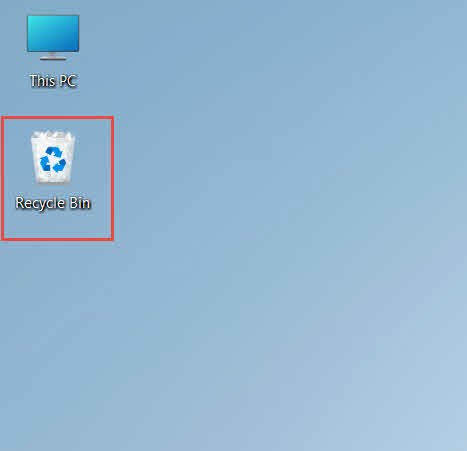
- Dubbelklik op het Prullenbak pictogram op het bureaublad

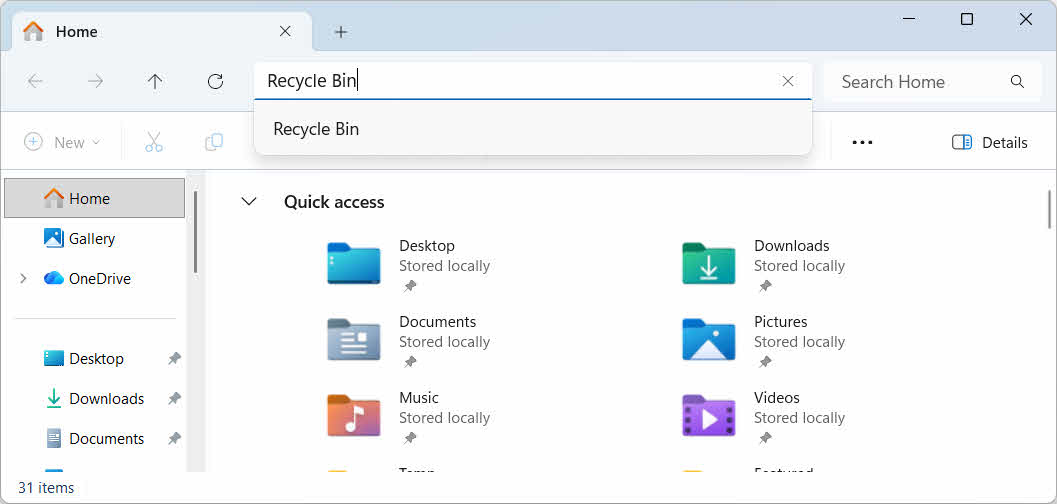
- Open Verkenner en typ Prullenbak in de adresbalk

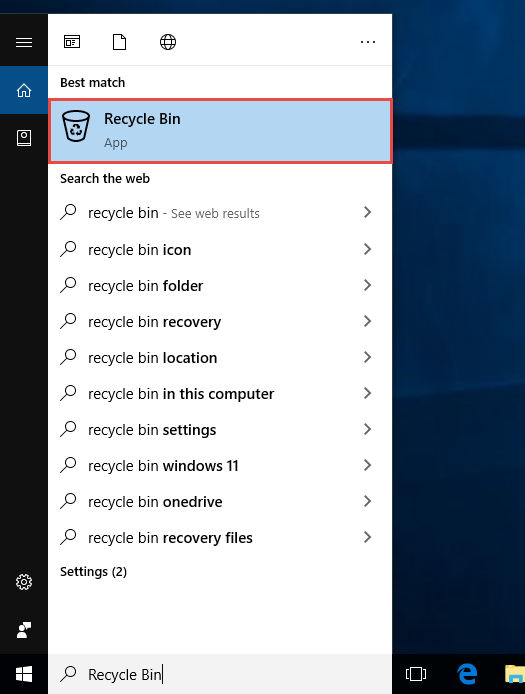
- Type Prullenbak Typ het in de Windows-zoekopdracht en selecteer het uit de resultaten.

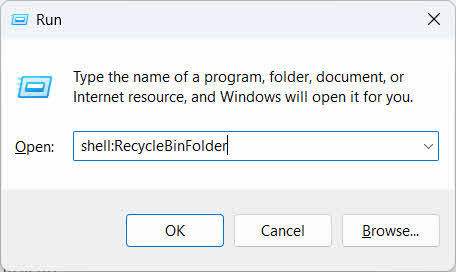
- Druk op overwinning + Rtype shell: RecycleBinFolderen druk op Enter

2.2 Zoek het verwijderde bestand of de verwijderde map
Als de prullenbak eenmaal open is, kunt u de gewenste spullen op een van de volgende manieren vinden:
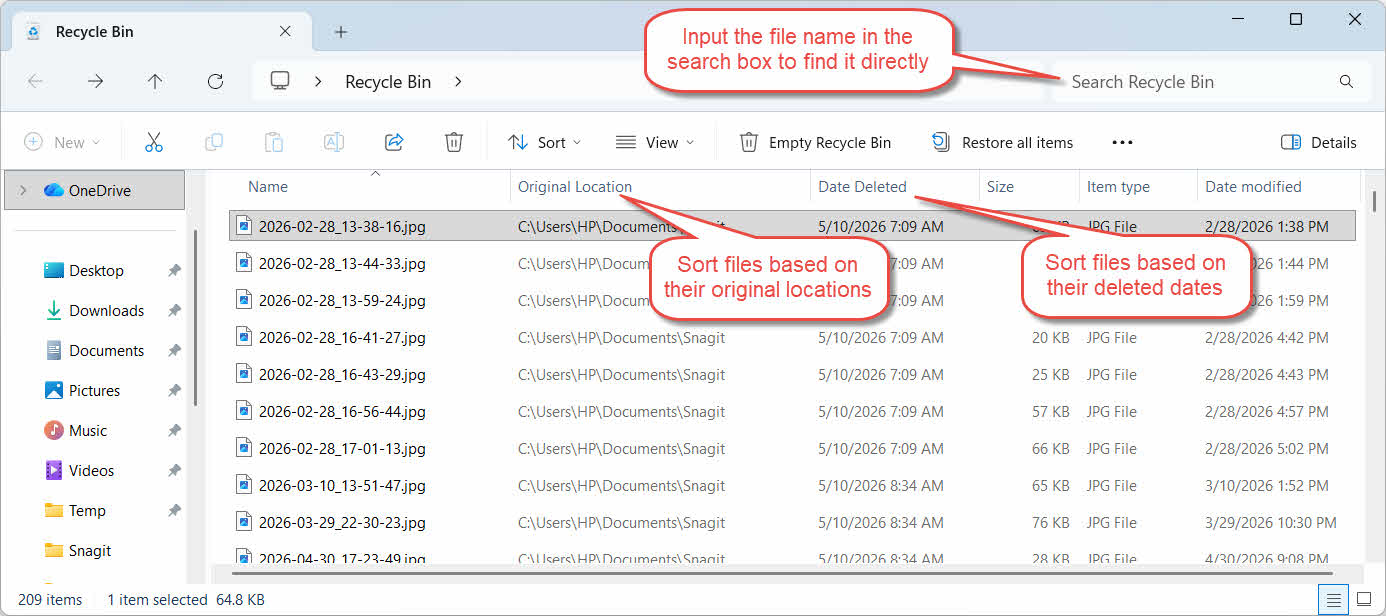
- Typ de bestandsnaam in het zoekvak rechtsboven.
- Klik op de knop Datum verwijderd kolomkop om te sorteren op de meest recente verwijderingen
- Controleer de Oorspronkelijke locatie kolom om te bevestigen dat het bestand afkomstig is uit de map die u verwacht.
2.3 Bestanden of mappen herstellen
Om een of meer items te herstellen:
- Selecteer een enkel bestand of houd ingedrukt. Ctrl en klik om meerdere bestanden te selecteren, of houd ingedrukt. Shift en klik om een bereik te selecteren
- Klik met de rechtermuisknop op de selectie en kies Herstellen
- Open de oorspronkelijke map om te controleren of het bestand is teruggeplaatst.

Om alle items in de prullenbak in één keer terug te zetten, klikt u hier. Herstel alle items in de werkbalk zonder eerst een afzonderlijk bestand te selecteren.
3. Verwijderde bestanden uit de prullenbak terugzetten naar een andere locatie.
De Herstellen Het commando plaatst een bestand altijd terug in de oorspronkelijke map. In sommige situaties is het echter nodig om het bestand naar een andere locatie te verplaatsen.
3.1 Wanneer u deze methode moet gebruiken
- De oorspronkelijke map bestaat niet meer.
- Er bestaat al een nieuw bestand met dezelfde naam in de oorspronkelijke map.
- U hebt geen toestemming om de oorspronkelijke map te openen.
- Je weet niet zeker uit welke map het bestand afkomstig is.
- Je wilt het bestand controleren voordat je het terugplaatst op de oorspronkelijke locatie.
3.2 Sleep of knip het bestand uit de prullenbak
Om een bestand vanuit de Prullenbak naar een map naar keuze te verplaatsen:
- Open de prullenbak.
- Selecteer het bestand of de map die u wilt herstellen.
- Gebruik een van de volgende methoden om het bestand of de map naar de doelmap te verplaatsen:
- Sleep het rechtstreeks naar het venster van de doelmap.
- Druk op Ctrl + X Om het te knippen, open je de betreffende map en druk je op Ctrl + V om het te plakken
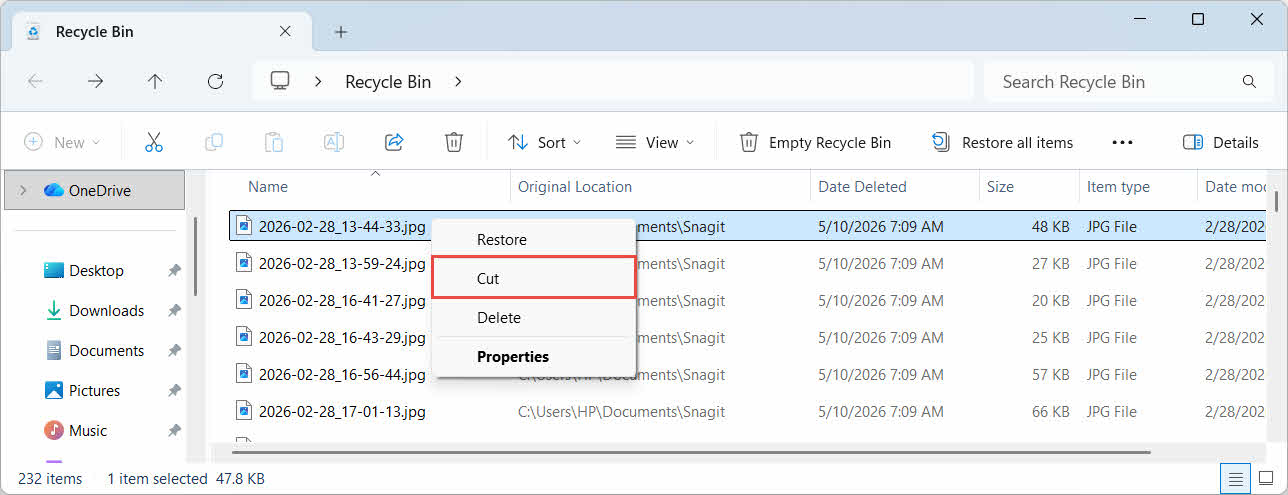
- Klik met de rechtermuisknop op de selectie en selecteer SnijdenOpen de doelfolder, klik met de rechtermuisknop en selecteer pasta om het te plakken

4. Bestanden herstellen vanuit de prullenbak op externe, netwerk- en cloudstations
De stappen in sectie 2 Ga ervan uit dat het bestand van de hoofdschijf van uw computer is verwijderd. Externe opslag, netwerkopslag en cloudopslag gedragen zich anders.
4.1 Externe harde schijven en USB-flashdrives
Windows behandelt externe harde schijven (inclusief via USB aangesloten SSD's) hetzelfde als interne schijven: elk krijgt standaard een eigen, verborgen prullenbak. Verwijderbare media zoals USB-sticks en SD-kaarten worden anders behandeld en krijgen standaard geen prullenbak, waardoor bestanden die daarvan worden verwijderd, direct worden verwijderd.
4.1.1 Prullenbakondersteuning inschakelen voor de schijf
Controleer voor een externe harde schijf of de Prullenbak-ondersteuning is ingeschakeld:
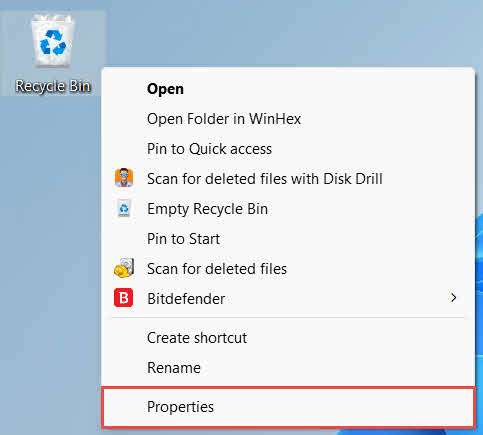
- Klik met de rechtermuisknop op de Prullenbak pictogram op het bureaublad en selecteer Aanbod

- Zoek in de map Prullenbaklocatie Selecteer in de lijst de rij voor de externe schijf. Deze verschijnt hier pas als de schijf is aangesloten en een stationsletter heeft.
- Onder Instellingen voor geselecteerde locatie, zorg ervoor dat Aangepast formaat wordt geselecteerd, niet Verplaats bestanden niet naar de prullenbak. Verwijder bestanden direct na verwijdering.

- Klik op het tabblad Toepassendan OK
Elke schijf bewaart deze instelling onafhankelijk, dus voor een externe schijf kan de prullenbak uitgeschakeld zijn, terwijl deze voor de systeemschijf wel is ingeschakeld.
Een USB-stick of SD-kaart wordt helemaal niet weergegeven in de Prullenbak-eigenschappen, omdat Windows standaard geen Prullenbak-map aanmaakt op verwisselbare media. Om dit in te schakelen, is een wijziging in het register nodig.
- Druk op overwinning + Rtype regedit, druk op Enteren keur de prompt goed
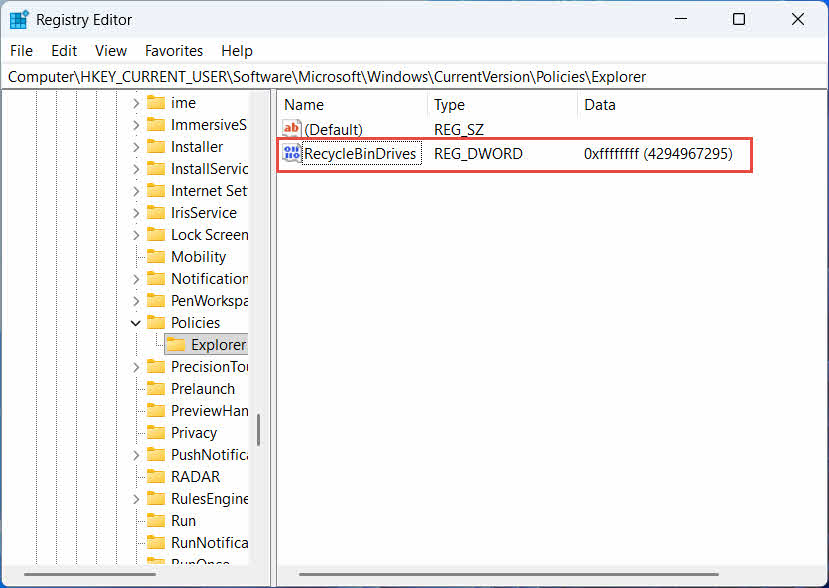
- Navigeer naar HKEY_CURRENT_USER \ Software \ Microsoft \ Windows \ CurrentVersion \ Policies \ Explorer. Indien de Ontdekker De sleutel bestaat niet onder Policies, klik met de rechtermuisknop Policies; selecteer Nieuwe -> sleutel, en noem maar op Ontdekker
- Klik met de rechtermuisknop op een lege ruimte in het rechterdeelvenster en selecteer Nieuwe -> DWORD (32-bits)-waarde, en noem maar op Prullenbakritten
- Dubbelklik op Prullenbakritten, stel in Base naar Hexadecimaal, ga naar binnen pffffffffffffffffffffffffffffffffffffffffffffffffffffffffffffffffffffffffffffffffffffffffffffffffffffffffffffffffffffffffffffffffffffffffffffffffffffffffffffffffffffffffff heen als waardegegevens, en klik OK

- Herhaal stap 2 tot en met 4 onder HKEY_LOCAL_MACHINE \ SOFTWARE \ Microsoft \ Windows \ CurrentVersion \ Policies \ Explorer
- Herstart de computer
Om de wijziging ongedaan te maken, verwijdert u de Prullenbakritten Waarde van beide locaties. Omdat dit het bewerken van het register vereist, is het raadzaam eerst een herstelpunt aan te maken en te overwegen of het eenvoudiger is om op back-ups te vertrouwen voor schijven die u slechts af en toe gebruikt.
4.1.2 Bestanden herstellen
Zodra de prullenbak voor de schijf is ingeschakeld, verloopt het herstellen van een bestand volgens dezelfde procedure als beschreven in sectie 2.3.
Het verwijderen van een bestand van een toegewezen netwerkstation of een gedeelde map verwijdert het direct van de server. Het wordt niet verwijderd uit de lokale prullenbak van uw computer. Als er echter een prullenbak op de server is ingeschakeld, kunt u verwijderde bestanden daaruit herstellen.
4.2.1 Prullenbak aan de serverzijde (indien ingeschakeld)
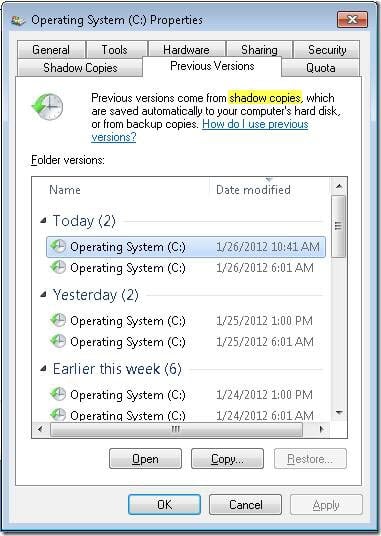
Sommige bestandsservers maken dit mogelijk. Schaduwkopieën (Service voor schaduwkopieën van volumes), waarmee je kunt terugkeren naar eerdere versies van een gedeelde map, zodat je met deze functie verwijderde bestanden kunt herstellen:
- Klik met de rechtermuisknop op de bovenliggende map op de netwerkshare en selecteer Aanbod
- Open de vorige versies .
- Selecteer een versie van vóór de verwijdering en klik Herstellen
4.2.2 Wat te doen als er geen prullenbak aan de serverzijde bestaat
Indien de methode vorige versies Als het tabblad leeg of niet beschikbaar is, is er geen herstel op basis van momentopnamen geconfigureerd voor de gedeelde map. Neem contact op met uw netwerkbeheerder om te controleren of de server een eigen back-upschema heeft.
4.3 De prullenbak van OneDrive (mappen die met de cloud zijn gesynchroniseerd)
Mappen die met OneDrive zijn gesynchroniseerd, kunnen twee aparte prullenbakken hebben: de lokale Windows-prullenbak en de webgebaseerde OneDrive-prullenbak. In welke prullenbak uw bestand zich bevindt, hangt af van waar het bestand is verwijderd.
4.3.1 Lokaal verwijderen van een gesynchroniseerd bestand (verplaatst zich naar zowel de lokale als de webprullenbak)
Als je een gesynchroniseerd bestand verwijdert via Verkenner op je pc, wordt het verplaatst naar de lokale prullenbak, precies zoals beschreven in sectie 2En de OneDrive-synchronisatieclient synchroniseert de verwijdering ook naar de cloud, waardoor het bestand ook vanuit de prullenbak van OneDrive op het web kan worden hersteld.
4.3.2 Verwijdering geïnitieerd door de cloud (alleen de prullenbak op het web, vanaf mei 2026)
Als het bestand in plaats daarvan vanuit de cloud wordt verwijderd, bijvoorbeeld via de OneDrive-website of een ander gesynchroniseerd apparaat, is het gedrag sinds mei 2026 gewijzigd: Microsoft stuurt cloud-geïnitieerde verwijderingen niet langer naar de lokale Windows-prullenbak. Een bestand dat op deze manier wordt verwijderd, verdwijnt uit uw lokale map zonder in de lokale prullenbak te verschijnen, en herstel is alleen mogelijk vanuit de OneDrive- of SharePoint-webprullenbak.
4.3.3 Herstellen vanaf OneDrive.com
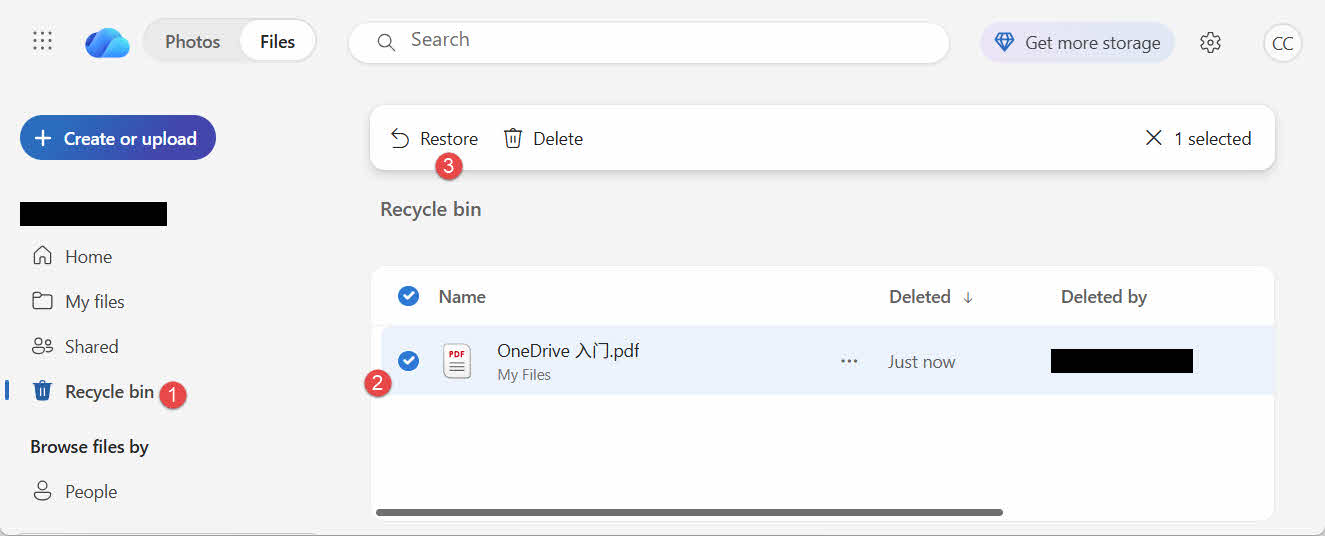
Om een bestand terug te zetten vanuit de prullenbak van OneDrive:
- Meld u aan bij onedrive.live.com or onedrive.com
- Kies Prullenbak in het navigatievenster
- Selecteer het bestand of de map en klik Herstellen
Persoonlijke Microsoft-accounts bewaren verwijderde items tot 30 dagen; werk- of schoolaccounts bewaren ze tot 93 dagen.
5. Problemen met het terughalen van inhoud uit de prullenbak oplossen
5.1 Prullenbakpictogram ontbreekt op bureaublad
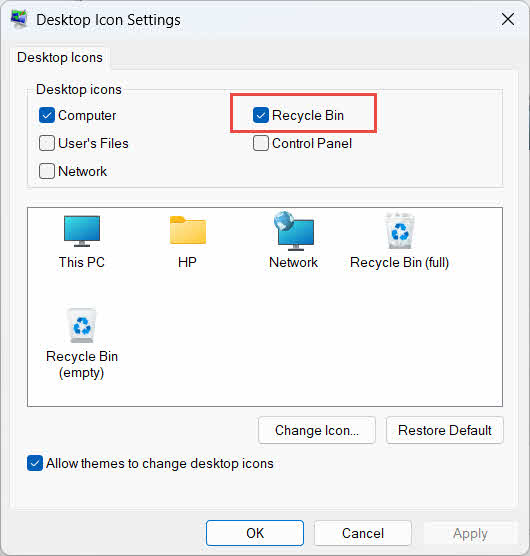
De Prullenbak bestaat nog steeds, ook al is het pictogram op het bureaublad verborgen. Om het pictogram te herstellen:
- Klik met de rechtermuisknop op het bureaublad en selecteer Personaliseer
- Openen Thema'sdan Pictogram op het bureaublad instellingen
- Check Prullenbak en klik op OK
Je kunt het ook direct openen door te typen Prullenbak in Windows Zoeken, Verkenner of met Win + R, zoals beschreven in sectie 2.1.
5.2 Het bestand bevindt zich niet in de prullenbak
Als de bestanden die u zoekt niet in de Prullenbak staan, kunt u de volgende oorzaken overwegen:
- Het is verwijderd van een externe schijf zonder prullenbak (zie sectie 4.1)
- Het is verwijderd van een netwerkstation (zie sectie 4.2)
- Het werd rechtstreeks van OneDrive op het web verwijderd (zie sectie 4.3)
- Het werd permanent verwijderd, bijvoorbeeld met Shift + Verwijdering of de prullenbak is geleegd
Als het bestand permanent is verwijderd, is voor het herstellen ervan speciale software voor gegevensherstel nodig, zoals... DataNumen Data RecoverySla geen nieuwe bestanden eerst op die schijf op, maar in plaats van in de prullenbak. Stop met het opslaan van nieuwe bestanden eerst op die schijf om de kans te verkleinen dat de gegevens worden overschreven.
5.3 Hersteloptie is grijs, ontbreekt of werkt niet
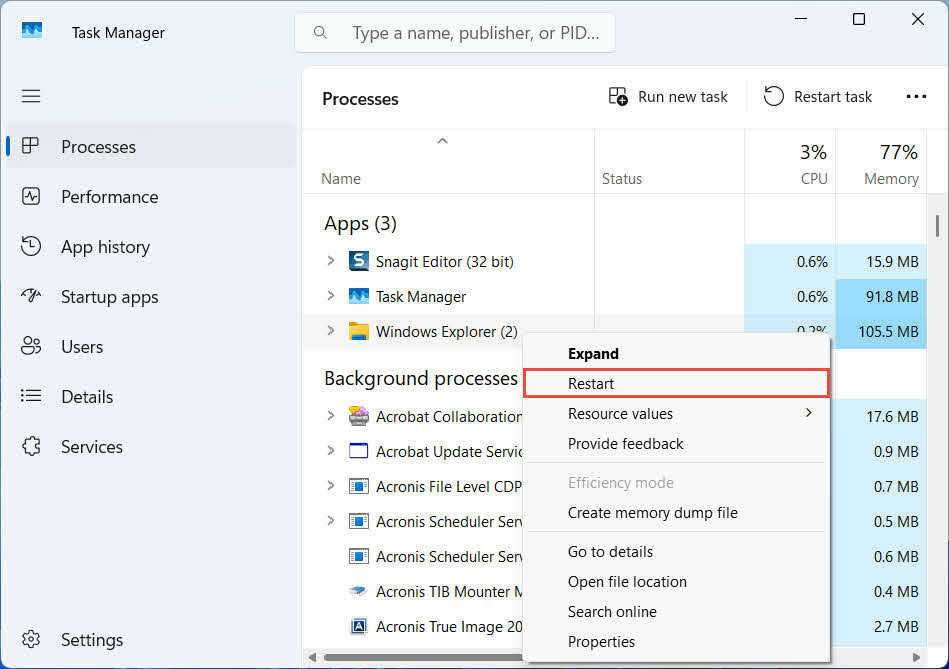
Dit gebeurt meestal wanneer de geselecteerde items afkomstig zijn van een locatie die niet meer bestaat, of wanneer de interne index van de prullenbak niet meer gesynchroniseerd is. Probeer deze oplossingen:
- Verkenner opnieuw opstarten: gebruik Ctrl + Alt + Del om Taakbeheer te openen en klik met de rechtermuisknop. Windows VerkennerEn Select Herstart

- Herstel de items één voor één in plaats van in één keer.
- If Herstellen Als het bestand nog steeds niet verschijnt, sleep het dan handmatig weg zoals beschreven in sectie 3.2
5.4 "Toegang geweigerd" of machtigingsfouten bij het herstellen
Dit wijst op een probleem met de machtigingen van de oorspronkelijke map, niet van het bestand zelf. Controleer het volgende:
- Je bent ingelogd met hetzelfde account waarmee het bestand is verwijderd.
- De machtigingen van de bestemmingsmap staan nog steeds schrijftoegang toe voor uw account.
- Bestandsverkenner wordt niet geblokkeerd door een beleid op een beheerde of werkcomputer.
Als de machtigingen van de oorspronkelijke map zijn gewijzigd, herstel het bestand dan naar een andere locatie door de volgende instructies te volgen. sectie 3.
5.5 De prullenbak lijkt leeg, maar ik leeg hem niet.
Bestanden kunnen uit de Prullenbak verdwijnen zonder dat iemand deze handmatig leegt:
- Storage Sense kan zo worden geconfigureerd dat items na een bepaald aantal dagen automatisch worden verwijderd.
- De prullenbak heeft zijn maximale capaciteit bereikt, dus Windows heeft de oudste items verwijderd om ruimte te maken (zie sectie 6.1)
- Een ander account op een gedeelde computer heeft het leeggehaald.
- Een groepsbeleid op een beheerd apparaat dwingt automatisch legen af.
5.6 Het herstelde bestand is beschadigd, leeg of kan niet worden geopend
Bij het herstellen wordt het bestand alleen teruggezet; het wordt niet gerepareerd. Als het bestand al beschadigd was voordat het werd verwijderd, of als er op het moment van verwijdering naar het bestand werd geschreven, kan het na het herstellen nog steeds niet worden geopend. In dat geval is er sprake van bestandsbeschadiging, niet van een probleem met de prullenbak, en is herstel nodig. een reparatiegereedschap geschikter voor dat bestandsformaat dan een nieuwe herstelpoging.
6. De prullenbak beheren en configureren
6.1 De opbergruimte van de prullenbak wijzigen
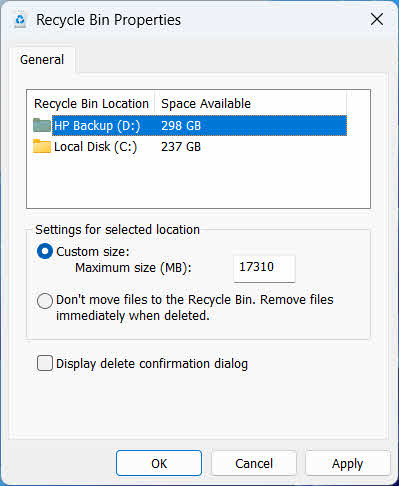
Elke schijf heeft zijn eigen prullenbaktoewijzing. Om deze te bekijken of te wijzigen:
- Klik met de rechtermuisknop op de Prullenbak pictogram en kies Aanbod
- Selecteer een oprit uit de lijst met locaties voor de afvalcontainers.
- Kies Aangepast formaat en voer een in Maximale grootte (MB)of selecteer Verplaats bestanden niet naar de prullenbak. Verwijder bestanden direct na verwijdering. om het voor die schijf uit te schakelen
- Klik op het tabblad OK
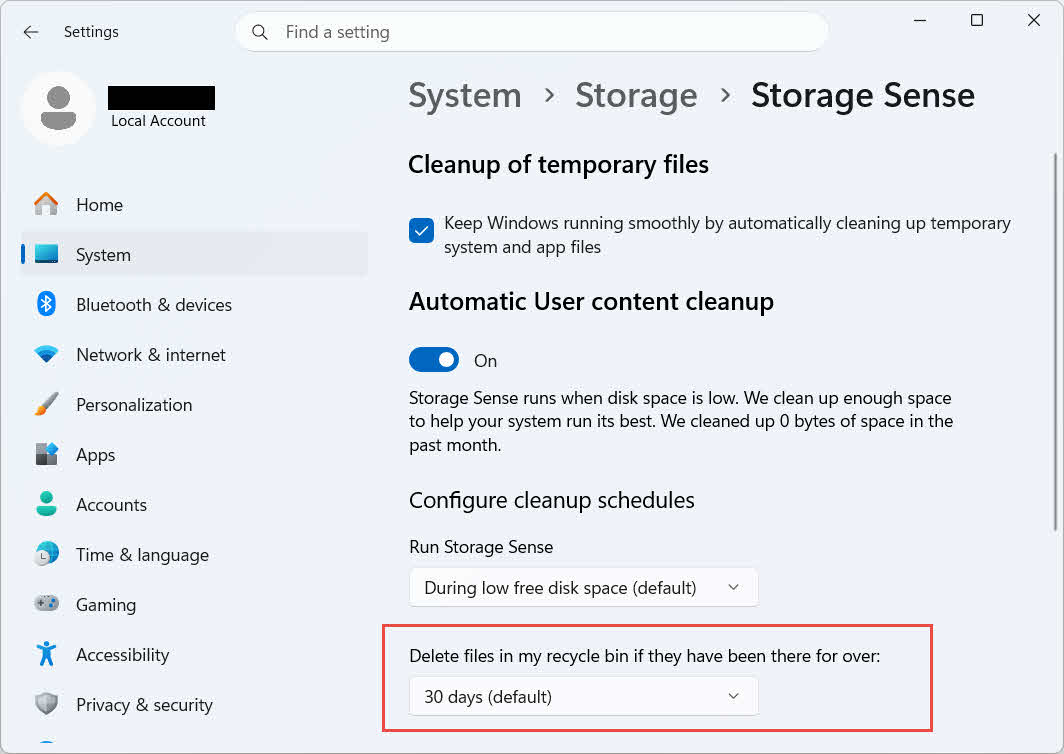
Windows biedt ook een aparte, op leeftijd gebaseerde opruimoptie: ga naar Instellingen -> Systeem -> Opslag -> Opslaginzicht en instellen Verwijder bestanden uit mijn prullenbak als ze er al langer zijn een gekozen aantal dagen. De standaard bewaartermijn is 30 dagen.
6.2 Het dialoogvenster voor verwijderingsbevestiging inschakelen
Windows 11 geeft standaard geen bevestigingsprompt weer voordat bestanden naar de Prullenbak worden verplaatst. Om dit in te schakelen:
- Klik met de rechtermuisknop op de Prullenbak pictogram en kies Aanbod
- Check Beeldscherm bevestigingsdialoogvenster verwijderen
- Klik op het tabblad OK
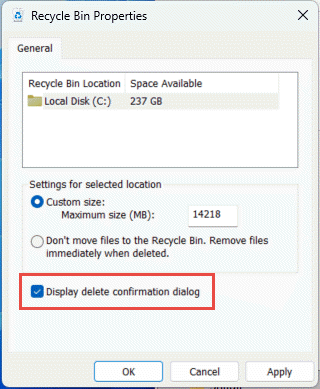
Deze instelling voorkomt geen permanente verwijderingen, zoals bijvoorbeeld Shift + Verwijdering of verwijderingen van schijven zonder Prullenbak-ondersteuning.
6.3 Bestanden zo instellen dat ze niet in de prullenbak terechtkomen (en waarom je dat beter kunt vermijden)
Hetzelfde Verplaats bestanden niet naar de prullenbak. Verwijder bestanden direct na verwijdering. optie gedekt in sectie 6.1 Deze optie kan op elke schijf worden toegepast om elke verwijdering permanent te maken. Dit maakt direct schijfruimte vrij, maar verwijdert de enige snelle hersteloptie die in deze handleiding wordt beschreven. Daarom is deze optie het meest geschikt voor schijven zonder persoonlijke bestanden, zoals een speciaal scratch- of temp-volume.
7. Beste werkwijzen om toekomstig gegevensverlies te voorkomen
7.1 Bestandsgeschiedenis of een back-upoplossing inschakelen
De prullenbak beschermt alleen tegen per ongeluk verwijderen, niet tegen schijffouten of een prullenbak die al leeg is. Bestandsgeschiedenis inschakelen (Configuratiescherm -> Systeem en beveiliging -> Bestandsgeschiedenis)

Of een back-uptool van een derde partij voegt een tweede beveiligingslaag toe met een eigen versiegeschiedenis.
7.2 Cloudsynchronisatie gebruiken voor belangrijke mappen
Door je bureaublad, documenten en afbeeldingen te synchroniseren met OneDrive of een andere cloudservice krijg je de webprullenbak die wordt beschreven in sectie 4.3 als extra inzamelmogelijkheid, onafhankelijk van de lokale prullenbak.
7.3 Controleer nogmaals voordat u de prullenbak leegt.
Voordat u klikt Prullenbak leegmaken, sorteren op Datum verwijderd en scan op recente bestanden. Zodra de schijf leeg is, is de enige resterende optie het gebruik van speciale software voor gegevensherstel, maar zelfs dan is succes niet gegarandeerd.
8. FAQ
V: Kan ik een bestand nog herstellen nadat ik de prullenbak heb geleegd?
A: Niet via de Prullenbak zelf. Op dat moment wordt het bestand op bestandsysteemniveau als verwijderd gemarkeerd, maar het kan fysiek nog steeds op de schijf aanwezig zijn totdat het wordt overschreven. Hulpmiddelen zoals DataNumen Data Recovery Deze apparaten zijn ontworpen om dit soort gegevens te scannen en te reconstrueren. Stop zo snel mogelijk met het gebruik van de schijf om de kans op een succesvol herstel te vergroten.
V: Heeft Mac een functie die vergelijkbaar is met de prullenbak van Windows?
A: Ja, het heet Prullenbak, en het werkt op dezelfde manier: open de Prullenbak, klik met de rechtermuisknop op het bestand en selecteer 'Terugzetten'. Deze handleiding behandelt specifiek de Prullenbak van Windows. Deze gids Dit betreft specifiek de prullenbak van de Mac.
V: Hoe lang blijven bestanden in de Prullenbak staan voordat ze automatisch worden verwijderd?
A: De lokale prullenbak heeft standaard geen vaste tijdslimiet; items worden alleen verwijderd wanneer de maximale grootte is bereikt of wanneer Storage Sense is geconfigureerd om oude items te verwijderen (zie sectie 6.1De prullenbak van OneDrive op het web hanteert een vaste periode: 30 dagen voor persoonlijke accounts en maximaal 93 dagen voor werk- of schoolaccounts (zie sectie 4.3).
V: Moet ik een bestand terugzetten naar de oorspronkelijke locatie of naar een nieuwe locatie?
A: Terugzetten naar de oorspronkelijke locatie (sectie 2) is eenvoudiger en behoudt het oorspronkelijke pad van het bestand. Herstellen naar een andere locatie (sectie 3) in plaats daarvan als de oorspronkelijke map niet meer bestaat of al een bestand met dezelfde naam bevat.
V: Kan ik bestanden die van een USB-stick zijn verwijderd, terughalen via de prullenbak?
A: Niet standaard. USB-sticks en SD-kaarten krijgen geen Prullenbak-map, tenzij je deze handmatig inschakelt, zoals uitgelegd in sectie 4.1.
V: Waarom is de optie 'Herstellen' grijs of ontbreekt deze?
A: Dit wordt meestal veroorzaakt door een ontbrekende originele map of een niet-gesynchroniseerde index van de Prullenbak. Zie sectie 5.3 voor correcties.
V: Wat als de prullenbak leeg is, maar ik hem nooit heb geleegd?
A: Opslaginzicht, een bereikte opslaglimiet, een ander gebruikersaccount of een groepsbeleidsinstelling kunnen het automatisch wissen. Zie sectie 5.5.
V: Welke software kan bestanden herstellen die niet meer in de Prullenbak staan?
A: Speciaal ontwikkelde software voor gegevensherstel, zoals DataNumen Data RecoveryHet scant de schijf op een lager niveau om gegevens te vinden waarnaar het bestandssysteem niet langer verwijst, iets wat de Prullenbak-interface zelf niet kan.
V: Garandeert het herstellen van een bestand dat het correct geopend kan worden?
A: Nee. Herstellen plaatst het bestand alleen terug in een map; het herstelt geen schade die het bestand al had vóór of tijdens het verwijderen. Zie sectie 5.6.
9. Conclusie
Het herstellen van verwijderde bestanden uit de Prullenbak is eenvoudig zolang het bestand er nog in staat: open de Prullenbak, zoek het bestand en herstel het. Externe schijven, netwerkshares en mappen die met OneDrive zijn gesynchroniseerd, brengen elk hun eigen voorwaarden met zich mee. De secties over probleemoplossing en configuratie hierboven behandelen de situaties waarin het standaard herstelproces niet naar behoren werkt. Als het bestand permanent is verwijderd of de Prullenbak al is geleegd, is speciale software voor gegevensherstel de volgende stap, en niet de Prullenbak zelf.
Over de auteur
Qian Gua Hij is een specialist in gegevensherstel met meer dan 10 jaar ervaring in Windows-bestandssystemen, opslagtechnologieën en oplossingen voor noodherstel. Hij heeft duizenden gebruikers succesvol begeleid bij kritieke scenario's van gegevensverlies, zowel in privé- als bedrijfsomgevingen.
Qian is gespecialiseerd in methoden voor gegevensherstel in Windows, bestandsysteemanalyse en preventieve back-upstrategieën. Zijn uitgebreide praktijkervaring omvat het herstellen van gegevens van schijven, het implementeren van uitgebreide back-upoplossingen en het oplossen van complexe problemen met bestandsystemen. NTFSHij heeft ervaring met FAT-, exFAT- en ReFS-volumes. Hij heeft gewerkt met diverse hersteltools en -technieken, van ingebouwde Windows-hulpprogramma's tot professionele software voor gegevensherstel.
Via zijn technische artikelen streeft Qian ernaar gebruikers te voorzien van praktische kennis om hun waardevolle gegevens te beschermen en te herstellen. Hij blijft op de hoogte van de nieuwste ontwikkelingen op het gebied van Windows-bestandshersteltechnologieën, innovaties in opslagapparaten en de beste praktijken voor gegevensbescherming. Wanneer hij gebruikers niet helpt bij het herstellen van hun gegevens, zet Qian zich in om hen te voorzien van de nodige technische kennis.ost fileQian houdt ervan om onderzoek te doen naar opkomende opslagtechnologieën en tips te delen over gegevensbeveiliging om toekomstig gegevensverlies te voorkomen.
Heeft u vragen over deze handleiding of hulp nodig bij gegevensherstel? Qian staat voor u klaar. feedback en suggesties voor het verbeteren van deze hulpmiddelen voor gegevensherstel.