
1. Pengenalan
Tong Kitar Semula ialah jaringan keselamatan terbina dalam Windows untuk fail yang dipadam. Selagi fail masih berada di dalamnya, pemulihannya hanya memerlukan beberapa klik. Panduan ini menerangkan cara memulihkan fail yang dipadam daripada Tong Kitar Semula pada Windows, termasuk fail pada lokasi luaran, rangkaian dan yang disegerakkan oleh OneDrive.
1.1 Perkara yang Dicakupi oleh Panduan Ini
- Memulihkan fail yang masih berada dalam Tong Kitar Semula
- Memulihkan fail yang dipadam ke lokasi asalnya
- Mendapatkan semula fail yang dipadam ke lokasi baharu apabila folder asal hilang
1.2 Apa yang Tidak Dirangkumi oleh Panduan Ini
- Fail dipadam dengan Beralih + Padam, yang memintas Tong Kitar Semula sepenuhnya
- Fail dipadam atau dikosongkan daripada Tong Kitar Semula. Dalam kes ini, semak panduan ini untuk memulihkan fail.
- Fail yang melebihi had storan Tong Kitar Semula dan telah dipadamkan secara kekal
2. Pulihkan Fail yang Dipadam daripada Tong Kitar Semula
Jika fail itu dipadamkan daripada pemacu setempat dengan Padam kekunci atau klik kanan Padam arahan, ia terus ke Tong Kitar Semula. Memulihkannya dengan 3 langkah berikut:
2.1 Buka Tong Kitar Semula
Gunakan mana-mana kaedah berikut:
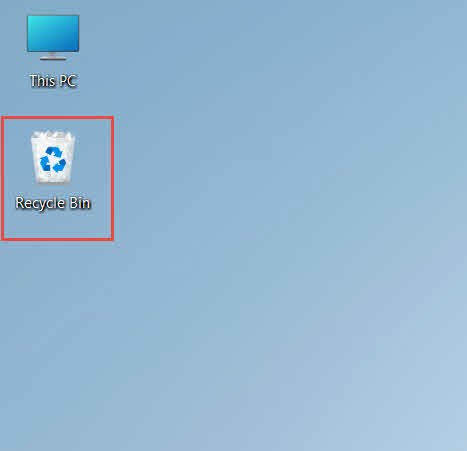
- Klik dua kali Recycle Bin ikon pada desktop

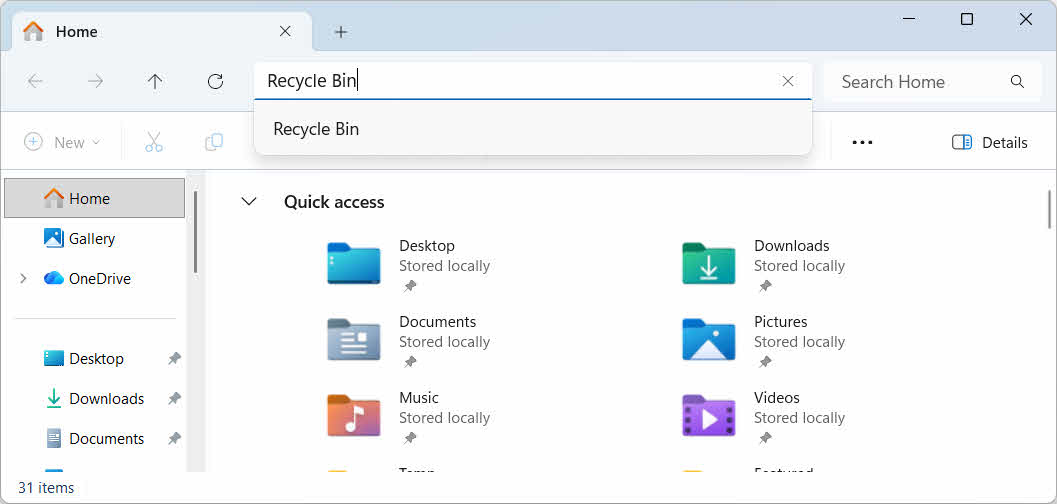
- Buka Penjelajah Fail dan masukkan Recycle Bin di bar alamat

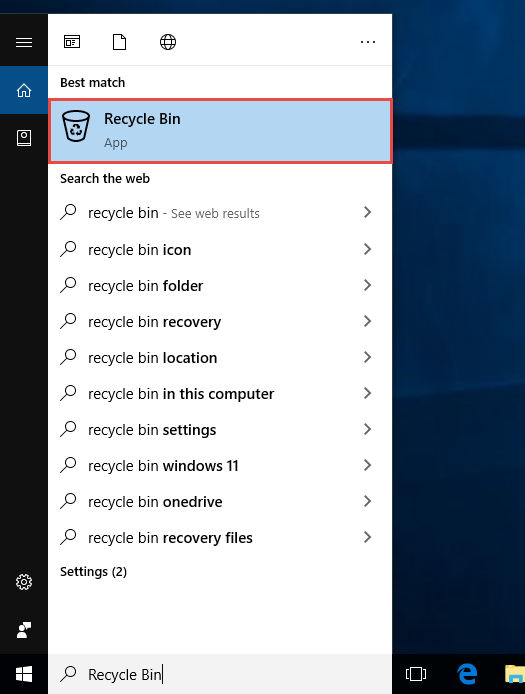
- Jenis Recycle Bin ke dalam Carian Windows dan pilihnya daripada hasil carian

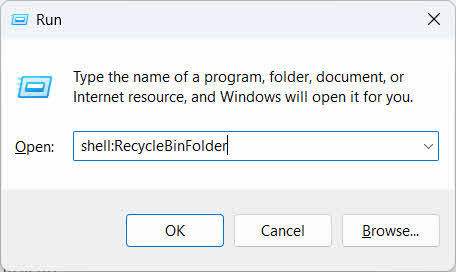
- Keratan Akhbar Menang + R, jenis shell:RecycleBinFolder, dan tekan Masukkan

2.2 Cari Fail atau Folder yang Dipadam
Setelah Tong Kitar Semula dibuka, cari item yang dikehendaki dengan salah satu pendekatan ini:
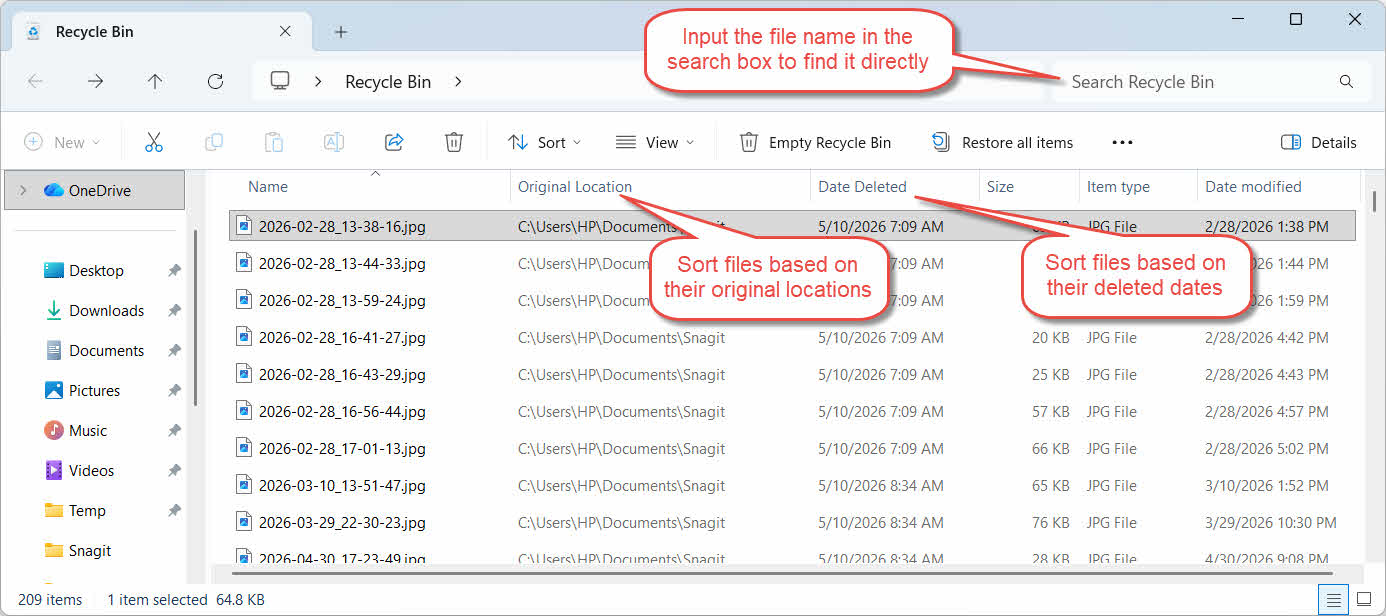
- Taip nama fail ke dalam kotak carian di penjuru kanan sebelah atas
- Klik Tarikh Dipadam pengepala lajur untuk menyusun mengikut pemadaman terkini
- Periksa Lokasi Asal lajur untuk mengesahkan fail itu datang daripada folder yang anda jangkakan
2.3 Pulihkan Fail atau Folder
Untuk memulihkan satu atau lebih item:
- Pilih satu fail atau tahan Ctrl dan klik untuk memilih berbilang fail, atau tahan Beralih dan klik untuk memilih julat
- Klik kanan pada pilihan dan pilih Simpan semula
- Buka folder asal untuk mengesahkan fail telah kembali

Untuk memulihkan setiap item dalam Tong Kitar Semula sekaligus, klik Pulihkan semua item dalam bar alat tanpa memilih mana-mana fail individu terlebih dahulu.
3. Pulihkan Fail yang Dipadam dari Tong Kitar Semula ke Lokasi Berbeza
. Simpan semula arahan sentiasa mengembalikan fail ke folder asalnya. Sesetengah situasi memerlukan pemindahannya ke tempat lain.
3.1 Bilakah Anda Perlu Menggunakan Kaedah Ini
- Folder asal tidak lagi wujud
- Fail baharu dengan nama yang sama sudah wujud dalam folder asal
- Anda tidak mempunyai kebenaran untuk mengakses folder asal
- Anda tidak pasti dari folder mana fail itu berasal
- Anda ingin menyemak semula fail tersebut sebelum meletakkannya semula di tempat asalnya
3.2 Seret atau Potong Fail Keluar dari Tong Kitar Semula
Untuk memindahkan fail keluar dari Tong Kitar Semula ke folder pilihan anda:
- Buka Tong Kitar Semula
- Pilih fail atau folder yang hendak dipulihkan.
- Gunakan salah satu kaedah berikut untuk memindahkan fail atau folder ke folder sasaran:
- Seret terus ke dalam tetingkap folder sasaran
- Keratan Akhbar Ctrl + X untuk memotongnya, buka folder sasaran, dan tekan Ctrl + V untuk menampalnya
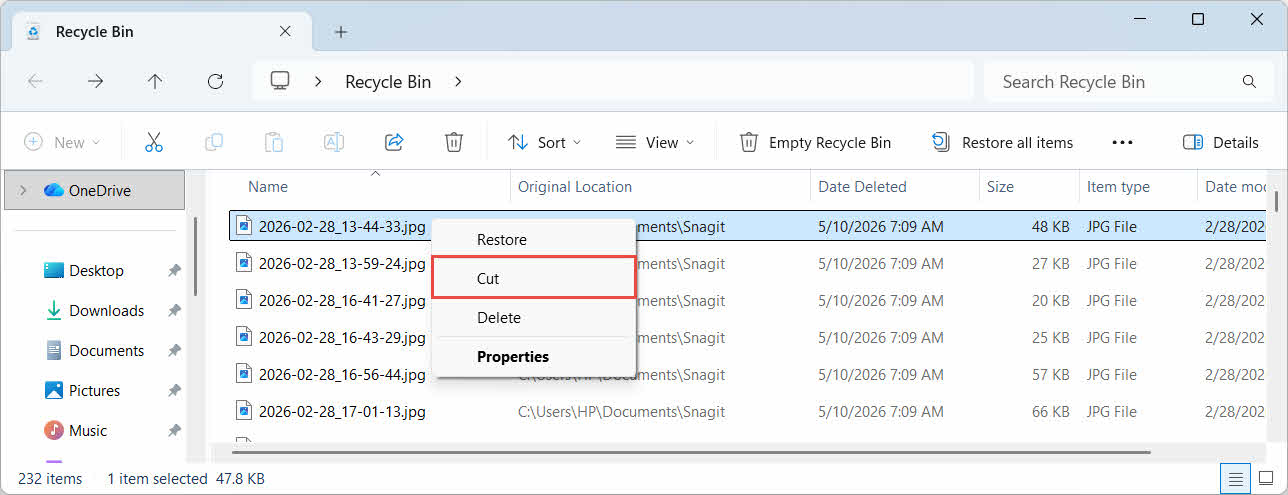
- Klik kanan pada pilihan dan pilih Potong, buka folder sasaran, klik kanan dan pilih Inti untuk menampalnya

4. Memulihkan Fail daripada Tong Kitar Semula pada Pemacu Luaran, Rangkaian dan Awan
Langkah-langkah masuk Seksyen 2 anggap fail itu telah dipadamkan daripada pemacu utama komputer anda. Storan luaran, rangkaian dan storan yang disegerakkan awan bertindak secara berbeza.
4.1 Pemacu Keras Luaran dan Pemacu Kilat USB
Windows melayan pemacu keras luaran (termasuk SSD yang disambungkan melalui USB) sama seperti pemacu dalaman: setiap satu mendapat folder Tong Kitar Semula tersembunyi secara lalai. Media boleh tanggal seperti pemacu kilat USB dan kad SD dilayan secara berbeza dan tidak mendapat Tong Kitar Semula secara lalai, jadi fail yang dipadam daripadanya akan dipadam serta-merta.
4.1.1 Mendayakan Sokongan Tong Kitar Semula untuk Pemacu
Untuk cakera keras luaran, sahkan sokongan Tong Kitar Semula dihidupkan:
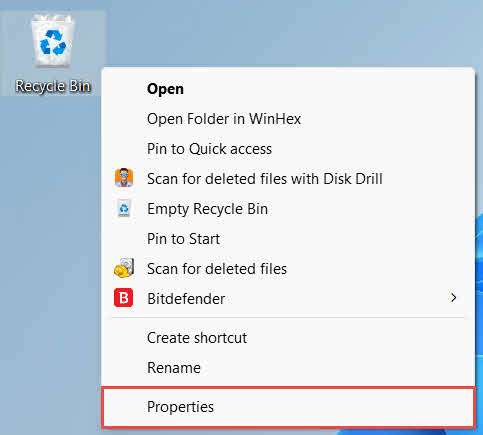
- Klik kanan pada Recycle Bin ikon pada desktop dan pilih Hartanah

- Dalam Lokasi Tong Kitar Semula senarai, pilih baris untuk pemacu luaran. Ia hanya muncul di sini sebaik sahaja pemacu disambungkan dan mempunyai huruf pemacu
- Di bawah Tetapan untuk lokasi yang dipilih, pastikan Saiz tersuai dipilih, bukan Jangan pindahkan fail ke Tong Kitar Semula. Alih keluar fail dengan segera apabila dipadam

- Klik Memohon, Maka OK
Setiap pemacu mengekalkan tetapan ini secara berasingan, jadi sokongan Tong Kitar Semula pemacu luaran boleh dimatikan walaupun ia kekal hidup untuk pemacu sistem.
Untuk pemacu kilat USB atau kad SD, ia tidak akan muncul dalam Ciri Tong Kitar Semula sama sekali, kerana Windows tidak mencipta folder Tong Kitar Semula pada media boleh tanggal secara lalai. Mendayakannya memerlukan suntingan pendaftaran:
- Keratan Akhbar Menang + R, jenis regedit, tekan Masukkan, dan meluluskan gesaan tersebut
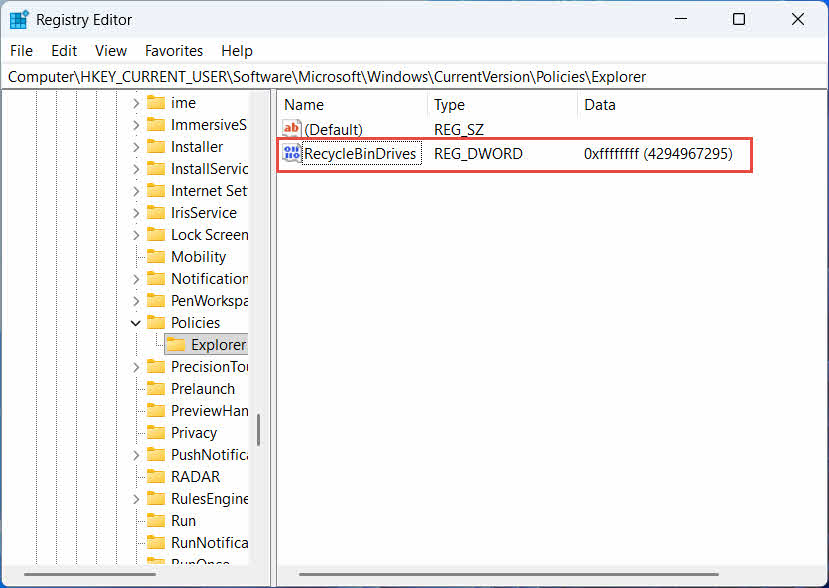
- Navigasi ke HKEY_CURRENT_USER \ Software \ Microsoft \ Windows \ CurrentVersion \ Policies \ Explorer. Jika Explorer kunci tidak wujud di bawah Polisi, Klik kanan Polisi, pilih Baru -> Utama, dan namakannya Explorer
- Klik kanan pada kawasan kosong di panel kanan, pilih Baru -> Nilai DWORD (32-bit), dan namakannya Pemacu Tong Kitar Semula
- Klik dua kali Pemacu Tong Kitar Semula, tetapkan Asas kepada Perenambelasan, masukkan ffffffff sebagai data nilai, dan klik OK

- Ulang langkah 2 hingga 4 di bawah HKEY_LOCAL_MACHINE \ SOFTWARE \ Microsoft \ Windows \ CurrentVersion \ Policies \ Explorer
- Mulakan semula komputer
Untuk membalikkan perubahan, padamkan Pemacu Tong Kitar Semula nilai dari kedua-dua lokasi. Oleh kerana ini melibatkan penyuntingan pendaftaran, cipta titik pemulihan terlebih dahulu dan pertimbangkan sama ada bergantung pada sandaran adalah lebih mudah untuk pemacu yang anda gunakan hanya sekali-sekala.
4.1.2 Memulihkan Fail
Sebaik sahaja Tong Kitar Semula diaktifkan untuk pemacu, memulihkan fail mengikuti proses yang sama yang diterangkan dalam Seksyen 2.3.
Memadam fail daripada pemacu rangkaian yang dipetakan atau folder kongsi akan mengalih keluarnya terus daripada pelayan. Ia tidak melalui Tong Kitar Semula setempat komputer anda. Tetapi jika tong kitar semula bahagian pelayan diaktifkan, anda boleh memulihkan fail yang dipadam daripadanya.
4.2.1 Tong Kitar Semula Bahagian Pelayan (jika diaktifkan)
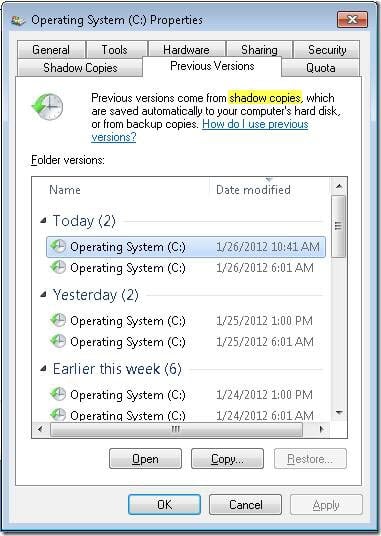
Sesetengah pelayan fail mendayakan Salinan Bayangan (Perkhidmatan Salinan Bayangan Volum), yang membolehkan anda memulihkan kepada versi terdahulu folder kongsi, supaya anda boleh memulihkan fail yang dipadam dengan ciri ini:
- Klik kanan folder induk pada perkongsian rangkaian dan pilih Hartanah
- Buka Sejarah sebelumnya tab
- Pilih versi yang bertarikh sebelum pemadaman dan klik Simpan semula
4.2.2 Apa yang Perlu Dilakukan Jika Tiada Tong Kitar Semula Bahagian Pelayan Wujud
Jika Sejarah sebelumnya Tab kosong atau tidak tersedia, perkongsian tersebut tidak mempunyai pemulihan berasaskan snapshot yang dikonfigurasikan. Hubungi pentadbir rangkaian anda untuk menyemak sama ada pelayan mempunyai jadual sandarannya sendiri.
4.3 Tong Kitar Semula OneDrive (Folder yang Disegerakkan Awan)
Folder yang disegerakkan oleh OneDrive boleh melibatkan dua Tong Kitar Semula yang berasingan: Tong Kitar Semula Windows setempat dan Tong Kitar Semula OneDrive berasaskan web. Yang mana satu menyimpan fail anda bergantung pada tempat pemadaman berlaku.
4.3.1 Pemadaman Setempat bagi Fail yang Disegerakkan (Pergi ke Tong Kitar Semula Setempat dan Web)
Jika anda memadam fail yang disegerakkan daripada File Explorer pada PC anda, ia akan pergi ke Tong Kitar Semula setempat seperti yang diterangkan dalam Seksyen 2, dan klien penyegerakan OneDrive juga mencerminkan pemadaman ke awan, jadi fail tersebut juga boleh dipulihkan daripada Tong Kitar Semula web OneDrive.
4.3.2 Pemadaman Dimulakan Awan (Tong Kitar Semula Web Sahaja, Sejak Mei 2026)
Jika fail tersebut dipadamkan dari bahagian awan, contohnya melalui laman web OneDrive atau peranti lain yang disegerakkan, tingkah laku tersebut berubah sejak Mei 2026: Microsoft berhenti menghantar pemadaman yang dimulakan oleh awan ke Tong Kitar Semula Windows setempat. Fail yang dialih keluar dengan cara ini akan hilang dari folder setempat anda tanpa muncul dalam Tong Kitar Semula setempat dan pemulihan hanya boleh dilakukan dari Tong Kitar Semula web OneDrive atau SharePoint.
4.3.3 Memulihkan daripada OneDrive.com
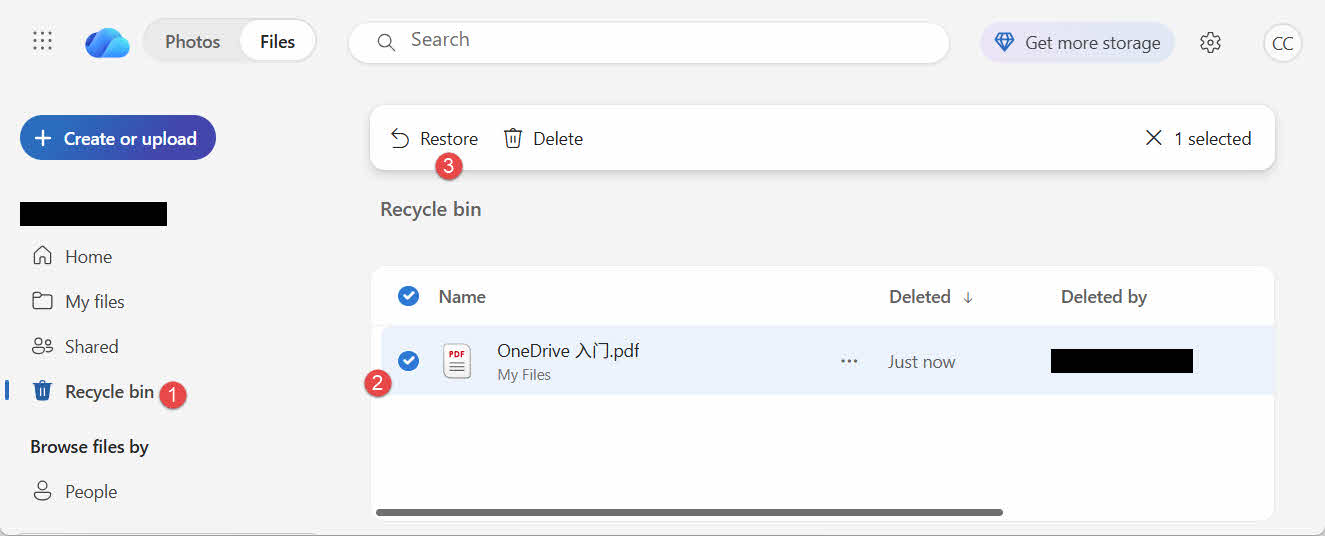
Untuk memulihkan fail daripada Tong Kitar Semula web OneDrive:
- Daftar masuk di onedrive.live.com or onedrive.com
- pilih Tong kitar semula dalam anak tetingkap navigasi
- Pilih fail atau folder dan klik Simpan semula
Akaun Microsoft peribadi menyimpan item yang dipadam sehingga 30 hari; akaun kerja atau sekolah menyimpannya sehingga 93 hari.
5. Menyelesaikan Masalah Pemulihan Tong Kitar Semula
5.1 Ikon Tong Kitar Semula Hilang dari Desktop
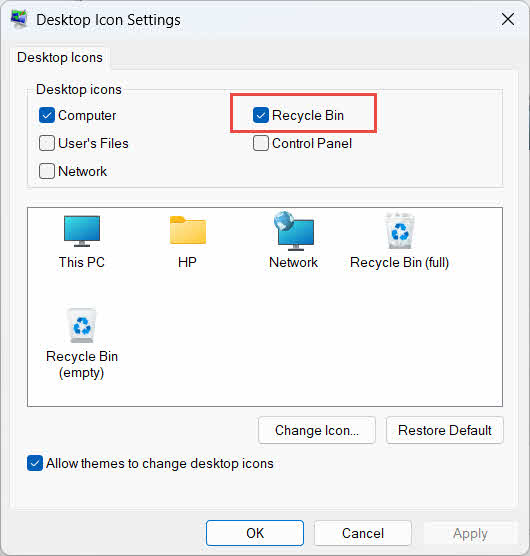
Tong Kitar Semula masih wujud walaupun ikon desktopnya telah disembunyikan. Untuk memulihkan ikon:
- Klik kanan desktop dan pilih Peribadikan
- Buka Tema, Maka Tetapan ikon desktop
- daftar Recycle Bin dan klik OK
Anda juga boleh membukanya secara langsung dengan menaip Recycle Bin dalam Carian Windows, Penjelajah Fail atau menggunakan Win + R, seperti yang diterangkan dalam Seksyen 2.1.
5.2 Fail Tidak Ada di dalam Tong Kitar Semula
Jika fail yang anda inginkan tiada dalam Tong Kitar Semula, pertimbangkan punca-punca ini:
- Ia telah dipadamkan daripada pemacu luaran tanpa sokongan Tong Kitar Semula (lihat Seksyen 4.1)
- Ia telah dipadamkan daripada pemacu rangkaian (lihat Seksyen 4.2)
- Ia telah dipadamkan terus daripada OneDrive di web (lihat Seksyen 4.3)
- Ia telah dipadamkan secara kekal, contohnya dengan Beralih + Padam, atau Tong Kitar Semula telah dikosongkan
Jika fail tersebut telah dipadamkan secara kekal, pemulihannya memerlukan perisian pemulihan data khusus, seperti DataNumen Data Recovery, bukannya Tong Kitar Semula. Berhenti menyimpan fail baharu pada pemacu itu terlebih dahulu untuk mengurangkan kemungkinan data ditulis ganti.
5.3 Pilihan Pemulihan Kelabu, Hilang atau Tidak Berfungsi
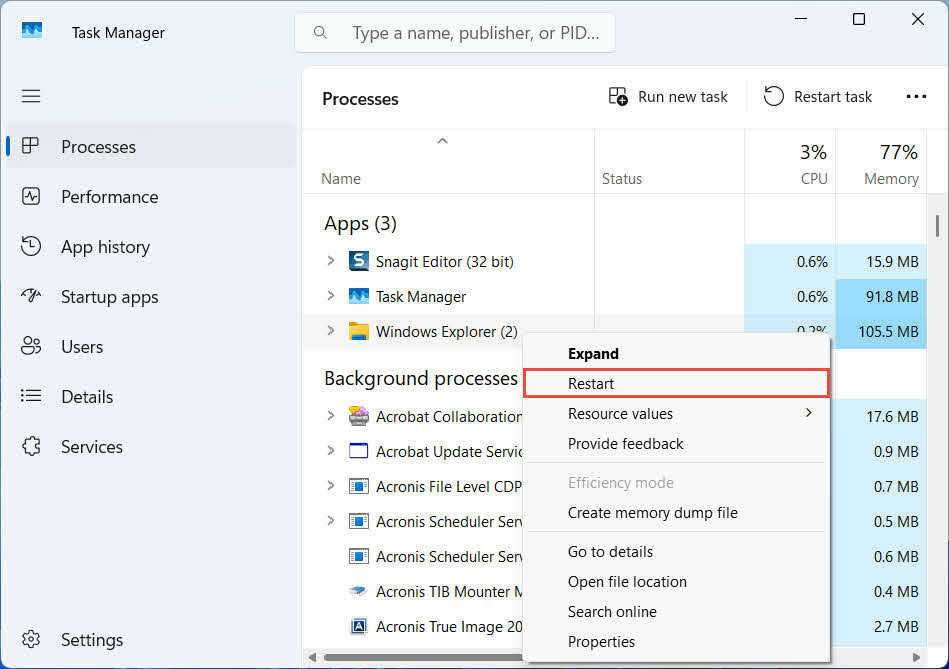
Ini biasanya berlaku apabila item yang dipilih datang dari lokasi yang tidak lagi wujud atau indeks dalaman Tong Kitar Semula tidak segerak. Cuba pembetulan ini:
- Mulakan semula Penjelajah Fail: gunakan Ctrl + Alt + Del untuk membuka Pengurus Tugas, klik kanan Windows Explorer, And select restart

- Pulihkan item satu demi satu dan bukannya secara kelompok
- If Simpan semula masih tidak muncul, seret fail keluar secara manual seperti yang diterangkan dalam Seksyen 3.2
5.4 “Akses Ditolak” atau Ralat Kebenaran Semasa Memulihkan
Ini menunjukkan isu kebenaran pada folder asal, bukan fail itu sendiri. Pastikan:
- Anda telah log masuk dengan akaun yang sama yang memadamkan fail tersebut
- Kebenaran folder destinasi masih membenarkan akses tulis untuk akaun anda
- File Explorer tidak disekat oleh dasar pada komputer terurus atau komputer kerja
Jika kebenaran folder asal telah berubah, pulihkan fail tersebut ke lokasi lain, mengikut Seksyen 3.
5.5 Tong Kitar Semula Nampak Kosong Tetapi Saya Tidak Mengosongkannya
Fail boleh hilang dari Tong Kitar Semula tanpa sesiapa mengosongkannya secara manual:
- Storage Sense mungkin dikonfigurasikan untuk memadam item secara automatik selepas beberapa hari yang ditetapkan
- Tong Kitar Semula telah mencapai had saiznya, jadi Windows telah membersihkan item terlama untuk memberi ruang (lihat Seksyen 6.1)
- Akaun lain pada komputer kongsi mengosongkannya
- Dasar Kumpulan pada peranti terurus menguatkuasakan pengosongan automatik
5.6 Fail yang Dipulihkan Rosak, Kosong atau Tidak Boleh Dibuka
Memulihkan hanya akan mengembalikan fail; ia tidak akan membaikinya. Jika fail telah rosak sebelum pemadaman, atau jika ia sedang ditulis pada masa ia dipadamkan, ia mungkin masih gagal dibuka selepas pemulihan. Dalam kes itu, masalahnya ialah kerosakan fail, bukan masalah Tong Kitar Semula, dan memerlukan alat pembaikan sesuai dengan format fail tersebut dan bukannya percubaan pemulihan yang lain.
6. Mengurus dan Mengkonfigurasi Tong Kitar Semula
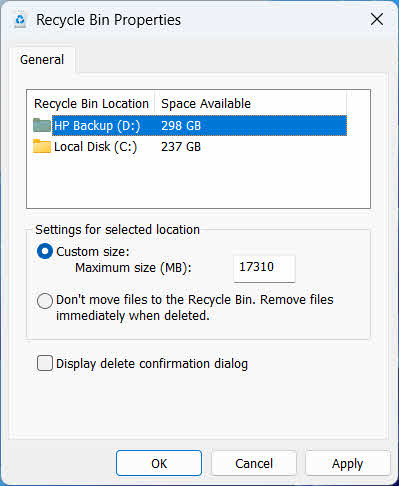
6.1 Menukar Saiz Storan Tong Kitar Semula
Setiap pemacu mempunyai peruntukan Tong Kitar Semula sendiri. Untuk menyemak atau mengubahnya:
- Klik kanan pada Recycle Bin ikon dan pilih Hartanah
- Pilih pemacu daripada senarai lokasi Tong Kitar Semula
- Pilih Saiz tersuai dan masukkan a Saiz maksimum (MB), atau pilih Jangan pindahkan fail ke Tong Kitar Semula. Alih keluar fail dengan segera apabila dipadam untuk melumpuhkannya untuk pemacu itu
- Klik OK
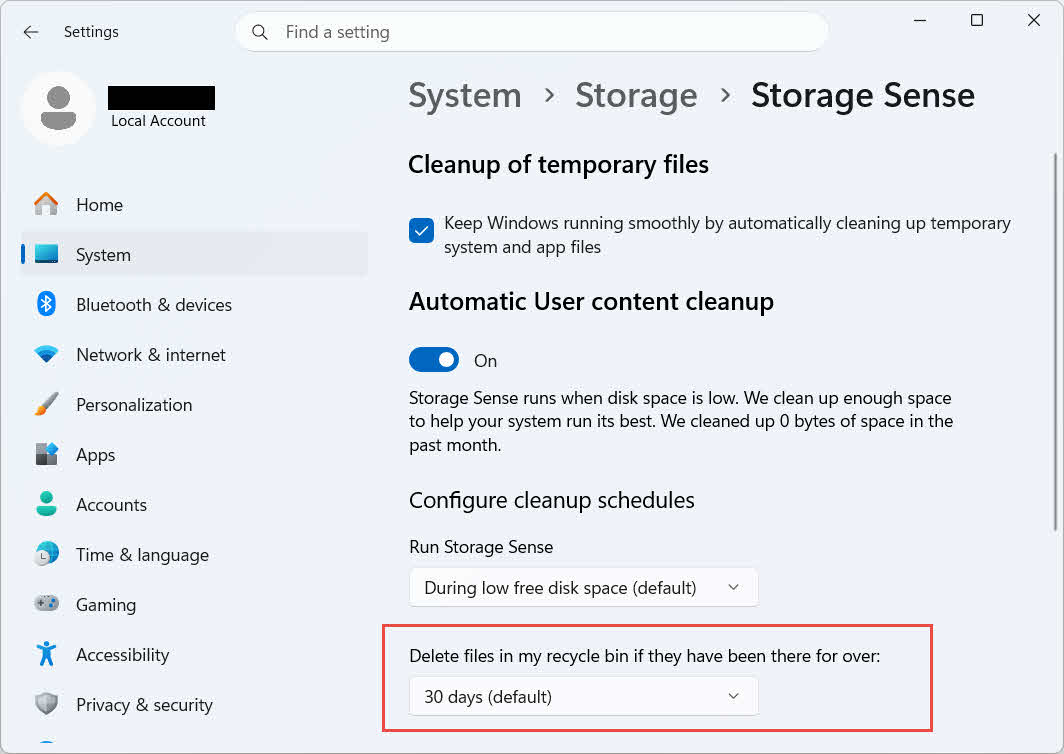
Windows juga menawarkan pilihan pembersihan berasaskan umur yang berasingan: pergi ke Tetapan -> Sistem -> Storan -> Storan Sense dan tetapkan Padam fail dalam tong kitar semula saya jika ia telah berada di sana selama lebih bilangan hari yang dipilih. Tempoh pengekalan lalai ialah hari 30.
6.2 Mendayakan Dialog Pengesahan Padam
Windows 11 tidak menunjukkan gesaan pengesahan sebelum memindahkan fail ke Tong Kitar Semula secara lalai. Untuk menghidupkannya:
- Klik kanan pada Recycle Bin ikon dan pilih Hartanah
- daftar Paparkan dialog pengesahan pemadaman
- Klik OK
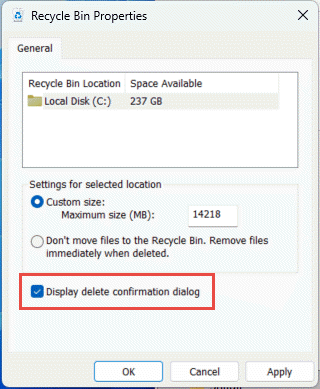
Tetapan ini tidak menghalang pemadaman kekal, seperti Beralih + Padam atau pemadaman daripada pemacu tanpa sokongan Tong Kitar Semula.
6.3 Menetapkan Fail untuk Memintas Tong Kitar Semula (dan Mengapa Perlu Mengelakkannya)
Sama Jangan pindahkan fail ke Tong Kitar Semula. Alih keluar fail dengan segera apabila dipadam pilihan yang diliputi dalam Seksyen 6.1 boleh digunakan pada mana-mana pemacu untuk menjadikan setiap pemadaman kekal. Ini mengosongkan ruang cakera dengan segera tetapi mengalih keluar satu-satunya pilihan pemulihan pantas yang diterangkan oleh panduan ini, jadi ia paling sesuai untuk pemacu yang tidak menyimpan fail peribadi, seperti volum calar atau sementara khusus.
7. Amalan Terbaik untuk Mencegah Kehilangan Data Masa Depan
7.1 Dayakan Sejarah Fail atau Penyelesaian Sandaran
Tong Kitar Semula hanya melindungi daripada pemadaman tidak sengaja, bukan kegagalan pemacu atau Tong Kitar Semula yang telah dikosongkan. Menghidupkan Sejarah Fail (Panel Kawalan -> Sistem dan Keselamatan -> Sejarah Fail)

atau alat sandaran pihak ketiga menambah lapisan perlindungan kedua dengan sejarah versinya sendiri.
7.2 Gunakan Penyegerakan Awan untuk Folder Penting
Menyegerakkan Desktop, Dokumen dan Gambar ke OneDrive atau perkhidmatan awan lain memberikan anda Tong Kitar Semula web yang diterangkan dalam Seksyen 4.3 sebagai laluan pemulihan tambahan, bebas daripada Tong Kitar Semula tempatan.
7.3 Semak Semula Sebelum Mengosongkan Tong Kitar Semula
Sebelum klik Binatang Kitar Semula Kosong, susun mengikut Tarikh Dipadam dan imbas untuk sebarang maklumat terkini. Sebaik sahaja ia dikosongkan, satu-satunya pilihan yang tinggal ialah perisian pemulihan data khusus, dan kejayaan tidak dijamin.
8. Soalan Lazim
S: Bolehkah saya masih memulihkan fail selepas mengosongkan Tong Kitar Semula?
A: Bukan melalui Tong Kitar Semula itu sendiri. Pada ketika itu, fail ditanda sebagai dipadam pada peringkat sistem fail tetapi mungkin masih terdapat secara fizikal pada pemacu sehingga ditulis ganti. Alat seperti DataNumen Data Recovery dibina untuk mengimbas dan membina semula data jenis ini. Berhenti menggunakan pemacu secepat mungkin untuk meningkatkan kemungkinan pemulihan yang berjaya.
S: Adakah Mac mempunyai sesuatu yang serupa dengan Tong Kitar Semula Windows?
J: Ya, ia dipanggil Sampah, dan ia berfungsi dengan cara yang sama: buka Sampah, klik kanan fail dan pilih Put Back. Panduan ini merangkumi Tong Kitar Semula Windows secara khusus. Dan panduan ini merangkumi Mac Trash secara khusus.
S: Berapa lama fail berada di dalam Tong Kitar Semula sebelum ia dipadam secara automatik?
A: Tong Kitar Semula setempat tidak mempunyai had masa tetap secara lalai; item hanya akan dialih keluar apabila had saiz dicapai atau apabila Storage Sense dikonfigurasikan untuk membersihkan item lama (lihat Seksyen 6.1). Tong Kitar Semula web OneDrive menggunakan tetingkap tetap: 30 hari untuk akaun peribadi dan sehingga 93 hari untuk akaun kerja atau sekolah (lihat Seksyen 4.3).
S: Patutkah saya memulihkan fail ke lokasi asalnya atau ke lokasi baharu?
A: Memulihkan ke lokasi asal (Seksyen 2) adalah lebih mudah dan mengekalkan laluan asal fail. Pulihkan ke lokasi lain (Seksyen 3) sebaliknya jika folder asal itu tidak lagi wujud atau sudah mengandungi fail dengan nama yang sama.
S: Bolehkah saya memulihkan fail yang dipadam daripada pemacu kilat USB menggunakan Tong Kitar Semula?
A: Bukan secara lalai. Pemacu kilat dan kad SD tidak mendapat folder Tong Kitar Semula melainkan anda mendayakannya secara manual, seperti yang dijelaskan dalam Seksyen 4.1.
S: Mengapakah pilihan Pemulihan berwarna kelabu atau tiada?
A: Ini biasanya disebabkan oleh folder asal yang hilang atau indeks Tong Kitar Semula yang tidak segerak. Lihat Seksyen 5.3 untuk pembaikan.
S: Bagaimana jika Tong Kitar Semula kosong tetapi saya tidak pernah mengosongkannya?
A: Storage Sense, had saiz yang dicapai, akaun pengguna lain atau tetapan Dasar Kumpulan semuanya boleh mengosongkannya secara automatik. Lihat Seksyen 5.5.
S: Perisian apakah yang boleh memulihkan fail yang tidak lagi berada dalam Tong Kitar Semula?
A: Perisian pemulihan data khusus, seperti DataNumen Data Recovery, mengimbas pemacu pada tahap yang lebih rendah untuk mencari data yang tidak lagi dirujuk oleh sistem fail, yang bukan sesuatu yang boleh dilakukan oleh antara muka Tong Kitar Semula itu sendiri.
S: Adakah memulihkan fail menjamin ia akan dibuka dengan betul?
A: Tidak. Pemulihan hanya mengembalikan fail ke folder; ia tidak membetulkan sebarang kerosakan yang telah berlaku pada fail sebelum atau semasa pemadaman. Lihat Seksyen 5.6.
9. kesimpulan
Memulihkan fail yang dipadam daripada Tong Kitar Semula adalah mudah selagi item tersebut masih ada: buka Tong Kitar Semula, cari fail tersebut dan pulihkannya. Pemacu luaran, perkongsian rangkaian dan folder yang disegerakkan oleh OneDrive setiap satu menambah syarat mereka sendiri, dan bahagian penyelesaian masalah dan konfigurasi di atas merangkumi situasi di mana proses pemulihan standard tidak berjalan seperti yang dijangkakan. Jika fail telah dipadamkan secara kekal atau Tong Kitar Semula telah dikosongkan, perisian pemulihan data khusus adalah langkah seterusnya, bukan Tong Kitar Semula itu sendiri.
Mengenai Penulis
Qian Gua ialah pakar pemulihan data dengan lebih 10 tahun pengalaman dalam sistem fail Windows, teknologi storan dan penyelesaian pemulihan bencana. Beliau telah berjaya membimbing beribu-ribu pengguna melalui senario kehilangan data kritikal merentasi persekitaran peribadi dan perusahaan.
Qian pakar dalam metodologi pemulihan data Windows, analisis sistem fail dan strategi sandaran pencegahan. Pengalamannya yang luas termasuk memulihkan data daripada pemacu, melaksanakan penyelesaian sandaran yang komprehensif dan menyelesaikan masalah sistem fail yang kompleks merentasi NTFS, FAT, exFAT dan jilid ReFS. Beliau telah menggunakan pelbagai alatan dan teknik pemulihan, daripada utiliti Windows terbina dalam hingga perisian pemulihan data profesional.
Melalui penulisan teknikalnya, Qian berdedikasi untuk memperkasakan pengguna dengan pengetahuan praktikal untuk melindungi dan memulihkan data berharga mereka. Beliau sentiasa mengikuti perkembangan terkini dalam teknologi pemulihan fail Windows, inovasi peranti storan dan amalan terbaik perlindungan data. Apabila tidak membantu pengguna memulihkan fail merekaost files, Qian gemar menyelidik teknologi storan baharu dan berkongsi petua keselamatan data yang dapat mencegah kehilangan data pada masa hadapan.
Ada soalan tentang panduan ini atau memerlukan bantuan dengan pemulihan data? Qian mengalu-alukan maklum balas dan cadangan untuk menambah baik sumber pemulihan data ini.