---
description: In this article, we will add an automatic scroll feature in your Word so that you can scan your document more easily.
title: How to Scan Your Word Document More Conveniently via Automatic Scroll
image: https://www.datanumen.com/blogs/wp-content/uploads/2016/08/click-file-and-options-1.jpg
---


* [ ](https://www.facebook.com/DataNumen)
* [ ](http://www.linkedin.com/company/datanumen)
* [ ](https://twitter.com/DataNumen)

[Home](https://www.datanumen.com/blogs/) \> [Solutions](https://www.datanumen.com/blogs/category/solutions/) \> [Office Solutions](https://www.datanumen.com/blogs/category/solutions/office-solutions/) \> [Word Solutions](https://www.datanumen.com/blogs/category/solutions/office-solutions/word-solutions/) \> How to Scan Your Word Document More Conveniently via Automatic Scroll

# How to Scan Your Word Document More Conveniently via Automatic Scroll

[Word Solutions](https://www.datanumen.com/blogs/category/solutions/office-solutions/word-solutions/)  September 28, 2025 

Share Now: 
* [ ](https://www.facebook.com/sharer.php?u=https%3A%2F%2Fwww.datanumen.com%2Fblogs%2Fscan-word-document-conveniently-via-automatic-scroll%2F)
* [ ](https://x.com/share?url=https%3A%2F%2Fwww.datanumen.com%2Fblogs%2Fscan-word-document-conveniently-via-automatic-scroll%2F&text=How+to+Scan+Your+Word+Document+More+Conveniently+via+Automatic+Scroll)
* [ ](https://www.linkedin.com/sharing/share-offsite/?url=https%3A%2F%2Fwww.datanumen.com%2Fblogs%2Fscan-word-document-conveniently-via-automatic-scroll%2F)
* [ ](javascript:void%28%28function%28%29%7Bvar%20e=document.createElement%28'script'%29;e.setAttribute%28'type','text/javascript'%29;e.setAttribute%28'charset','UTF-8'%29;e.setAttribute%28'src','//assets.pinterest.com/js/pinmarklet.js?r='+Math.random%28%29%2A99999999%29;document.body.appendChild%28e%29%7D%29%28%29%29;)
* [ ](https://www.reddit.com/submit?url=https%3A%2F%2Fwww.datanumen.com%2Fblogs%2Fscan-word-document-conveniently-via-automatic-scroll%2F&title=How+to+Scan+Your+Word+Document+More+Conveniently+via+Automatic+Scroll)
* [ ](https://www.tumblr.com/share/link?url=https%3A%2F%2Fwww.datanumen.com%2Fblogs%2Fscan-word-document-conveniently-via-automatic-scroll%2F)
* [ ](https://vk.com/share.php?url=https%3A%2F%2Fwww.datanumen.com%2Fblogs%2Fscan-word-document-conveniently-via-automatic-scroll%2F)
* [ ](https://www.xing.com/spi/shares/new?url=https%3A%2F%2Fwww.datanumen.com%2Fblogs%2Fscan-word-document-conveniently-via-automatic-scroll%2F)

_We can use the little wheel between the two buttons of mouse to quickly scroll through a document. However, we can also auto-scroll our documents without mice._

Nowadays, most mice have been designed with a special wheel between the two buttons, so that you can use it to scroll quickly through a lengthy document. However, the problem is that not everyone uses a mouse. For example, some people may be used to working with touchpads. So if you do not have a mouse, how can you scan your document more conveniently? There is another option, as Word offers a hidden auto-scrolling command so that, even if you do not use a mouse, you can still enjoy the benefits of auto-scrolling. Simply follow the following steps, you will be able to click a button to scroll through your document.

## Add an Automatic Scroll Button to Your Toolbar

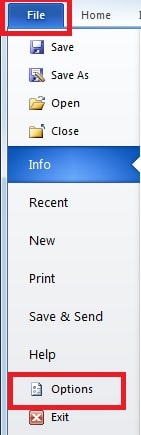
1. Open your Word, click “File” and then click “Options”.![Click “Options”](https://www.datanumen.com/blogs/wp-content/uploads/2016/08/click-file-and-options-1.jpg "Click “Options”")
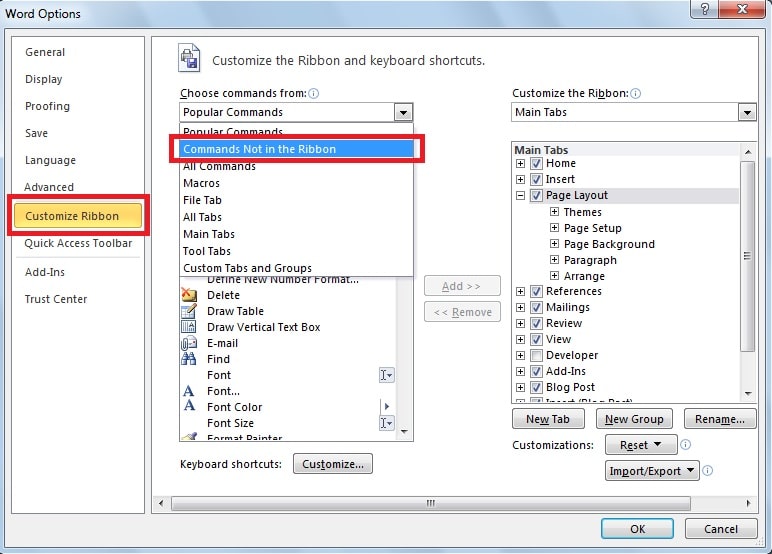
2. Click “Customize Ribbon” tab, and then select “Commands Not in the ribbon” under “Choose command from” drop-down list.![Select “Commands Not in the ribbon” ]()
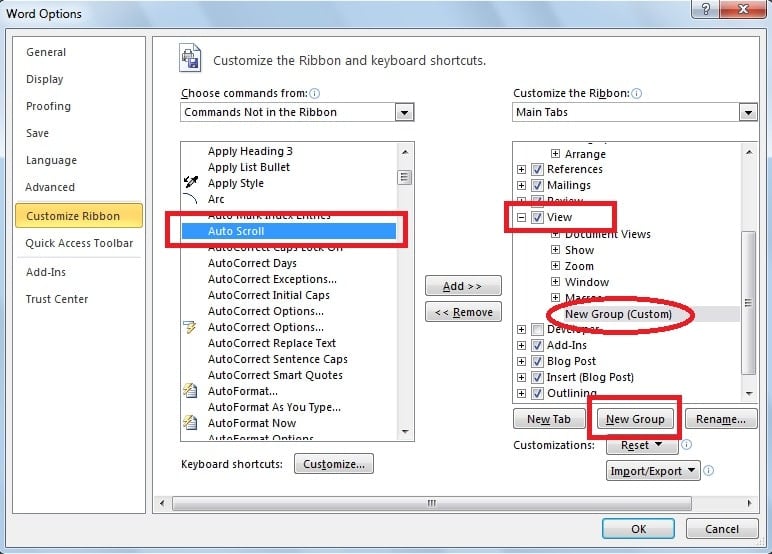
1. Scroll down the list to find and click “Auto Scroll” option. And under the “Main Tabs” on the right hand of the window, select a tab where we want to place our “Auto scroll” button, here we choose “View” tab, and then click “New Group”. That way, we can see the “New Group (Custom)” item under “View” tab.![Click “New Group”]()
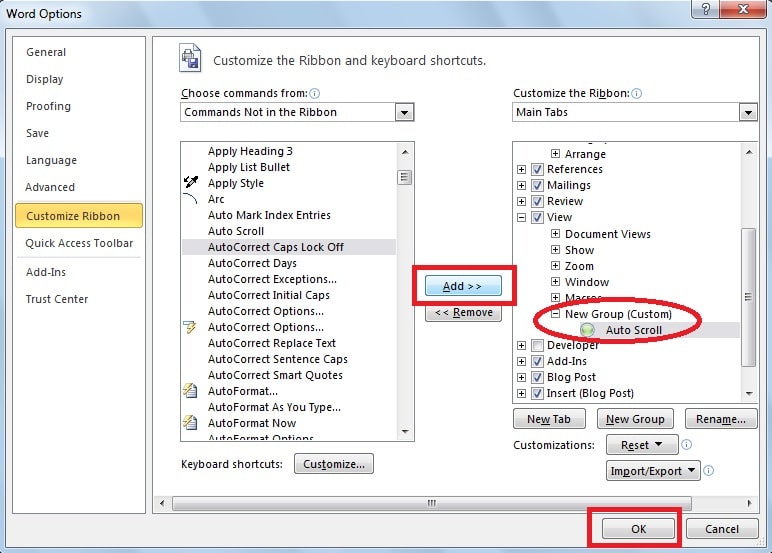
1. Click “Add” button, now we can see the “Auto Scroll” button in the “New Group”. Finally, click “OK”.![Click “Add” button]()
1. Switch to “View” page, we will see an “Auto Scroll” button we just added in the “New Group”. And then click this button to scroll through your document.![Click “Auto Scroll” button]()
1. In this way, we can realize automatic scrolling of our document. And as is shown below, the auto-scroll circle with two arrows will appear on the middle of your page.

## Control the Auto Scroll Speed

Moreover, we can also move our cursor upward or downward to speed up or slow down the auto-scroll process. On the one hand, moving the cursor slightly down is supposed to scroll down your pages very slowly. On the other hand, the scroll speed can go fast if you move down your cursor more. To better understand this process, you can refer to the video above.

## Restore Your Data in Times of Word Corruption

As we can see, it will be easier for us to read lengthy Word documents using automatic scroll feature. Because of its various advantages, we use Word a lot in our daily life. However, Word also suffers some outer attacks frequently and risks losing data. To repair Word files suspected of corruption, you can take use of the in-built repair tool in Word. But still, external [doc repair](https://www.datanumen.com/word-repair/) tools can be of immense help if the file is seriously damaged. Moreover, this tool provides advanced techniques to restore maximum data possible.

## Author Introduction

Kelly Zhao is a data recovery expert in DataNumen, Inc., which is the world leader in data recovery technologies, including [excel recovery](https://www.datanumen.com/excel-repair/) and pdf repair software products. For more information visit[ www.datanumen.com](https://www.datanumen.com/)

Share Now: 
* [ ](https://www.facebook.com/sharer.php?u=https%3A%2F%2Fwww.datanumen.com%2Fblogs%2Fscan-word-document-conveniently-via-automatic-scroll%2F)
* [ ](https://x.com/share?url=https%3A%2F%2Fwww.datanumen.com%2Fblogs%2Fscan-word-document-conveniently-via-automatic-scroll%2F&text=How+to+Scan+Your+Word+Document+More+Conveniently+via+Automatic+Scroll)
* [ ](https://www.linkedin.com/sharing/share-offsite/?url=https%3A%2F%2Fwww.datanumen.com%2Fblogs%2Fscan-word-document-conveniently-via-automatic-scroll%2F)
* [ ](javascript:void%28%28function%28%29%7Bvar%20e=document.createElement%28'script'%29;e.setAttribute%28'type','text/javascript'%29;e.setAttribute%28'charset','UTF-8'%29;e.setAttribute%28'src','//assets.pinterest.com/js/pinmarklet.js?r='+Math.random%28%29%2A99999999%29;document.body.appendChild%28e%29%7D%29%28%29%29;)
* [ ](https://www.reddit.com/submit?url=https%3A%2F%2Fwww.datanumen.com%2Fblogs%2Fscan-word-document-conveniently-via-automatic-scroll%2F&title=How+to+Scan+Your+Word+Document+More+Conveniently+via+Automatic+Scroll)
* [ ](https://www.tumblr.com/share/link?url=https%3A%2F%2Fwww.datanumen.com%2Fblogs%2Fscan-word-document-conveniently-via-automatic-scroll%2F)
* [ ](https://vk.com/share.php?url=https%3A%2F%2Fwww.datanumen.com%2Fblogs%2Fscan-word-document-conveniently-via-automatic-scroll%2F)
* [ ](https://www.xing.com/spi/shares/new?url=https%3A%2F%2Fwww.datanumen.com%2Fblogs%2Fscan-word-document-conveniently-via-automatic-scroll%2F)

[← Previous post](https://www.datanumen.com/blogs/4-simple-ways-cancel-automatic-numbering-word/)

[Next post →](https://www.datanumen.com/blogs/fix-outlook-error-cannot-create-file-opening-saving-attachments/)

Comments are closed.

![Data Recovery Blog]() 

Follow or like us on Facebook, LinkedIn and Twitter to get all promotions, latest news and updates on our products and company.

* [ ](https://www.facebook.com/DataNumen)
* [ ](http://www.linkedin.com/company/datanumen)
* [ ](https://twitter.com/DataNumen)

### Featured Products

* [DataNumen Outlook Repair](https://www.datanumen.com/outlook-repair/)
* [DataNumen SQL Recovery](https://www.datanumen.com/sql-recovery/)
* [DataNumen Exchange Recovery](https://www.datanumen.com/exchange-recovery/)
* [DataNumen Access Repair](https://www.datanumen.com/access-repair/)
* [DataNumen Excel Repair](https://www.datanumen.com/excel-repair/)
* [DataNumen PDF Repair](https://www.datanumen.com/pdf-repair/)
* [DataNumen Word Repair](https://www.datanumen.com/word-repair/)
* [DataNumen Zip Repair](https://www.datanumen.com/zip-repair/)

### Popular posts

[ ](#masthead)

```json
{"@context":"https:\/\/schema.org","@graph":[{"@type":"Article","@id":"https:\/\/www.datanumen.com\/blogs\/scan-word-document-conveniently-via-automatic-scroll\/#article","isPartOf":{"@id":"https:\/\/www.datanumen.com\/blogs\/scan-word-document-conveniently-via-automatic-scroll\/"},"author":{"name":"AuthorCCW","@id":"https:\/\/www.datanumen.com\/blogs\/#\/schema\/person\/33ded6c47c77587f9158d99f05e23957"},"headline":"How to Scan Your Word Document More Conveniently via Automatic Scroll","datePublished":"2016-08-02T02:41:15+00:00","dateModified":"2025-09-28T18:10:26+00:00","mainEntityOfPage":{"@id":"https:\/\/www.datanumen.com\/blogs\/scan-word-document-conveniently-via-automatic-scroll\/"},"wordCount":530,"commentCount":0,"publisher":{"@id":"https:\/\/www.datanumen.com\/blogs\/#organization"},"image":{"@id":"https:\/\/www.datanumen.com\/blogs\/scan-word-document-conveniently-via-automatic-scroll\/#primaryimage"},"thumbnailUrl":"https:\/\/www.datanumen.com\/blogs\/wp-content\/uploads\/2016\/08\/click-file-and-options-1.jpg","articleSection":["Word Solutions"],"inLanguage":"en-US","potentialAction":[{"@type":"CommentAction","name":"Comment","target":["https:\/\/www.datanumen.com\/blogs\/scan-word-document-conveniently-via-automatic-scroll\/#respond"]}]},{"@type":"WebPage","@id":"https:\/\/www.datanumen.com\/blogs\/scan-word-document-conveniently-via-automatic-scroll\/","url":"https:\/\/www.datanumen.com\/blogs\/scan-word-document-conveniently-via-automatic-scroll\/","name":"How to Scan Your Word Document More Conveniently via Automatic Scroll","isPartOf":{"@id":"https:\/\/www.datanumen.com\/blogs\/#website"},"primaryImageOfPage":{"@id":"https:\/\/www.datanumen.com\/blogs\/scan-word-document-conveniently-via-automatic-scroll\/#primaryimage"},"image":{"@id":"https:\/\/www.datanumen.com\/blogs\/scan-word-document-conveniently-via-automatic-scroll\/#primaryimage"},"thumbnailUrl":"https:\/\/www.datanumen.com\/blogs\/wp-content\/uploads\/2016\/08\/click-file-and-options-1.jpg","datePublished":"2016-08-02T02:41:15+00:00","dateModified":"2025-09-28T18:10:26+00:00","description":"In this article, we will add an automatic scroll feature in your Word so that you can scan your document more easily.","inLanguage":"en-US","potentialAction":[{"@type":"ReadAction","target":["https:\/\/www.datanumen.com\/blogs\/scan-word-document-conveniently-via-automatic-scroll\/"]}]},{"@type":"ImageObject","inLanguage":"en-US","@id":"https:\/\/www.datanumen.com\/blogs\/scan-word-document-conveniently-via-automatic-scroll\/#primaryimage","url":"https:\/\/www.datanumen.com\/blogs\/wp-content\/uploads\/2016\/08\/click-file-and-options-1.jpg","contentUrl":"https:\/\/www.datanumen.com\/blogs\/wp-content\/uploads\/2016\/08\/click-file-and-options-1.jpg","width":141,"height":435,"caption":"Click “Options”"},{"@type":"WebSite","@id":"https:\/\/www.datanumen.com\/blogs\/#website","url":"https:\/\/www.datanumen.com\/blogs\/","name":"Data Recovery Blog","description":"Discuss every aspect of data recovery","publisher":{"@id":"https:\/\/www.datanumen.com\/blogs\/#organization"},"potentialAction":[{"@type":"SearchAction","target":{"@type":"EntryPoint","urlTemplate":"https:\/\/www.datanumen.com\/blogs\/?s={search_term_string}"},"query-input":{"@type":"PropertyValueSpecification","valueRequired":true,"valueName":"search_term_string"}}],"inLanguage":"en-US"},{"@type":"Organization","@id":"https:\/\/www.datanumen.com\/blogs\/#organization","name":"Data Recovery Blog","url":"https:\/\/www.datanumen.com\/blogs\/","logo":{"@type":"ImageObject","inLanguage":"en-US","@id":"https:\/\/www.datanumen.com\/blogs\/#\/schema\/logo\/image\/","url":"https:\/\/www.datanumen.com\/blogs\/wp-content\/uploads\/2019\/02\/logowithouttext.jpg","contentUrl":"https:\/\/www.datanumen.com\/blogs\/wp-content\/uploads\/2019\/02\/logowithouttext.jpg","width":296,"height":397,"caption":"Data Recovery Blog"},"image":{"@id":"https:\/\/www.datanumen.com\/blogs\/#\/schema\/logo\/image\/"},"sameAs":["https:\/\/www.facebook.com\/DataNumen","https:\/\/x.com\/DataNumen","http:\/\/www.linkedin.com\/company\/datanumen","https:\/\/myspace.com\/datanumen\/","http:\/\/www.pinterest.com\/datanumen\/","https:\/\/www.youtube.com\/channel\/UCVIIuuKfUBHSJauUaVP13tw"]},{"@type":"Person","@id":"https:\/\/www.datanumen.com\/blogs\/#\/schema\/person\/33ded6c47c77587f9158d99f05e23957","name":"AuthorCCW","image":{"@type":"ImageObject","inLanguage":"en-US","@id":"https:\/\/secure.gravatar.com\/avatar\/3516ed90fc242780d3947a989f895bc46e70c3e83485d30f2b457a007906aa58?s=96&d=mm&r=g","url":"https:\/\/secure.gravatar.com\/avatar\/3516ed90fc242780d3947a989f895bc46e70c3e83485d30f2b457a007906aa58?s=96&d=mm&r=g","contentUrl":"https:\/\/secure.gravatar.com\/avatar\/3516ed90fc242780d3947a989f895bc46e70c3e83485d30f2b457a007906aa58?s=96&d=mm&r=g","caption":"AuthorCCW"},"sameAs":["https:\/\/www.datanumen.com\/"]}]}
```