
투표 버튼이 포함된 이메일을 보낸 후, 수신자가 답장을 보내면 투표 결과를 집계하여 엑셀 스프레드시트로 내보내고 싶을 수 있습니다. 이 글에서는 그 방법을 신속하게 알려드리겠습니다.
Outlook은 매우 강력하여 "투표"기능도 제공합니다. 내 이전 기사“투표를위한 MS Outlook의 능숙한 사용"이 글에서는 이를 효과적으로 활용하는 방법을 알려드립니다. 또한, 투표 후 통계 자료를 인쇄하는 등의 이유로 엑셀 워크시트로 내보내고 싶을 때가 많습니다. 하지만 아웃룩은 기본적으로 이 기능을 지원하지 않습니다. 따라서 다음에서는 아웃룩에서 이 기능을 사용하는 방법을 자세히 설명하겠습니다.
이메일의 투표 통계를 Excel 워크 시트로 내보내기
- 처음에는 Outlook 응용 프로그램을 시작하십시오.
- 그런 다음 기본 Outlook 창에서 "Alt + F11"키 버튼을 눌러야합니다.
- 다음으로 "Microsoft Visual Basic for Applications" 창에서 "Microsoft Excel 개체 라이브러리"를 활성화해야 합니다. "도구" > "참조"를 클릭합니다. 그러면 팝업 대화 상자에서 "Microsoft Excel 개체 라이브러리" 앞의 확인란을 선택하고 마지막으로 "확인"을 클릭합니다.
- 그런 다음 새 모듈을 삽입하거나 사용하지 않는 모듈을 열 수 있습니다.
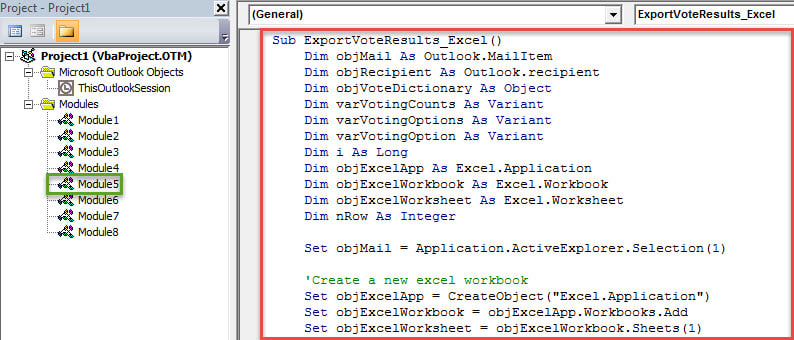
- 그런 다음 다음 VBA 코드를 복사하여이 모듈에 붙여 넣습니다.
Sub ExportVotingStatistics _Excel ()
    Dim objMail As Outlook.MailItem
    Dim objRecipient As Outlook.recipient
    Dim objVoteDictionary As Object
    Dim varVotingCounts As Variant
    Dim varVotingOptions As Variant
    Dim varVotingOption As Variant
    Dim i As Long
    Dim objExcelApp As Excel.Application
    Dim objExcelWorkbook As Excel.Workbook
    Dim objExcelWorksheet As Excel.Worksheet
    Dim nRow As Integer

    Set objMail = Application.ActiveExplorer.Selection(1)

    'Create a new excel worksheet
    Set objExcelApp = CreateObject("Excel.Application")
    Set objExcelWorkbook = objExcelApp.Workbooks.Add
    Set objExcelWorksheet = objExcelWorkbook.Sheets(1)

    'Fill in the predefined values
    With objExcelWorksheet
         .Cells.Font.Name = "Cambria"
         .Cells(1, 1) = "Voting Results for Email:"
         .Cells(1, 2) = Chr(34) & objMail.Subject & Chr(34)
         .Cells(3, 1) = "Voting Options"
         .Cells(3, 2) = "Voting Counts"
    End With

    Set objVoteDictionary = CreateObject("Scripting.Dictionary")
    'get the default voting options
    varVotingOptions = Split(objMail.VotingOptions, ";")
    'Add the voting responses to the dictionary
    For Each varVotingOption In varVotingOptions
        objVoteDictionary.Add varVotingOption, 0
    Next
    'Add a custom voting response - "No Reply"
    objVoteDictionary.Add "No Reply", 0

    'Process the all voting responses
    For Each objRecipient In objMail.Recipients
        If objRecipient.TrackingStatus = olTrackingReplied Then
           If objVoteDictionary.Exists(objRecipient.AutoResponse) Then
              objVoteDictionary.Item(objRecipient.AutoResponse) = objVoteDictionary.Item(objRecipient.AutoResponse) + 1
           Else
              objVoteDictionary.Add objRecipient.AutoResponse, 1
           End If
        Else
           objVoteDictionary.Item("No Reply") = objVoteDictionary.Item("No Reply") + 1
        End If
    Next

    'Get the voting options and vote counts
    varVotingOptions = objVoteDictionary.Keys
    varVotingCounts = objVoteDictionary.Items

    'Fill in the values in specific cells
    nRow = 4
    For i = LBound(varVotingOptions) To UBound(varVotingOptions)
        With objExcelWorksheet
             .Cells(nRow, 1) = varVotingOptions(i)
             .Cells(nRow, 2) = varVotingCounts(i)
        End With
        nRow = nRow + 1
    Next

    'Save the new Excel file
    objExcelWorksheet.Columns("A:B").AutoFit
    strExcelFile = "E:\Voting Results " & Format(Now, "YYYY-MM-DD hh-mm-ss") & ".xlsx"
    objExcelWorkbook.Close True, strExcelFile

    MsgBox "Complete!", vbExclamation
End Sub
- 그 후 편리한 액세스를 위해 빠른 액세스 도구 모음에 새 매크로를 추가하는 것이 좋습니다.
- 결국 시도해 볼 수 있습니다.
- 먼저 투표 버튼이 포함 된 소스 이메일을 선택합니다.
- 그런 다음 빠른 실행 도구 모음에서 매크로 버튼을 클릭합니다.
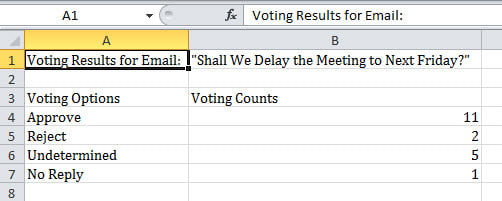
- 이 매크로 실행이 완료되면 미리 정의 된 로컬 폴더로 이동하여 새 Excel 통합 문서를 볼 수 있습니다.
- 이 Excel 통합 문서를 엽니 다. 이제 아래 이미지와 같이 투표 통계가 표시됩니다.

아무도 Outlook 오류를 철저히 피할 수 없습니다
Outlook에는 다양한 기능이 제공되지만 Outlook 오류를 방지하는 데 도움이되는 기능은 없습니다. 모든 종류의 요인으로 인해 Outlook 오류가 발생할 수 있습니다. 예를 들어 Outlook을 부적절하게 자주 종료하면 문제가 발생할 수 있습니다. PST 손상. 이러한 시나리오에서는 다음과 같은 PST 파일을 구하기 위해 강력한 도구를 사용할 수밖에 없습니다. DataNumen Outlook Repair. 높은 회복률로 인해 많은 명성을 얻었습니다.
저자 소개 :
Shirley Zhang은 데이터 복구 전문가입니다. DataNumen, Inc.는 다음과 같은 데이터 복구 기술 분야의 세계적 리더입니다. 손상된 mdf 및 전망 수리 소프트웨어 제품. 자세한 내용은 WWW.datanumen.COM