
여러 Outlook 전자 메일을 단일 단어 문서로 일괄 내보내려면 이 문서에 표시된 VBA 코드를 사용할 수 있습니다. 몇 초 안에 이 작업을 완료하는 데 도움이 될 수 있습니다.
이전 기사에서 Outlook 전자 메일을 Word 문서로 변환하는 방법을 소개한 적이 있습니다.Outlook 이메일을 Word 문서로 변환하는 2가지 효과적인 방법하지만 앞서 언급한 두 가지 방법 모두 여러 이메일을 하나의 워드 문서로 일괄 내보내려는 경우에는 도움이 되지 않습니다. 따라서 여기서는 다른 방법을 알려드리겠습니다. 자세한 내용은 계속 읽어보세요.
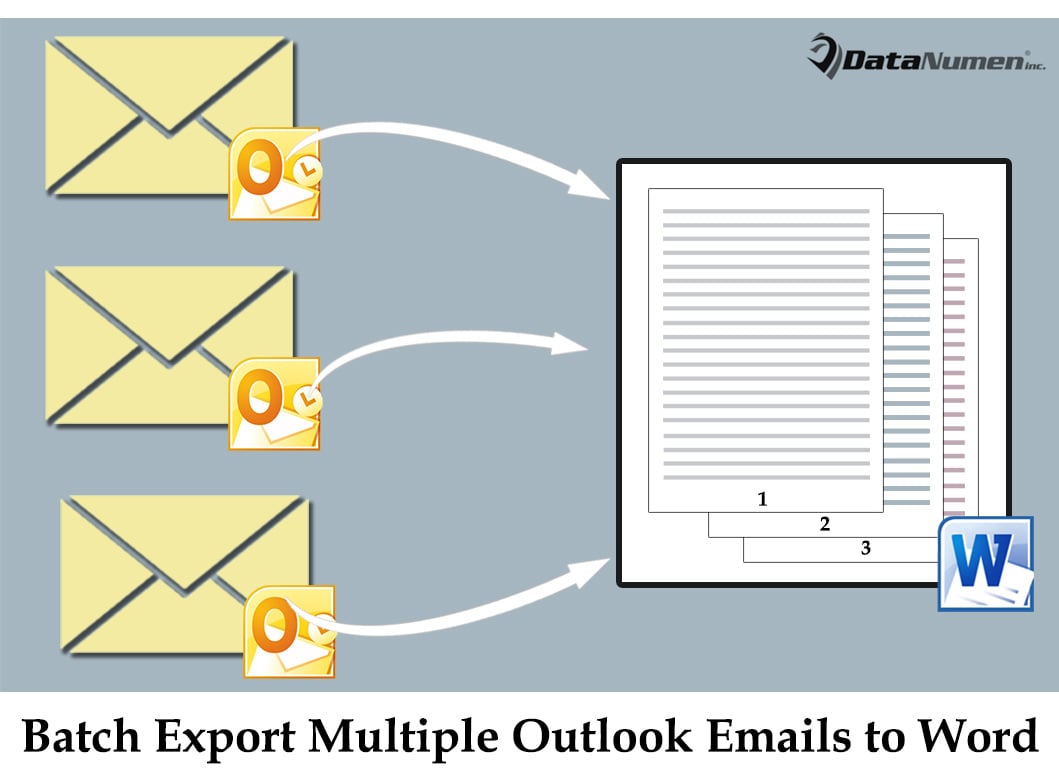
여러 Outlook 전자 메일을 하나의 Word 문서로 일괄 내보내기
- 먼저 Outlook 프로그램을 실행하세요.
- 그런 다음 기본 Outlook 창에 들어간 후 “Alt + F11” 키 버튼을 눌러야 합니다.
- 다음으로 빈 모듈을 열어야 하는 Outlook VBA 편집기에 액세스할 수 있습니다.
- 그런 다음 아래 VBA 코드를 열린 모듈 창에 복사합니다.
Sub ExportMultipleEmails_OneWordDocument()
    Dim objFileSystem As Object
    Dim strTempFolder As String
    Dim objSelection As Outlook.Selection
    Dim objMail As Outlook.MailItem
    Dim strFileName As String
    Dim objWordApp As Word.Application
    Dim objNewWordDocument As Word.Document
    Dim objWordRange As Word.Range
    Dim strWordDocument As String
    Dim i As Long

    'Create a temp folder
    Set objFileSystem = CreateObject("Scripting.FileSystemObject")
    strTempFolder = objFileSystem.GetSpecialFolder(2).Path & "\Temp" & Format(Now, "YYYYMMDDhhmmss")
    MkDir (strTempFolder)

    On Error Resume Next
    'Save each selected email as an individual Word document in a temp folder
    Set objSelection = Outlook.Application.ActiveExplorer.Selection
    For Each objMail In objSelection
        strFileName = objMail.Subject

        'Remove the unsupported characters in email subject
        strFileName = Replace(strFileName, "/", " ")
        strFileName = Replace(strFileName, "\", " ")
        strFileName = Replace(strFileName, ":", "")
        strFileName = Replace(strFileName, "?", " ")
        strFileName = Replace(strFileName, Chr(34), " ")

        objMail.SaveAs strTempFolder & "\" & strFileName & ".doc", olDoc
    Next

    'Merge all the Word documents into a single document
    Set objWordApp = CreateObject("Word.Application")
    Set objNewWordDocument = objWordApp.Documents.Add

    strWordDocument = Dir(strTempFolder & "\" & "*.doc")
    i = 0
    Do Until strWordDocument = ""
       i = i + 1
       Set objWordRange = objNewWordDocument.Range
       With objWordRange
           .Collapse wdCollapseEnd
           If i > 1 Then
             .InsertBreak wdSectionBreakNextPage
             .End = objNewWordDocument.Range.End
             .Collapse wdCollapseEnd
           End If
           .InsertFile strTempFolder & "\" & strWordDocument
      End With
      strWordDocument = Dir()
    Loop

    'Change the path as per your own needs
    objNewWordDocument.SaveAs "E:\Exported Emails " & Format(Now, "YYYY-MM-DD hh-mm-ss")
    objWordApp.Quit

    'Delete the temp folder
    objFileSystem.DeleteFolder (strTempFolder)
End Sub
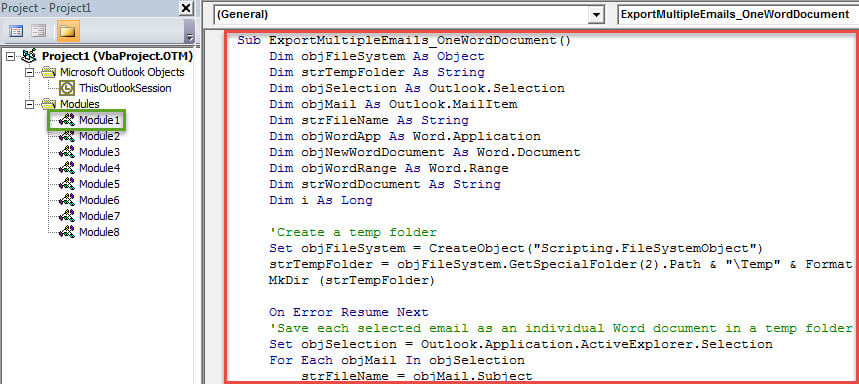
- 그런 다음 이 새 VBA 프로젝트를 빠른 실행 도구 모음이나 리본에 추가하는 것이 좋습니다.
- 궁극적으로 시도해 볼 수 있습니다.
- 먼저 여러 Outlook 전자 메일을 선택합니다.
- 그런 다음 새로 추가된 매크로 버튼을 찾아 클릭합니다.
- "완료" 메시지가 표시되면 미리 정의된 로컬 폴더를 탐색하여 새 Word 문서를 찾을 수 있습니다.
- 선택한 모든 이메일이 내보내진 것을 볼 수 있는 이 문서를 엽니다.
강력한 복구 도구를 가까이에 두십시오.
수많은 기능에 관계없이 Outlook은 여전히 오류로부터 면역될 수 없습니다. 오류를 그대로 두는 데 익숙하고 오류가 쌓이면 Outlook 충돌이 반드시 발생합니다. 그 시점에서 다음과 같은 강력하고 효과적인 복구 도구로 되풀이하는 것이 필수적입니다. DataNumen Outlook Repair. 그것에 정통하다 PST 수정. 그것으로, 당신은 더 이상 Outlook 데이터 손실에 대해 걱정할 필요가 없습니다.
저자 소개 :
Shirley Zhang은 데이터 복구 전문가입니다. DataNumen, Inc.는 다음과 같은 데이터 복구 기술 분야의 세계적 리더입니다. 손상된 mdf 및 전망 수리 소프트웨어 제품. 자세한 내용은 WWW.datanumen.COM