
회의 초대를 보낸 후 회의의 "추적" 페이지에서 수신자의 회의 응답을 확인할 수 있습니다. 추적 목록을 인쇄하려면 이 기사에서 소개한 3가지 방법을 사용할 수 있습니다.
Outlook은 회의에 대한 "추적" 기능을 사용자에게 제공합니다. 모든 회의 참석자의 모든 응답을 나열합니다. 따라서 귀하가 주최한 회의를 누가 수락하고 누가 거절하는지 확인하려면 추적 목록에 액세스할 수 있습니다. 그러나 목록을 출력하는 직접적인 기능은 없습니다. 따라서 여기에서 빠르게 인쇄할 수 있는 3가지 방법을 공유합니다.
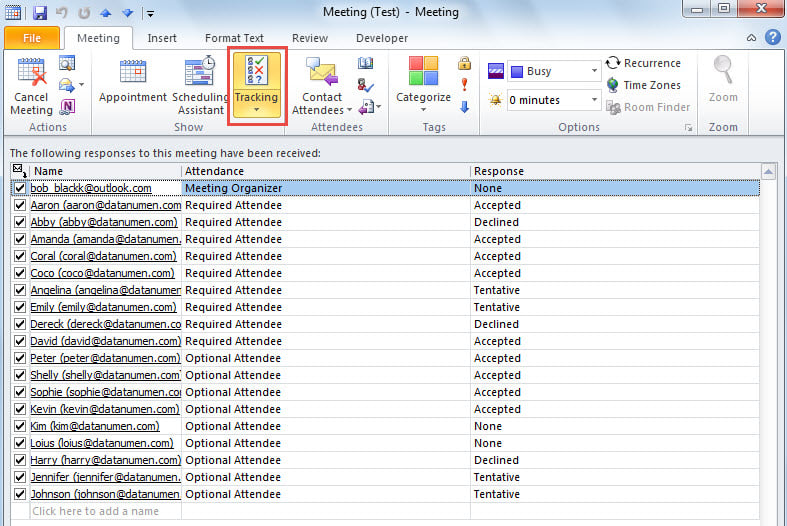
방법 1: "추적" 스크린샷 인쇄
- 시작하려면 회의 "추적" 페이지를 엽니다.
- 다음으로 새 이메일을 만듭니다.
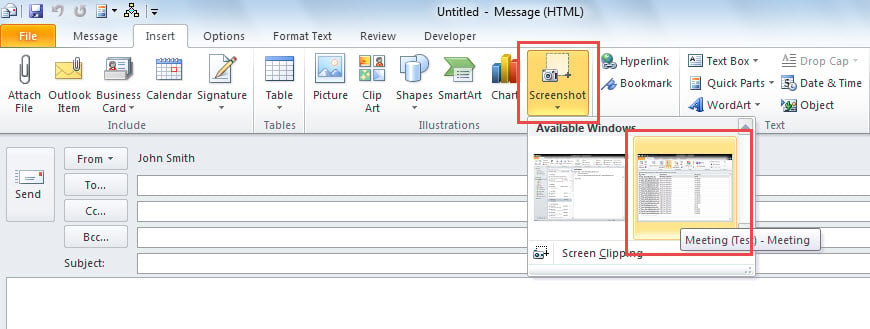
- 그런 다음 "삽입" 탭으로 이동하고 "스크린샷" 버튼을 클릭합니다.
- 나중에 "사용 가능한 Windows" 목록에서 "추적" 스크린샷을 선택합니다.

- 마지막으로 "파일" > "인쇄"로 이동하여 "추적" 스크린샷을 인쇄합니다.
방법 2: Excel로 복사 후 인쇄
- 우선 "추적" 페이지에 접속하세요.
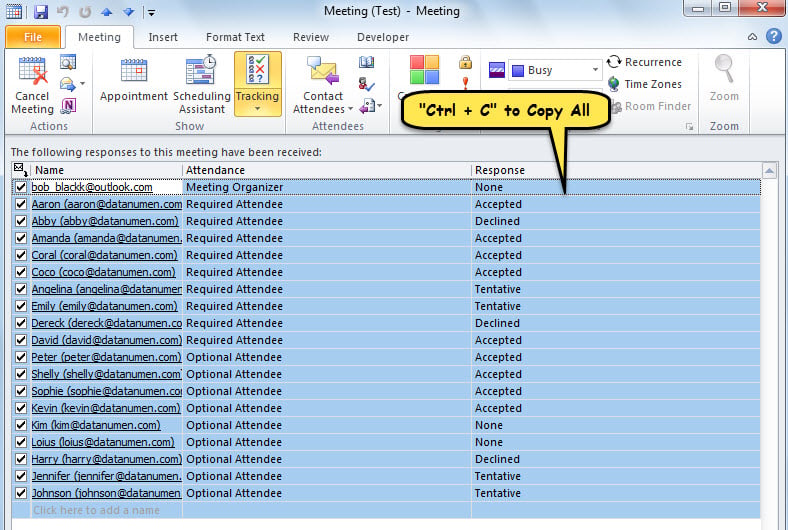
- 그런 다음 "추적" 목록에서 하나의 항목을 선택합니다.
- 그런 다음 "Ctrl + A"를 눌러 모든 항목을 선택하십시오.
- 그런 다음 "Ctrl + C"를 눌러 복사하십시오.

- 그런 다음 새 Excel 파일을 엽니다.
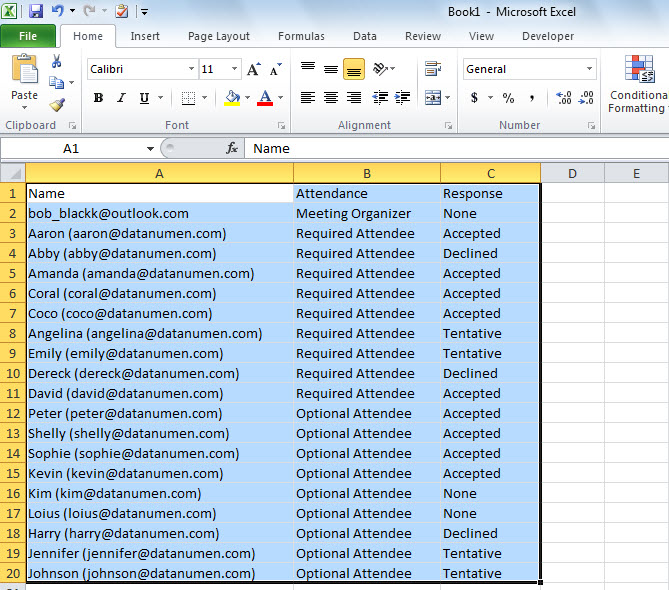
- "A1" 셀을 선택하고 "Ctrl + V"를 눌러 복사한 "Tracking" 목록을 붙여넣습니다.

- 결국 Excel에서 "파일" > "인쇄"로 이동하여 현재 워크시트를 인쇄합니다.
방법 3: Outlook VBA로 인쇄
- 먼저 "를 참조하여 Outlook VBA 편집기로 이동하십시오.Outlook에서 VBA 코드를 실행하는 방법".
- 그런 다음, "MS Excel 개체 라이브러리"를 다음 지침에 따라 활성화하십시오.VBA에서 개체 라이브러리 참조를 추가하는 방법".
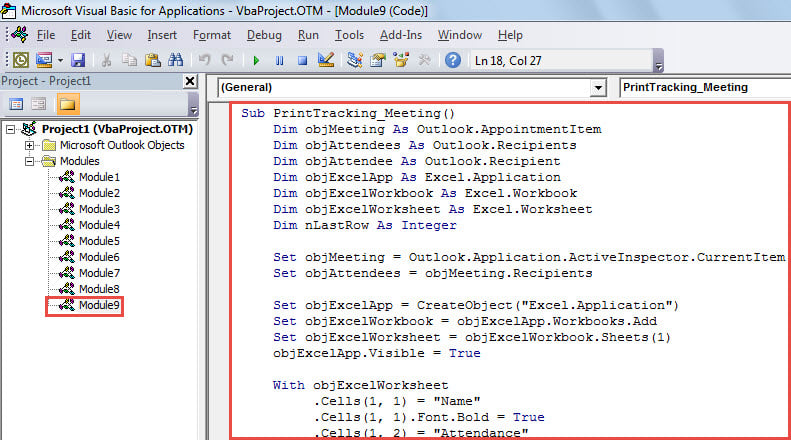
- 그런 다음 아래 코드를 모듈에 넣습니다.
Sub PrintTracking_Meeting()
    Dim objMeeting As Outlook.AppointmentItem
    Dim objAttendees As Outlook.Recipients
    Dim objAttendee As Outlook.Recipient
    Dim objExcelApp As Excel.Application
    Dim objExcelWorkbook As Excel.Workbook
    Dim objExcelWorksheet As Excel.Worksheet
    Dim nLastRow As Integer

    Set objMeeting = Outlook.Application.ActiveInspector.CurrentItem
    Set objAttendees = objMeeting.Recipients

    Set objExcelApp = CreateObject("Excel.Application")
    Set objExcelWorkbook = objExcelApp.Workbooks.Add
    Set objExcelWorksheet = objExcelWorkbook.Sheets(1)
    objExcelApp.Visible = True

    With objExcelWorksheet
         .Cells(1, 1) = "Name"
         .Cells(1, 1).Font.Bold = True
         .Cells(1, 2) = "Attendance"
         .Cells(1, 2).Font.Bold = True
         .Cells(1, 3) = "Response"
         .Cells(1, 3).Font.Bold = True
    End With

    For Each objAttendee In objAttendees
        nLastRow = objExcelWorksheet.Range("A" & objExcelWorksheet.Rows.Count).End(xlUp).Row + 1

       Select Case objAttendee.MeetingResponseStatus
              Case olResponseAccepted
                   With objExcelWorksheet
                        .Range("A" & nLastRow) = objAttendee.Name
                        .Range("B" & nLastRow) = GetAttendance(objAttendee.Type)
                        .Range("C" & nLastRow) = "Accepted"
                   End With
              Case olResponseDeclined
                   With objExcelWorksheet
                        .Range("A" & nLastRow) = objAttendee.Name
                        .Range("B" & nLastRow) = GetAttendance(objAttendee.Type)
                        .Range("C" & nLastRow) = "Declined"
                   End With
              Case olResponseNone
                   With objExcelWorksheet
                        .Range("A" & nLastRow) = objAttendee.Name
                        .Range("B" & nLastRow) = GetAttendance(objAttendee.Type)
                        .Range("C" & nLastRow) = "None"
                   End With
              Case olResponseTentative
                   With objExcelWorksheet
                        .Range("A" & nLastRow) = objAttendee.Name
                        .Range("B" & nLastRow) = GetAttendance(objAttendee.Type)
                        .Range("C" & nLastRow) = "Tentative"
                   End With
              Case olResponseOrganized
                   With objExcelWorksheet
                        .Range("A" & nLastRow) = objAttendee.Name
                        .Range("B" & nLastRow) = GetAttendance(objAttendee.Type)
                        .Range("C" & nLastRow) = "Organized"
                   End With
       End Select
    Next

    objExcelWorksheet.Columns("A:C").AutoFit
    objExcelWorksheet.PrintOut
End Sub

Function GetAttendance(lType As Long) As String
    Select Case lType
           Case 0
                GetAttendance = "Meeting Organizer"
           Case 1
                GetAttendance = "Required Attendee"
           Case 2
                GetAttendance = "Optional Attendee"
    End Select
End Function
- 다음으로 이 매크로를 QAT(Quick Access Toolbar)에 추가합니다.
- 궁극적으로 회의를 열고 QAT에서 매크로 버튼을 누르십시오.
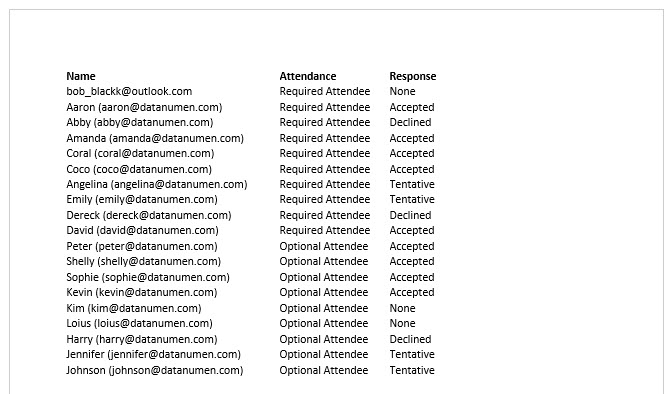
- 다음 그림과 같이 회의 추적 목록이 즉시 인쇄됩니다.

귀중한 Outlook 데이터를 다시 가져옵니다.
Outlook 파일 손상 문제가 발생하는 경우, 먼저 가장 최근의 PST 백업 파일을 확인하십시오. 백업 파일이 없는 경우, 내장된 복구 도구를 사용하는 것도 한 가지 방법입니다. 스캔프스트, PST 복구를 시도합니다. 그러나 둘 다 효과를 낼 수 없다고 가정하면 최후의 수단은 다음과 같이 더 강력하고 잘 입증된 외부 도구입니다. DataNumen Outlook Repair.
저자 소개 :
Shirley Zhang은 데이터 복구 전문가입니다. DataNumen, Inc.는 다음과 같은 데이터 복구 기술 분야의 세계적 리더입니다. SQL Server 부패 및 전망 수리 소프트웨어 제품. 자세한 내용은 WWW.datanumen.COM