
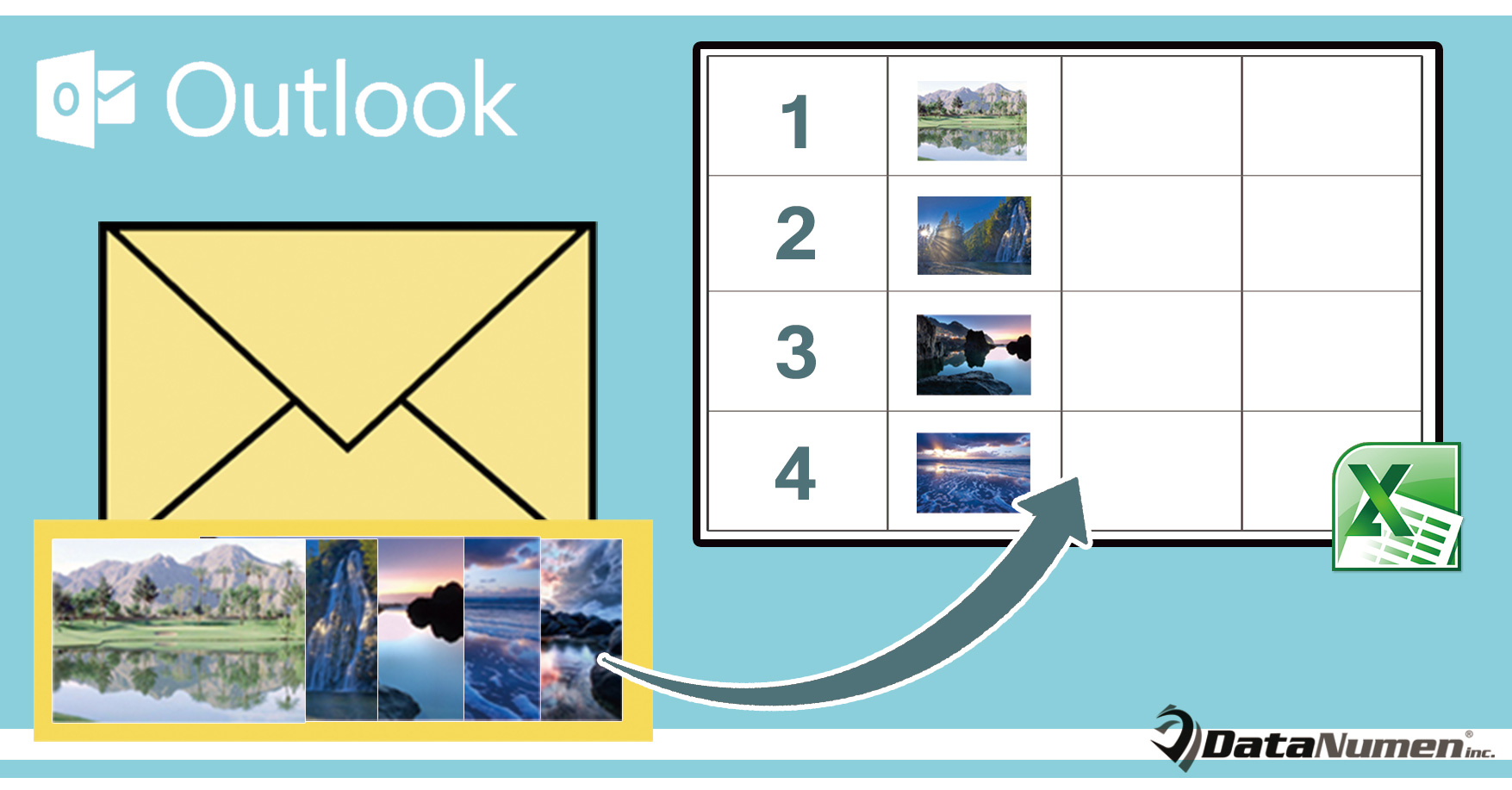
Jika Anda ingin mengekspor semua lampiran gambar dari email Outlook ke lembar kerja Excel dengan cepat, Anda dapat merujuk ke artikel ini. Di sini kami akan menunjukkan kepada Anda cara yang lebih efektif daripada mengekspor secara manual.
Saat Anda menerima email yang berisi banyak lampiran gambar, jika Anda ingin menggunakannya untuk membuat laporan di Excel, Anda pasti menginginkan cara untuk mengekspor gambar-gambar tersebut ke lembar kerja Excel secara massal. Nah, kami akan memperkenalkan pendekatan tersebut kepada Anda di bagian berikut.
Ekspor Semua Lampiran Gambar dari Email ke Lembar Kerja Excel
- Untuk memulai, akses aplikasi Outlook Anda dengan cara biasa.
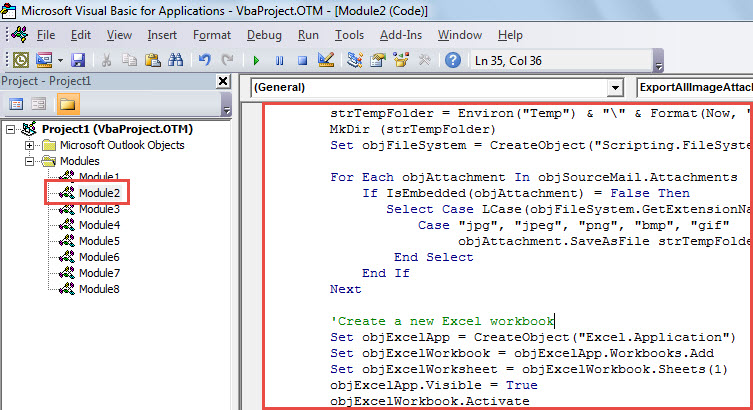
- Kemudian, di jendela Outlook, tekan pintasan tombol "Alt + F11", yang akan memunculkan jendela "Microsoft Visual Basic for Applications".
- Di layar ini, Anda perlu membuka modul yang tidak digunakan atau langsung memasukkan yang baru.
- Selanjutnya, Anda harus menyalin potongan kode VBA di bawah ini ke dalam modul ini.
Sub ExportAllImageAttachmentsToExcelWorksheet()
    Dim objSourceMail As Outlook.MailItem
    Dim objAttachment As Outlook.Attachment
    Dim strImage As String
    Dim objExcelApp As Excel.Application
    Dim objExcelWorkbook As Excel.Workbook
    Dim objExcelWorksheet As Excel.Worksheet
    Dim objFile As Object
    Dim objFiles As Object
    Dim nRow As Integer

    Select Case Outlook.Application.ActiveWindow.Class
           Case olInspector
                Set objSourceMail = ActiveInspector.currentItem
           Case olExplorer
                Set objSourceMail = ActiveExplorer.Selection.Item(1)
    End Select

    If Not (objSourceMail Is Nothing) Then

       'Save the image attachments to a temporary folder
       strTempFolder = Environ("Temp") & "\" & Format(Now, "yyyymmddhhmmss") & "\"
       MkDir (strTempFolder)
       Set objFileSystem = CreateObject("Scripting.FileSystemObject")

       For Each objAttachment In objSourceMail.Attachments
           If IsEmbedded(objAttachment) = False Then
              Select Case LCase(objFileSystem.GetExtensionName(objAttachment.filename))
                     Case "jpg", "jpeg", "png", "bmp", "gif"
                          objAttachment.SaveAsFile strTempFolder & objAttachment.filename
              End Select
           End If
       Next

       'Create a new Excel workbook
        Set objExcelApp = CreateObject("Excel.Application")
        Set objExcelWorkbook = objExcelApp.Workbooks.Add
        Set objExcelWorksheet = objExcelWorkbook.Sheets(1)
        objExcelApp.Visible = True
        objExcelWorkbook.Activate

        'Get the images in the temporary folder
        Set objFiles = objFileSystem.GetFolder(strTempFolder).Files

        'Insert the images into this new Excel worksheet
        For Each objFile In objFiles
            strImage = strTempFolder & Trim(objFile.Name)
            nRow = nRow + 1
            With objExcelWorksheet
                 .Range("A" & nRow).value = objFile.Name
                 'Change the height and width as per your needs
                 .Range("B" & nRow).ColumnWidth = 10
                 .Range("B" & nRow).RowHeight = 80
                 .Range("B" & nRow).Activate
                 With .Pictures.insert(strImage)
                      With .ShapeRange
                           .LockAspectRatio = msoTrue
                           .Width = 50
                           .Height = 70
                      End With
                 End With
                 .Columns("A").AutoFit
                 .Activate
            End With
       Next
    End If
End Sub

Function IsEmbedded(objCurAttachment As Outlook.Attachment) As Boolean
    Dim objPropertyAccessor As Outlook.propertyAccessor
    Dim strProperty As String

    Set objPropertyAccessor = objCurAttachment.propertyAccessor
    strProperty = objPropertyAccessor.GetProperty("http://schemas.microsoft.com/mapi/proptag/0x3712001E")

    If InStr(1, strProperty, "@") > 0 Then
       IsEmbedded = True
    Else
       IsEmbedded = False
    End If
End Function
- Setelah itu, Anda bisa keluar dari makro.
- Kemudian, menuju ke "File"> "Options"> "Quick Access Toolbar" untuk menambahkan makro ini ke Quick Access Toolbar.
- Terakhir, Anda dapat mencoba makro ini sekarang.
- Pertama, pilih atau buka email sumber.
- Lalu, klik tombol makro di Bilah Alat Akses Cepat.
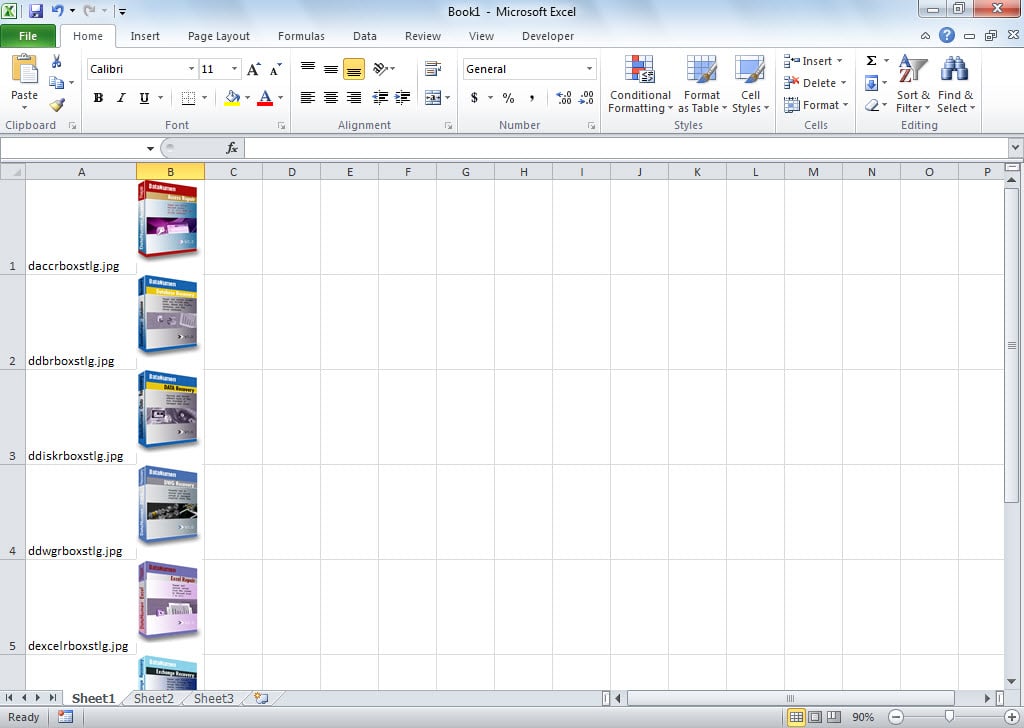
- Saat makro selesai, Anda akan mendapatkan lembar kerja Excel, seperti gambar di bawah ini:

Lindungi File Outlook dari Korupsi
Diketahui bahwa Outlook rentan terhadap korupsi. Oleh karena itu, kita harus memahami cara melindungi korupsi formulir Outlook. Pertama, untuk memblokir serangan virus, Anda perlu menginstal perangkat lunak antivirus dan tidak pernah mengunduh lampiran yang tidak dikenal. Selain itu, lebih baik kita mencari alat perbaikan yang ampuh, seperti DataNumen Outlook RepairHal ini dapat menawarkan solusi paling efektif jika terjadi masalah pada... Korupsi Outlook.
Pengantar Penulis:
Shirley Zhang adalah pakar pemulihan data di DataNumen, Inc., yang merupakan pemimpin dunia dalam teknologi pemulihan data, termasuk pemulihan sql dan produk perangkat lunak perbaikan pandangan. Untuk informasi lebih lanjut kunjungi www.datanumen.com