
Mungkin Anda memiliki lebih dari satu akun email yang dikonfigurasi di Outlook Anda dan setiap kotak surat memiliki kategori warna yang berbeda. Jika Anda ingin mengekspor daftar kategori warna dari semua kotak surat ke Excel, Anda dapat menggunakan pendekatan yang diperkenalkan dalam artikel ini.
Misalnya, Anda ingin berbagi kategori warna Anda dengan orang lain atau Anda ingin membandingkan kategori warna kotak surat yang berbeda. Dalam skenario ini, Anda akan berharap untuk mengekspor daftar kategori warna kotak surat Anda. Di sini, kami akan mengajari Anda untuk mendapatkannya melalui kode VBA. Tentang cara menggunakan VBA, Anda bisa merujuk ke - “Cara Menjalankan Kode VBA di Outlook Anda".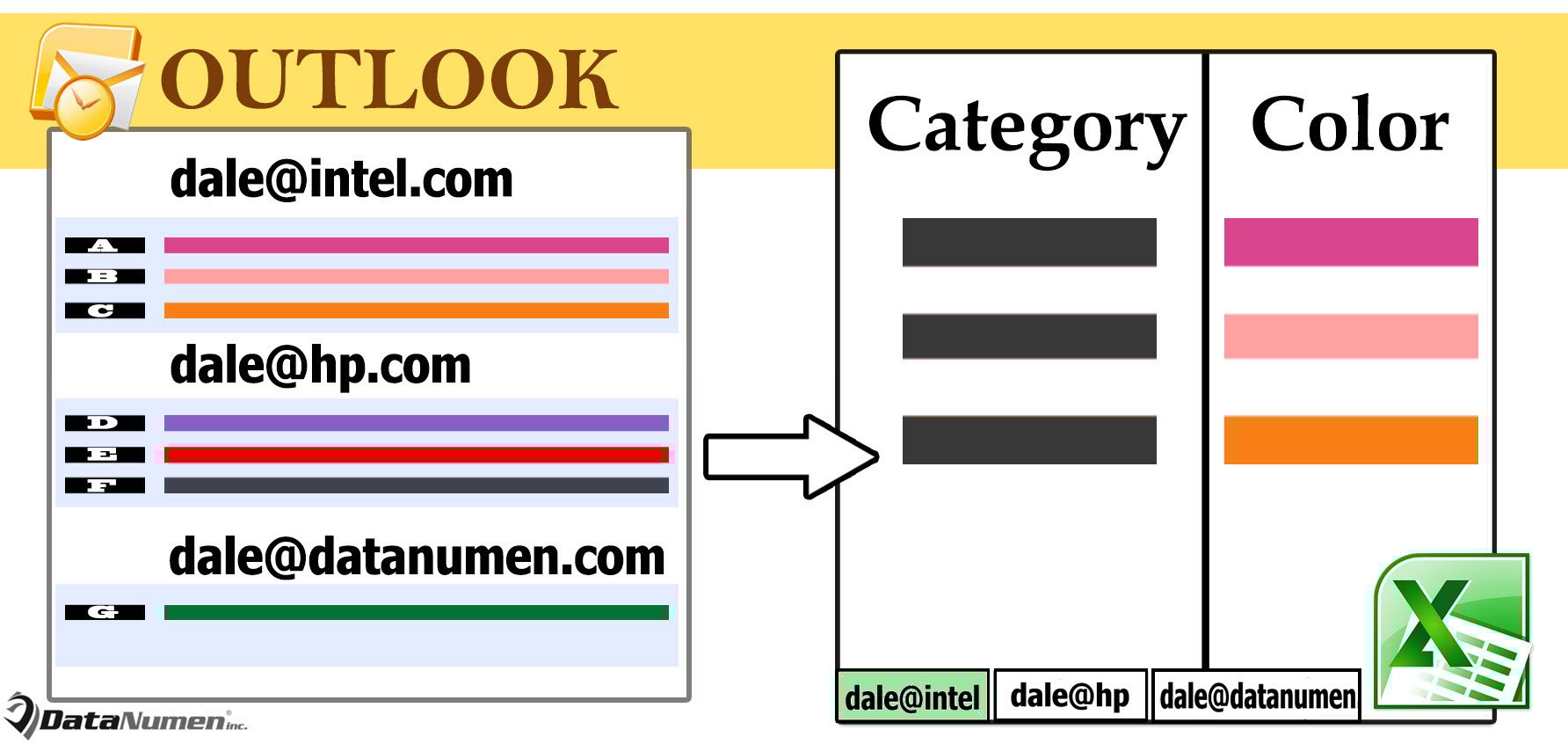
Ekspor Daftar Kategori Warna dari Semua Kotak Surat Outlook ke Excel
- Untuk memulainya, akses editor Outlook VBA melalui "Alt + F11".
- Kemudian, di jendela baru, aktifkan “MS Excel Object Library” dengan merujuk pada artikel – “Cara Menambahkan Referensi Pustaka Objek di VBA".
- Selanjutnya, masukkan kode VBA berikut ke dalam modul.
Sub ExportAllColorCategories()
    Dim objExcelApp As Excel.Application
    Dim objExcelWorkbook As Excel.Workbook
    Dim objExcelWorksheet As Excel.Worksheet
    Dim objStores As Outlook.Stores
    Dim objStore As Outlook.Store
    Dim objCategories As Outlook.Categories
    Dim objCategory As Outlook.Category
    Dim nLastRow As Integer

    Set objExcelApp = CreateObject("Excel.Application")
    Set objExcelWorkbook = objExcelApp.Workbooks.Add
    objExcelApp.Visible = True

    Set objStores = Outlook.Application.Session.Stores

    For i = objStores.Count To 1 Step -1
        Set objStore = objStores.Item(i)
        Set objExcelWorksheet = objExcelWorkbook.Sheets(i)

        With objExcelWorksheet
             .Cells(1, 1) = "Category"
             .Cells(1, 1).Font.Size = 12
             .Cells(1, 1).Font.Bold = True
             .Cells(1, 2) = "Color"
             .Cells(1, 2).Font.Size = 12
             .Cells(1, 2).Font.Bold = True
       End With

       Set objCategories = objStore.Categories

       For Each objCategory In objCategories
           nLastRow = objExcelWorksheet.Range("A" & objExcelWorksheet.Rows.Count).End(xlUp).Row + 1
           With objExcelWorksheet
                .Cells(nLastRow, 1) = objCategory.Name
                .Cells(nLastRow, 2) = GetColor(objCategory.Color)
                .Cells(nLastRow, 2).Interior.Color = GetRGB(objCategory.Color)
           End With
       Next

       objExcelWorksheet.Name = objStore.DisplayName
       objExcelWorksheet.Columns("A:B").AutoFit
    Next
End Sub

Function GetColor(Color) As String
    Select Case Color
           Case -1
                GetColor = "No Color"
           Case 15
                GetColor = "Black"
           Case 8
                GetColor = "Blue"
           Case 23
                GetColor = "Dark Blue"
           Case 20
                GetColor = "Dark Green"
           Case 25
                GetColor = "Dark Maroon"
           Case 22
                GetColor = "Dark Olive"
           Case 17
                GetColor = "Dark Orange"
           Case 18
                GetColor = "Dark Peach"
           Case 24
                GetColor = "Dark Purple"
           Case 16
                GetColor = "Dark Red"
           Case 12
                GetColor = "Dark Steel"
           Case 21
                GetColor = "Dark Teal"
           Case 19
                GetColor = "Dark Yellow"
           Case 13
                GetColor = "Gray"
           Case 5
                GetColor = "Green"
           Case 10
                GetColor = "Maroon"
           Case 7
                GetColor = "Olive"
           Case 2
                GetColor = "Orange"
           Case 3
                GetColor = "Peach"
           Case 9
                GetColor = "Purple"
           Case 1
                GetColor = "Red"
           Case 11
                GetColor = "Steel"
           Case 6
                GetColor = "Teal"
           Case 4
                GetColor = "Yellow"
           Case Else
                GetColor = "Unknown"
    End Select
End Function

Function GetRGB(Color) As Long
    Select Case Color
           Case -1
                GetRGB = RGB(255, 255, 255)
           Case 15
                GetRGB = RGB(0, 0, 0)
           Case 8
                GetRGB = RGB(115, 155, 203)
           Case 23
                GetRGB = RGB(42, 99, 168)
           Case 20
                GetRGB = RGB(0, 126, 0)
           Case 25
                GetRGB = RGB(126, 0, 126)
           Case 22
                GetRGB = RGB(138, 172, 70)
           Case 17
                GetRGB = RGB(226, 107, 10)
           Case 18
                GetRGB = RGB(151, 120, 7)
           Case 24
                GetRGB = RGB(103, 66, 130)
           Case 16
                GetRGB = RGB(192, 0, 0)
           Case 12
                GetRGB = RGB(82, 110, 144)
           Case 21
                GetRGB = RGB(49, 147, 98)
           Case 19
                GetRGB = RGB(180, 176, 0)
           Case 13
                GetRGB = RGB(224, 224, 244)
           Case 5
                GetRGB = RGB(0, 176, 80)
           Case 10
                GetRGB = RGB(216, 136, 176)
           Case 7
                GetRGB = RGB(181, 205, 133)
           Case 2
                GetRGB = RGB(249, 176, 115)
           Case 3
                GetRGB = RGB(255, 218, 185)
           Case 9
                GetRGB = RGB(171, 153, 195)
           Case 1
                GetRGB = RGB(255, 113, 113)
           Case 11
                GetRGB = RGB(204, 216, 218)
           Case 6
                GetRGB = RGB(123, 211, 167)
           Case 4
                GetRGB = RGB(255, 255, 0)
           Case Else
                GetRGB = RGB(255, 255, 255)
     End Select
End Function
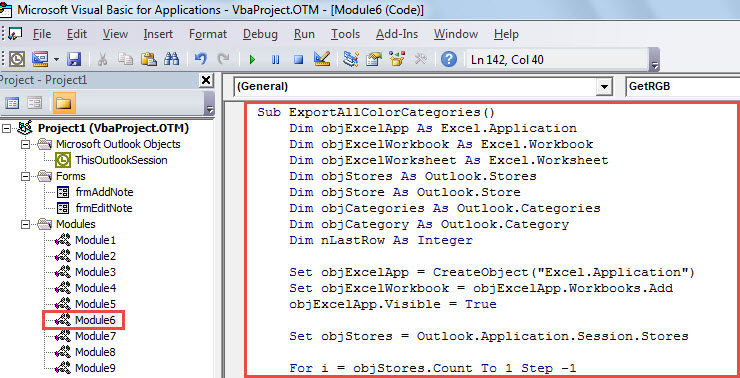
- Akhirnya, klik subrutin "ExportAllColorCategories" dan tekan "F5".
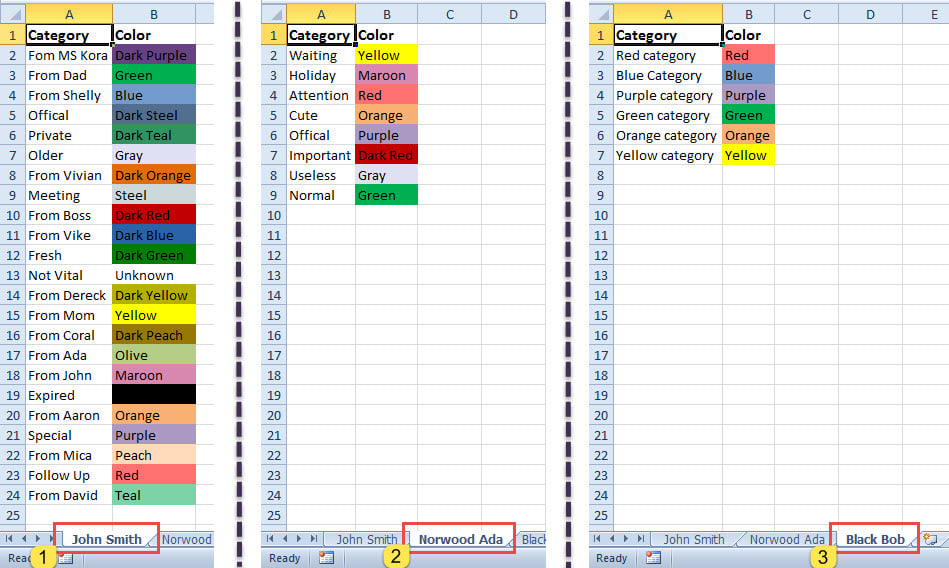
- Saat makro selesai, buku kerja Excel baru akan muncul, tampak seperti tangkapan layar berikut.

Jaga agar Item Outlook Anda Terorganisir
Outlook memberi pengguna kategori warna, yang bertujuan untuk mengatur item. Ini telah digunakan oleh sejumlah besar pengguna. Selain mengatur file dengan baik, sebenarnya, disarankan untuk menyimpan file Outlook Anda dalam ukuran kecil. File PST besar rentan terhadap korupsi. Dalam kasus kerusakan PST, Anda tidak punya pilihan selain berusaha keras Perbaikan PST melalui alat yang ampuh, katakanlah DataNumen Outlook Repair.
Pengantar Penulis:
Shirley Zhang adalah pakar pemulihan data di DataNumen, Inc., yang merupakan pemimpin dunia dalam teknologi pemulihan data, termasuk memulihkan mdf dan produk perangkat lunak perbaikan pandangan. Untuk informasi lebih lanjut kunjungi www.datanumen.com