---
description: In this article, we want to share with you 3 ways to accept specific tracked changes only in your Word document.
title: 3 Ways to Accept Specific Tracked Changes Only in Your Word Document
image: https://www.datanumen.com/blogs/wp-content/uploads/2017/07/Accept-Specific-Tracked-Changes-Only-in-Your-Word-Document.jpg
---

-
-
-

[Home](https://www.datanumen.com/blogs/) > [Solutions](https://www.datanumen.com/blogs/category/solutions/) > [Office Solutions](https://www.datanumen.com/blogs/category/solutions/office-solutions/) > [Word Solutions](https://www.datanumen.com/blogs/category/solutions/office-solutions/word-solutions/) > 3 Ways to Accept Specific Tracked Changes Only in Your Word Document

# 3 Ways to Accept Specific Tracked Changes Only in Your Word Document

[Word Solutions](https://www.datanumen.com/blogs/category/solutions/office-solutions/word-solutions/) September 28, 2025

Share Now:

-
-
-
-
-
-
-
-

*In this article, we want to share with you 3 ways to accept specific tracked changes only in your Word document.*

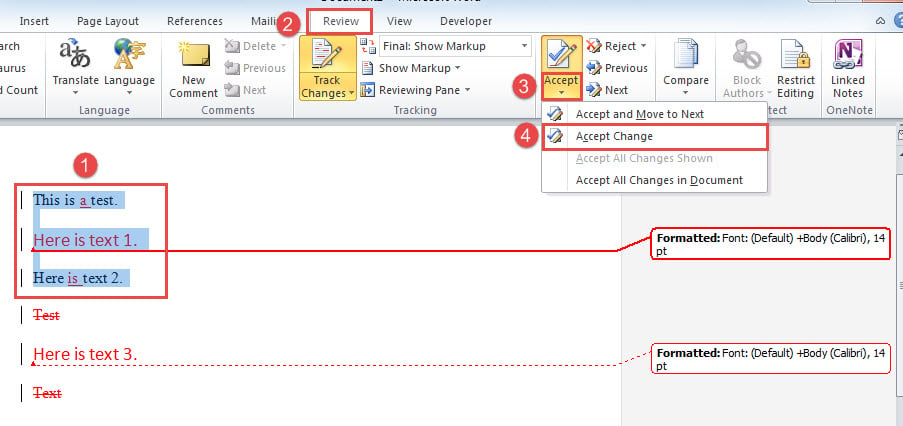
Normally, in a document with tracked changes, you can accept them all at once or each one by one. But sometimes, you may need to accept only specific changes, such as all formatting changes. To address this, it requires extra steps.![Accept Specific Tracked Changes Only in Your Word Document](https://www.datanumen.com/blogs/wp-content/uploads/2017/07/Accept-Specific-Tracked-Changes-Only-in-Your-Word-Document.jpg "Accept Specific Tracked Changes Only in Your Word Document")

Following are 3 approaches to accept specific tracked changes only in different cases.

## Method 1: Accept All Tracked Changes of Specific Type

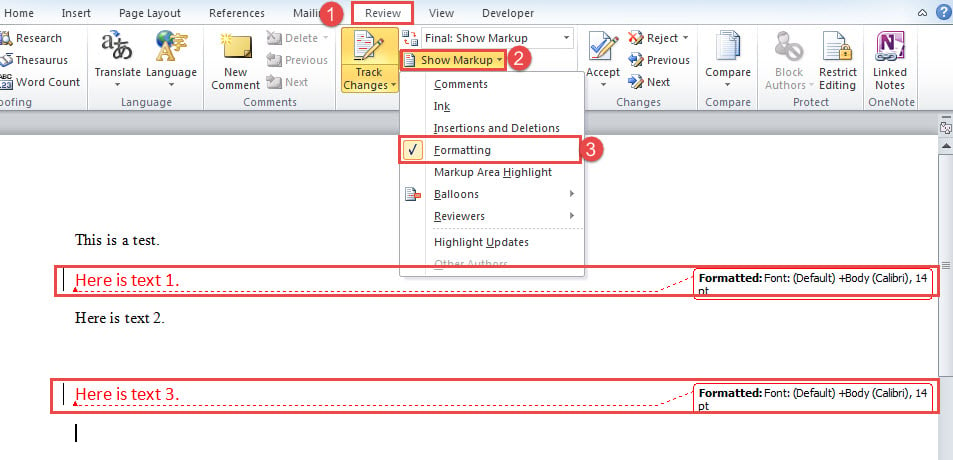
Here, let’s say we need to accept all formatting changes in the document.

1. Firstly, click “Review” tab.
2. Then click “Show Markup” command.
3. Next check only “Formatting” box on the drop-down menu.![Click "Review" ->Click "Show Markup"->Check "Formatting" Box]( "Click \"Review\" ->Click \"Show Markup\"->Check \"Formatting\" Box")
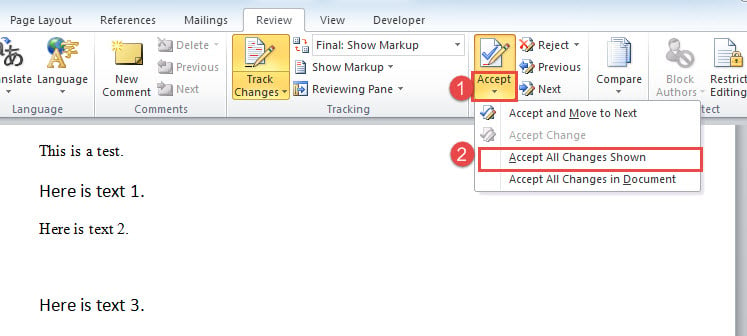
4. Now you can see only formatting changes are shown in the document. Click on the drop-down button on “Accept” command.
5. And select “Accept All Changes Shown” option.![Click on the Drop-down Button on "Accept" Command->Select "Accept All Changes Shown"]( "Click on the Drop-down Button on \"Accept\" Command->Select \"Accept All Changes Shown\"")

Likewise, to accept other changes, just show only that type of changes in the document and accept them.

## Method 2: Accept Only Deletions or Insertions

As you can see from the first screenshot, insertions and deletions are bound together. Therefore, to accept one of them, you need a macro.

1. First of all, press “Alt+ F11” to trigger VBA editor in Word.
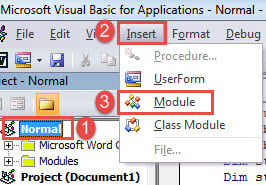
2. Next click “Normal” project and click “Insert” on menu bar.
3. And select “Module” on that menu to insert a new one.![Click "Normal"->Click "Insert"->Click "Module"]( "Click \"Normal\"->Click \"Insert\"->Click \"Module\"")
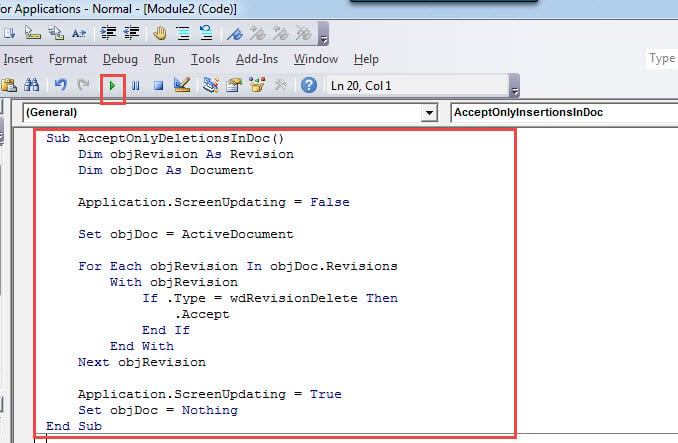
4. Then double click on module to open it and paste following codes:

```
Sub AcceptOnlyDeletionsInDoc()
  Dim objRevision As Revision
  Dim objDoc As Document
 
  Application.ScreenUpdating = False
 
  Set objDoc = ActiveDocument
 
  For Each objRevision In objDoc.Revisions
    With objRevision
      If .Type = wdRevisionDelete Then
        .Accept
      End If
    End With
  Next objRevision
 
  Application.ScreenUpdating = True
  Set objDoc = Nothing
End Sub
```

5. Finally, click “Run” button or just hit “F5” to execute codes.![Paste Codes->Click "Run"]( "Paste Codes->Click \"Run\"")

This macro accepts all deletions in the document. As to accept all insertions, you simply replace with this macro:

```
Sub AcceptOnlyInsertionsInDoc()
  Dim objRevision As Revision
  Dim objDoc As Document
 
  Application.ScreenUpdating = False
 
  Set objDoc = ActiveDocument
 
  For Each objRevision In objDoc.Revisions
    With objRevision
      If .Type = wdRevisionInsert Then
        .Accept
      End If
    End With
  Next objRevision
 
  Application.ScreenUpdating = True
  Set objDoc = Nothing
End Sub
```

## Method 3: Accept All Changes in a Selection

This method shows you how to quickly accept all changes in different types in a selection.

1. To start with, make a selection over target range.
2. Then click “Review” tab in the Ribbon.
3. Next click on drop-down button on “Accept” command.
4. On the drop-down menu, select “Accept Change”. And that’s it.![Select a Range->Click "Review"->Click Drop-down Button on "Accept" Command->Select "Accept Change"]( "Select a Range->Click \"Review\"->Click Drop-down Button on \"Accept\" Command->Select \"Accept Change\"")

## Data Loss Penetrating Everywhere

Going with the tide of digitization, the probability of getting [corrupt doc](https://www.datanumen.com/word-repair/) is increasing. Considering the value of your data, it’s highly recommended to get hold of a sufficient repairing tool. So you can recover documents with the least time.

## Author Introduction:

Vera Chen is a data recovery expert in DataNumen, Inc., which is the world leader in data recovery technologies, including [fix xls](https://www.datanumen.com/excel-repair/) and pdf repair software products. For more information visit [www.datanumen.com](https://www.datanumen.com/)

Share Now:

-
-
-
-
-
-
-
-

[← Previous post](https://www.datanumen.com/blogs/4-solutions-system-reserved-partition-deleted-mistake/)

[Next post →](https://www.datanumen.com/blogs/2-ways-keep-tasks-due-date-unchanged-changing-start-date-outlook/)

Comments are closed.

![Data Recovery Blog]()

Follow or like us on Facebook, LinkedIn and Twitter to get all promotions, latest news and updates on our products and company.

-
-
-

### Featured Products

- [DataNumen Outlook Repair](https://www.datanumen.com/outlook-repair/)
- [DataNumen SQL Recovery](https://www.datanumen.com/sql-recovery/)
- [DataNumen Exchange Recovery](https://www.datanumen.com/exchange-recovery/)
- [DataNumen Access Repair](https://www.datanumen.com/access-repair/)
- [DataNumen Excel Repair](https://www.datanumen.com/excel-repair/)
- [DataNumen PDF Repair](https://www.datanumen.com/pdf-repair/)
- [DataNumen Word Repair](https://www.datanumen.com/word-repair/)
- [DataNumen Zip Repair](https://www.datanumen.com/zip-repair/)

### Popular posts

```json
{"@context":"https:\/\/schema.org","@graph":[{"@type":"Article","@id":"https:\/\/www.datanumen.com\/blogs\/3-ways-accept-specific-tracked-changes-word-document\/#article","isPartOf":{"@id":"https:\/\/www.datanumen.com\/blogs\/3-ways-accept-specific-tracked-changes-word-document\/"},"author":{"name":"AuthorCCW","@id":"https:\/\/www.datanumen.com\/blogs\/#\/schema\/person\/33ded6c47c77587f9158d99f05e23957"},"headline":"3 Ways to Accept Specific Tracked Changes Only in Your Word Document","datePublished":"2017-07-13T06:56:59+00:00","dateModified":"2025-09-28T15:07:20+00:00","mainEntityOfPage":{"@id":"https:\/\/www.datanumen.com\/blogs\/3-ways-accept-specific-tracked-changes-word-document\/"},"wordCount":413,"commentCount":0,"publisher":{"@id":"https:\/\/www.datanumen.com\/blogs\/#organization"},"image":{"@id":"https:\/\/www.datanumen.com\/blogs\/3-ways-accept-specific-tracked-changes-word-document\/#primaryimage"},"thumbnailUrl":"https:\/\/www.datanumen.com\/blogs\/wp-content\/uploads\/2017\/07\/Accept-Specific-Tracked-Changes-Only-in-Your-Word-Document.jpg","articleSection":["Word Solutions"],"inLanguage":"en-US","potentialAction":[{"@type":"CommentAction","name":"Comment","target":["https:\/\/www.datanumen.com\/blogs\/3-ways-accept-specific-tracked-changes-word-document\/#respond"]}]},{"@type":"WebPage","@id":"https:\/\/www.datanumen.com\/blogs\/3-ways-accept-specific-tracked-changes-word-document\/","url":"https:\/\/www.datanumen.com\/blogs\/3-ways-accept-specific-tracked-changes-word-document\/","name":"3 Ways to Accept Specific Tracked Changes Only in Your Word Document","isPartOf":{"@id":"https:\/\/www.datanumen.com\/blogs\/#website"},"primaryImageOfPage":{"@id":"https:\/\/www.datanumen.com\/blogs\/3-ways-accept-specific-tracked-changes-word-document\/#primaryimage"},"image":{"@id":"https:\/\/www.datanumen.com\/blogs\/3-ways-accept-specific-tracked-changes-word-document\/#primaryimage"},"thumbnailUrl":"https:\/\/www.datanumen.com\/blogs\/wp-content\/uploads\/2017\/07\/Accept-Specific-Tracked-Changes-Only-in-Your-Word-Document.jpg","datePublished":"2017-07-13T06:56:59+00:00","dateModified":"2025-09-28T15:07:20+00:00","description":"In this article, we want to share with you 3 ways to accept specific tracked changes only in your Word document.","inLanguage":"en-US","potentialAction":[{"@type":"ReadAction","target":["https:\/\/www.datanumen.com\/blogs\/3-ways-accept-specific-tracked-changes-word-document\/"]}]},{"@type":"ImageObject","inLanguage":"en-US","@id":"https:\/\/www.datanumen.com\/blogs\/3-ways-accept-specific-tracked-changes-word-document\/#primaryimage","url":"https:\/\/www.datanumen.com\/blogs\/wp-content\/uploads\/2017\/07\/Accept-Specific-Tracked-Changes-Only-in-Your-Word-Document.jpg","contentUrl":"https:\/\/www.datanumen.com\/blogs\/wp-content\/uploads\/2017\/07\/Accept-Specific-Tracked-Changes-Only-in-Your-Word-Document.jpg","width":1000,"height":800,"caption":"Accept Specific Tracked Changes Only in Your Word Document"},{"@type":"WebSite","@id":"https:\/\/www.datanumen.com\/blogs\/#website","url":"https:\/\/www.datanumen.com\/blogs\/","name":"Data Recovery Blog","description":"Discuss every aspect of data recovery","publisher":{"@id":"https:\/\/www.datanumen.com\/blogs\/#organization"},"potentialAction":[{"@type":"SearchAction","target":{"@type":"EntryPoint","urlTemplate":"https:\/\/www.datanumen.com\/blogs\/?s={search_term_string}"},"query-input":{"@type":"PropertyValueSpecification","valueRequired":true,"valueName":"search_term_string"}}],"inLanguage":"en-US"},{"@type":"Organization","@id":"https:\/\/www.datanumen.com\/blogs\/#organization","name":"Data Recovery Blog","url":"https:\/\/www.datanumen.com\/blogs\/","logo":{"@type":"ImageObject","inLanguage":"en-US","@id":"https:\/\/www.datanumen.com\/blogs\/#\/schema\/logo\/image\/","url":"https:\/\/www.datanumen.com\/blogs\/wp-content\/uploads\/2019\/02\/logowithouttext.jpg","contentUrl":"https:\/\/www.datanumen.com\/blogs\/wp-content\/uploads\/2019\/02\/logowithouttext.jpg","width":296,"height":397,"caption":"Data Recovery Blog"},"image":{"@id":"https:\/\/www.datanumen.com\/blogs\/#\/schema\/logo\/image\/"},"sameAs":["https:\/\/www.facebook.com\/DataNumen","https:\/\/x.com\/DataNumen","http:\/\/www.linkedin.com\/company\/datanumen","https:\/\/myspace.com\/datanumen\/","http:\/\/www.pinterest.com\/datanumen\/","https:\/\/www.youtube.com\/channel\/UCVIIuuKfUBHSJauUaVP13tw"]},{"@type":"Person","@id":"https:\/\/www.datanumen.com\/blogs\/#\/schema\/person\/33ded6c47c77587f9158d99f05e23957","name":"AuthorCCW","image":{"@type":"ImageObject","inLanguage":"en-US","@id":"https:\/\/secure.gravatar.com\/avatar\/3516ed90fc242780d3947a989f895bc46e70c3e83485d30f2b457a007906aa58?s=96&d=mm&r=g","url":"https:\/\/secure.gravatar.com\/avatar\/3516ed90fc242780d3947a989f895bc46e70c3e83485d30f2b457a007906aa58?s=96&d=mm&r=g","contentUrl":"https:\/\/secure.gravatar.com\/avatar\/3516ed90fc242780d3947a989f895bc46e70c3e83485d30f2b457a007906aa58?s=96&d=mm&r=g","caption":"AuthorCCW"},"sameAs":["https:\/\/www.datanumen.com\/"]}]}
```