
1. Εισαγωγή
Ο Κάδος Ανακύκλωσης είναι το ενσωματωμένο δίχτυ ασφαλείας των Windows για τα διαγραμμένα αρχεία. Εφόσον ένα αρχείο εξακολουθεί να βρίσκεται μέσα σε αυτό, η ανάκτησή του διαρκεί μόνο μερικά κλικ. Αυτός ο οδηγός εξηγεί πώς να ανακτήσετε τα διαγραμμένα αρχεία από τον Κάδο Ανακύκλωσης στα Windows, συμπεριλαμβανομένων αρχείων σε εξωτερικές τοποθεσίες, τοποθεσίες δικτύου και τοποθεσίες που συγχρονίζονται με το OneDrive.
1.1 Τι καλύπτει αυτός ο οδηγός
- Ανάκτηση αρχείων που βρίσκονται ακόμα στον Κάδο Ανακύκλωσης
- Επαναφορά διαγραμμένων αρχείων στην αρχική τους θέση
- Ανάκτηση διαγραμμένων αρχείων σε νέα θέση όταν λείπει ο αρχικός φάκελος
1.2 Τι δεν καλύπτει αυτός ο οδηγός
- Τα αρχεία διαγράφηκαν με αλλαγή + Διαγραφή, τα οποία παρακάμπτουν εντελώς τον Κάδο Ανακύκλωσης
- Αρχεία που διαγράφηκαν ή αδειάστηκαν από τον Κάδο Ανακύκλωσης. Σε αυτήν την περίπτωση, ελέγξτε αυτός ο οδηγός για να ανακτήσετε τα αρχεία.
- Αρχεία που υπερέβησαν το όριο αποθήκευσης στον Κάδο Ανακύκλωσης και διαγράφηκαν οριστικά
2. Ανάκτηση διαγραμμένων αρχείων από τον κάδο ανακύκλωσης
Εάν το αρχείο διαγράφηκε από μια τοπική μονάδα δίσκου με το Διαγραφή πλήκτρο ή το δεξί κλικ Διαγραφή εντολή, πηγαίνει κατευθείαν στον Κάδο Ανακύκλωσης. Η ανάκτησή του γίνεται με τα ακόλουθα 3 βήματα:
2.1 Άνοιγμα του Κάδου Ανακύκλωσης
Χρησιμοποιήστε οποιαδήποτε από τις ακόλουθες μεθόδους:
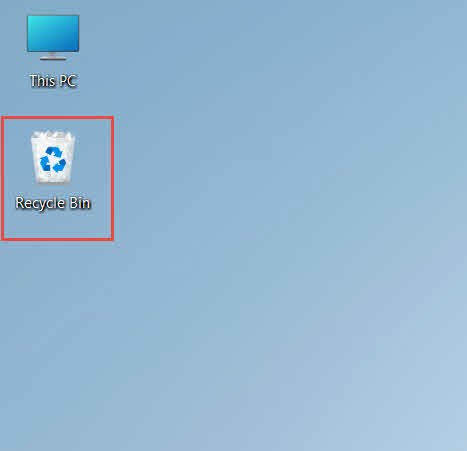
- Κάντε διπλό κλικ στο Recycle Bin εικονίδιο στην επιφάνεια εργασίας

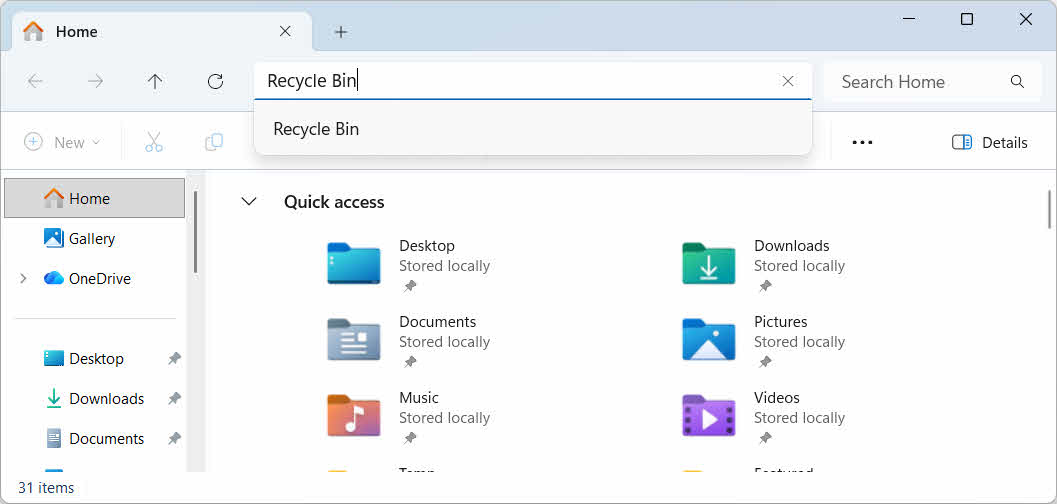
- Ανοίξτε την Εξερεύνηση αρχείων και πληκτρολογήστε Recycle Bin στη γραμμή διευθύνσεων

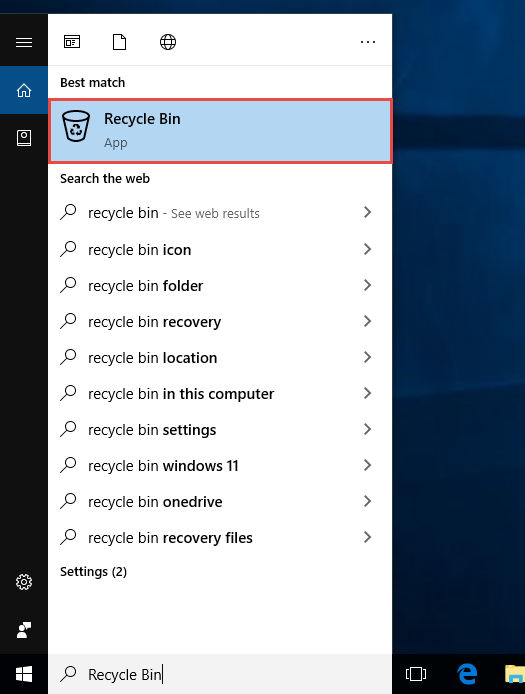
- Χαρακτηριστικά Recycle Bin στην Αναζήτηση των Windows και επιλέξτε το από τα αποτελέσματα

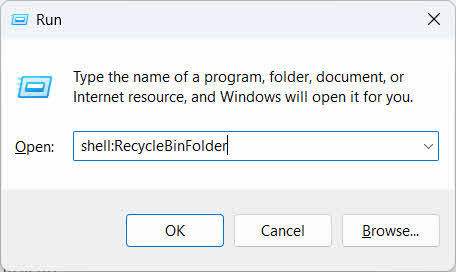
- Τύπος Νίκη + R, τύπου κέλυφος: RecycleBinFolder, και πατήστε εισάγετε

2.2 Βρείτε το διαγραμμένο αρχείο ή φάκελο
Μόλις ανοίξει ο Κάδος Ανακύκλωσης, εντοπίστε τα αντικείμενα που θέλετε με μία από τις ακόλουθες μεθόδους:
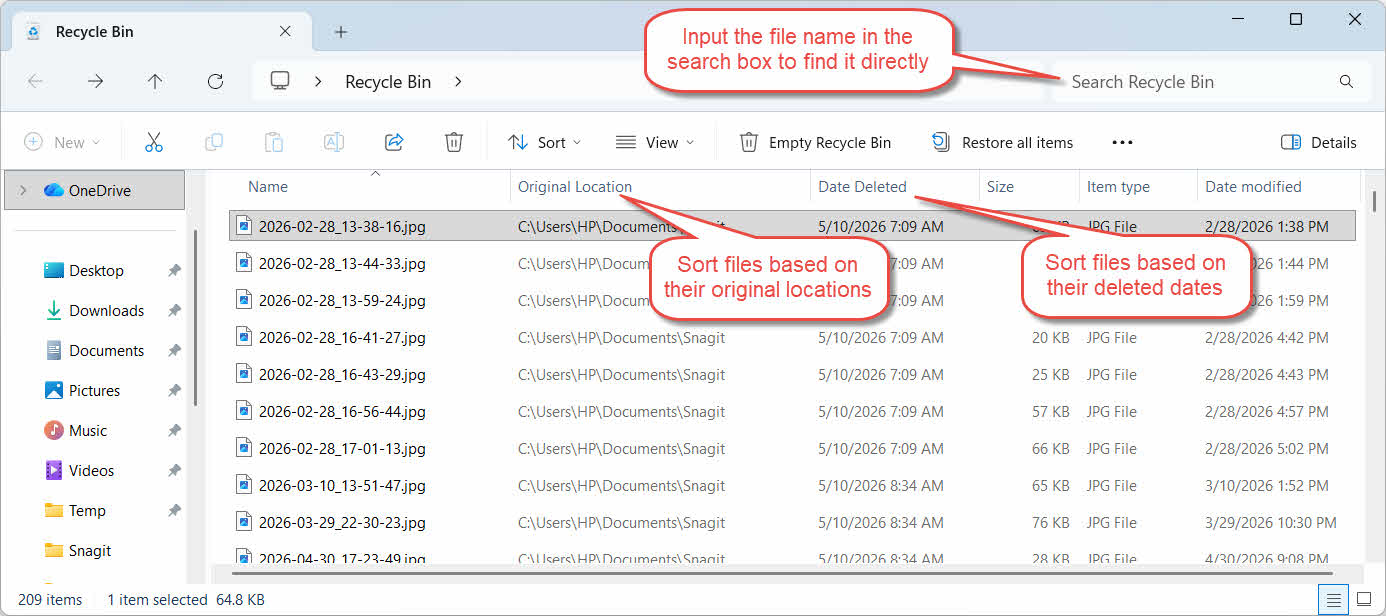
- Πληκτρολογήστε το όνομα του αρχείου στο πλαίσιο αναζήτησης στην επάνω δεξιά γωνία
- Κάντε κλικ στο Ημερομηνία διαγραφής κεφαλίδα στήλης για ταξινόμηση με βάση τις πιο πρόσφατες διαγραφές
- Έλεγξε το Αρχική τοποθεσία στήλη για να επιβεβαιώσετε ότι το αρχείο προήλθε από τον φάκελο που αναμένετε
2.3 Επαναφορά Αρχείων ή Φακέλων
Για να επαναφέρετε ένα ή περισσότερα στοιχεία:
- Επιλέξτε ένα μόνο αρχείο ή κρατήστε πατημένο Ctrl και κάντε κλικ για να επιλέξετε πολλά αρχεία ή κρατήστε πατημένο αλλαγή και κάντε κλικ για να επιλέξετε ένα εύρος
- Κάντε δεξί κλικ στην επιλογή και επιλέξτε Επαναφορά
- Ανοίξτε τον αρχικό φάκελο για να επιβεβαιώσετε ότι το αρχείο έχει επιστρέψει

Για να επαναφέρετε όλα τα στοιχεία στον Κάδο Ανακύκλωσης ταυτόχρονα, κάντε κλικ στο Επαναφορά όλων των στοιχείων στη γραμμή εργαλείων χωρίς να επιλέξετε πρώτα κάποιο μεμονωμένο αρχείο.
3. Επαναφέρετε τα διαγραμμένα αρχεία από τον Κάδο Ανακύκλωσης σε διαφορετική τοποθεσία
The Επαναφορά Η εντολή επιστρέφει πάντα ένα αρχείο στον αρχικό του φάκελο. Σε ορισμένες περιπτώσεις, απαιτείται η μετακίνησή του κάπου αλλού.
3.1 Πότε πρέπει να χρησιμοποιήσετε αυτήν τη μέθοδο
- Ο αρχικός φάκελος δεν υπάρχει πλέον
- Ένα νέο αρχείο με το ίδιο όνομα υπάρχει ήδη στον αρχικό φάκελο
- Δεν έχετε άδεια πρόσβασης στον αρχικό φάκελο
- Δεν είστε σίγουροι από ποιον φάκελο προήλθε το αρχείο
- Θέλετε να ελέγξετε το αρχείο πριν το τοποθετήσετε ξανά στην αρχική του θέση
3.2 Σύρετε ή αποκόψτε το αρχείο από τον κάδο ανακύκλωσης
Για να μετακινήσετε ένα αρχείο από τον Κάδο Ανακύκλωσης σε έναν φάκελο της επιλογής σας:
- Άνοιγμα του Κάδου Ανακύκλωσης
- Επιλέξτε το αρχείο ή τον φάκελο που θα επαναφερθεί.
- Χρησιμοποιήστε μία από τις ακόλουθες μεθόδους για να μετακινήσετε το αρχείο ή τον φάκελο στον φάκελο προορισμού:
- Σύρετέ το απευθείας στο παράθυρο του φακέλου προορισμού
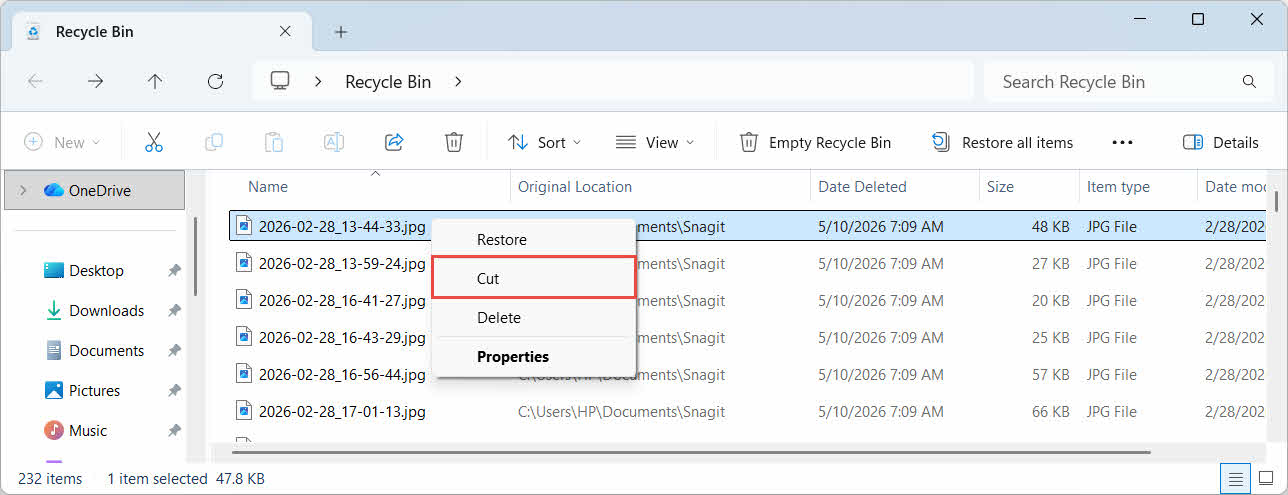
- Τύπος Ctrl + X για να το κόψετε, ανοίξτε τον φάκελο προορισμού και πατήστε Ctrl + V να το επικολλήσω
- Κάντε δεξί κλικ στην επιλογή και επιλέξτε Τομή, ανοίξτε τον φάκελο προορισμού, κάντε δεξί κλικ και επιλέξτε ζυμαρικά να το επικολλήσω

4. Ανάκτηση αρχείων από τον κάδο ανακύκλωσης σε εξωτερικούς δίσκους, δίσκους δικτύου και μονάδες cloud
Τα βήματα στο Το τμήμα 2 Ας υποθέσουμε ότι το αρχείο διαγράφηκε από την κύρια μονάδα δίσκου του υπολογιστή σας. Ο εξωτερικός χώρος αποθήκευσης, ο χώρος αποθήκευσης δικτύου και ο χώρος αποθήκευσης που συγχρονίζεται με το cloud συμπεριφέρονται διαφορετικά.
4.1 Εξωτερικοί Σκληροί Δίσκοι και Μονάδες Flash USB
Τα Windows αντιμετωπίζουν τους εξωτερικούς σκληρούς δίσκους (συμπεριλαμβανομένων των SSD που είναι συνδεδεμένοι μέσω USB) με τον ίδιο τρόπο όπως και τους εσωτερικούς δίσκους: ο καθένας λαμβάνει τον δικό του κρυφό φάκελο "Κάδος Ανακύκλωσης" από προεπιλογή. Τα αφαιρούμενα μέσα, όπως οι μονάδες flash USB και οι κάρτες SD, αντιμετωπίζονται διαφορετικά και δεν λαμβάνουν Κάδο Ανακύκλωσης από προεπιλογή, επομένως τα αρχεία που διαγράφονται από αυτούς καταργούνται αμέσως.
4.1.1 Ενεργοποίηση υποστήριξης κάδου ανακύκλωσης για τη μονάδα δίσκου
Για εξωτερικό σκληρό δίσκο, επιβεβαιώστε ότι η υποστήριξη του Κάδου Ανακύκλωσης είναι ενεργοποιημένη:
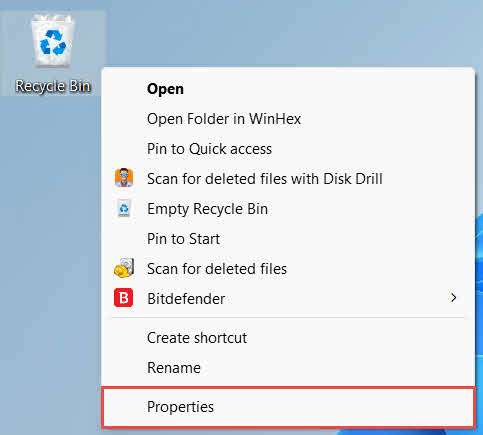
- Κάντε δεξί κλικ στο Recycle Bin εικονίδιο στην επιφάνεια εργασίας και επιλέξτε Ιδιοκτησίες

- Στο Τοποθεσία κάδου ανακύκλωσης στη λίστα, επιλέξτε τη γραμμή για την εξωτερική μονάδα δίσκου. Εμφανίζεται εδώ μόνο όταν η μονάδα δίσκου είναι συνδεδεμένη και έχει ένα γράμμα μονάδας δίσκου
- Κάτω από Ρυθμίσεις για την επιλεγμένη τοποθεσία, βεβαιωθείτε Προσαρμοσμένο μέγεθος επιλέγεται, όχι Μην μετακινείτε αρχεία στον Κάδο Ανακύκλωσης. Αφαιρέστε τα αρχεία αμέσως μόλις διαγραφούν.

- Πατήστε Εγγραφές, Τότε OK
Κάθε μονάδα δίσκου διατηρεί αυτήν τη ρύθμιση ανεξάρτητα, επομένως μια εξωτερική μονάδα δίσκου μπορεί να έχει απενεργοποιημένη την υποστήριξη του Κάδου Ανακύκλωσης ακόμα και όταν παραμένει ενεργοποιημένη για τη μονάδα δίσκου συστήματος.
Για μια μονάδα flash USB ή μια κάρτα SD, δεν θα εμφανίζεται καθόλου στις Ιδιότητες του Κάδου Ανακύκλωσης, επειδή τα Windows δεν δημιουργούν από προεπιλογή φάκελο Κάδου Ανακύκλωσης σε αφαιρούμενα μέσα. Η ενεργοποίησή του απαιτεί επεξεργασία μητρώου:
- Τύπος Νίκη + R, τύπου regedit, πατήστε εισάγετεκαι εγκρίνετε την προτροπή
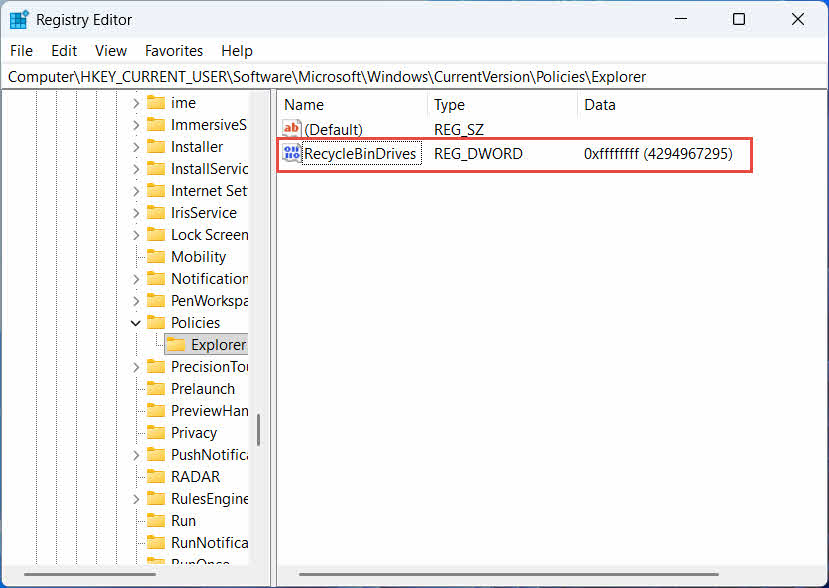
- Πλοηγηθείτε στο HKEY_CURRENT_USER \ Software \ Microsoft \ Windows \ CurrentVersion \ Policies \ Explorer. Εάν η εξερευνητής το κλειδί δεν υπάρχει κάτω από Πολιτικές, κάντε δεξί κλικ Πολιτικές, Επιλέξτε Νέα -> Κλειδί, και ονομάστε το εξερευνητής
- Κάντε δεξί κλικ σε μια κενή περιοχή στο δεξιό τμήμα του παραθύρου, επιλέξτε Νέα -> DWORD (32-bit), και ονομάστε το RecycleBinDrives
- Διπλό κλικ RecycleBinDrives, ρυθμίστε Βάση προς την Δεκαεξαδικό, εισαγω φφφφφφφ ως δεδομένα τιμής και κάντε κλικ OK

- Επαναλάβετε τα βήματα 2 έως 4 παρακάτω HKEY_LOCAL_MACHINE \ ΛΟΓΙΣΜΙΚΟ \ Microsoft \ Windows \ CurrentVersion \ Policies \ Explorer
- Κάντε επανεκκίνηση του υπολογιστή
Για να αντιστρέψετε την αλλαγή, διαγράψτε το RecycleBinDrives τιμή και από τις δύο τοποθεσίες. Επειδή αυτό περιλαμβάνει την επεξεργασία του μητρώου, δημιουργήστε πρώτα ένα σημείο επαναφοράς και εξετάστε εάν η χρήση αντιγράφων ασφαλείας είναι απλούστερη για μονάδες δίσκου που χρησιμοποιείτε μόνο περιστασιακά.
4.1.2 Επαναφορά Αρχείων
Μόλις ενεργοποιηθεί ο Κάδος Ανακύκλωσης για τη μονάδα δίσκου, η επαναφορά ενός αρχείου ακολουθεί την ίδια διαδικασία που περιγράφεται στο Το τμήμα 2.3.
Η διαγραφή ενός αρχείου από μια αντιστοιχισμένη μονάδα δίσκου δικτύου ή έναν κοινόχρηστο φάκελο το καταργεί απευθείας από τον διακομιστή. Δεν περνάει από τον τοπικό κάδο ανακύκλωσης του υπολογιστή σας. Αλλά εάν είναι ενεργοποιημένος ένας κάδος ανακύκλωσης από την πλευρά του διακομιστή, μπορείτε να ανακτήσετε τα διαγραμμένα αρχεία από αυτόν.
4.2.1 Κάδος ανακύκλωσης από την πλευρά του διακομιστή (εάν είναι ενεργοποιημένος)
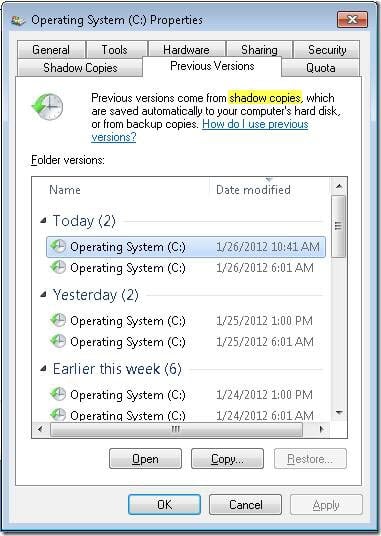
Ορισμένοι διακομιστές αρχείων επιτρέπουν Σκιώδη Αντίγραφα (Υπηρεσία Σκιωδών Αντιγράφων Τόμου), το οποίο σας επιτρέπει να επαναφέρετε σε παλαιότερες εκδόσεις ενός κοινόχρηστου φακέλου, ώστε να μπορείτε να ανακτήσετε τα διαγραμμένα αρχεία με αυτήν τη λειτουργία:
- Κάντε δεξί κλικ στον γονικό φάκελο στο κοινόχρηστο στοιχείο δικτύου και επιλέξτε Ιδιοκτησίες
- Ανοίξτε το Προηγούμενες εκδόσεις αυτί
- Επιλέξτε μια έκδοση με ημερομηνία πριν από τη διαγραφή και κάντε κλικ Επαναφορά
4.2.2 Τι να κάνετε εάν δεν υπάρχει κάδος ανακύκλωσης από την πλευρά του διακομιστή
Εάν η Προηγούμενες εκδόσεις Η καρτέλα είναι κενή ή μη διαθέσιμη, το κοινόχρηστο στοιχείο δεν έχει ρυθμιστεί για ανάκτηση βάσει στιγμιότυπων. Επικοινωνήστε με τον διαχειριστή δικτύου σας για να ελέγξετε εάν ο διακομιστής διαθέτει το δικό του πρόγραμμα δημιουργίας αντιγράφων ασφαλείας.
4.3 Κάδος Ανακύκλωσης OneDrive (Φάκελοι που συγχρονίζονται με το cloud)
Οι φάκελοι που συγχρονίζονται με το OneDrive μπορούν να περιλαμβάνουν δύο ξεχωριστούς κάδους ανακύκλωσης: τον τοπικό κάδο ανακύκλωσης των Windows και τον κάδο ανακύκλωσης του OneDrive που βασίζεται στο web. Ποιος από αυτούς περιέχει το αρχείο σας εξαρτάται από το πού έγινε η διαγραφή.
4.3.1 Τοπική διαγραφή ενός συγχρονισμένου αρχείου (Μεταβαίνει τόσο στον τοπικό όσο και στον κάδο ανακύκλωσης ιστού)
Εάν διαγράψετε ένα συγχρονισμένο αρχείο από την Εξερεύνηση αρχείων στον υπολογιστή σας, αυτό μεταφέρεται στον τοπικό Κάδο Ανακύκλωσης ακριβώς όπως περιγράφεται στην ενότητα Το τμήμα 2και το πρόγραμμα-πελάτης συγχρονισμού OneDrive αντικατοπτρίζει επίσης τη διαγραφή στο cloud, επομένως το αρχείο καθίσταται ανακτήσιμο και από τον Κάδο Ανακύκλωσης Web του OneDrive.
4.3.2 Διαγραφή με πρωτοβουλία του cloud (Μόνο στον κάδο ανακύκλωσης ιστού, από τον Μάιο του 2026)
Εάν το αρχείο διαγραφεί από την πλευρά του cloud, για παράδειγμα μέσω της τοποθεσίας web του OneDrive ή άλλης συγχρονισμένης συσκευής, η συμπεριφορά άλλαξε από τον Μάιο του 2026: Η Microsoft σταμάτησε να στέλνει διαγραφές που ξεκινούν από το cloud στον τοπικό κάδο ανακύκλωσης των Windows. Ένα αρχείο που καταργείται με αυτόν τον τρόπο εξαφανίζεται από τον τοπικό σας φάκελο χωρίς να εμφανίζεται στον τοπικό κάδο ανακύκλωσης και η ανάκτηση είναι δυνατή μόνο από τον κάδο ανακύκλωσης web του OneDrive ή του SharePoint.
4.3.3 Επαναφορά από το OneDrive.com
Για να επαναφέρετε ένα αρχείο από τον Κάδο Ανακύκλωσης του OneDrive στο web:
- Συνδεθείτε στο onedrive.live.com or onedrive.com
- Αγορά Κάδος ανακύκλωσης στο παράθυρο πλοήγησης
- Επιλέξτε το αρχείο ή τον φάκελο και κάντε κλικ Επαναφορά
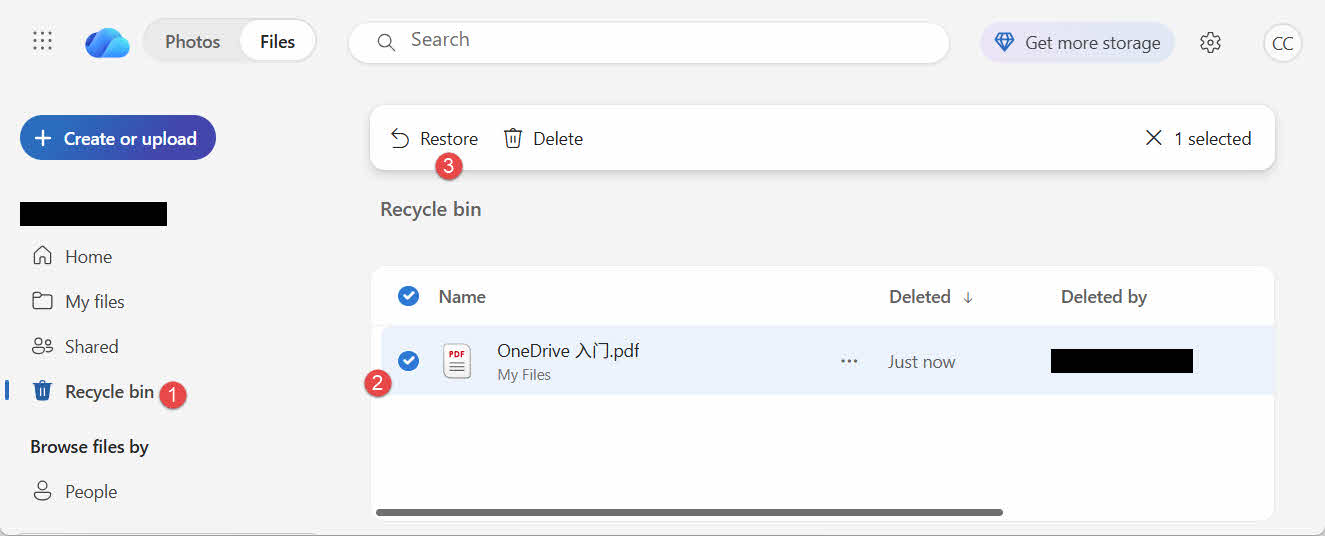
Οι προσωπικοί λογαριασμοί Microsoft διατηρούν τα διαγραμμένα στοιχεία για έως και 30 ημέρες, ενώ οι επαγγελματικοί ή σχολικοί λογαριασμοί τα διατηρούν για έως και 93 ημέρες.
5. Αντιμετώπιση προβλημάτων ανάκτησης κάδου ανακύκλωσης
5.1 Λείπει το εικονίδιο του κάδου ανακύκλωσης από την επιφάνεια εργασίας
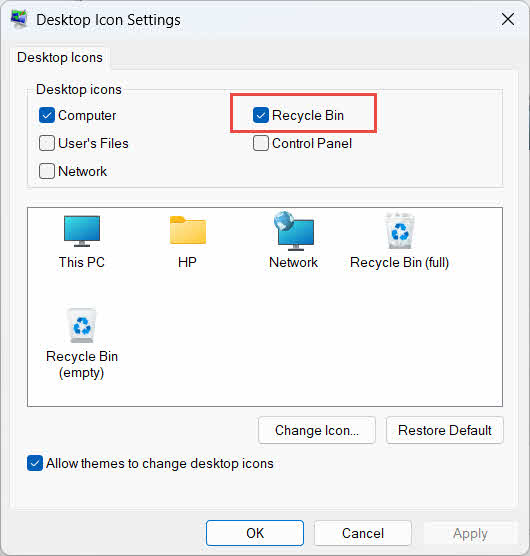
Ο Κάδος Ανακύκλωσης εξακολουθεί να υπάρχει ακόμα και αν το εικονίδιο της επιφάνειας εργασίας έχει κρυφτεί. Για να επαναφέρετε το εικονίδιο:
- Κάντε δεξί κλικ στην επιφάνεια εργασίας και επιλέξτε Εξατομικεύστε
- Ανοικτό θέματα, Τότε Ρυθμίσεις εικονίδιο στην επιφάνεια εργασίας
- Έλεγχος Recycle Bin και κάντε κλικ στο κουμπί OK
Μπορείτε επίσης να το ανοίξετε απευθείας πληκτρολογώντας Recycle Bin στην Αναζήτηση των Windows, στην Εξερεύνηση Αρχείων ή χρησιμοποιώντας τα Win + R, όπως περιγράφεται στο Το τμήμα 2.1.
5.2 Το αρχείο δεν βρίσκεται στον κάδο ανακύκλωσης
Εάν τα αρχεία που θέλετε δεν βρίσκονται στον Κάδο Ανακύκλωσης, λάβετε υπόψη τις ακόλουθες αιτίες:
- Διαγράφηκε από μια εξωτερική μονάδα δίσκου χωρίς υποστήριξη για τον Κάδο Ανακύκλωσης (βλ. Το τμήμα 4.1)
- Διαγράφηκε από μια μονάδα δίσκου δικτύου (βλ. Το τμήμα 4.2)
- Διαγράφηκε απευθείας από το OneDrive στο web (βλ. Το τμήμα 4.3)
- Διαγράφηκε οριστικά, για παράδειγμα με αλλαγή + Διαγραφή, ή ο Κάδος Ανακύκλωσης έχει αδειάσει
Εάν το αρχείο διαγράφηκε οριστικά, η ανάκτησή του απαιτεί ειδικό λογισμικό ανάκτησης δεδομένων, όπως DataNumen Data Recovery, αντί για τον Κάδο Ανακύκλωσης. Διακόψτε πρώτα την αποθήκευση νέων αρχείων σε αυτήν τη μονάδα δίσκου για να μειώσετε την πιθανότητα αντικατάστασης των δεδομένων.
5.3 Η επιλογή επαναφοράς είναι γκριζαρισμένη, λείπει ή δεν λειτουργεί
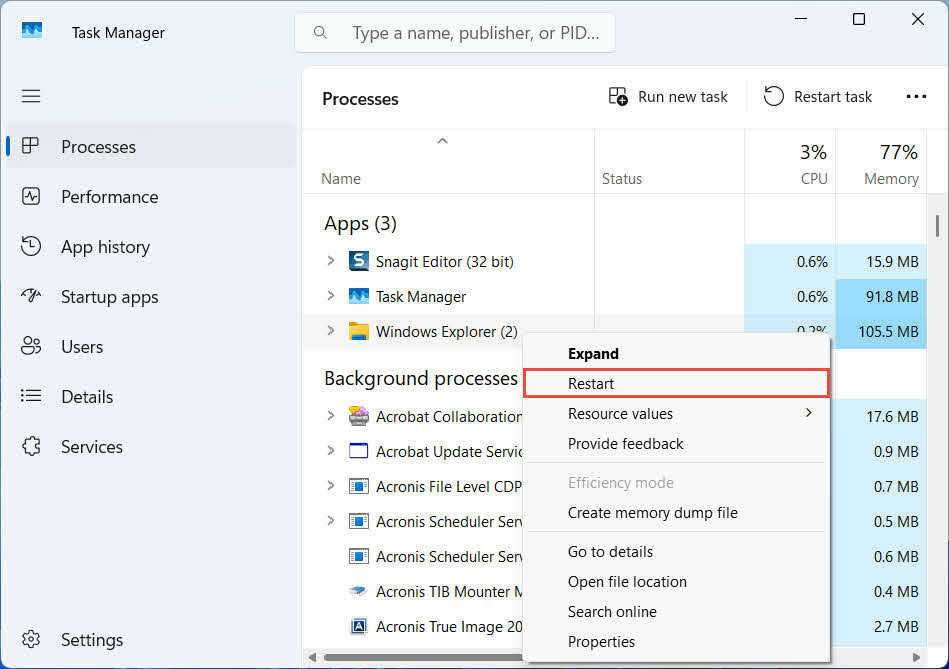
Αυτό συμβαίνει συνήθως όταν τα επιλεγμένα στοιχεία προέρχονται από μια τοποθεσία που δεν υπάρχει πλέον ή όταν το εσωτερικό ευρετήριο του Κάδου Ανακύκλωσης δεν είναι συγχρονισμένο. Δοκιμάστε αυτές τις διορθώσεις:
- Επανεκκίνηση της Εξερεύνησης Αρχείων: χρησιμοποιήστε Ctrl + Alt + Del για να ανοίξετε τη Διαχείριση Εργασιών, κάντε δεξί κλικ Εξερεύνηση των windows, και επιλέξτε επανεκκίνηση

- Επαναφορά στοιχείων ένα κάθε φορά αντί για παρτίδα
- If Επαναφορά εξακολουθεί να μην εμφανίζεται, σύρετε το αρχείο προς τα έξω χειροκίνητα όπως περιγράφεται στην ενότητα Το τμήμα 3.2
5.4 Σφάλματα «Άρνηση πρόσβασης» ή δικαιωμάτων κατά την επαναφορά
Αυτό υποδεικνύει ένα πρόβλημα δικαιωμάτων στον αρχικό φάκελο, όχι στο ίδιο το αρχείο. Ελέγξτε ότι:
- Έχετε συνδεθεί με τον ίδιο λογαριασμό που διέγραψε το αρχείο
- Τα δικαιώματα του φακέλου προορισμού εξακολουθούν να επιτρέπουν την πρόσβαση εγγραφής για τον λογαριασμό σας
- Η Εξερεύνηση αρχείων δεν αποκλείεται από πολιτική σε διαχειριζόμενο ή επαγγελματικό υπολογιστή
Εάν τα δικαιώματα του αρχικού φακέλου έχουν αλλάξει, επαναφέρετε το αρχείο σε διαφορετική θέση, ακολουθώντας τα παρακάτω βήματα: Το τμήμα 3.
5.5 Ο Κάδος Ανακύκλωσης Εμφανίζεται Άδειος Αλλά Δεν Τον Αδειάζω
Τα αρχεία μπορούν να εξαφανιστούν από τον Κάδο Ανακύκλωσης χωρίς να τα αδειάσει κανείς χειροκίνητα:
- Η λειτουργία Storage Sense μπορεί να ρυθμιστεί ώστε να διαγράφει στοιχεία αυτόματα μετά από έναν καθορισμένο αριθμό ημερών.
- Ο Κάδος Ανακύκλωσης έφτασε στο όριο μεγέθους του, επομένως τα Windows εκκαθάρισαν τα παλαιότερα στοιχεία για να δημιουργήσουν χώρο (βλ. Το τμήμα 6.1)
- Ένας άλλος λογαριασμός σε έναν κοινόχρηστο υπολογιστή τον άδειασε
- Μια Πολιτική ομάδας σε μια διαχειριζόμενη συσκευή επιβάλλει την αυτόματη εκκένωση
5.6 Το αρχείο που έχει αποκατασταθεί είναι κατεστραμμένο, κενό ή δεν ανοίγει
Η επαναφορά απλώς επαναφέρει το αρχείο στην αρχική του κατάσταση. Δεν το επιδιορθώνει. Εάν το αρχείο ήταν ήδη κατεστραμμένο πριν από τη διαγραφή ή εάν γραφόταν σε αυτό τη στιγμή που διαγράφηκε, ενδέχεται να μην ανοίξει μετά την επαναφορά. Σε αυτήν την περίπτωση, το πρόβλημα είναι η καταστροφή του αρχείου και όχι ο Κάδος Ανακύκλωσης και χρειάζεται... ένα εργαλείο επισκευής κατάλληλο για αυτήν τη μορφή αρχείου αντί για μια άλλη προσπάθεια ανάκτησης.
6. Διαχείριση και διαμόρφωση του κάδου ανακύκλωσης
6.1 Αλλαγή μεγέθους αποθήκευσης κάδου ανακύκλωσης
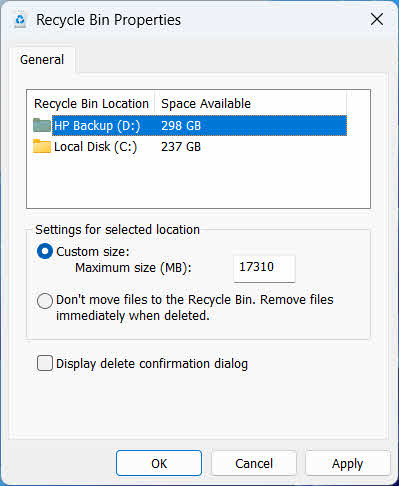
Κάθε μονάδα δίσκου έχει τη δική της κατανομή στον Κάδο Ανακύκλωσης. Για να την ελέγξετε ή να την αλλάξετε:
- Κάντε δεξί κλικ στο Recycle Bin και επιλέξτε Ιδιοκτησίες
- Επιλέξτε μια μονάδα δίσκου από τη λίστα με τις τοποθεσίες του κάδου ανακύκλωσης
- Επιλέξτε Προσαρμοσμένο μέγεθος και πληκτρολογήστε a Μέγιστο μέγεθος (MB)ή επιλέξτε Μην μετακινείτε αρχεία στον Κάδο Ανακύκλωσης. Αφαιρέστε τα αρχεία αμέσως μόλις διαγραφούν. για να το απενεργοποιήσετε για αυτήν τη μονάδα δίσκου
- Πατήστε OK
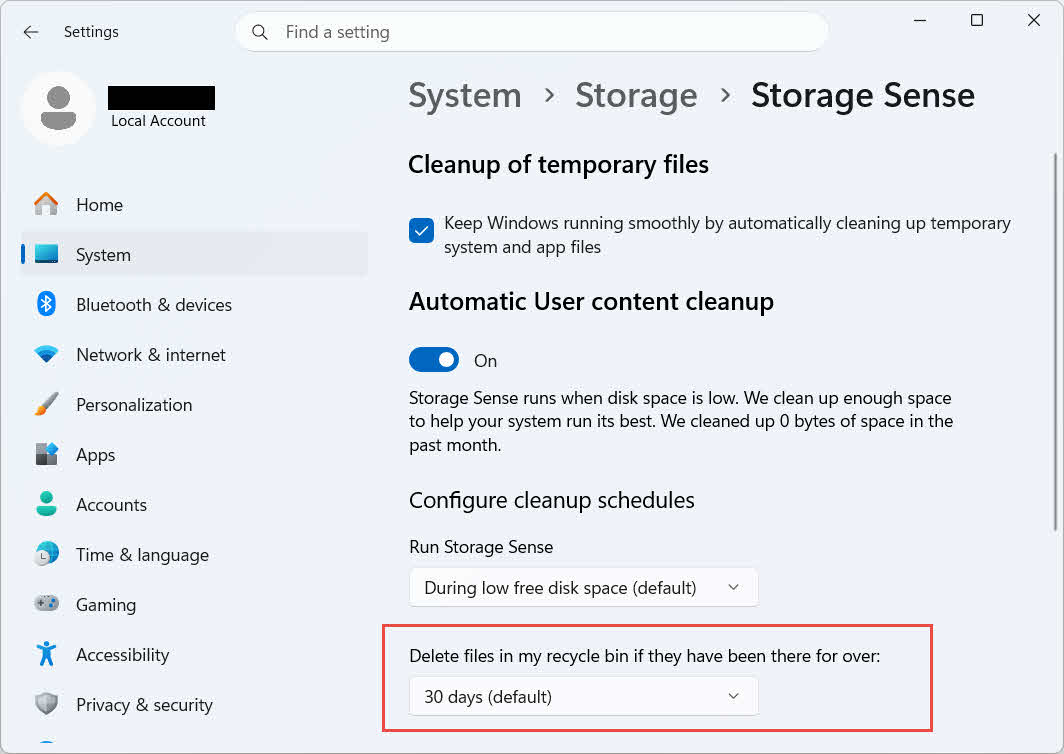
Τα Windows προσφέρουν επίσης μια ξεχωριστή επιλογή καθαρισμού βάσει ηλικίας: μεταβείτε στη διεύθυνση Ρυθμίσεις -> Σύστημα -> Αποθήκευση -> Έλεγχος Αποθήκευσης και να θέσει Διαγράψτε τα αρχεία στον κάδο ανακύκλωσής μου, αν υπάρχουν εδώ και πολλά χρόνια έναν επιλεγμένο αριθμό ημερών. Η προεπιλεγμένη περίοδος διατήρησης είναι 30 ημέρες.
6.2 Ενεργοποίηση του παραθύρου διαλόγου επιβεβαίωσης διαγραφής
Τα Windows 11 δεν εμφανίζουν από προεπιλογή μήνυμα επιβεβαίωσης πριν από τη μετακίνηση αρχείων στον Κάδο Ανακύκλωσης. Για να το ενεργοποιήσετε:
- Κάντε δεξί κλικ στο Recycle Bin και επιλέξτε Ιδιοκτησίες
- Έλεγχος Εμφάνιση διαγράψετε επιβεβαίωση διαλόγου
- Πατήστε OK
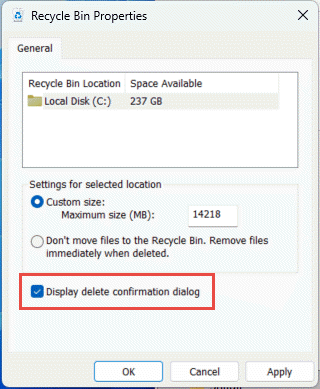
Αυτή η ρύθμιση δεν αποτρέπει τις μόνιμες διαγραφές, όπως π.χ. αλλαγή + Διαγραφή ή διαγραφές από μονάδες δίσκου χωρίς υποστήριξη Κάδου Ανακύκλωσης.
6.3 Ρύθμιση αρχείων για παράκαμψη του κάδου ανακύκλωσης (και γιατί να το αποφύγετε)
Το ίδιο Μην μετακινείτε αρχεία στον Κάδο Ανακύκλωσης. Αφαιρέστε τα αρχεία αμέσως μόλις διαγραφούν. επιλογή που καλύπτεται από Το τμήμα 6.1 μπορεί να εφαρμοστεί σε οποιαδήποτε μονάδα δίσκου για να κάνει κάθε διαγραφή μόνιμη. Αυτό ελευθερώνει χώρο στο δίσκο αμέσως, αλλά καταργεί τη μόνη επιλογή γρήγορης ανάκτησης που περιγράφει αυτός ο οδηγός, επομένως είναι καλύτερο να το κρατήσετε για μονάδες δίσκου που δεν περιέχουν προσωπικά αρχεία, όπως έναν αποκλειστικό τόμο scratch ή προσωρινό τόμο.
7. Βέλτιστες πρακτικές για την αποτροπή μελλοντικής απώλειας δεδομένων
7.1 Ενεργοποίηση Ιστορικού Αρχείων ή Λύσης Δημιουργίας Αντιγράφων Ασφαλείας
Ο Κάδος Ανακύκλωσης προστατεύει μόνο από τυχαία διαγραφή, όχι από βλάβη μονάδας δίσκου ή από έναν Κάδο Ανακύκλωσης που έχει ήδη αδειάσει. Ενεργοποίηση του Ιστορικού Αρχείων (Πίνακας Ελέγχου -> Σύστημα και Ασφάλεια -> Ιστορικό Αρχείων)

ή ένα εργαλείο δημιουργίας αντιγράφων ασφαλείας τρίτου κατασκευαστή προσθέτει ένα δεύτερο επίπεδο προστασίας με το δικό του ιστορικό εκδόσεων.
7.2 Χρήση του Cloud Sync για σημαντικούς φακέλους
Ο συγχρονισμός επιφάνειας εργασίας, εγγράφων και εικόνων με το OneDrive ή άλλη υπηρεσία cloud σάς παρέχει τον Κάδο Ανακύκλωσης ιστού που περιγράφεται στο Το τμήμα 4.3 ως πρόσθετη διαδρομή ανάκτησης, ανεξάρτητη από τον τοπικό Κάδο Ανακύκλωσης.
7.3 Ελέγξτε ξανά πριν αδειάσετε τον κάδο ανακύκλωσης
Πριν κάνετε κλικ Άδειασμα Κάδου Ανακύκλωσης, ταξινόμηση κατά Ημερομηνία διαγραφής και σαρώστε για οτιδήποτε πρόσφατο. Μόλις αδειάσει, η μόνη επιλογή που απομένει είναι το ειδικό λογισμικό ανάκτησης δεδομένων και η επιτυχία δεν είναι εγγυημένη.
8. Συχνές ερωτήσεις
Ε: Μπορώ να ανακτήσω ένα αρχείο αφού αδειάσω τον Κάδο Ανακύκλωσης;
Α: Όχι μέσω του ίδιου του Κάδου Ανακύκλωσης. Σε αυτό το σημείο, το αρχείο επισημαίνεται ως διαγραμμένο σε επίπεδο συστήματος αρχείων, αλλά ενδέχεται να εξακολουθεί να υπάρχει φυσικά στη μονάδα δίσκου μέχρι να αντικατασταθεί. Εργαλεία όπως DataNumen Data Recovery έχουν σχεδιαστεί για να σαρώνουν και να ανακατασκευάζουν αυτό το είδος δεδομένων. Διακόψτε τη χρήση της μονάδας δίσκου το συντομότερο δυνατό για να βελτιώσετε τις πιθανότητες επιτυχούς ανάκτησης.
Ε: Έχει το Mac κάτι παρόμοιο με τον Κάδο Ανακύκλωσης των Windows;
Α: Ναι, ονομάζεται Κάδος απορριμμάτων και λειτουργεί με τον ίδιο τρόπο: ανοίξτε τον Κάδο απορριμμάτων, κάντε δεξί κλικ στο αρχείο και επιλέξτε Επαναφορά. Αυτός ο οδηγός καλύπτει συγκεκριμένα τον Κάδο Ανακύκλωσης των Windows. Και αυτός ο οδηγός Καλύπτει συγκεκριμένα τον Κάδο Απορριμμάτων Mac.
Ε: Πόσο καιρό παραμένουν τα αρχεία στον Κάδο Ανακύκλωσης πριν διαγραφούν αυτόματα;
Α: Ο τοπικός Κάδος Ανακύκλωσης δεν έχει καθορισμένο χρονικό όριο από προεπιλογή. Τα στοιχεία καταργούνται μόνο όταν επιτευχθεί το όριο μεγέθους ή όταν ο Έλεγχος Αποθήκευσης έχει ρυθμιστεί για την εκκαθάριση παλιών στοιχείων (βλ. Το τμήμα 6.1). Ο Κάδος Ανακύκλωσης ιστού του OneDrive χρησιμοποιεί ένα σταθερό παράθυρο: 30 ημέρες για προσωπικούς λογαριασμούς και έως 93 ημέρες για λογαριασμούς εργασίας ή σχολείου (βλ. Το τμήμα 4.3).
Ε: Πρέπει να επαναφέρω ένα αρχείο στην αρχική του θέση ή σε μια νέα;
Α: Επαναφορά στην αρχική θέση (Το τμήμα 2) είναι απλούστερο και διατηρεί την αρχική διαδρομή του αρχείου. Επαναφορά σε διαφορετική τοποθεσία (Το τμήμα 3) αντί για αυτό, εάν ο αρχικός φάκελος δεν υπάρχει πλέον ή περιέχει ήδη ένα αρχείο με το ίδιο όνομα.
Ε: Μπορώ να ανακτήσω αρχεία που έχουν διαγραφεί από μια μονάδα flash USB χρησιμοποιώντας τον Κάδο Ανακύκλωσης;
Α: Όχι από προεπιλογή. Οι μονάδες flash και οι κάρτες SD δεν λαμβάνουν φάκελο "Κάδος Ανακύκλωσης" εκτός εάν τον ενεργοποιήσετε χειροκίνητα, όπως εξηγείται στην ενότητα Το τμήμα 4.1.
Ε: Γιατί η επιλογή Επαναφορά είναι γκριζαρισμένη ή λείπει;
Α: Αυτό συνήθως προκαλείται από έναν αρχικό φάκελο που λείπει ή από ένα μη συγχρονισμένο ευρετήριο του Κάδου Ανακύκλωσης. Δείτε Το τμήμα 5.3 για διορθώσεις.
Ε: Τι γίνεται αν ο Κάδος Ανακύκλωσης είναι άδειος αλλά δεν τον έχω αδειάσει ποτέ;
Α: Ο Έλεγχος Αποθήκευσης, η επίτευξη ορίου μεγέθους, ένας άλλος λογαριασμός χρήστη ή μια ρύθμιση Πολιτικής Ομάδας μπορούν να διαγραφούν αυτόματα. Δείτε. Το τμήμα 5.5.
Ε: Ποιο λογισμικό μπορεί να ανακτήσει αρχεία που δεν βρίσκονται πλέον στον Κάδο Ανακύκλωσης;
Α: Αποκλειστικό λογισμικό ανάκτησης δεδομένων, όπως DataNumen Data Recovery, σαρώνει τη μονάδα δίσκου σε χαμηλότερο επίπεδο για να βρει δεδομένα στα οποία δεν αναφέρεται πλέον το σύστημα αρχείων, κάτι που δεν μπορεί να κάνει η ίδια η διεπαφή του Κάδου Ανακύκλωσης.
Ε: Η επαναφορά ενός αρχείου εγγυάται ότι θα ανοίξει σωστά;
Α: Όχι. Η επαναφορά απλώς επιστρέφει το αρχείο σε έναν φάκελο. Δεν διορθώνει τυχόν ζημιά που είχε ήδη το αρχείο πριν ή κατά τη διαγραφή. Δείτε Το τμήμα 5.6.
9. Σύναψη
Η ανάκτηση των διαγραμμένων αρχείων από τον Κάδο Ανακύκλωσης είναι απλή, εφόσον το στοιχείο εξακολουθεί να υπάρχει: ανοίξτε τον Κάδο Ανακύκλωσης, βρείτε το αρχείο και επαναφέρετέ το. Οι εξωτερικές μονάδες δίσκου, τα κοινόχρηστα στοιχεία δικτύου και οι φάκελοι που συγχρονίζονται με το OneDrive προσθέτουν τις δικές τους συνθήκες, και οι ενότητες αντιμετώπισης προβλημάτων και ρύθμισης παραμέτρων παραπάνω καλύπτουν τις περιπτώσεις όπου η τυπική διαδικασία επαναφοράς δεν λειτουργεί όπως αναμένεται. Εάν το αρχείο διαγράφηκε οριστικά ή ο Κάδος Ανακύκλωσης έχει ήδη αδειάσει, το επόμενο βήμα είναι το ειδικό λογισμικό ανάκτησης δεδομένων, όχι ο ίδιος ο Κάδος Ανακύκλωσης.
Σχετικά με το Συγγραφέας
Qian Gua είναι ειδικός στην ανάκτηση δεδομένων με πάνω από 10 χρόνια εμπειρίας σε συστήματα αρχείων των Windows, τεχνολογίες αποθήκευσης και λύσεις αποκατάστασης καταστροφών. Έχει καθοδηγήσει με επιτυχία χιλιάδες χρήστες σε κρίσιμα σενάρια απώλειας δεδομένων τόσο σε προσωπικά όσο και σε εταιρικά περιβάλλοντα.
Ο Qian ειδικεύεται σε μεθοδολογίες ανάκτησης δεδομένων των Windows, ανάλυση συστημάτων αρχείων και στρατηγικές προληπτικής δημιουργίας αντιγράφων ασφαλείας. Η εκτεταμένη πρακτική του εμπειρία περιλαμβάνει την ανάκτηση δεδομένων από μονάδες δίσκου, την εφαρμογή ολοκληρωμένων λύσεων δημιουργίας αντιγράφων ασφαλείας και την αντιμετώπιση σύνθετων προβλημάτων συστημάτων αρχείων σε όλο το φάσμα... NTFS, FAT, exFAT και τόμους ReFS. Έχει εργαστεί με διάφορα εργαλεία και τεχνικές ανάκτησης, από ενσωματωμένα βοηθητικά προγράμματα των Windows έως επαγγελματικό λογισμικό ανάκτησης δεδομένων.
Μέσω της τεχνικής γραφής του, ο Qian είναι αφοσιωμένος στην ενδυνάμωση των χρηστών με πρακτικές γνώσεις για την προστασία και την ανάκτηση των πολύτιμων δεδομένων τους. Παραμένει ενημερωμένος για τις τελευταίες εξελίξεις στις τεχνολογίες ανάκτησης αρχείων των Windows, τις καινοτομίες σε συσκευές αποθήκευσης και τις βέλτιστες πρακτικές προστασίας δεδομένων. Όταν δεν βοηθά τους χρήστες να ανακτήσουν τα δεδομένα τους...ost fileΟ Qian απολαμβάνει την έρευνα για αναδυόμενες τεχνολογίες αποθήκευσης και την κοινοποίηση συμβουλών για την ασφάλεια δεδομένων που αποτρέπουν τη μελλοντική απώλεια δεδομένων.
Έχετε ερωτήσεις σχετικά με αυτόν τον οδηγό ή χρειάζεστε βοήθεια με την ανάκτηση δεδομένων; Ο Qian είναι ευπρόσδεκτος. σχόλια και προτάσεις για τη βελτίωση αυτών των πόρων ανάκτησης δεδομένων.