
如果您想快速打印所有表格而沒有Outlook電子郵件中的其他文本,則可以使用兩種方法之一來完成它。
當您收到一封有時在郵件正文中包含許多表格的電子郵件時,您可能希望提取這些表格並僅將其打印出來,而正文中則沒有文本。 但是,Outlook沒有實現它的相關功能。 因此,在下文中,我們將與您分享2種方法。
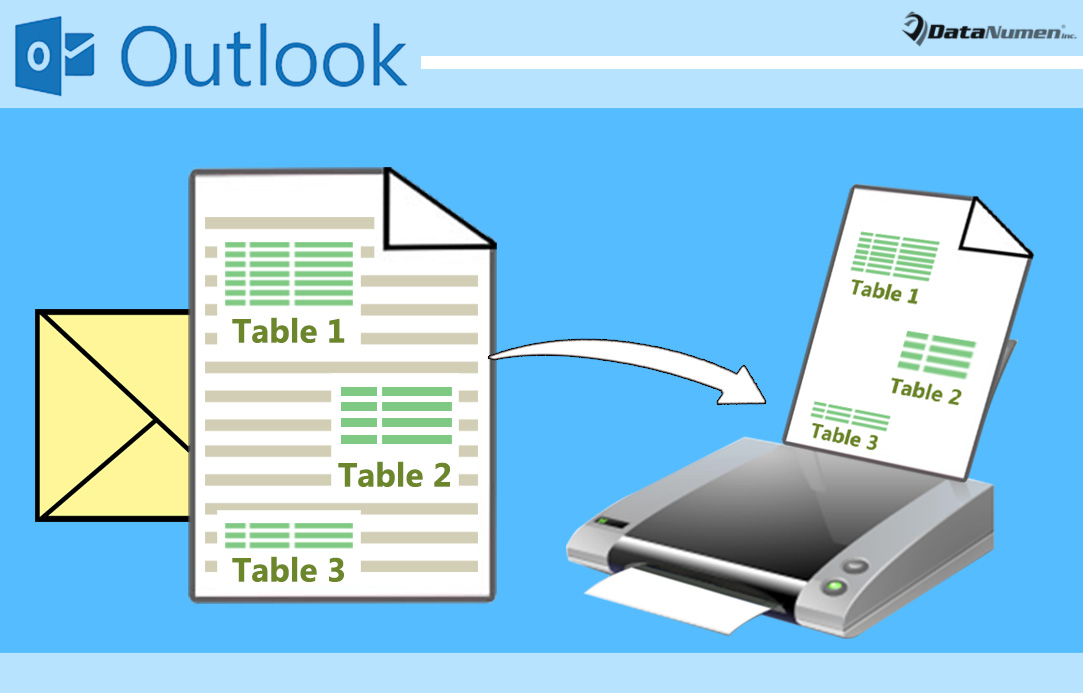
方法1:在單獨的頁面中打印所有表
- 到tar然後啟動Outlook程序。
- 然後在Outlook主窗口中,按“ Alt + F11”鍵按鈕。
- 在隨後的“ Microsoft Visual Basic for Applications”窗口中,您可以找到並打開一個未使用的模塊。
- 之後,您應該將以下VBA代碼複製到該模塊中。
Sub PrintAllTables_inOutlookEmail_Individually()
    Dim objMail As Outlook.MailItem
    Dim objMailDocument As Word.Document
    Dim objTable As Word.Table
    Dim lTableCount As Long
    Dim objWordApp As Word.Application
    Dim objWordDocument As Word.Document
    Dim i As Long

    'Get the Source Mail
    Set objMail = Outlook.Application.ActiveExplorer.Selection.Item(1)
    Set objMailDocument = objMail.GetInspector.WordEditor
    lTableCount = objMailDocument.Tables.count

    Set objWordApp = CreateObject("Word.Application")
    objWordApp.Visible = True

    For i = 1 To lTableCount
        Set objTable = objMailDocument.Tables(i)
        objTable.Range.Copy

        'Copy Each Table into Each Word Document
        Set objWordDocument = objWordApp.Documents.Add
        objWordDocument.Content.Paste

        'Print Out Each Document
        objWordDocument.PrintOut

        objWordDocument.Close False
    Next

    objWordApp.Quit
End Sub
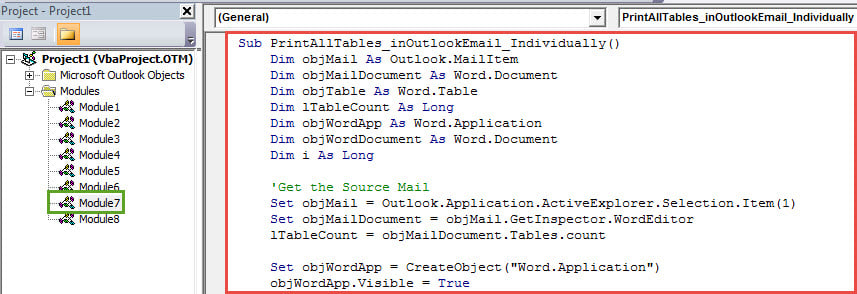
- 稍後,您應該將新的VBA項目添加到快速訪問工具欄。 轉到“ Outlook選項”>“快速訪問工具欄”選項卡即可實現。
- 最後,您可以嘗試一下。
- 首先,選擇包含多個表格的電子郵件。
- 然後在快速訪問工具欄中單擊新的宏按鈕。
- 一次,所有表格將打印在單獨的頁面中。
方法2:打印系列中的所有表
- 首先,按照上述方法的步驟1至2轉到“ Microsoft Visual Basic for Applications”窗口。
- 然後訪問未使用的模塊,您需要在其中將以下VBA代碼複製到其中。
Sub PrintAllTables_inOutlookEmail_Continuously()
    Dim objMail As Outlook.MailItem
    Dim objMailDocument As Word.Document
    Dim objTable As Word.Table
    Dim lTableCount As Long
    Dim objWordApp As Word.Application
    Dim objWordDocument As Word.Document
    Dim objCell As Word.Cell

    Set objMail = Outlook.Application.ActiveExplorer.Selection.Item(1)
    Set objMailDocument = objMail.GetInspector.WordEditor

    'Create a Word Document
    Set objWordApp = CreateObject("Word.Application")
    Set objWordDocument = objWordApp.Documents.Add
    objWordDocument.Activate
    objWordApp.Visible = True

    For Each objTable In objMailDocument.Tables
        objTable.Range.Copy

        'Copy All Tables into One Word Document
        With objWordDocument.Range
             .Collapse wdCollapseEnd
             .PasteSpecial wdPasteRTF
             .Text = vbCrLf
        End With
    Next

    'Print out the Word Document
    objWordDocument.PrintOut
    objWordDocument.Close False
    objWordApp.Quit
End Sub
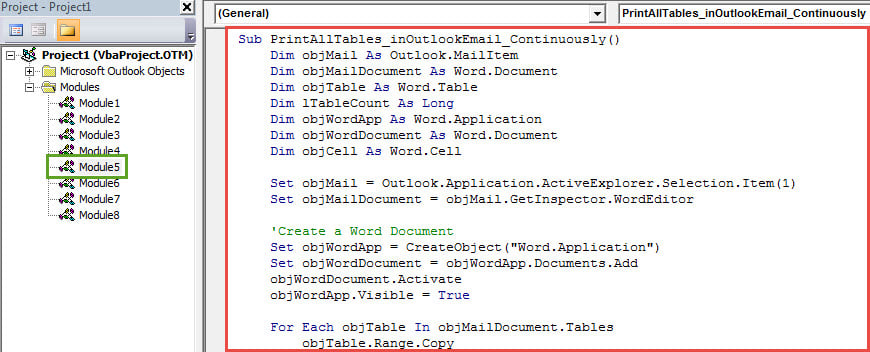
- 以後,您可以將新的宏添加到快速訪問工具欄。
- 最終,您選擇了一個源郵件,然後單擊快速訪問工具欄中的宏按鈕。 立即,此電子郵件中的所有表格將被複製到一個Word文檔中,該文檔現在將被打印出來。
防止Outlook數據損壞
儘管具有眾多功能,但是Outlook無法逃脫錯誤,崩潰和損壞。 因此,一旦遇到崩潰,Outlook數據將為您送別。 因此,以防止 Outlook損壞,您需要做出一些努力,例如阻止隱藏的病毒,保持Outlook正常關閉等。 另外,請謹慎使用經驗豐富的維修工具,例如 DataNumen Outlook Repair.
作者簡介:
Shirley Zhang是的數據恢復專家 DataNumen,Inc.是數據恢復技術的全球領導者,包括 修復mdf 和Outlook修復軟件產品。 欲了解更多信息,請訪問 萬維網。datanumen.COMc