
一般来说,要解压“.rar对于电子邮件中的附件,您应该先保存它,然后使用专门的工具提取内部文件。本文将为您提供一种直接在 Outlook 中解压缩 rar 文件的方法。
Outlook 不允许您预览“.RAR附件。此外,您无法解压“.RAR无法直接在 Outlook 中打开附件。因此,如果您想查看此类附件,应先将其保存到本地驱动器,然后使用 WinRAR 等专用工具从中提取内部文件。针对此问题,我们将为您提供一种解压缩“.RAR”附件仅在 Outlook 中。 现在继续阅读以获取详细步骤和 VBA 代码。
团结 .RAR 附件直接在 Outlook 中
- 首先,由于此方法依赖于特定的工具——WinRAR,您应该首先将其安装到您的电脑上,并确保其安装位置正确。
- 然后您可以像往常一样打开您的 Outlook 应用程序。
- 接下来在 Outlook 主窗口中按“Alt + F11”键按钮。
- 随后,在 Outlook VBA 编辑器中,打开一个空模块。
- 然后将以下 VBA 代码复制到此模块中。
Public objFileSystem As Object
Public strTempFolder As String
Public strTargetFolderPath As String
Public objAttachment As Outlook.Attachment

Sub UnRARAttachment()
    Dim objMail As Outlook.MailItem
    Dim objShell As Object
    Dim strTempFolder As String
    Dim strRARFile As String

    Set objMail = Outlook.Application.ActiveInspector.CurrentItem

    Set objFileSystem = CreateObject("Scripting.FileSystemObject")
    strTempFolder = objFileSystem.GetSpecialFolder(2).Path
    strTargetFolderPath = strTempFolder & "\Temp " & Format(Now, "YYYY-MM-DD-hh-mm-ss")
    MkDir (strTargetFolderPath)

    Set objShell = CreateObject("Wscript.Shell")

    If objMail.attachments.Count > 0 Then
       For Each objAttachment In objMail.attachments
           If LCase(Right(objAttachment.FileName, 4)) = ".rar" Then

              strRARFile = strTempFolder & "\" & objAttachment.FileName
              objAttachment.SaveAsFile (strRARFile)

              'Change "C:\Program Files\WinRAR\WinRAR.exe" to the location where your WinRAR is installed
              objShell.Run Chr(34) & "C:\Program Files\WinRAR\WinRAR.exe" & Chr(34) & " e " & Chr(34) & strRARFile & Chr(34) & " " & Chr(34) & strTargetFolderPath & Chr(34)
           End If
       Next
    End If

End Sub

Sub AttachExtractedFiles()
    Dim strFolderPath As String
    Dim strFile As String

    'Attach the extracted files to the current email
    strFolderPath = strTargetFolderPath & "\"
    strFile = Dir(strFolderPath)

    Set objMail = Outlook.Application.ActiveInspector.CurrentItem

    While Len(strFile) > 0
          objMail.attachments.Add strFolderPath & strFile
          strFile = Dir
    Wend

    'Delete the .RAR attachments
    For Each objAttachment In objMail.attachments
        If LCase(Right(objAttachment.FileName, 4)) = ".rar" Then
           objAttachment.Delete
        End If
    Next
End Sub
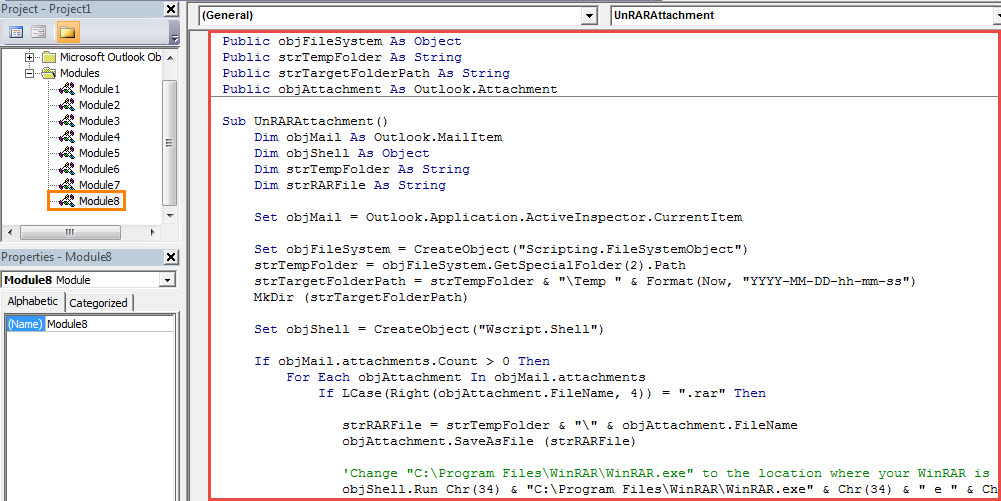
- 之后,您需要确保您的 Outlook 中允许宏。
- 最后你可以试试看。
- 首先,打开一封包含以下内容的电子邮件 .RAR 附件。
- 然后回到新的宏按钮。
- 点击进入“UnRARAttachments”子程序,然后按F5键。
- 然后点击进入下面的“AttachExtractedFiles”子程序,然后按 F5 键。
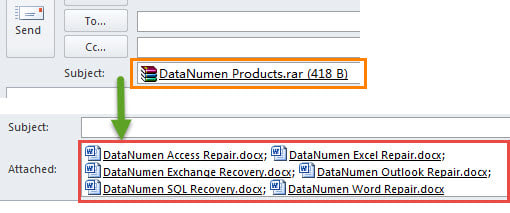
- 之后,您可以返回邮件窗口。您会看到 .RAR 附件已解压。 所有提取的文件都已附加。

拉开拉链 .Zip Outlook 中的附件
就像解压缩一样 .RAR 对于附件,Outlook 没有原生功能来解压缩“.zip”附件。因此,如果您无法直接解压缩“.Zip”附件默认直接在 Outlook 中。 幸运的是,您仍然可以利用 Outlook VBA 来实现此功能。 更详细的可以查看我之前的文章——》如何解压缩 .Zip 通过 VBA 直接在 Outlook 中添加附件。
作者简介:
Shirley Zhang 是一位数据恢复专家 DataNumen, Inc.,它是数据恢复技术领域的世界领先者,包括 固定 SQL Server 和 outlook 修复软件产品。 欲了解更多信息,请访问 datanumen.com