
在这篇文章中,我们将向您展示如何通过 VBA 快速查找 Word 文档中的所有单句段落。
有时,某些文档可能对其格式和结构有非常具体的要求。 例如,您可能不允许只有一个句子的段落。 这些段落不难识别,但需要时间,尤其是长文档。
今天,我们将为您提供一种快速指定文档中所有单句段落的方法。
在一个文档中查找所有单句段落
- 首先,Word 将句号计为一个句子。 因此,如果有诸如“先生”之类的词。 或“Ms.”,Word 将其视为一个句子。 要排除这种干扰,您需要替换“先生”。 与“先生”。 当找到单个句子的段落时,您可以将它们改回来。 替换的话可以参考这个链接: 如何查找和替换 Word 文档中的多个项目
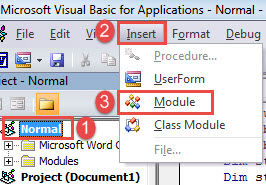
- 其次,按“Alt+F11”触发VBA编辑器。
- 然后单击“正常”项目。
- 单击菜单栏上的“插入”选项卡,然后在其下拉菜单中选择“模块”。

- 接下来双击模块将其打开。
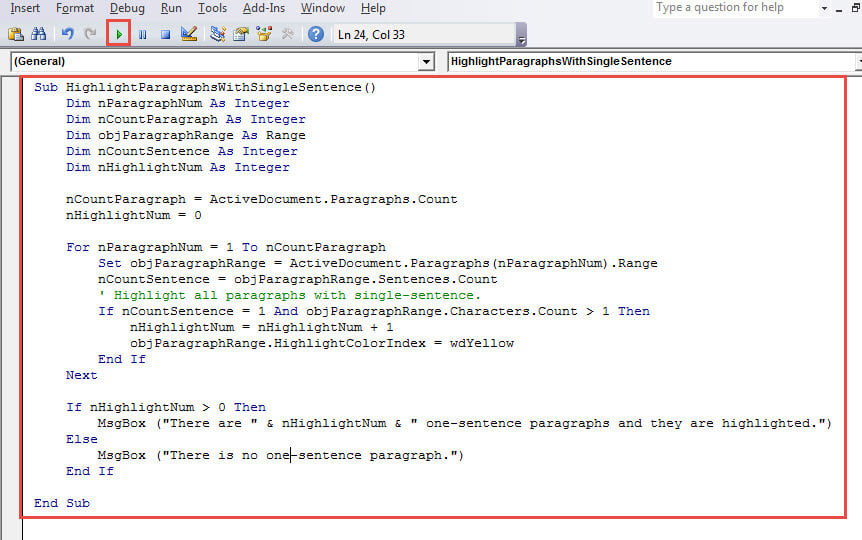
- 在模块上粘贴以下代码:
Sub HighlightParagraphsWithSingleSentence()
  Dim nParagraphNum As Integer
  Dim nCountParagraph As Integer
  Dim objParagraphRange As Range
  Dim nCountSentence As Integer
  Dim nHighlightNum As Integer

  nCountParagraph = ActiveDocument.Paragraphs.Count
  nHighlightNum = 0

  For nParagraphNum = 1 To nCountParagraph
    Set objParagraphRange = ActiveDocument.Paragraphs(nParagraphNum).Range
    nCountSentence = objParagraphRange.Sentences.Count
    ' Highlight all paragraphs with single-sentence.
    If nCountSentence = 1 And objParagraphRange.Characters.Count > 1 Then
      nHighlightNum = nHighlightNum + 1
      objParagraphRange.HighlightColorIndex = wdYellow
    End If
  Next

  If nHighlightNum > 0 Then
    MsgBox ("There are " & nHighlightNum & " paragraphs with single sentence and they are highlighted.")
  Else
    MsgBox ("There are no paragraphs with single sentence")
  End If

End Sub
- 最后但并非最不重要的一点是,单击“运行”按钮或按“F5”。

您将收到这样一个消息框,告诉您工作已完成。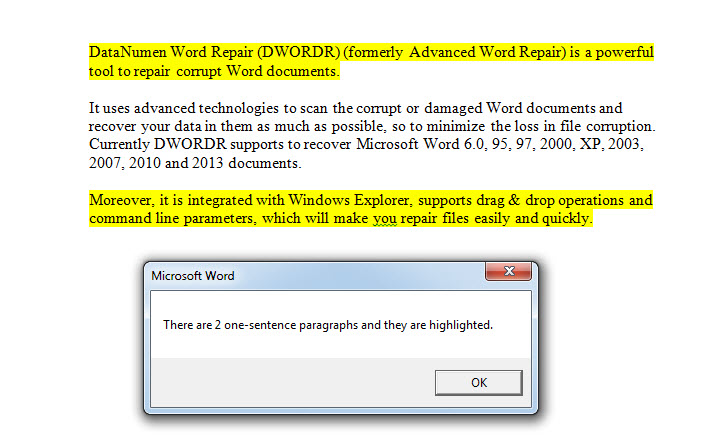
在多个文档中查找所有单句段落
- 首先,你需要将所有目标文档放在一个文件夹中。
- 然后安装并运行下面的宏:
Sub HighlightParagraphsWithSingleSentenceInMultipleFiles()
  Dim nParagraphNum As Integer
  Dim nCountParagraph As Integer
  Dim objParagraphRange As Range
  Dim nCountSentence As Integer
  Dim StrFolder As String
  Dim strFile As String
  Dim objDoc As Document
  Dim dlgFile As FileDialog
  Dim nHighlightNum As Integer
  Dim strSummary As String

  Set dlgFile = Application.FileDialog(msoFileDialogFolderPicker)

  With dlgFile
    If .Show = -1 Then
      StrFolder = .SelectedItems(1) & "\"
    Else
      MsgBox ("No Folder is selected!")
      Exit Sub
    End If
  End With

  strFile = Dir(StrFolder & "*.doc*", vbNormal)

  While strFile <> ""
    nHighlightNum = 0
    Set objDoc = Documents.Open(FileName:=StrFolder & strFile)
    Set objDoc = ActiveDocument
    nCountParagraph = ActiveDocument.Paragraphs.Count

    For nParagraphNum = 1 To nCountParagraph
      Set objParagraphRange = ActiveDocument.Paragraphs(nParagraphNum).Range
      nCountSentence = objParagraphRange.Sentences.Count
      ' Highlight all paragraphs with single-sentence.
      If nCountSentence = 1 And objParagraphRange.Characters.Count > 1 Then
        nHighlightNum = nHighlightNum + 1
        objParagraphRange.HighlightColorIndex = wdYellow
      End If
    Next
    objDoc.ActiveWindow.ActivePane.View.SeekView = wdSeekMainDocument
    objDoc.Save
    If nHighlightNum = 0 Then
      objDoc.Close
    End If

    strSummary = strSummary & strFile & " : " & nHighlightNum & " paragraphs with single sentence." & vbCrLf
    strFile = Dir()
  Wend
  MsgBox (strSummary)

End Sub
- 在打开的“浏览”窗口中,选择保存文档的文件夹,然后单击“确定”。

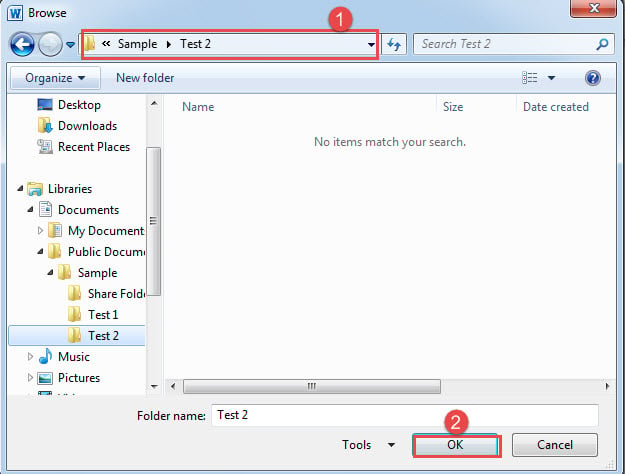
然后宏将突出显示所有单句段落并使文档保持打开状态。 如果文档不包含单句段落,它将被关闭。 此外,还有一个消息框,指示每个文档中单句段落的数量。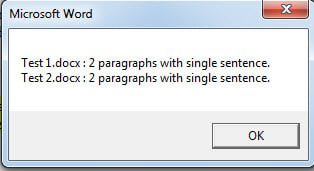
处理数据丢失事件
用户错误和突然断电会导致 Word 死机。 而折叠的Word不仅会影响日常工作,还会导致 文档损坏但这绝不是数据灾难中最令人恼火的部分。最好还是使用数据修复工具立即恢复数据。
作者简介:
Vera Chen 是一位数据恢复专家 DataNumen, Inc.,它是数据恢复技术领域的世界领先者,包括 恢复Excel 和 pdf 修复软件产品。 欲了解更多信息,请访问 datanumen.com