
虽然 Outlook 不允许直接将附件压缩成 RAR 文件,您仍然可以使用本文介绍的 VBA 代码轻而易举地实现它。
众所周知,当将许多大文件附加到一封电子邮件时,您很可能会在 Outlook 中收到有关附件大小限制的警告。 此外,如果电子邮件中的附件太大,发送成功也会变得更加困难。 因此,面对此类附件,您可以选择将它们压缩成 RAR 文件,这可以在一定程度上减少附件的大小。
一般来说,将文件压缩成 RAR 文件,您只能在本地驱动器中实现它,因为 Outlook 不提供这种本机压缩功能。 然而,许多人希望直接在 Outlook 中完成它。 因此,在这里我们将教您如何使用 Outlook VBA 获取它。
快速将所有附件压缩成一个 RAR Outlook 电子邮件中的文件
- 首先,启动您的 Outlook 应用程序。
- 然后在 Outlook 主窗口中按“Alt + F11”键。
- 接下来您将进入“Microsoft Visual Basic for Applications”窗口。 您需要打开一个空模块。
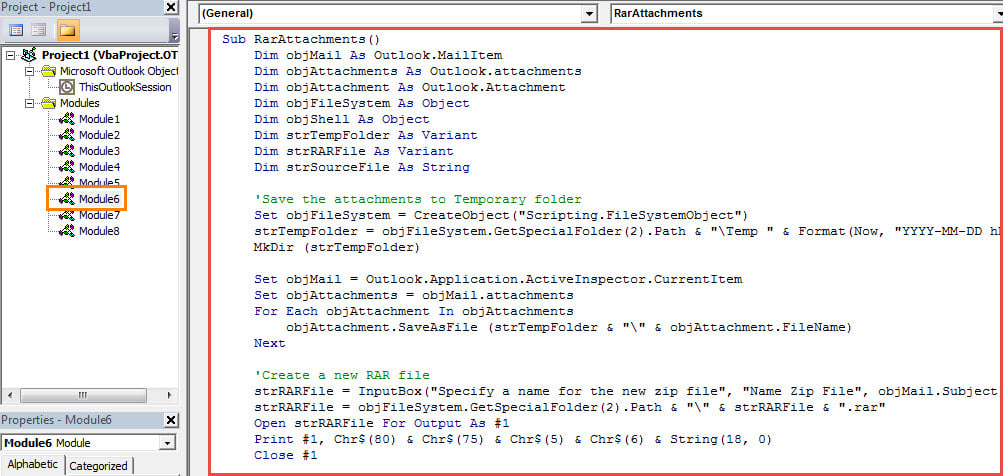
- 随后,将以下 VBA 代码复制并粘贴到该模块中。
Sub RarAttachments()
    Dim objMail As Outlook.MailItem
    Dim objAttachments As Outlook.attachments
    Dim objAttachment As Outlook.Attachment
    Dim objFileSystem As Object
    Dim objShell As Object
    Dim strTempFolder As Variant
    Dim strRARFile As Variant
    Dim strSourceFile As String

    'Save the attachments to Temporary folder
    Set objFileSystem = CreateObject("Scripting.FileSystemObject")
    strTempFolder = objFileSystem.GetSpecialFolder(2).Path & "\Temp " & Format(Now, "YYYY-MM-DD hh-mm-ss")
    MkDir (strTempFolder)

    Set objMail = Outlook.Application.ActiveInspector.CurrentItem
    Set objAttachments = objMail.attachments
    For Each objAttachment In objAttachments
        objAttachment.SaveAsFile (strTempFolder & "\" & objAttachment.FileName)
    Next

    'Create a new RAR file
    strRARFile = InputBox("Specify a name for the new zip file", "Name Zip File", objMail.Subject)
    strRARFile = objFileSystem.GetSpecialFolder(2).Path & "\" & strRARFile & ".rar"
    Open strRARFile For Output As #1
    Print #1, Chr$(80) & Chr$(75) & Chr$(5) & Chr$(6) & String(18, 0)
    Close #1

    Set objShell = CreateObject("Shell.Application")

    'Add the files to the New RAR file
    strSourceFile = Dir(strTempFolder)

    While strSourceFile <> ""
          'Change "C:\Program Files (x86)\WinRAR\WinRAR.exe" to the location where your WinRAR is installed
          objShell.Run Chr(34) & "C:\Program Files (x86)\WinRAR\WinRAR.exe" & Chr(34) & " a -r" & Chr(34) & strRARFile & Chr(34) & " " & Chr(34) & strSourceFile & Chr(34)
          strSourceFile = Dir
    Wend

    'Delete all the attachments
    Set objAttachments = objMail.attachments

    While objAttachments.Count > 0
          objAttachments.Item(1).Delete
    Wend

    'Add the new RAR file to the current email
    objMail.attachments.Add strRARFile

    'Prompt you
    MsgBox "Complete!", vbExclamation
End Sub
- 之后,将您的 Outlook 宏安全级别更改为低。
- 稍后,为了方便访问,您可以将宏添加到快速访问工具栏。
- 最终你可以尝试一下。
- 首先,打开一封包含许多附件的电子邮件。
- 然后按快速访问工具栏中的宏按钮。
- 接下来,您需要为新的输入一个名称 RAR 文件并点击“确定”。
- 之后,所有原始附件将被新的 RAR 文件如截图:

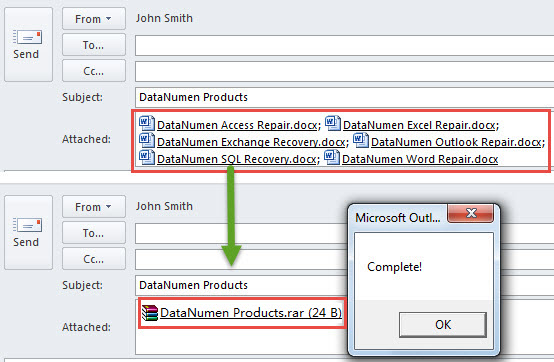
团结 .RAR Outlook 中的附件
同样,Outlook 也不允许用户直接解压缩文件。 .RAR 其中的文件。因此,如果您想查看内部文件, .RAR 附件,您需要将其保存并解压到您的本地驱动器中。 然而,这无疑是乏味的。 幸运的是,您仍然可以在 Outlook 中使用 VBA 实现此功能,这在我之前的文章“如何解压缩 .RAR 通过 VBA 直接在 Outlook 中添加附件。
作者简介:
Shirley Zhang 是一位数据恢复专家 DataNumen, Inc.,它是数据恢复技术领域的世界领先者,包括 SQL Server 腐败 和 outlook 修复软件产品。 欲了解更多信息,请访问 datanumen.com