
将 Word 文档作为附件很容易 PDF 文件到 Outlook 电子邮件。 然而,如果您想将多个 Word 文档作为 PDF 文件到电子邮件,你可以阅读这篇文章。 在这里,我们将向您展示一种批量获取它的方法。
将 Word 文档附加为 PDF 要将文件发送到 Outlook 电子邮件,您可以先打开 Word 文档,然后转到“文件”菜单。接着,您可以切换到“保存并发送”选项卡,其中有一个“以 PDF 格式发送”按钮,如下图所示。
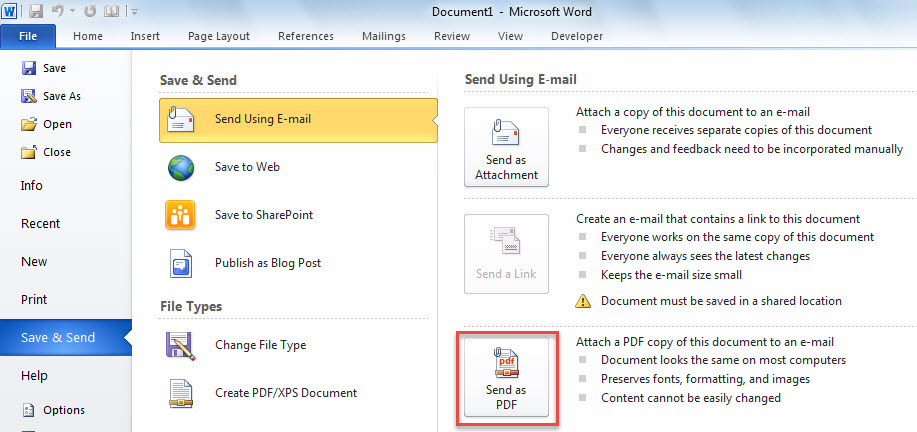
因此,将 Word 文档附加为非常简单 PDF 到电子邮件。 但是,如果您想将多个 Word 文档转换并附加为 PDF 文件到邮件,你最好使用以下方式。 它可以让你批量完成它。
批量转换和附加多个 Word 文档为 PDF 文件到电子邮件
- 首先,将你需要的 Word 文档放在同一个 Windows 文件夹中。
- 然后,启动 Outlook 程序。
- 接下来,将以下代码复制到未使用的项目或模块中。
Dim objMail As Outlook.MailItem

Sub BatchAttachMultipleWordDocumentsAsPDFToEmail()
    Dim objShell As Object
    Dim objWindowsFolder As Object
    Dim strWindowsFolder As String

    Set objMail = Outlook.Application.CreateItem(olMailItem)

    'Select the specific Windows folder
    Set objShell = CreateObject("Shell.Application")
    Set objWindowsFolder = objShell.BrowseForFolder(0, "Select a Windows folder:", 0, "")

    If Not objWindowsFolder Is Nothing Then
       strWindowsFolder = objWindowsFolder.self.Path & "\"

       Call ProcessFolders(strWindowsFolder)

       objMail.Display
    End If
End Sub

Sub ProcessFolders(strPath As String)
    Dim objFileSystem As Object
    Dim objFolder As Object
    Dim objFile As Object
    Dim objWordApp As Word.Application
    Dim objWordDocument As Word.Document
    Dim strDocumentName As String
    Dim strPDF As String

    Set objFileSystem = CreateObject("Scripting.FileSystemObject")
    Set objFolder = objFileSystem.GetFolder(strPath)

    For Each objFile In objFolder.Files
        strFileExtension = objFileSystem.GetExtensionName(objFile)
        If LCase(strFileExtension) = "doc" Or LCase(strFileExtension) = "docx" Then
           Set objWordApp = CreateObject("Word.Application")
           Set objWordDocument = objWordApp.Documents.Open(objFile.Path)

           'Convert document to pdf
           strDocumentName = Left(objWordDocument.Name, (Len(objWordDocument.Name) - Len(strFileExtension)) - 1)
           strPDF = strPath & strDocumentName & ".pdf"
           objWordDocument.ExportAsFixedFormat strPDF, wdExportFormatPDF

           objWordDocument.Close False

           'Attach the pdf to email
           objMail.Attachments.Add strPDF

           Kill strPDF
        End If
    Next

    'Process all folders and subfolders
    If objFolder.SubFolders.Count > 0 Then
       For Each objSubfolder In objFolder.SubFolders
           If ((objSubfolder.Attributes And 2) = 0) And ((objSubfolder.Attributes And 4) = 0) Then
              ProcessFolders (objSubfolder.Path)
           End If
       Next
    End If
End Sub
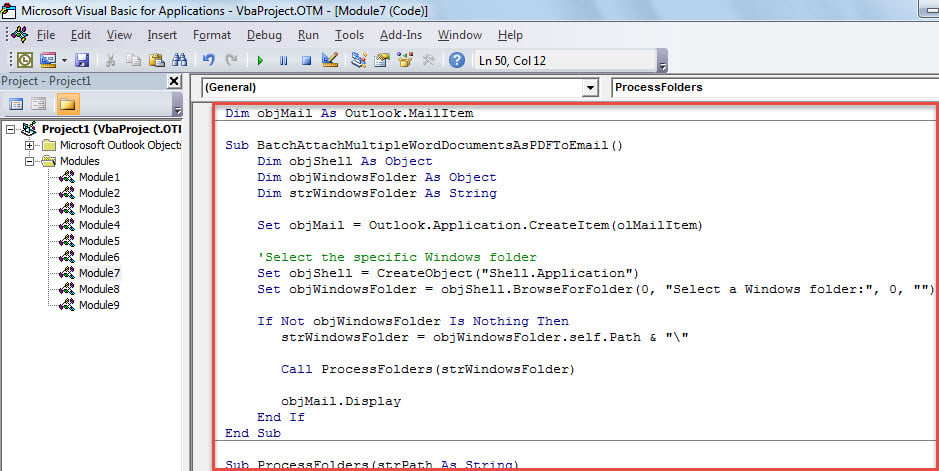
- 之后,将光标移动到第一个子程序。
- 随后,按“F5”立即运行该宏。
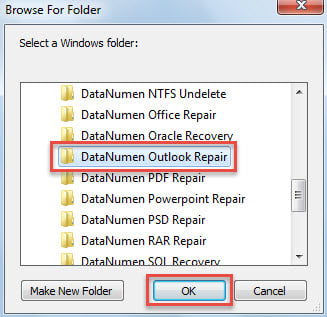
- 在弹出的小对话框中,选择源Word文档所在的Windows文件夹。

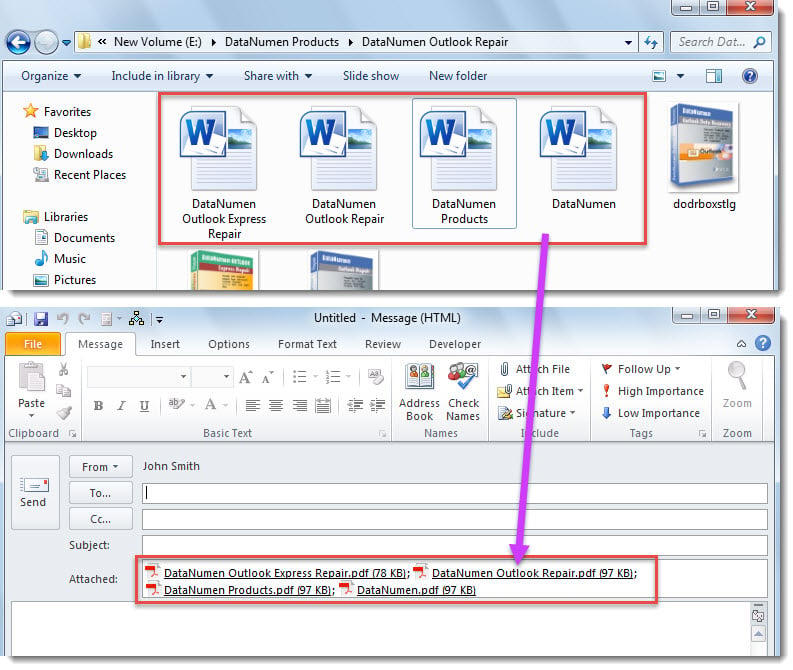
- 立即将创建一个新电子邮件,您可以在其中看到附件 PDF 文件,例如以下 screenshost。

受 Outlook 问题困扰
您是否被各种各样的 Outlook 问题所困扰? 例如,Outlook 经常卡在“无响应”状态或 Outlook PST 文件无法访问等。一般情况下,您可以先尝试收件箱修复工具, 扫描仪,修复 PST 问题。 然而,有时,问题可能超出了内置工具所能解决的范围。 因此,您最好在附近放置一个更强大的外部实用程序,例如 DataNumen Outlook Repair.
作者简介:
Shirley Zhang 是一位数据恢复专家 DataNumen, Inc.,它是数据恢复技术领域的世界领先者,包括 sql修复 和 outlook 修复软件产品。 欲了解更多信息,请访问 datanumen.com