
如果您经常需要更改多个约会的提醒时间,本文将对您有很大帮助。 这里的方法可以有效的省去你手动一个一个的更改提醒时间的麻烦。
上一篇文章——《3 个步骤来批量创建和更改日历项目的提醒》分享了批量更改多个约会提醒时间的方法。 然而,它仍然要求您首先更改视图设置,然后手动更改一个约会的提醒。 因此,在这里我们将向您介绍一种更有效的方法。 在这里,我们将展示详细的步骤和具体的 VBA 代码。 因此,您不必担心不了解 VBA。 请继续阅读。
批量更改多个约会的提醒时间
- 首先,启动 Outlook 程序。
- 然后,参考“访问VBA编辑器如何在 Outlook 中运行 VBA 代码“。
- 接下来,将以下 VBA 代码复制并粘贴到未使用的模块中。
Sub BatchChangeRemindersMultipleAppointments()
 Dim lReminderMinBeforeStart As Long
 Dim objSelection As Outlook.Selection
 Dim i As Long
 Dim objAppointment As Outlook.AppointmentItem

 'Enter the number of minutes the reminder should occur prior to the start of the appointment
 lReminderMinBeforeStart = InputBox("Enter the reminder minutes before start:", , "45")

 Set objSelection = Outlook.ActiveExplorer.Selection

 For i = objSelection.Count To 1 Step -1
 If TypeOf objSelection.Item(i) Is AppointmentItem Then
 Set objAppointment = objSelection.Item(i)

 'Enable the reminder
 If objAppointment.ReminderSet = False Then
 With objAppointment
 .ReminderSet = True
 .Save
 End With
 End If

 With objAppointment
 .ReminderMinutesBeforeStart = lReminderMinBeforeStart
 .Save
 End With
 End If
 Next

 'Prompt you of "Complete"
 MsgBox "Complete!", vbInformation + vbOKOnly
End Sub
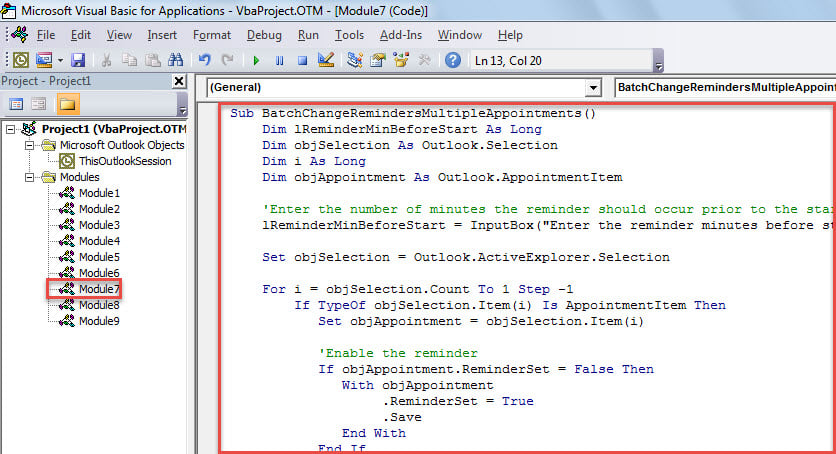
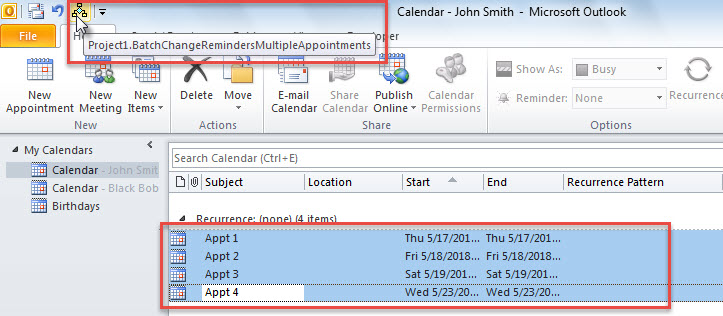
- 之后,将此宏添加到功能区或快速访问工具栏。
- 最后,你可以试试。
- 首先,选择您想要的约会。
- 然后,单击宏按钮。

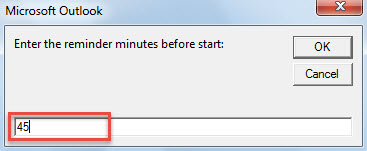
- 接下来,在弹出的对话框中,输入预约开始前的提醒分钟数。

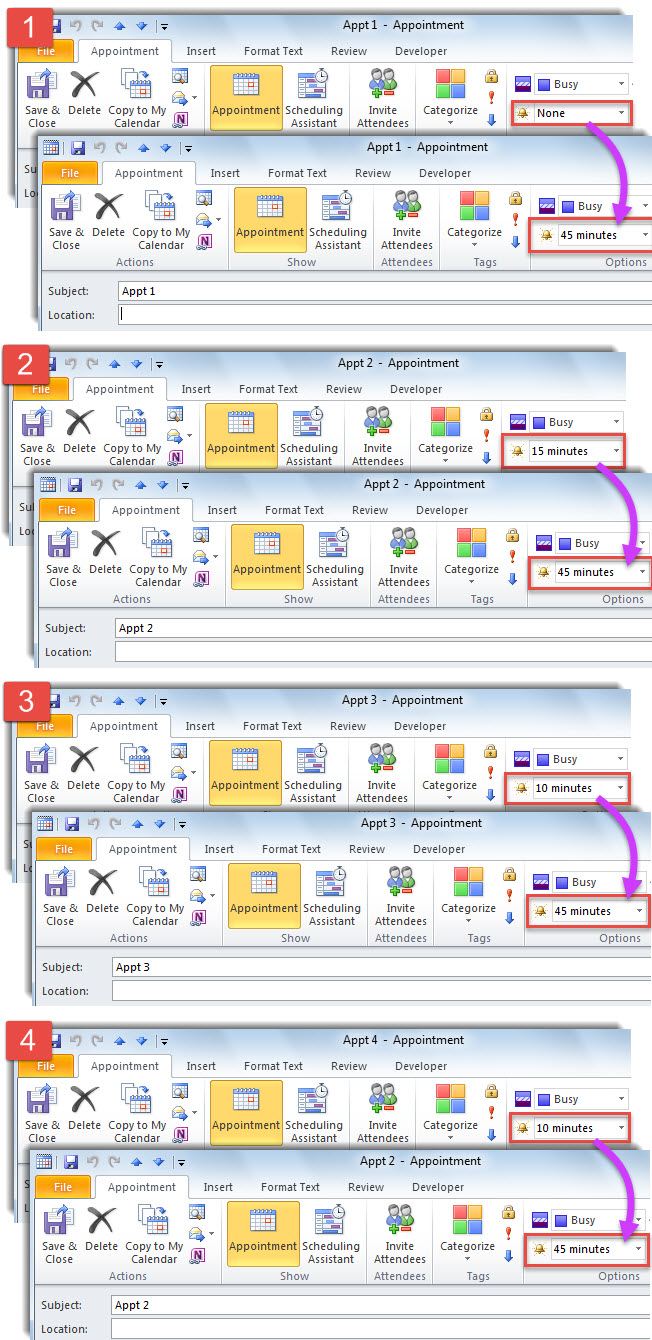
- 现在,您可以查看所选约会的提醒时间,这些时间已根据您的需要进行了修改。

消除 Outlook 错误
如果您在 Outlook 中经常遇到各种错误,您应该采取一些强有力的措施。 例如,您需要立即备份您的 Outlook PST 文件,对文件进行病毒扫描和查杀,学习如何有效地使用 Scanpst 来 修复 PST 问题并获取外部修复工具,例如 DataNumen Outlook Repair. 当您遇到收件箱修复工具无法应对的棘手问题时,它会派上用场。
作者简介:
Shirley Zhang 是一位数据恢复专家 DataNumen, Inc.,它是数据恢复技术领域的世界领先者,包括 修复 和 outlook 修复软件产品。 欲了解更多信息,请访问 datanumen.com