
在本文中,有 3 种快速方法可让您将 Word doc 批量转换为 docx 文件,反之亦然。
众所周知,不同的 Word 版本以不同的类型保存文件,扩展名为 .doc 或 .docx。 在团队合作中,很可能不同的成员使用不同版本的 Word。 因此,这导致了打开和编辑共享文件的困难。 例如2007之前的Word不能打开docx文件,2007及以上版本的Word可以打开doc文件,但部分选项会被限制,使用起来不方便编辑。
因此,寻找在Word doc和docx文件之间进行转换的方法是很有必要的,如果能实现批处理就更好了。
方法一:将Word Doc批量转换为Docx文件
- 首先,将所有需要处理的文件整理到一个文件夹中。
- 然后打开Word并按“Alt+F11”打开VBA编辑器。
- 现在点击“Normal”项目,然后点击“Insert”。
- 接下来选择“模块”以在项目中插入一个新模块。
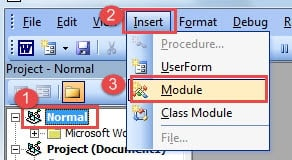
- 然后双击模块打开编辑区,粘贴以下代码:
Sub TranslateDocIntoDocx()
  Dim objWordApplication As New Word.Application
  Dim objWordDocument As Word.Document
  Dim strFile As String
  Dim strFolder As String

  strFolder = "E:\Temp\"
  strFile = Dir(strFolder & "*.doc", vbNormal)

  While strFile <> ""
    With objWordApplication
      Set objWordDocument = .Documents.Open(FileName:=strFolder &strFile, AddToRecentFiles:=False, ReadOnly:=True, Visible:=False)

      With objWordDocument
        .SaveAs FileName:=strFolder & Replace(strFile, "doc", "docx"), FileFormat:=16
        .Close
      End With
    End With
    strFile = Dir()
  Wend

  Set objWordDocument = Nothing
  Set objWordApplication = Nothing
End Sub
- 最后点击“运行”按钮。

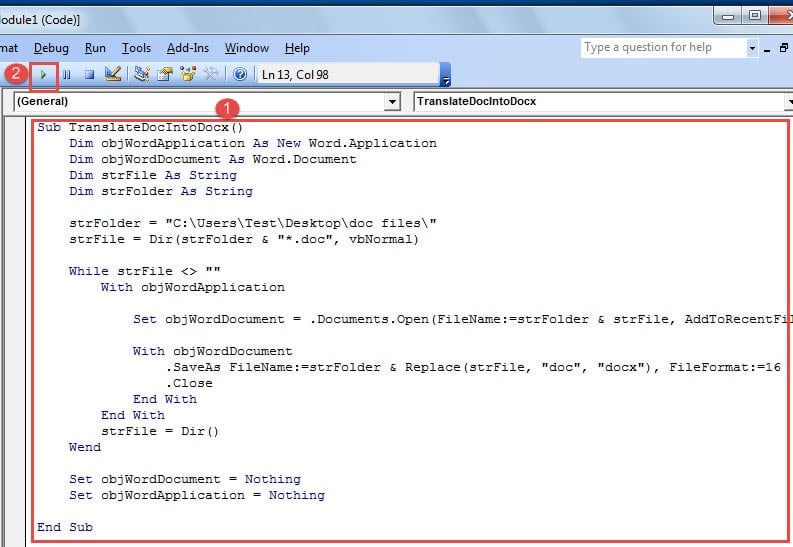
几秒钟后,您会发现所有 doc 文件都已转换为 docx 文件。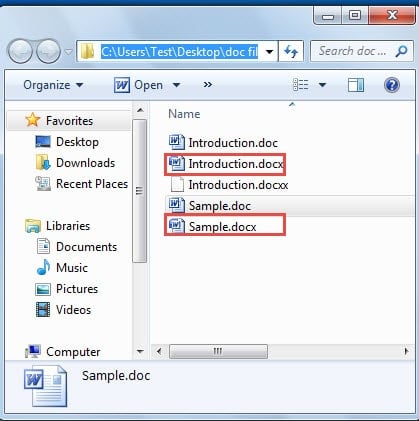
请注意:
在代码行“strFolder = "E:\Temp\"", 你应该更换“E:\温度”以及您的文件夹的位置。
方法 2:将 Word Docx 文件批量转换为 Doc 文件
- 首先,将所有docx文件放在一个文件夹中。
- 同样,按“Alt+F11”打开VBA编辑器。
- 然后按照方法1同样的方法插入一个新的模块并打开。
- 接下来将以下代码粘贴到那里:
Sub TranslateDocxIntoDoc()
  Dim objWordApplication As New Word.Application
  Dim objWordDocument As Word.Document
  Dim strFile As String
  Dim strFolder As String

  strFolder = "E:\Temp\"
  strFile = Dir(strFolder & "*.docx", vbNormal)

  While strFile <> ""
    With objWordApplication
      Set objWordDocument = .Documents.Open(FileName:=strFolder & strFile, AddToRecentFiles:=False, ReadOnly:=True, Visible:=False)

      With objWordDocument
        .SaveAs FileName:=strFolder & Replace(strFile, "docx", "doc"), FileFormat:=0
        .Close
      End With
    End With
    strFile = Dir()
  Wend

  Set objWordDocument = Nothing
  Set objWordApplication = Nothing
End Sub
- 最后,点击“运行”按钮开始转换。

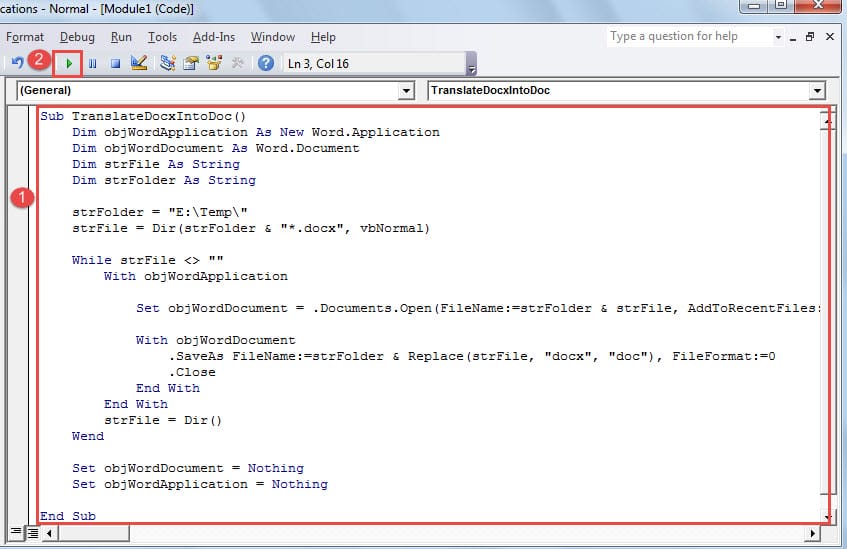
你仍然必须记住改变“E:\温度”在代码行“strFolder = “E:\Temp\”” 到您的实际文件夹路径。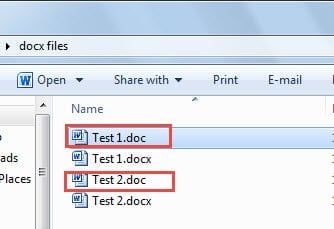
方法三:使用“另存为”方式
- 首先,将所有 doc 或 docx 文件安排在一个文件夹中。
- 其次按“Ctrl”并单击以选择所有文件。
- 接下来右键单击并在菜单上选择“另存为”。
- 现在将弹出多个“另存为”窗口,因此相应地选择文件类型为 doc 或 docx。
- 最后点击“保存”关闭所有窗口。
但是,由于 Windows 或 Office 版本的多样性,“另存为”选项可能在上下文菜单中不可用。 因此,强烈建议采取2种宏观方式进行任务。
注意文件完整性
虽然我们介绍了 3 种在 Word doc 和 docx 文件之间转换的方法,但这些文件很容易因人为错误或处理不当而损坏。 因此,您应该经常备份并保留一份 Word 文档问题修复实用程序 在发生损坏的情况下。
作者简介:
Vera Chen 是一位数据恢复专家 DataNumen, Inc.,它是数据恢复技术领域的世界领先者,包括 Excel数据错误修复工具 和 pdf 修复软件产品。 欲了解更多信息,请访问 datanumen.com