
发送会议邀请后,您可以在会议的“跟踪”页面查看收件人的会议回复。 如果您想打印 Tracking 列表,可以使用本文介绍的 3 种方法。
Outlook 为用户提供会议的“跟踪”功能。 它将列出所有与会者的所有回复。 因此,如果您希望检查谁接受了您组织的会议以及谁拒绝了,您可以访问跟踪列表。 但是,没有直接打印列表的功能。 因此,在这里我们将与您分享3种快速打印它的方法。
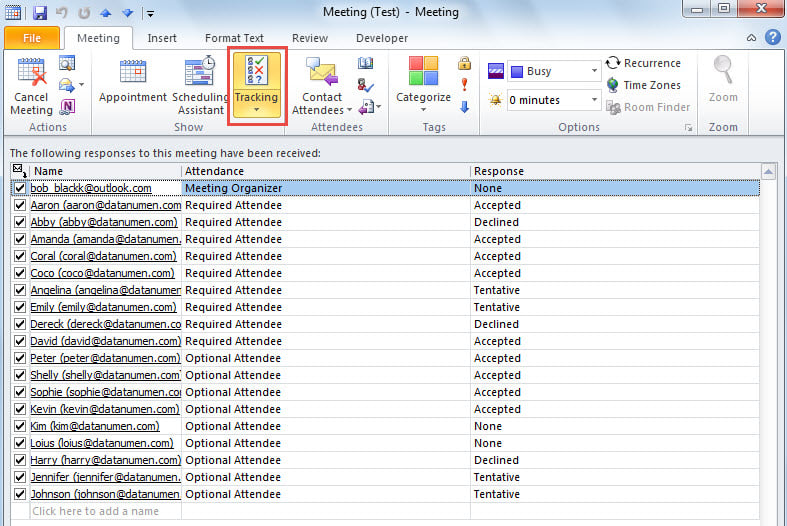
方法一:打印“追踪”截图
- 首先,打开会议“跟踪”页面。
- 接下来,创建一个新电子邮件。
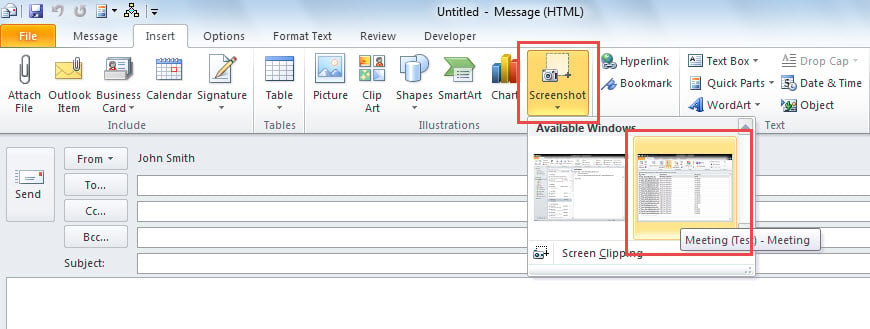
- 之后,切换到“插入”选项卡并单击“屏幕截图”按钮。
- 稍后,从“可用窗口”列表中选择“跟踪”屏幕截图。

- 最后,转到“文件”>“打印”打印出“跟踪”的屏幕截图。
方法二:复制到Excel后打印
- 首先,访问“跟踪”页面。
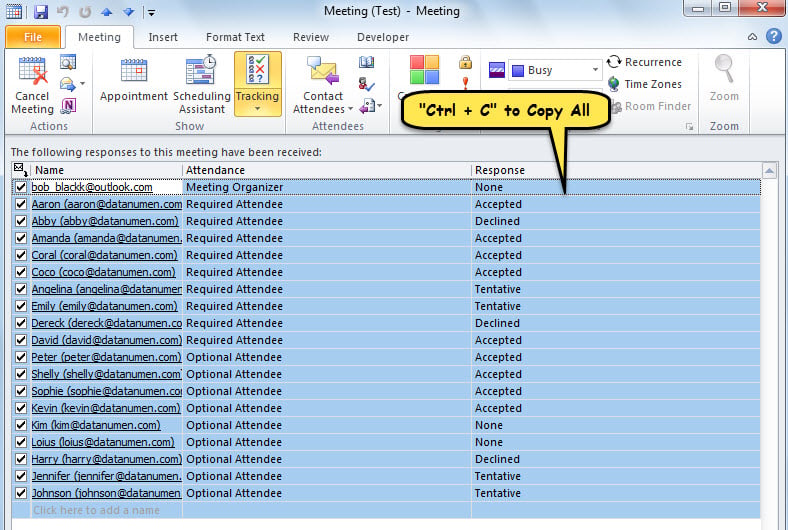
- 随后,在“跟踪”列表中选择一个条目。
- 接下来,按“Ctrl + A”选择所有条目。
- 然后,按“Ctrl + C”复制它们。

- 然后,打开一个新的 Excel 文件。
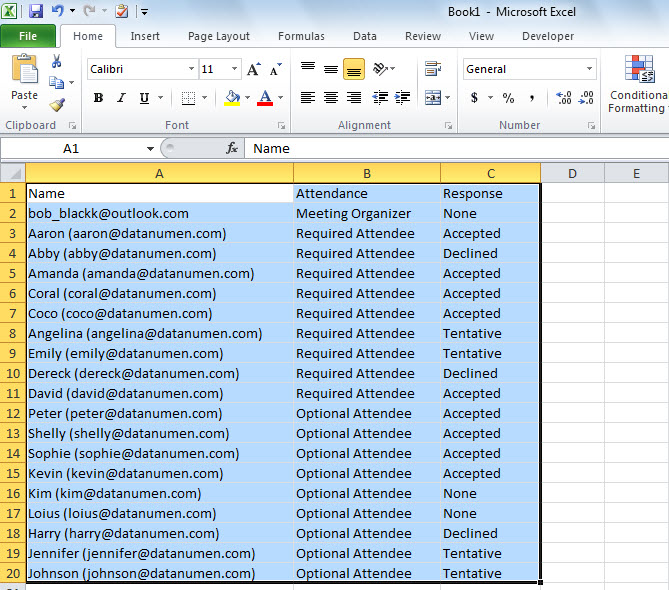
- 选择“A1”单元格并按“Ctrl + V”粘贴复制的“跟踪”列表。

- 最后,在 Excel 中,转到“文件”>“打印”以打印当前工作表。
方法 3:使用 Outlook VBA 打印
- 首先,通过参考“转到 Outlook VBA 编辑器如何在 Outlook 中运行 VBA 代码“。
- 然后,按照“启用 MS Excel 对象库”的说明进行操作。如何在 VBA 中添加对象库引用“。
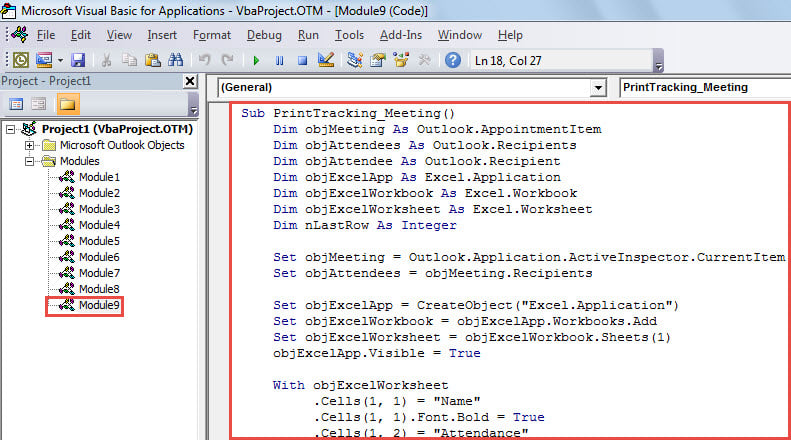
- 之后,将下面的代码放入一个模块中。
Sub PrintTracking_Meeting()
    Dim objMeeting As Outlook.AppointmentItem
    Dim objAttendees As Outlook.Recipients
    Dim objAttendee As Outlook.Recipient
    Dim objExcelApp As Excel.Application
    Dim objExcelWorkbook As Excel.Workbook
    Dim objExcelWorksheet As Excel.Worksheet
    Dim nLastRow As Integer

    Set objMeeting = Outlook.Application.ActiveInspector.CurrentItem
    Set objAttendees = objMeeting.Recipients

    Set objExcelApp = CreateObject("Excel.Application")
    Set objExcelWorkbook = objExcelApp.Workbooks.Add
    Set objExcelWorksheet = objExcelWorkbook.Sheets(1)
    objExcelApp.Visible = True

    With objExcelWorksheet
         .Cells(1, 1) = "Name"
         .Cells(1, 1).Font.Bold = True
         .Cells(1, 2) = "Attendance"
         .Cells(1, 2).Font.Bold = True
         .Cells(1, 3) = "Response"
         .Cells(1, 3).Font.Bold = True
    End With

    For Each objAttendee In objAttendees
        nLastRow = objExcelWorksheet.Range("A" & objExcelWorksheet.Rows.Count).End(xlUp).Row + 1

       Select Case objAttendee.MeetingResponseStatus
              Case olResponseAccepted
                   With objExcelWorksheet
                        .Range("A" & nLastRow) = objAttendee.Name
                        .Range("B" & nLastRow) = GetAttendance(objAttendee.Type)
                        .Range("C" & nLastRow) = "Accepted"
                   End With
              Case olResponseDeclined
                   With objExcelWorksheet
                        .Range("A" & nLastRow) = objAttendee.Name
                        .Range("B" & nLastRow) = GetAttendance(objAttendee.Type)
                        .Range("C" & nLastRow) = "Declined"
                   End With
              Case olResponseNone
                   With objExcelWorksheet
                        .Range("A" & nLastRow) = objAttendee.Name
                        .Range("B" & nLastRow) = GetAttendance(objAttendee.Type)
                        .Range("C" & nLastRow) = "None"
                   End With
              Case olResponseTentative
                   With objExcelWorksheet
                        .Range("A" & nLastRow) = objAttendee.Name
                        .Range("B" & nLastRow) = GetAttendance(objAttendee.Type)
                        .Range("C" & nLastRow) = "Tentative"
                   End With
              Case olResponseOrganized
                   With objExcelWorksheet
                        .Range("A" & nLastRow) = objAttendee.Name
                        .Range("B" & nLastRow) = GetAttendance(objAttendee.Type)
                        .Range("C" & nLastRow) = "Organized"
                   End With
       End Select
    Next

    objExcelWorksheet.Columns("A:C").AutoFit
    objExcelWorksheet.PrintOut
End Sub

Function GetAttendance(lType As Long) As String
    Select Case lType
           Case 0
                GetAttendance = "Meeting Organizer"
           Case 1
                GetAttendance = "Required Attendee"
           Case 2
                GetAttendance = "Optional Attendee"
    End Select
End Function
- 接下来,将此宏添加到快速访问工具栏 (QAT)。
- 最后,打开一个会议并点击 QAT 中的宏按钮。
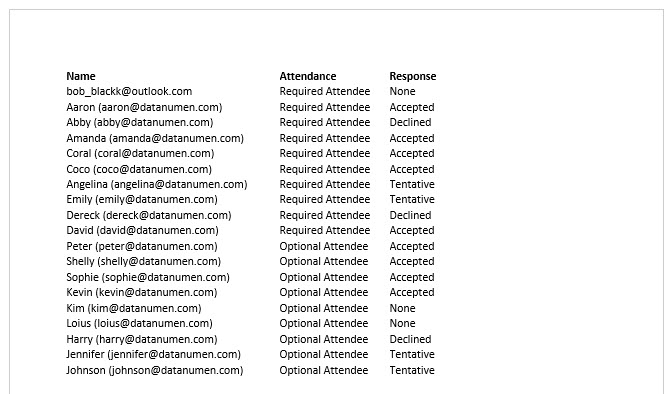
- 立即打印出会议的跟踪列表,如下图所示。

取回有价值的 Outlook 数据
如果遇到 Outlook 文件损坏的情况,首先可以检查最新的 PST 备份。如果没有可用的备份,也可以尝试使用内置的修复工具。 扫描仪, 尝试 PST 修复。 然而,假设两者都不能产生效果,你最后的选择是一个更强大且经过充分验证的外部工具,例如 DataNumen Outlook Repair.
作者简介:
Shirley Zhang 是一位数据恢复专家 DataNumen, Inc.,它是数据恢复技术领域的世界领先者,包括 SQL Server 腐败 和 outlook 修复软件产品。 欲了解更多信息,请访问 datanumen.com