
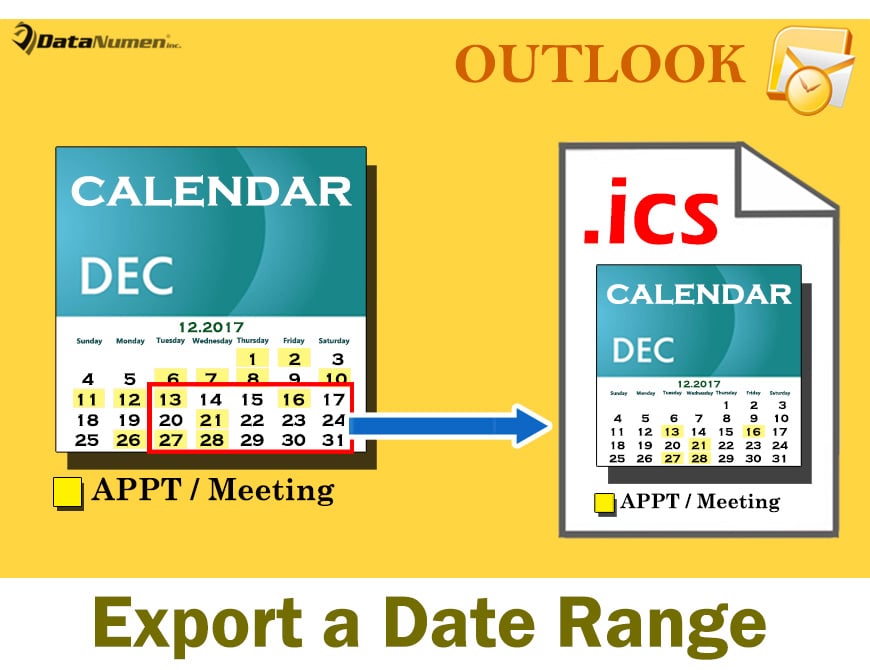
本文将与您分享 2 种将特定日期范围的 Outlook 日历导出为 iCalendar (.ics) 文件的方法。 您可以根据自己的喜好进行选择。
在 Outlook 中,您可以通过“另存为”功能将整个日历导出为 iCalendar (.ics) 文件。 但是,如果您想将日历的特定日期范围快速导出为 iCalendar,内置的“另存为”或“导出”功能都无济于事。 因此,在这里我们将向您介绍2种方法。
方法一:通过“电子邮件日历”功能导出
- 首先,启动您的 Outlook 应用程序。
- 然后切换到“日历”区域。
- 接下来,您应该在左侧导航窗格中选择特定的日历。
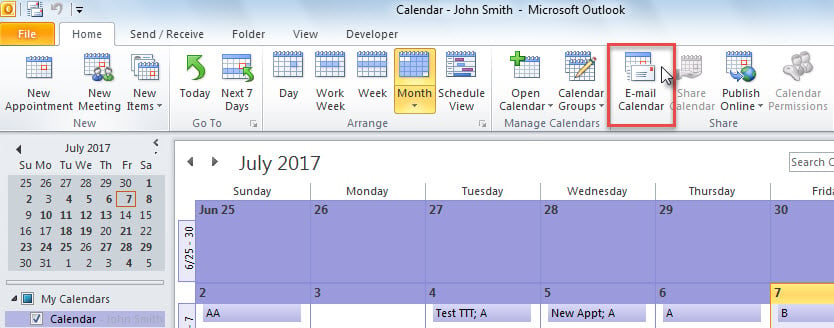
- 之后,您应该找到并点击功能区中的“电子邮件日历”按钮。

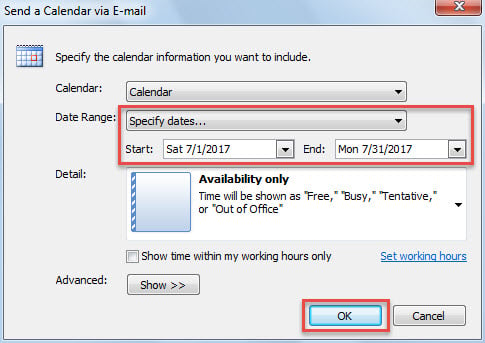
- 立即,将显示一封新电子邮件,其中包含“通过电子邮件发送日历”对话框。
- 现在,您可以在此对话框中指定日期范围,如下图所示:

- 单击“确定”按钮后,指定日期范围内的日历将转换为 iCalendar 文件,附加在当前电子邮件中。
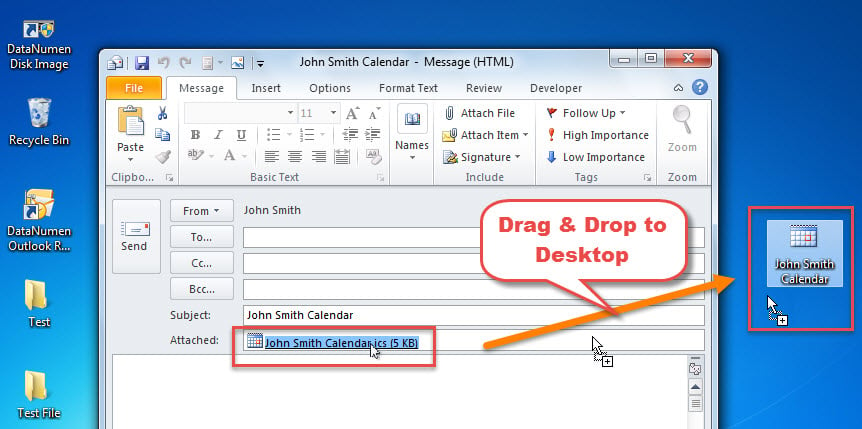
- 接下来,您可以缩小当前 Outlook 检查器的范围,直到您看到 Windows 桌面。
- 最后,您可以将附件中的ics文件拖放到桌面,如下图所示:

方法 2:通过 Outlook VBA 导出
- 首先,在 Outlook 主窗口中,按“Alt + F11”键/
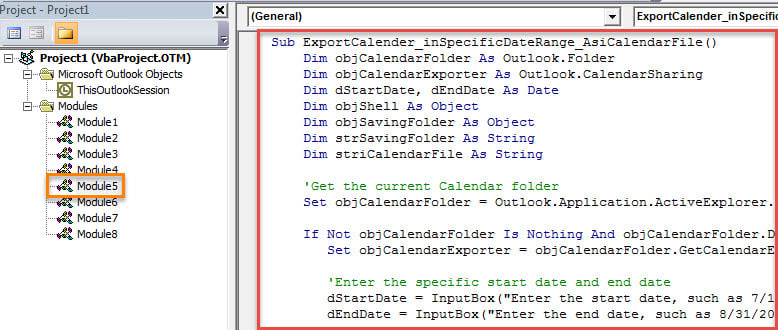
- 接下来您将成功进入Outlook VBA编辑器,您应该在其中打开一个空模块。
- 随后,将以下 VBA 代码复制到此模块中。
Sub ExportCalender_inSpecificDateRange_AsiCalendarFile()
    Dim objCalendarFolder As Outlook.Folder
    Dim objCalendarExporter As Outlook.CalendarSharing
    Dim dStartDate As Date
    Dim dEndDate As Date
    Dim objShell As Object
    Dim objSavingFolder As Object
    Dim strSavingFolder As String
    Dim striCalendarFile As String

    'Get the current Calendar folder
    Set objCalendarFolder = Outlook.Application.ActiveExplorer.CurrentFolder

    If Not objCalendarFolder Is Nothing And objCalendarFolder.DefaultItemType = olAppointmentItem Then
       Set objCalendarExporter = objCalendarFolder.GetCalendarExporter

       'Enter the specific start date and end date
       dStartDate = InputBox("Enter the start date, such as 7/1/2017:", "Specify Start Date")
       dEndDate = InputBox("Enter the end date, such as 8/31/2017:", "Specify End Date")

       If dStartDate <> #1/1/4501# And dEndDate <> #1/1/4501# Then
          'Select a Windows folder for saving the exported iCalendar file
          Set objShell = CreateObject("Shell.Application")
          Set objSavingFolder = objShell.BrowseForFolder(0, "Select a folder:", 0, "")
          strSavingFolder = objSavingFolder.self.Path

          If strSavingFolder <> "" Then
             striCalendarFile = strSavingFolder & "\" & "Calendar from " & Format(dStartDate, "YYYY-MM-DD") & " to " & Format(dEndDate, "YYYY-MM-DD") & ".ics"

             'Export the calendar in specific date range
             With objCalendarExporter
                  .IncludeWholeCalendar = False
                  .StartDate = dStartDate
                  .EndDate = dEndDate
                  .CalendarDetail = olFullDetails
                  .IncludeAttachments = True
                  .IncludePrivateDetails = False
                  .RestrictToWorkingHours = False
                  .SaveAsICal striCalendarFile
            End With

            MsgBox "Calendar Exported Successfully!", vbInformation
          End If
      Else
          MsgBox "Open a calendar folder, please!", vbExclamation + vbOKOnly
      End If
    End If
End Sub
- 稍后,您可以将新宏添加到快速访问工具栏。
- 最后,您可以尝试这个 VBA 项目。
- 首先,访问要导出的日历。
- 然后单击快速访问工具栏中的新宏按钮。
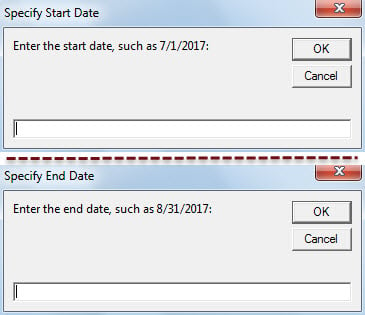
- 接下来,您需要指定日期范围——开始日期和结束日期。

- 之后,您需要选择一个 Windows 文件夹来保存 ics 文件。
- 最后,特定日期范围内的日历将导出为 ics 文件。
采取充分的预防措施以避免 PST 腐败
您应该接受 Outlook 易受攻击这一无可置疑的事实。 因此,建议定期进行 PST 备份。 另外,您应该留意所有潜在的危险,例如电子邮件中的伪装病毒。 此外,谨慎的做法是准备专门的 展望恢复 工具,例如 DataNumen Outlook Repair.
作者简介:
Shirley Zhang 是一位数据恢复专家 DataNumen, Inc.,它是数据恢复技术领域的世界领先者,包括 恢复sql 和 outlook 修复软件产品。 欲了解更多信息,请访问 datanumen.com