
在今天的文章中,有 3 种快速获取文档中与文本框、脚注和尾注相关的字数统计的方法。
获取文档中的总字数并不难。 但是如果你想得到不同种类文本的词数,那么就需要更多的操作。 以下是3种方法。 继续阅读以了解您可以使用什么。 
方法 1:统计文本框、脚注和尾注中的文本的字数
默认情况下,Word 会计算文档中出现的所有单词,包括文本框中的文本以及脚注和尾注中的单词。
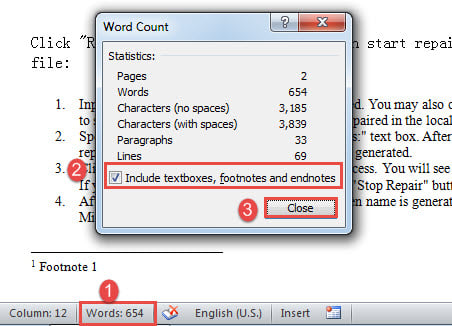
- 首先和形式ost, 转到状态栏并单击“字数”以打开“字数统计”框。
- 在那里你会看到各种统计数据。 确保您已选中“包括文本框、脚注和尾注”框。
- 然后单击“关闭”。

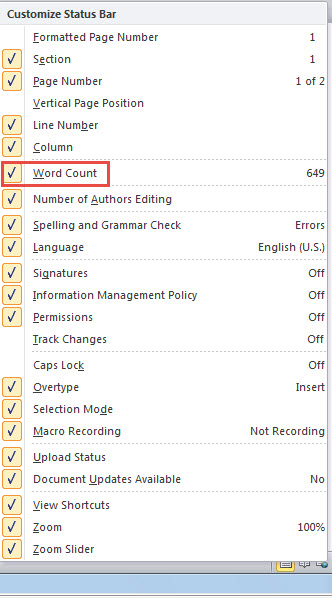
- 如果在状态栏上找不到“Words”命令,请右键单击那里。
- 接下来检查“字数”。

方法 2:从字数统计中排除文本框中的文本、脚注和尾注
这与方法 1 相反。因此,您只需取消选中“包括文本框、脚注和尾注”框即可。
方法 3:运行 Word 宏以从文本框、脚注和尾注中获取单独的单词计数
- 首先,使用方法一中的方式触发“字数统计”框,并确保勾选该选项框。
- 接下来按“Alt+F11”打开VBA编辑器。
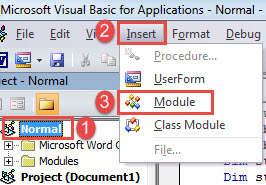
- 然后通过首先单击“正常”在“正常”项目中插入一个新模块。
- 然后点击“插入”下一步。
- 然后选择“模块”。

- 双击模块打开编码区,粘贴以下代码:
Sub SeparateCountNumberOfTextboxFootnoteEndnote()
  Dim lTextboxWords As Long
  Dim lTextboxChars As Long
  Dim lDocumntWords As Long
  Dim lDocumntChars As Long
  Dim objTextboxShape As Shape
  Dim objTemp As Dialog
  Dim bDone As Boolean
  Dim objRange As Range
  Dim lFootnoteWords As Long
  Dim lFootnoteChars As Long
  Dim lEndnoteWords As Long
  Dim lEndnoteChars As Long

  Application.ScreenUpdating = False

 Do
   bDone = True
   For Each objTextboxShape In ActiveDocument.Shapes
     If objTextboxShape.Type = msoGroup Then
       objTextboxShape.Ungroup
       bDone = False
     End If
   Next objTextboxShape
 Loop Until bDone

 '  Count the words and characters in the whole document.
 Selection.HomeKey Unit:=wdStory
 Set objTemp = Dialogs(wdDialogToolsWordCount)
   objTemp.Update
   objTemp.Execute
   lDocumntWords = objTemp.Words
   lDocumntChars = objTemp.Characters

 With ActiveDocument
 '  Count the words and characters in all textboxes.
   lTextboxWords = 0
   lTextboxChars = 0
   If ActiveDocument.Shapes.Count > 0 Then
     For Each objTextboxShape In .Shapes
       objTextboxShape.Select
       objTemp.Execute
       lTextboxWords = lTextboxWords + objTemp.Words
       lTextboxChars = lTextboxChars + objTemp.Characters
     Next objTextboxShape
   Else
     MsgBox ("There is no text box in this document")
   End If

   '  Count the words and characters in all footnotes.
   lFootnoteWords = 0
   lFootnoteChars = 0
   If ActiveDocument.Footnotes.Count > 0 Then
     For Each objRange In .StoryRanges
       If objRange.StoryType = wdFootnotesStory Then
         objRange.Select
         objTemp.Execute
         lFootnoteWords = lFootnoteWords + objTemp.Words
         lFootnoteChars = lFootnoteChars + objTemp.Characters
       End If
     Next objRange
   Else
     MsgBox ("There is no footnote in this document")
   End If

   '  Count the words and characters in all endnotes.
   lEndnoteWords = 0
   lEndnoteChars = 0
   If ActiveDocument.Endnotes.Count > 0 Then
     For Each objRange In .StoryRanges
       If objRange.StoryType = wdEndnotesStory Then
         objRange.Select
         objTemp.Execute
         lEndnoteWords = lEndnoteWords + objTemp.Words
         lEndnoteChars = lEndnoteChars + objTemp.Characters
       End If
     Next objRange
   Else
     MsgBox ("There is no Endnote in this document")
   End If
 End With

 Application.ScreenUpdating = True

 MsgBox (" In this document there are totally" & vbCr _
   & Str(lDocumntWords) & " word(s) and" & Str(lDocumntChars) & " characters" & vbCr & vbCr _
   & "Including:" & vbCr _
   & Str(ActiveDocument.Shapes.Count) & " textboxes contain(s)" & vbCr _
   & Str(lTextboxWords) & " word(s)," & Str(lTextboxChars) & " characters" & vbCr & vbCr _
   & Str(ActiveDocument.Footnotes.Count) & " footnotes contain(s)" & vbCr _
   & Str(lFootnoteWords) & " word(s)," & Str(lFootnoteChars) & " characters" & vbCr & vbCr _
   & Str(ActiveDocument.Endnotes.Count) & " Endnotes contain(s)" & vbCr _
   & Str(lEndnoteWords) & " word(s)," & Str(lEndnoteChars) & " characters")
End Sub
- 最后,单击“运行”按钮。

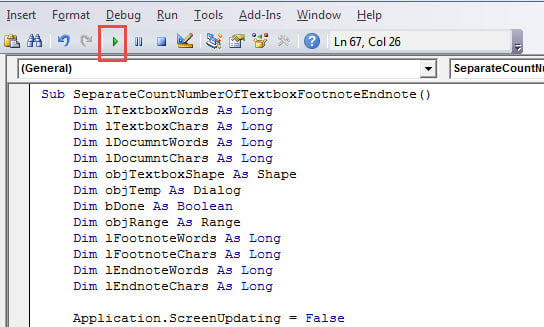
如果没有文本框、脚注或尾注,您将收到一个消息框,如下所示: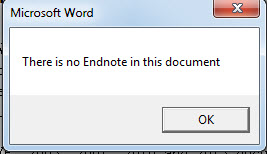
只需单击“确定”继续。 然后你会看到另一个框,列出了字数统计的所有细节。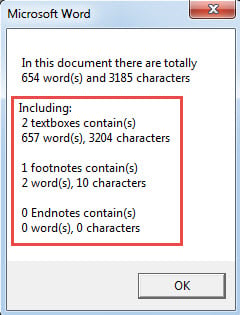
获取恢复工具
由于 Word 可能会突然崩溃,因此建议您获得高级修复产品来进行修复工作。 这样的工具可以大大节省 腐败的词. 因此,抓紧时间尽快入手吧。
作者简介:
Vera Chen 是一位数据恢复专家 DataNumen, Inc.,它是数据恢复技术领域的世界领先者,包括 修复 xls 以及 pdf 修复软件产品。 欲了解更多信息,请访问 datanumen.com