
1. บทนำ
ถังรีไซเคิลเป็นระบบรักษาความปลอดภัยในตัวของ Windows สำหรับไฟล์ที่ถูกลบ ตราบใดที่ไฟล์ยังคงอยู่ในถังรีไซเคิล การกู้คืนไฟล์นั้นใช้เวลาเพียงไม่กี่คลิก คู่มือนี้จะอธิบายวิธีการกู้คืนไฟล์ที่ถูกลบจากถังรีไซเคิลบน Windows รวมถึงไฟล์ที่อยู่ในตำแหน่งภายนอก เครือข่าย และตำแหน่งที่ซิงค์กับ OneDrive
1.1 คู่มือนี้ครอบคลุมอะไรบ้าง
- กู้คืนไฟล์ที่ยังอยู่ในถังรีไซเคิล
- กู้คืนไฟล์ที่ถูกลบไปยังตำแหน่งเดิม
- กู้คืนไฟล์ที่ถูกลบไปยังตำแหน่งใหม่เมื่อโฟลเดอร์เดิมหายไป
1.2 สิ่งที่คู่มือนี้ไม่ได้กล่าวถึง
- ไฟล์ที่ถูกลบด้วย เปลี่ยน + ลบซึ่งจะไม่ผ่านถังรีไซเคิลเลย
- ไฟล์ถูกลบหรือถูกล้างออกจากถังรีไซเคิลแล้ว ในกรณีนี้ ให้ตรวจสอบ คู่มือนี้ เพื่อกู้คืนไฟล์
- ไฟล์ที่มีขนาดเกินขีดจำกัดพื้นที่จัดเก็บในถังรีไซเคิลและถูกลบอย่างถาวร
2. กู้คืนไฟล์ที่ถูกลบจากถังรีไซเคิล
หากไฟล์ถูกลบออกจากไดรฟ์ภายในเครื่องด้วย ลบ ปุ่มหรือคลิกขวา ลบ เมื่อส่งคำสั่งนี้ ไฟล์จะถูกส่งไปยังถังรีไซเคิลโดยตรง สามารถกู้คืนได้ด้วย 3 ขั้นตอนต่อไปนี้:
2.1 เปิดถังรีไซเคิล
ใช้วิธีใดวิธีหนึ่งต่อไปนี้:
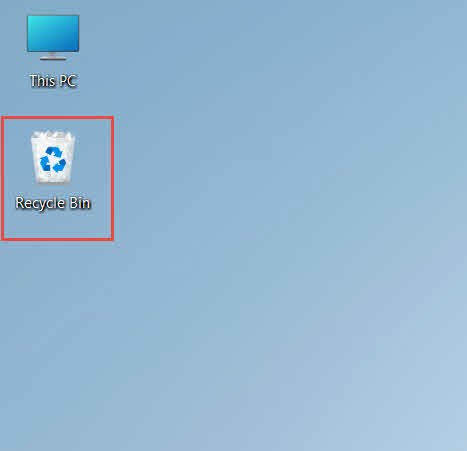
- ดับเบิลคลิกที่ ถังขยะรีไซเคิล ไอคอนบนเดสก์ท็อป

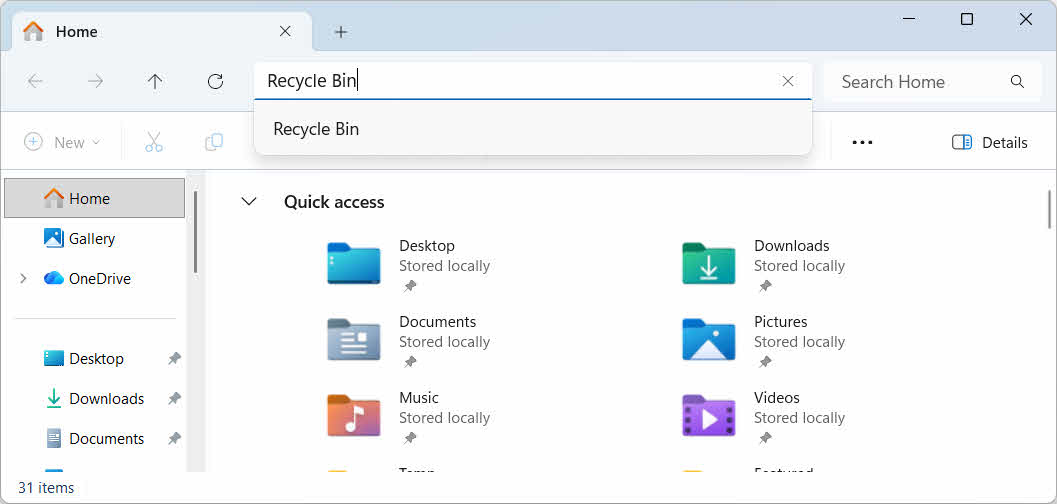
- เปิด File Explorer แล้วป้อน... ถังขยะรีไซเคิล ในแถบที่อยู่

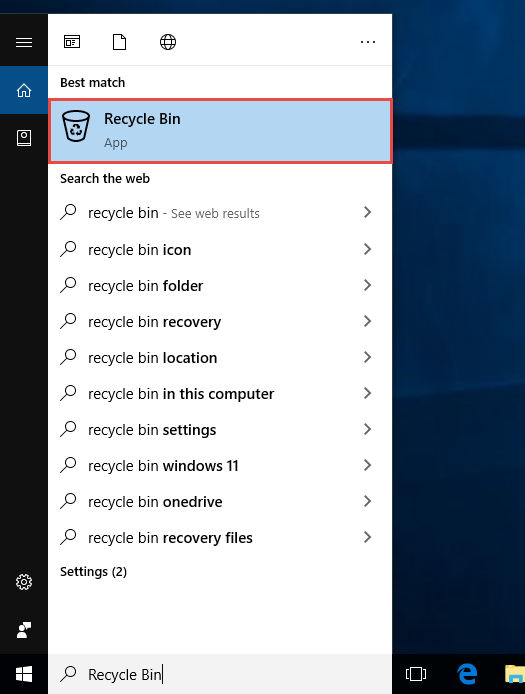
- ประเภท ถังขยะรีไซเคิล พิมพ์ลงในช่องค้นหาของ Windows แล้วเลือกจากผลลัพธ์

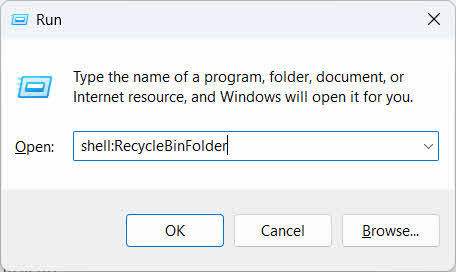
- ข่าวประชาสัมพันธ์ ชนะ + Rพิมพ์ เปลือก: RecycleBinFolderและกด เข้าสู่

2.2 ค้นหาไฟล์หรือโฟลเดอร์ที่ถูกลบ
เมื่อเปิดถังรีไซเคิลแล้ว ให้ค้นหาสิ่งของที่ต้องการโดยใช้วิธีใดวิธีหนึ่งต่อไปนี้:
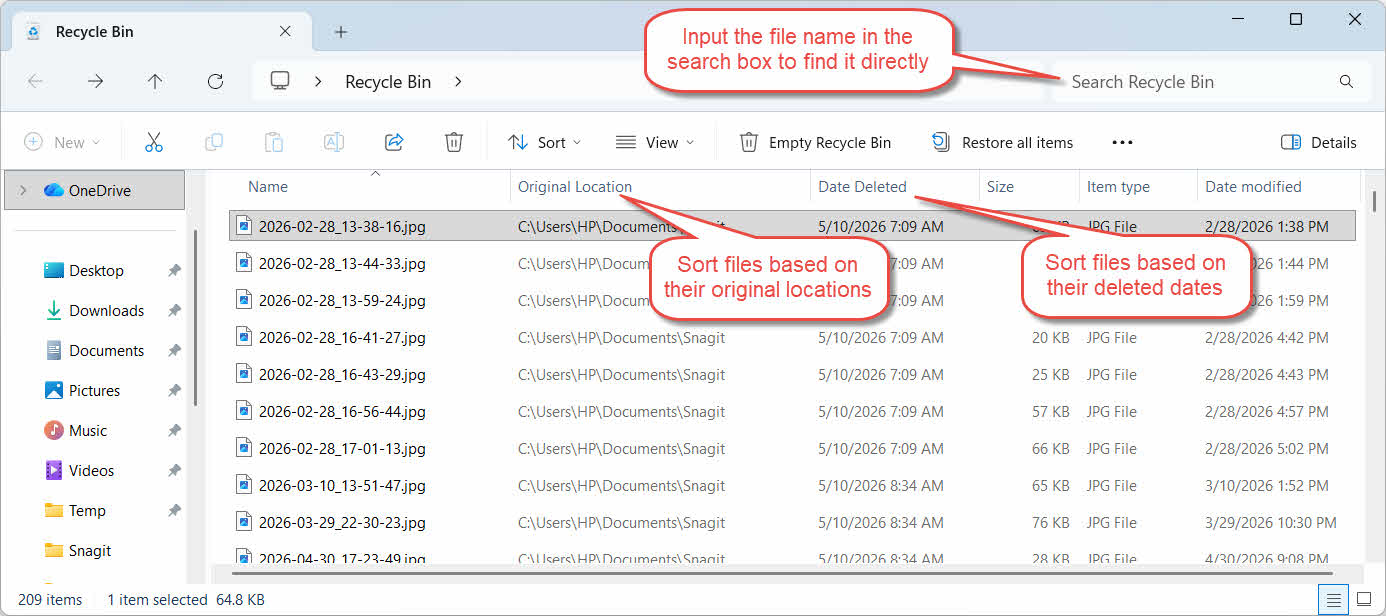
- พิมพ์ชื่อไฟล์ลงในช่องค้นหาที่มุมบนขวามือ
- คลิก วันที่ลบ ส่วนหัวคอลัมน์สำหรับเรียงลำดับตามการลบครั้งล่าสุด
- ตรวจสอบ ตำแหน่งเดิม คอลัมน์เพื่อยืนยันว่าไฟล์มาจากโฟลเดอร์ที่คุณคาดหวัง
2.3 กู้คืนไฟล์หรือโฟลเดอร์
เพื่อกู้คืนรายการหนึ่งรายการหรือมากกว่า:
- เลือกไฟล์เดียว หรือกดค้างไว้ Ctrl แล้วคลิกเพื่อเลือกไฟล์หลายไฟล์ หรือกดค้างไว้ เปลี่ยน และคลิกเพื่อเลือกช่วง
- คลิกขวาที่ส่วนที่เลือกแล้วเลือก ฟื้นฟู
- เปิดโฟลเดอร์เดิมเพื่อตรวจสอบว่าไฟล์กลับมาแล้วหรือไม่

หากต้องการกู้คืนทุกรายการในถังรีไซเคิลพร้อมกัน ให้คลิก คืนค่าทุกรายการ ในแถบเครื่องมือโดยไม่ต้องเลือกไฟล์ใดไฟล์หนึ่งก่อน
3. กู้คืนไฟล์ที่ถูกลบจากถังรีไซเคิลไปยังตำแหน่งอื่น
การขอ ฟื้นฟู คำสั่งนี้จะส่งไฟล์กลับไปยังโฟลเดอร์เดิมเสมอ แต่ในบางสถานการณ์อาจจำเป็นต้องย้ายไฟล์ไปยังที่อื่นแทน
3.1 เมื่อใดที่คุณควรใช้วิธีนี้
- โฟลเดอร์ต้นฉบับไม่มีอยู่อีกต่อไปแล้ว
- มีไฟล์ใหม่ที่มีชื่อเดียวกันอยู่ในโฟลเดอร์เดิมแล้ว
- คุณไม่มีสิทธิ์เข้าถึงโฟลเดอร์ต้นฉบับ
- คุณไม่แน่ใจว่าไฟล์นั้นมาจากโฟลเดอร์ใด
- คุณต้องการตรวจสอบไฟล์ก่อนที่จะนำกลับไปวางไว้ที่เดิม
3.2 ลากหรือตัดไฟล์ออกจากถังรีไซเคิล
วิธีการย้ายไฟล์จากถังรีไซเคิลไปยังโฟลเดอร์ที่คุณเลือก:
- เปิดถังรีไซเคิล
- เลือกไฟล์หรือโฟลเดอร์ที่ต้องการกู้คืน
- ใช้วิธีใดวิธีหนึ่งต่อไปนี้ในการย้ายไฟล์หรือโฟลเดอร์ไปยังโฟลเดอร์เป้าหมาย:
- ลากไฟล์นั้นเข้าไปในหน้าต่างโฟลเดอร์เป้าหมายโดยตรง
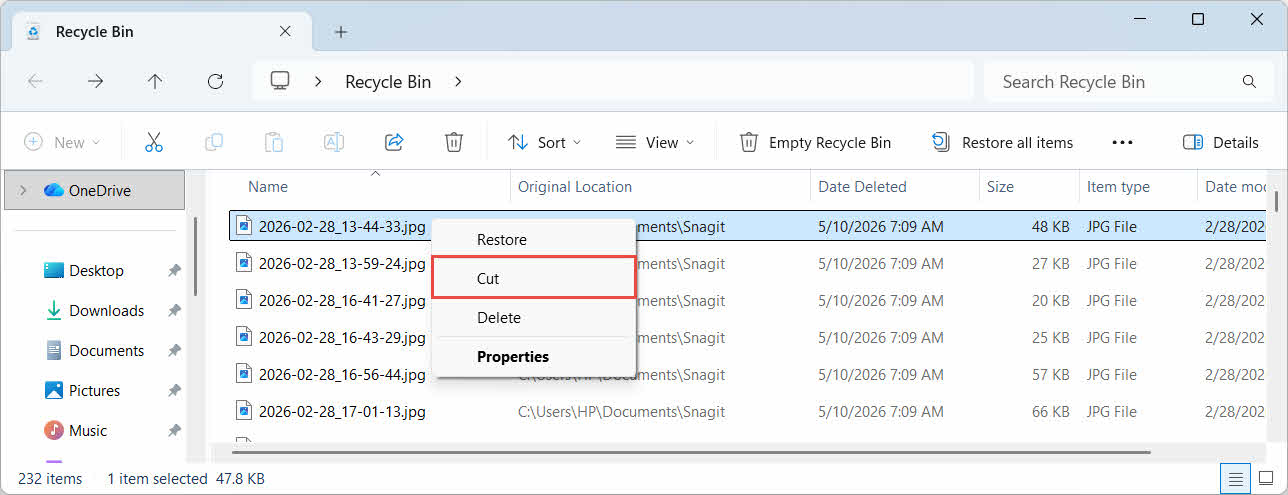
- ข่าวประชาสัมพันธ์ Ctrl + X หากต้องการตัด ให้เปิดโฟลเดอร์เป้าหมาย แล้วกด Ctrl + V เพื่อวางมัน
- คลิกขวาที่ส่วนที่เลือกแล้วเลือก ตัดเปิดโฟลเดอร์เป้าหมาย คลิกขวา แล้วเลือก พาสต้า เพื่อวางมัน

4. การกู้คืนไฟล์จากถังรีไซเคิลบนไดรฟ์ภายนอก ไดรฟ์เครือข่าย และไดรฟ์คลาวด์
ขั้นตอนใน 2 มาตรา สมมติว่าไฟล์นั้นถูกลบออกจากไดรฟ์หลักของคอมพิวเตอร์ของคุณแล้ว พื้นที่จัดเก็บข้อมูลภายนอก เครือข่าย และการซิงค์ข้อมูลบนคลาวด์จะมีพฤติกรรมที่แตกต่างกัน
4.1 ฮาร์ดไดรฟ์ภายนอกและแฟลชไดรฟ์ USB
ระบบปฏิบัติการ Windows จะจัดการฮาร์ดไดรฟ์ภายนอก (รวมถึง SSD ที่เชื่อมต่อผ่าน USB) เหมือนกับฮาร์ดไดรฟ์ภายใน โดยแต่ละตัวจะมีโฟลเดอร์ถังรีไซเคิลที่ซ่อนอยู่เป็นของตัวเองโดยค่าเริ่มต้น ส่วนสื่อบันทึกข้อมูลแบบถอดได้ เช่น แฟลชไดรฟ์ USB และการ์ด SD จะได้รับการจัดการแตกต่างออกไป และจะไม่มีถังรีไซเคิลโดยค่าเริ่มต้น ดังนั้นไฟล์ที่ถูกลบจากอุปกรณ์เหล่านี้จะถูกลบออกทันที
4.1.1 การเปิดใช้งานการรองรับถังรีไซเคิลสำหรับไดรฟ์
สำหรับฮาร์ดไดรฟ์ภายนอก โปรดตรวจสอบให้แน่ใจว่าได้เปิดใช้งานการรองรับถังรีไซเคิลแล้ว:
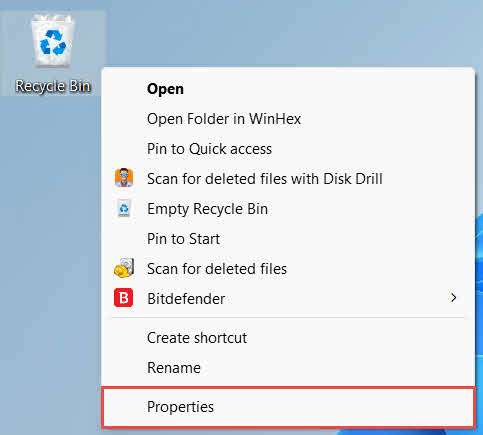
- คลิกขวาที่ ถังขยะรีไซเคิล เลือกไอคอนบนเดสก์ท็อปแล้วเลือก อสังหาริมทรัพย์

- ตัว Vortex Indicator ได้ถูกนำเสนอลงในนิตยสาร ตำแหน่งถังรีไซเคิล ในรายการ ให้เลือกแถวสำหรับไดรฟ์ภายนอก ไดรฟ์นี้จะปรากฏขึ้นก็ต่อเมื่อเชื่อมต่อไดรฟ์และมีตัวอักษรไดรฟ์แล้วเท่านั้น
- ภายใต้ การตั้งค่าสำหรับตำแหน่งที่เลือกตรวจสอบให้แน่ใจ ขนาดที่กำหนดเอง ถูกเลือก ไม่ใช่ อย่าเคลื่อนย้ายไฟล์ไปยังถังรีไซเคิล ลบไฟล์ทันทีเมื่อถูกลบ

- คลิก สมัครสมาชิกแล้ว OK
แต่ละไดรฟ์จะเก็บการตั้งค่านี้แยกจากกัน ดังนั้นไดรฟ์ภายนอกอาจปิดการใช้งานถังรีไซเคิลไว้ ในขณะที่ไดรฟ์ระบบยังคงเปิดใช้งานอยู่
สำหรับแฟลชไดรฟ์ USB หรือการ์ด SD จะไม่ปรากฏในคุณสมบัติถังรีไซเคิลเลย เนื่องจาก Windows ไม่สร้างโฟลเดอร์ถังรีไซเคิลบนสื่อบันทึกข้อมูลแบบถอดได้โดยค่าเริ่มต้น การเปิดใช้งานต้องแก้ไขรีจิสทรี:
- ข่าวประชาสัมพันธ์ ชนะ + Rพิมพ์ regeditกด เข้าสู่และอนุมัติข้อความแจ้งเตือน
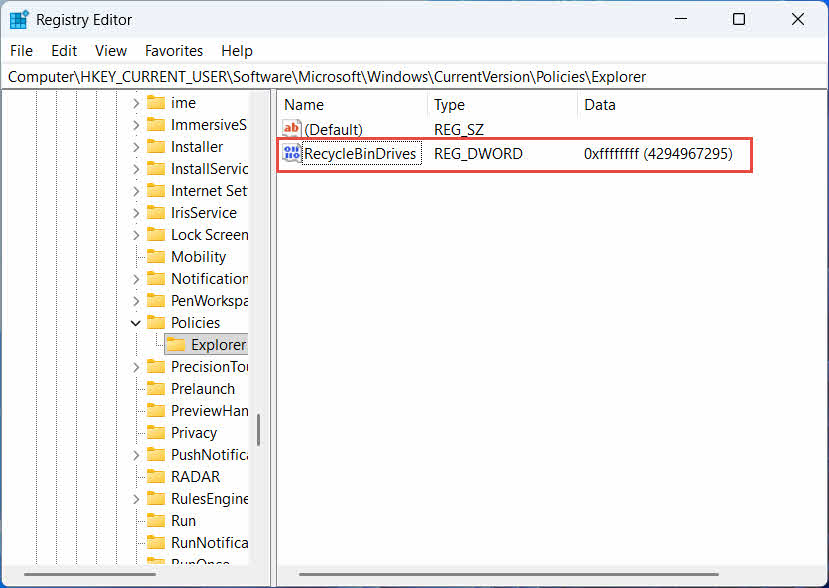
- นำทางไปยัง HKEY_CURRENT_USER \ Software \ Microsoft \ Windows \ CurrentVersion \ Policies \ Explorer ที่. หาก สำรวจ คีย์ไม่มีอยู่ภายใต้ นโยบาย, คลิกขวา นโยบายให้เลือก ใหม่ -> คีย์และตั้งชื่อมัน สำรวจ
- คลิกขวาที่พื้นที่ว่างในบานหน้าต่างด้านขวา เลือก ใหม่ -> DWORD (ฮิตบิต) มูลค่าและตั้งชื่อมัน ไดรฟ์ถังรีไซเคิล
- ดับเบิลคลิกที่ ไดรฟ์ถังรีไซเคิลชุด ฐาน ไปยัง เลขฐานสิบหกป้อน ฟฟฟฟฟฟฟ เป็นข้อมูลค่า และคลิก OK

- ทำซ้ำขั้นตอนที่ 2 ถึง 4 ด้านล่าง HKEY_LOCAL_MACHINE \ SOFTWARE \ Microsoft \ Windows \ CurrentVersion \ Policies \ Explorer
- รีสตาร์ทคอมพิวเตอร์
หากต้องการยกเลิกการเปลี่ยนแปลง ให้ลบออก ไดรฟ์ถังรีไซเคิล ดึงค่าจากทั้งสองตำแหน่ง เนื่องจากขั้นตอนนี้เกี่ยวข้องกับการแก้ไขรีจิสทรี จึงควรสร้างจุดคืนค่าก่อน และพิจารณาว่าการใช้ข้อมูลสำรองจะง่ายกว่าหรือไม่สำหรับไดรฟ์ที่คุณใช้งานไม่บ่อยนัก
4.1.2 การกู้คืนไฟล์
เมื่อเปิดใช้งานถังรีไซเคิลสำหรับไดรฟ์แล้ว การกู้คืนไฟล์จะใช้ขั้นตอนเดียวกันกับที่อธิบายไว้ใน 2.3 มาตรา.
การลบไฟล์จากไดรฟ์เครือข่ายที่แมปไว้หรือโฟลเดอร์ที่แชร์จะลบไฟล์นั้นออกจากเซิร์ฟเวอร์โดยตรง โดยไม่ผ่านถังรีไซเคิลในเครื่องคอมพิวเตอร์ของคุณ แต่หากเปิดใช้งานถังรีไซเคิลฝั่งเซิร์ฟเวอร์ คุณสามารถกู้คืนไฟล์ที่ถูกลบจากถังรีไซเคิลนั้นได้
4.2.1 ถังรีไซเคิลฝั่งเซิร์ฟเวอร์ (หากเปิดใช้งาน)
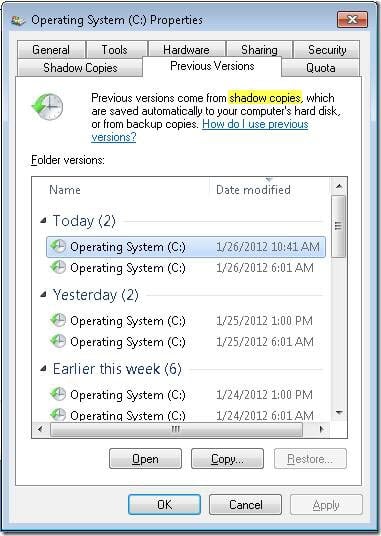
เซิร์ฟเวอร์ไฟล์บางแห่งอนุญาตให้ใช้งานได้ บริการทำสำเนาเงา (บริการทำสำเนาเงาแบบเล่ม)ซึ่งช่วยให้คุณสามารถกู้คืนไปยังเวอร์ชันก่อนหน้าของโฟลเดอร์ที่แชร์ได้ เพื่อให้คุณสามารถกู้คืนไฟล์ที่ถูกลบโดยใช้คุณสมบัตินี้ได้:
- คลิกขวาที่โฟลเดอร์หลักบนเครือข่ายที่แชร์ แล้วเลือก อสังหาริมทรัพย์
- เปิด รุ่นก่อนหน้า แถบ
- เลือกเวอร์ชันที่เก่ากว่าวันที่ลบ แล้วคลิก ฟื้นฟู
4.2.2 สิ่งที่ต้องทำหากไม่มีถังรีไซเคิลฝั่งเซิร์ฟเวอร์
ถ้า รุ่นก่อนหน้า หากแท็บว่างเปล่าหรือไม่สามารถใช้งานได้ แสดงว่าไม่มีการกำหนดค่าการกู้คืนตามสแนปช็อตไว้ในโฟลเดอร์ที่แชร์ โปรดติดต่อผู้ดูแลระบบเครือข่ายเพื่อตรวจสอบว่าเซิร์ฟเวอร์มีกำหนดการสำรองข้อมูลของตัวเองหรือไม่
4.3 ถังรีไซเคิล OneDrive (โฟลเดอร์ที่ซิงค์กับคลาวด์)
โฟลเดอร์ที่ซิงค์กับ OneDrive อาจมีถังรีไซเคิลสองแห่ง ได้แก่ ถังรีไซเคิลของ Windows ในเครื่อง และถังรีไซเคิลของ OneDrive บนเว็บ ไฟล์ของคุณจะถูกเก็บไว้ในถังรีไซเคิลใดนั้นขึ้นอยู่กับว่าไฟล์ถูกลบที่ใด
4.3.1 การลบไฟล์ที่ซิงค์แล้วในเครื่อง (จะถูกส่งไปยังถังรีไซเคิลทั้งในเครื่องและบนเว็บ)
หากคุณลบไฟล์ที่ซิงค์ไว้จาก File Explorer บนพีซีของคุณ ไฟล์นั้นจะถูกส่งไปยังถังรีไซเคิลในเครื่องตามที่อธิบายไว้ใน 2 มาตราและโปรแกรมซิงค์ OneDrive ยังทำการคัดลอกการลบไปยังระบบคลาวด์ด้วย ทำให้สามารถกู้คืนไฟล์ได้จากถังรีไซเคิลของ OneDrive บนเว็บเช่นกัน
4.3.2 การลบที่เริ่มต้นโดยระบบคลาวด์ (เฉพาะถังรีไซเคิลบนเว็บ ตั้งแต่เดือนพฤษภาคม 2026)
หากไฟล์ถูกลบจากฝั่งคลาวด์แทน เช่น ผ่านเว็บไซต์ OneDrive หรืออุปกรณ์ที่ซิงค์ข้อมูลอื่นๆ พฤติกรรมจะเปลี่ยนไปตั้งแต่เดือนพฤษภาคม 2026: Microsoft หยุดส่งการลบที่เริ่มต้นจากคลาวด์ไปยังถังรีไซเคิลของ Windows ในเครื่อง ไฟล์ที่ถูกลบด้วยวิธีนี้จะหายไปจากโฟลเดอร์ในเครื่องของคุณโดยไม่ปรากฏในถังรีไซเคิล และสามารถกู้คืนได้จากถังรีไซเคิลของ OneDrive หรือ SharePoint บนเว็บเท่านั้น
4.3.3 การกู้คืนจาก OneDrive.com
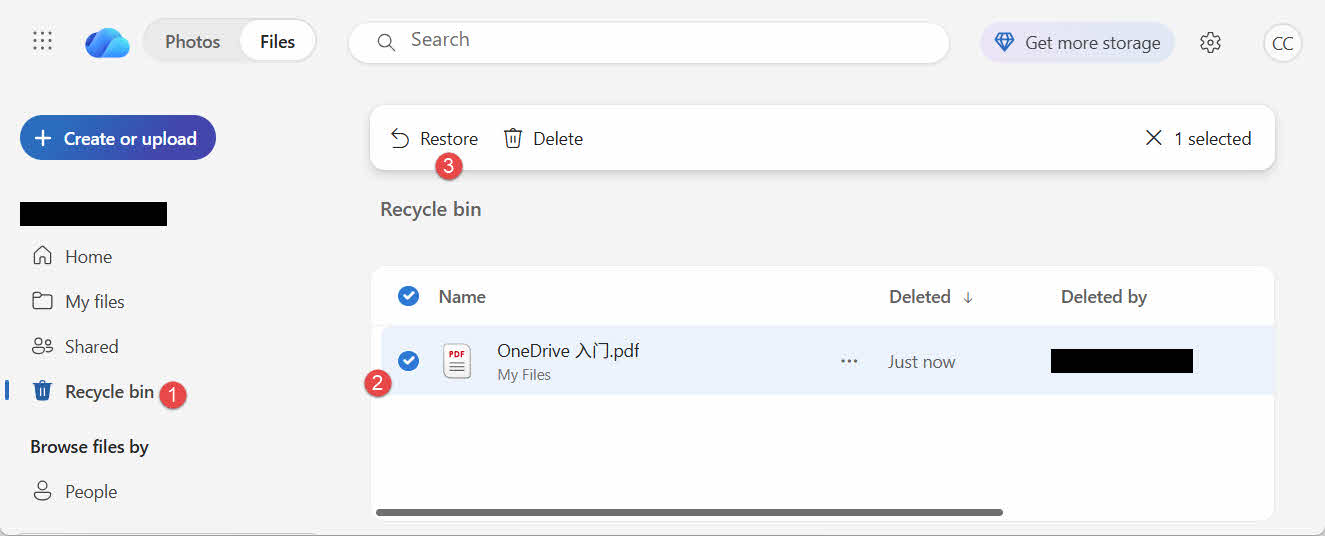
วิธีการกู้คืนไฟล์จากถังรีไซเคิลของ OneDrive บนเว็บ:
- ลงชื่อเข้าใช้ที่ onedrive.live.com or onedrive.com
- เลือก Recycle Bin ในบานหน้าต่างนำทาง
- เลือกไฟล์หรือโฟลเดอร์แล้วคลิก ฟื้นฟู
บัญชี Microsoft ส่วนตัวจะเก็บรายการที่ถูกลบไว้ได้นานถึง 30 วัน ในขณะที่บัญชีสำหรับทำงานหรือโรงเรียนจะเก็บไว้ได้นานถึง 93 วัน
5. การแก้ไขปัญหาการกู้คืนข้อมูลจากถังรีไซเคิล
5.1 ไอคอนถังรีไซเคิลหายไปจากเดสก์ท็อป
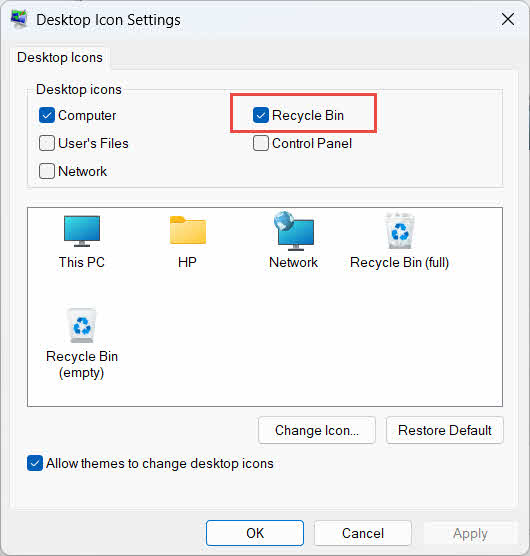
ถังรีไซเคิลยังคงอยู่แม้ว่าไอคอนบนเดสก์ท็อปจะถูกซ่อนไว้ก็ตาม หากต้องการกู้คืนไอคอน:
- คลิกขวาที่เดสก์ท็อปแล้วเลือก ปรับแต่ง
- จุดเปิด ธีมแล้ว การตั้งค่าไอคอนเดสก์ท็อป
- ตรวจสอบ ถังขยะรีไซเคิล และคลิก OK
คุณสามารถเปิดโดยตรงได้โดยการพิมพ์ ถังขยะรีไซเคิล ใน Windows Search, File Explorer หรือโดยใช้ปุ่ม Win + R ตามที่อธิบายไว้ใน 2.1 มาตรา.
5.2 ไฟล์ไม่อยู่ในถังรีไซเคิล
หากไฟล์ที่คุณต้องการไม่อยู่ในถังรีไซเคิล โปรดพิจารณาสาเหตุเหล่านี้:
- ไฟล์ถูกลบจากไดรฟ์ภายนอกที่ไม่มีระบบถังรีไซเคิล (ดูเพิ่มเติม) 4.1 มาตรา)
- ไฟล์ดังกล่าวถูกลบออกจากไดรฟ์เครือข่ายแล้ว (ดูเพิ่มเติม) 4.2 มาตรา)
- ไฟล์ดังกล่าวถูกลบโดยตรงจาก OneDrive บนเว็บ (ดูที่นี่) 4.3 มาตรา)
- มันถูกลบอย่างถาวรแล้ว ตัวอย่างเช่น ด้วย เปลี่ยน + ลบหรือถังรีไซเคิลถูกล้างไปแล้ว
หากไฟล์ถูกลบอย่างถาวร การกู้คืนไฟล์นั้นจำเป็นต้องใช้ซอฟต์แวร์กู้คืนข้อมูลโดยเฉพาะ เช่น DataNumen Data Recoveryแทนที่จะบันทึกลงถังรีไซเคิล ให้หยุดบันทึกไฟล์ใหม่ลงในไดรฟ์นั้นก่อน เพื่อลดโอกาสที่ข้อมูลจะถูกเขียนทับ
5.3 ตัวเลือกการกู้คืนเป็นสีเทา หายไป หรือใช้งานไม่ได้
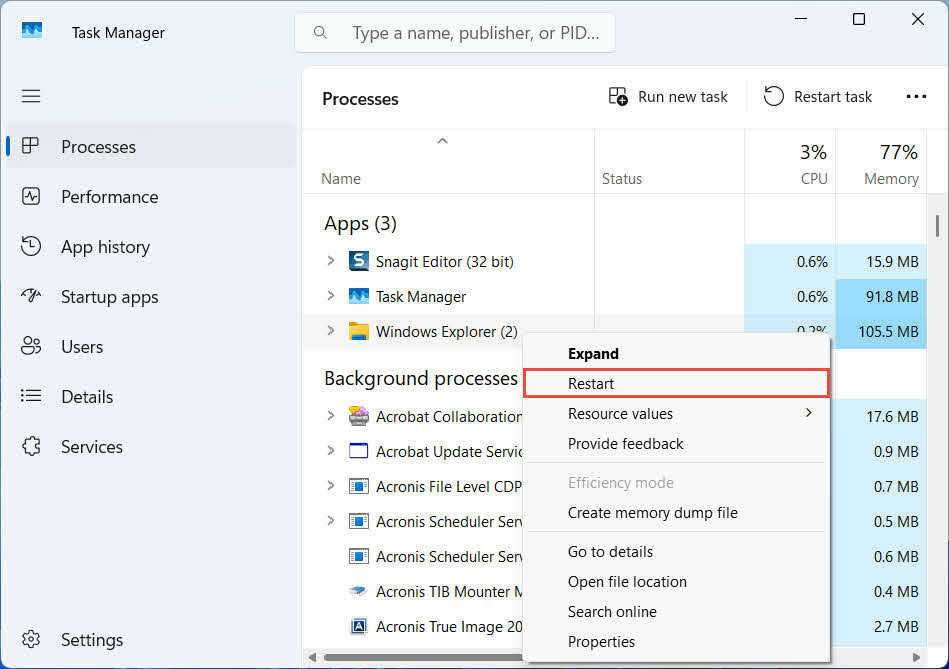
ปัญหานี้มักเกิดขึ้นเมื่อไฟล์ที่เลือกมาจากตำแหน่งที่ไม่มีอยู่แล้ว หรือดัชนีภายในของถังรีไซเคิลไม่ตรงกัน ลองแก้ไขตามวิธีเหล่านี้:
- รีสตาร์ท File Explorer: กด Ctrl + Alt + Del เพื่อเปิด Task Manager แล้วคลิกขวา windows Explorerและเลือก เริ่มต้นใหม่

- กู้คืนรายการทีละรายการแทนที่จะกู้คืนเป็นชุด
- If ฟื้นฟู ยังไม่ปรากฏ ให้ลากไฟล์ออกมาด้วยตนเองตามที่อธิบายไว้ใน 3.2 มาตรา
5.4 ข้อความ "ปฏิเสธการเข้าถึง" หรือข้อผิดพลาดด้านสิทธิ์เมื่อทำการกู้คืน
นี่แสดงว่าปัญหาน่าจะอยู่ที่สิทธิ์การเข้าถึงโฟลเดอร์ต้นฉบับ ไม่ใช่ตัวไฟล์เอง โปรดตรวจสอบสิ่งต่อไปนี้:
- คุณเข้าสู่ระบบด้วยบัญชีเดียวกับที่ลบไฟล์ไป
- สิทธิ์การเข้าถึงโฟลเดอร์ปลายทางยังคงอนุญาตให้บัญชีของคุณมีสิทธิ์ในการเขียน
- โปรแกรม File Explorer ไม่ถูกบล็อกโดยนโยบายใดๆ บนคอมพิวเตอร์ที่ได้รับการจัดการหรือคอมพิวเตอร์ที่ใช้ในการทำงาน
หากสิทธิ์การเข้าถึงของโฟลเดอร์เดิมมีการเปลี่ยนแปลง ให้กู้คืนไฟล์ไปยังตำแหน่งอื่นแทน โดยทำตามขั้นตอนต่อไปนี้ 3 มาตรา.
5.5 ถังรีไซเคิลดูเหมือนว่างเปล่า แต่ฉันไม่ได้เททิ้ง
ไฟล์อาจหายไปจากถังรีไซเคิลโดยที่ไม่มีใครไปลบออกด้วยตนเอง:
- สามารถตั้งค่า Storage Sense ให้ลบรายการโดยอัตโนมัติหลังจากผ่านไปจำนวนวันตามที่กำหนดได้
- ถังรีไซเคิลเต็มแล้ว Windows จึงลบรายการที่เก่าที่สุดออกเพื่อเพิ่มพื้นที่ว่าง (ดูเพิ่มเติม) 6.1 มาตรา)
- บัญชีอื่นในคอมพิวเตอร์ที่ใช้ร่วมกันได้ถอนเงินทั้งหมดออกไป
- นโยบายกลุ่มบนอุปกรณ์ที่ได้รับการจัดการจะบังคับให้ล้างข้อมูลโดยอัตโนมัติ
5.6 ไฟล์ที่กู้คืนเสียหาย ว่างเปล่า หรือเปิดไม่ได้
การกู้คืนไฟล์ทำได้เพียงแค่ย้ายไฟล์กลับมาเท่านั้น ไม่ได้เป็นการซ่อมแซมไฟล์ หากไฟล์เสียหายอยู่แล้วก่อนที่จะถูกลบ หรือหากมีการเขียนข้อมูลลงในไฟล์ขณะที่ถูกลบ ไฟล์อาจยังคงเปิดไม่ได้หลังจากกู้คืน ในกรณีเช่นนั้น ปัญหาคือไฟล์เสียหาย ไม่ใช่ปัญหาของถังรีไซเคิล และจำเป็นต้องแก้ไข เครื่องมือซ่อมแซม เหมาะสมกับรูปแบบไฟล์นั้นมากกว่าการลองกู้คืนอีกครั้ง
6. การจัดการและการกำหนดค่าถังรีไซเคิล
6.1 การเปลี่ยนขนาดพื้นที่จัดเก็บถังรีไซเคิล
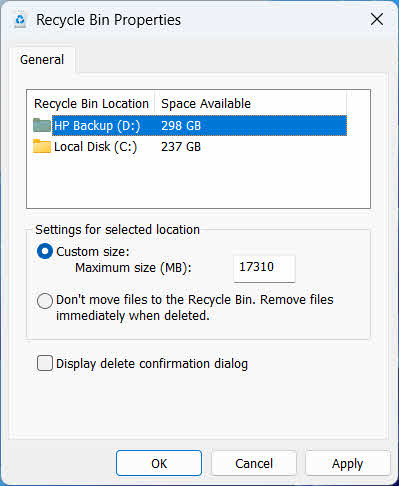
แต่ละไดรฟ์มีพื้นที่สำหรับถังรีไซเคิลเป็นของตัวเอง หากต้องการตรวจสอบหรือเปลี่ยนแปลง:
- คลิกขวาที่ ถังขยะรีไซเคิล ไอคอนและเลือก อสังหาริมทรัพย์
- เลือกไดรฟ์จากรายการตำแหน่งถังรีไซเคิล
- Choose ขนาดที่กำหนดเอง และป้อน a ขนาดสูงสุด (เมกะไบต์)หรือเลือก อย่าเคลื่อนย้ายไฟล์ไปยังถังรีไซเคิล ลบไฟล์ทันทีเมื่อถูกลบ เพื่อปิดใช้งานสำหรับไดรฟ์นั้น
- คลิก OK
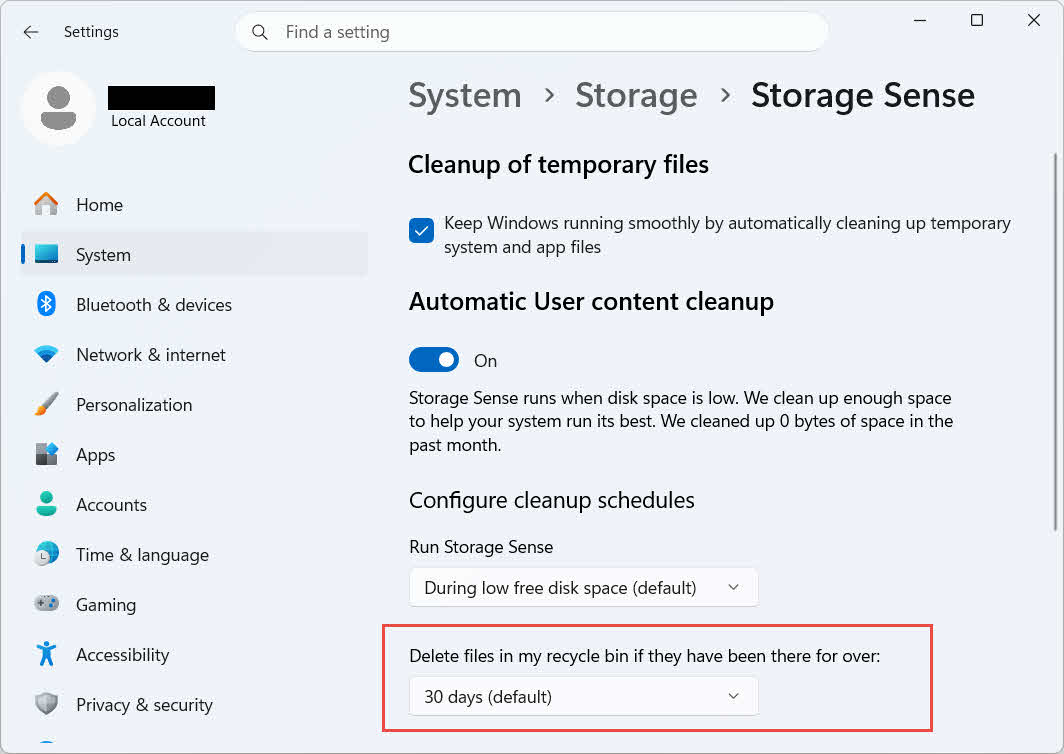
นอกจากนี้ Windows ยังมีตัวเลือกการล้างข้อมูลแยกต่างหากตามอายุการใช้งาน: ไปที่ การตั้งค่า -> ระบบ -> พื้นที่จัดเก็บ -> Storage Sense และตั้งค่า ลบไฟล์ในถังรีไซเคิลของฉันหากไฟล์เหล่านั้นอยู่ในนั้นนานเกินไป จำนวนวันที่เลือกไว้ ระยะเวลาการเก็บรักษาเริ่มต้นคือ 30 วัน.
6.2 การเปิดใช้งานกล่องโต้ตอบยืนยันการลบ
โดยค่าเริ่มต้น Windows 11 จะไม่แสดงข้อความยืนยันก่อนย้ายไฟล์ไปยังถังรีไซเคิล หากต้องการเปิดใช้งาน:
- คลิกขวาที่ ถังขยะรีไซเคิล ไอคอนและเลือก อสังหาริมทรัพย์
- ตรวจสอบ แสดงกล่องโต้ตอบยืนยันการลบ
- คลิก OK
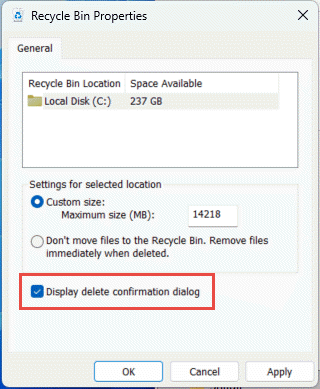
การตั้งค่านี้ไม่ได้ป้องกันการลบถาวร เช่น เปลี่ยน + ลบ หรือการลบข้อมูลจากไดรฟ์ที่ไม่มีระบบถังรีไซเคิลรองรับ
6.3 การตั้งค่าไฟล์ให้ข้ามถังรีไซเคิล (และเหตุผลที่ควรหลีกเลี่ยง)
เหมือน อย่าเคลื่อนย้ายไฟล์ไปยังถังรีไซเคิล ลบไฟล์ทันทีเมื่อถูกลบ ตัวเลือกที่ครอบคลุมใน 6.1 มาตรา สามารถใช้กับไดรฟ์ใดก็ได้เพื่อให้การลบทุกครั้งเป็นการลบถาวร การทำเช่นนี้จะเพิ่มพื้นที่ว่างในดิสก์ทันที แต่จะลบตัวเลือกการกู้คืนอย่างรวดเร็วเพียงอย่างเดียวที่คู่มือนี้อธิบายไว้ ดังนั้นจึงควรใช้กับไดรฟ์ที่ไม่มีไฟล์ส่วนตัว เช่น ไดรฟ์สำหรับไฟล์ชั่วคราวหรือไดรฟ์สำหรับเก็บข้อมูลชั่วคราวโดยเฉพาะ
7. แนวทางปฏิบัติที่ดีที่สุดในการป้องกันการสูญเสียข้อมูลในอนาคต
7.1 เปิดใช้งานประวัติไฟล์หรือโซลูชันการสำรองข้อมูล
ถังรีไซเคิลป้องกันการลบโดยไม่ตั้งใจเท่านั้น ไม่ป้องกันการลบในกรณีที่ฮาร์ดไดรฟ์เสียหายหรือถังรีไซเคิลถูกล้างไปแล้ว สามารถเปิดใช้งานประวัติไฟล์ได้ที่ (แผงควบคุม -> ระบบและความปลอดภัย -> ประวัติไฟล์)

หรือเครื่องมือสำรองข้อมูลจากผู้ให้บริการภายนอกจะเพิ่มการป้องกันอีกชั้นหนึ่งด้วยประวัติเวอร์ชันของตัวเอง
7.2 ใช้การซิงค์ข้อมูลบนคลาวด์สำหรับโฟลเดอร์สำคัญ
การซิงค์เดสก์ท็อป เอกสาร และรูปภาพไปยัง OneDrive หรือบริการคลาวด์อื่นๆ จะทำให้คุณมีถังรีไซเคิลบนเว็บดังที่ได้อธิบายไว้ใน 4.3 มาตรา เป็นช่องทางการกู้คืนเพิ่มเติมที่ไม่ขึ้นอยู่กับถังรีไซเคิลในพื้นที่
7.3 ตรวจสอบอีกครั้งก่อนนำขยะไปทิ้งในถังรีไซเคิล
ก่อนคลิก ว่างเปล่าถังรีไซเคิลเรียงลำดับตาม วันที่ลบ และสแกนหาข้อมูลล่าสุด เมื่อล้างข้อมูลหมดแล้ว ทางเลือกเดียวที่เหลืออยู่คือซอฟต์แวร์กู้ข้อมูลโดยเฉพาะ แต่ก็ไม่รับประกันว่าจะกู้ข้อมูลได้สำเร็จ
8 คำถามที่พบบ่อย
ถาม: ฉันยังสามารถกู้คืนไฟล์ได้หรือไม่หลังจากล้างถังรีไซเคิลแล้ว?
A: ไม่ใช่การลบผ่านถังรีไซเคิลโดยตรง ในขั้นตอนนี้ ไฟล์จะถูกทำเครื่องหมายว่าถูกลบในระดับระบบไฟล์ แต่ไฟล์นั้นอาจยังคงอยู่บนไดรฟ์จนกว่าจะถูกเขียนทับ เครื่องมือต่างๆ เช่น... DataNumen Data Recovery เครื่องมือเหล่านี้ถูกสร้างขึ้นมาเพื่อสแกนและกู้คืนข้อมูลประเภทนี้ หยุดใช้งานไดรฟ์โดยเร็วที่สุดเพื่อเพิ่มโอกาสในการกู้คืนข้อมูลได้สำเร็จ
ถาม: Mac มีสิ่งที่คล้ายกับถังรีไซเคิลของ Windows หรือไม่?
A: ใช่ มันเรียกว่าถังขยะ และวิธีการใช้งานก็เหมือนกัน คือ เปิดถังขยะ คลิกขวาที่ไฟล์ แล้วเลือก "นำกลับมาใช้ใหม่" คู่มือนี้จะกล่าวถึงถังรีไซเคิลของ Windows โดยเฉพาะ และ คู่มือนี้ ครอบคลุมถึงถังขยะของ Mac โดยเฉพาะ
ถาม: ไฟล์จะอยู่ในถังรีไซเคิลนานแค่ไหนก่อนที่จะถูกลบโดยอัตโนมัติ?
A: ถังรีไซเคิลในเครื่องไม่มีการจำกัดเวลาตายตัวโดยค่าเริ่มต้น รายการจะถูกลบออกก็ต่อเมื่อถึงขีดจำกัดขนาด หรือเมื่อ Storage Sense ถูกตั้งค่าให้ลบรายการเก่า (ดูเพิ่มเติม) 6.1 มาตราถังรีไซเคิลของ OneDrive บนเว็บใช้ระยะเวลาที่กำหนดไว้ตายตัว คือ 30 วันสำหรับบัญชีส่วนตัว และสูงสุด 93 วันสำหรับบัญชีที่ทำงานหรือโรงเรียน (ดูเพิ่มเติม) 4.3 มาตรา).
ถาม: ฉันควรกู้คืนไฟล์ไปยังตำแหน่งเดิมหรือไปยังตำแหน่งใหม่ดี?
ก: การคืนสู่ตำแหน่งเดิม (2 มาตรา) ง่ายกว่าและรักษาเส้นทางเดิมของไฟล์ไว้ กู้คืนไปยังตำแหน่งอื่น (3 มาตรา) แทนที่จะใช้โฟลเดอร์เดิมหากโฟลเดอร์นั้นไม่มีอยู่แล้วหรือมีไฟล์ชื่อเดียวกันอยู่แล้ว
ถาม: ฉันสามารถกู้คืนไฟล์ที่ถูกลบจากแฟลชไดรฟ์ USB โดยใช้ถังรีไซเคิลได้หรือไม่?
A: โดยปกติแล้วจะไม่มี แฟลชไดรฟ์และการ์ด SD จะไม่มีโฟลเดอร์ถังรีไซเคิล เว้นแต่คุณจะเปิดใช้งานด้วยตนเอง ตามที่อธิบายไว้ใน 4.1 มาตรา.
ถาม: ทำไมตัวเลือก "กู้คืน" ถึงเป็นสีเทาหรือหายไป?
A: โดยปกติแล้วสาเหตุเกิดจากโฟลเดอร์ต้นฉบับหายไป หรือดัชนีถังรีไซเคิลไม่ตรงกัน โปรดดูรายละเอียดเพิ่มเติม 5.3 มาตรา เพื่อแก้ไขปัญหา
ถาม: ถ้าถังรีไซเคิลว่างเปล่า แต่ฉันไม่เคยล้างมันเลยล่ะ?
A: ฟังก์ชัน Storage Sense, ขนาดพื้นที่จัดเก็บข้อมูลที่ถึงขีดจำกัด, บัญชีผู้ใช้อื่น หรือการตั้งค่า Group Policy สามารถล้างข้อมูลดังกล่าวโดยอัตโนมัติได้ โปรดดูรายละเอียดเพิ่มเติม 5.5 มาตรา.
ถาม: มีโปรแกรมใดบ้างที่สามารถกู้คืนไฟล์ที่ไม่อยู่ในถังรีไซเคิลแล้ว?
A: ซอฟต์แวร์กู้ข้อมูลโดยเฉพาะ เช่น DataNumen Data Recoveryโดยจะสแกนไดรฟ์ในระดับที่ต่ำกว่าเพื่อค้นหาข้อมูลที่ระบบไฟล์ไม่ได้อ้างอิงถึงอีกต่อไป ซึ่งเป็นสิ่งที่อินเทอร์เฟซถังรีไซเคิลไม่สามารถทำได้
ถาม: การกู้คืนไฟล์รับประกันหรือไม่ว่าไฟล์จะเปิดได้อย่างถูกต้อง?
A: ไม่ การกู้คืนไฟล์จะนำไฟล์กลับไปยังโฟลเดอร์เท่านั้น ไม่ได้แก้ไขความเสียหายใดๆ ที่เกิดขึ้นกับไฟล์ก่อนหรือระหว่างการลบ โปรดดูข้อมูลเพิ่มเติม 5.6 มาตรา.
9 ข้อสรุป
การกู้คืนไฟล์ที่ถูกลบจากถังรีไซเคิลนั้นทำได้ง่ายตราบใดที่ไฟล์นั้นยังอยู่: เปิดถังรีไซเคิล ค้นหาไฟล์ และกู้คืน แต่หากใช้ไดรฟ์ภายนอก แชร์เครือข่าย และโฟลเดอร์ที่ซิงค์กับ OneDrive จะมีเงื่อนไขเฉพาะของตนเอง ซึ่งส่วนการแก้ไขปัญหาและการกำหนดค่าด้านบนจะครอบคลุมสถานการณ์ที่กระบวนการกู้คืนมาตรฐานไม่ได้ผลตามที่คาดหวัง หากไฟล์ถูกลบอย่างถาวรหรือถังรีไซเคิลถูกล้างไปแล้ว ขั้นตอนต่อไปคือการใช้ซอฟต์แวร์กู้คืนข้อมูลโดยเฉพาะ ไม่ใช่การใช้ถังรีไซเคิลเอง
เกี่ยวกับผู้เขียน
เฉียน กัว เป็นผู้เชี่ยวชาญด้านการกู้คืนข้อมูลที่มีประสบการณ์มากกว่า 10 ปีในระบบไฟล์ Windows เทคโนโลยีการจัดเก็บข้อมูล และโซลูชันการกู้คืนจากภัยพิบัติ เขาได้ให้คำแนะนำแก่ผู้ใช้หลายพันรายเกี่ยวกับสถานการณ์การสูญเสียข้อมูลที่สำคัญ ทั้งในระดับบุคคลและองค์กร
เฉียนมีความเชี่ยวชาญด้านวิธีการกู้คืนข้อมูล Windows การวิเคราะห์ระบบไฟล์ และกลยุทธ์การสำรองข้อมูลเชิงป้องกัน ประสบการณ์ภาคปฏิบัติที่กว้างขวางของเขารวมถึงการกู้คืนข้อมูลจากไดรฟ์ การใช้งานโซลูชันการสำรองข้อมูลที่ครอบคลุม และการแก้ไขปัญหาที่ซับซ้อนของระบบไฟล์ NTFSรวมถึงไดรฟ์ข้อมูลแบบ FAT, exFAT และ ReFS เขามีประสบการณ์ในการทำงานกับเครื่องมือและเทคนิคการกู้คืนข้อมูลหลากหลายรูปแบบ ตั้งแต่ยูทิลิตี้ในตัวของ Windows ไปจนถึงซอฟต์แวร์กู้คืนข้อมูลระดับมืออาชีพ
ด้วยงานเขียนเชิงเทคนิคของเขา Qian ทุ่มเทให้กับการเสริมสร้างศักยภาพให้ผู้ใช้ด้วยความรู้เชิงปฏิบัติเพื่อปกป้องและกู้คืนข้อมูลอันมีค่าของพวกเขา เขาติดตามความก้าวหน้าล่าสุดในเทคโนโลยีการกู้คืนไฟล์ Windows นวัตกรรมอุปกรณ์จัดเก็บข้อมูล และแนวปฏิบัติที่ดีที่สุดในการปกป้องข้อมูล เมื่อไม่ได้ช่วยเหลือผู้ใช้ในการกู้คืนไฟล์ เขาก็จะใช้เวลาว่างไปกับการช่วยเหลือผู้ใช้เหล่านั้นost fileนอกจากนี้ เฉียนยังชื่นชอบการค้นคว้าเทคโนโลยีการจัดเก็บข้อมูลที่กำลังเกิดขึ้นใหม่ และการแบ่งปันเคล็ดลับด้านความปลอดภัยของข้อมูลเพื่อป้องกันการสูญเสียข้อมูลในอนาคต
มีคำถามเกี่ยวกับคู่มือนี้หรือต้องการความช่วยเหลือในการกู้คืนข้อมูลหรือไม่? เฉียนยินดีให้ความช่วยเหลือ ข้อเสนอแนะและข้อเสนอแนะ เพื่อปรับปรุงแหล่งข้อมูลการกู้คืนข้อมูลเหล่านี้ให้ดียิ่งขึ้น